Android on Smartphone:
Samsung Galaxy Note 10 Lite
- Krita 5.0.2 (64 bits Arm CPU APK)
- Some UI cut off on screen but can be moved around
- S-Pen button, pressure and tilt all work
- S-pen Actions don’t work
- Everything else works
Android on Smartphone:
Samsung Galaxy Note 10 Lite
I have a Samsung Galaxy S7 tablet (running Android 12 now) with SPen. The pen works nicely in Krita (good pressure and tilt.) However, the button on the pen sometimes works to bring up the popup palette and sometimes it won’t. It’s tricky.
Edit: with 5.1.0 the pop-up palette works nicely. I still have my SPen button set to call up the Actions but I just dismiss that and do what I want with the palette (same goes for the reference tool).
On Windows 10, I use my old trusty Wacom Intuos 4. Works as intended. 
On my side :
Krita 5.0.6
XP Pen 15.6 PRO
Mac Book Pro
I haven’t seen anyone mention any tablets or the drivers from Gaomon so I’ll put the info for the one I use with Krita:
Reguarding the overall functions with the Drivers, Tablet and Krita itself, Huion’s keydial and the driver for non-Huion devices works as per Huion’s intentions. The “settings preview” button pops up the layout of the buttons on the screen of my laptop, not the screen of the drawing tablet. All of the buttons and keydial work as intended and have not found any issues reguarding the interactions between the keydial, its driver, the tablet and Krita. The drivers for the Gaomon Tablet I own is a different mess; the driver Gaomon_Windows_Driver_16.0.0.37 does allow Krita to operate on the tablet however there is a offset to the left between the mouse cursor and where the actual pen is. I have calibrated the tablet multiple times, searched around the internet, the manual of the tablet and have used the offset settings within Krita itself however the offset is still pretty bad at approximentally 1/2" to the left. When I use the driver Gaomon_Windows_Driver_v14.8.133.1259, the offset problem is not as bad and when it does happen, the built-in calibration system within the driver removes it although towards the edge of the tablet screen the cursor and pen dosen’t always respond or update correctly. The shortcut keys on the tablet and the pen all perform as they are suppossed to.
That is what the information I have gathered throughout my time over the last few months using both the tablet and Krita.
Regarding the right mouse click problem. No idea what it’s doing this. Right-mouse click works normally in all other applications. I ended up changing the shortcut for the pop-up palette and just changed what the button on the pen does. Problem solved.
Android
ONN 8" Android Tablet (Walmart store brand)
No pressure sensitivity but still works well with Krita 5.1 and 5.2 pre-alpha. Great for sketching on the go.
I have made the first post as wiki, I think people can edit it now. @tiar let me know if you need any other tweaks.
Updated first Wiki message with Huion Inspiroy H950P working on GNU/Linux.
WACOM Cintiq 22HD (no touch)
Windows 7.0
Krita 5.1.3
Can we add SonarPen to windows support? driver is here > www.sonarpen.com/windows
unable to commit to wiki so i will put it here

I can’t edit the post either. I don’t have all the details, but for all devices I was using:
Windows 11 22H2, WinTab, Krita 5.x, latest Huion drivers. I briefly tested Windows Ink and it seemed to work, but I think there was a delay sometimes too, as kolloom mentioned above.
In case someone finds it useful, Kamvas models are a bit blurry, especially when cold and I think it’s especially bad on the 4K model. Also the refresh rate is 60Hz, which can be a bit distracting if you switch from a high-refresh monitor.
You should be able to edit the wiki as I have kept the minimum trust level to edit the wiki same as your trust level. I added your submission to the wiki now.
I hope I filled the survey correctly
Without the Wacom driver installed, nothing in the tablet works. After installing the driver from Wacom’s site, everything works perfectly.
SonarPen
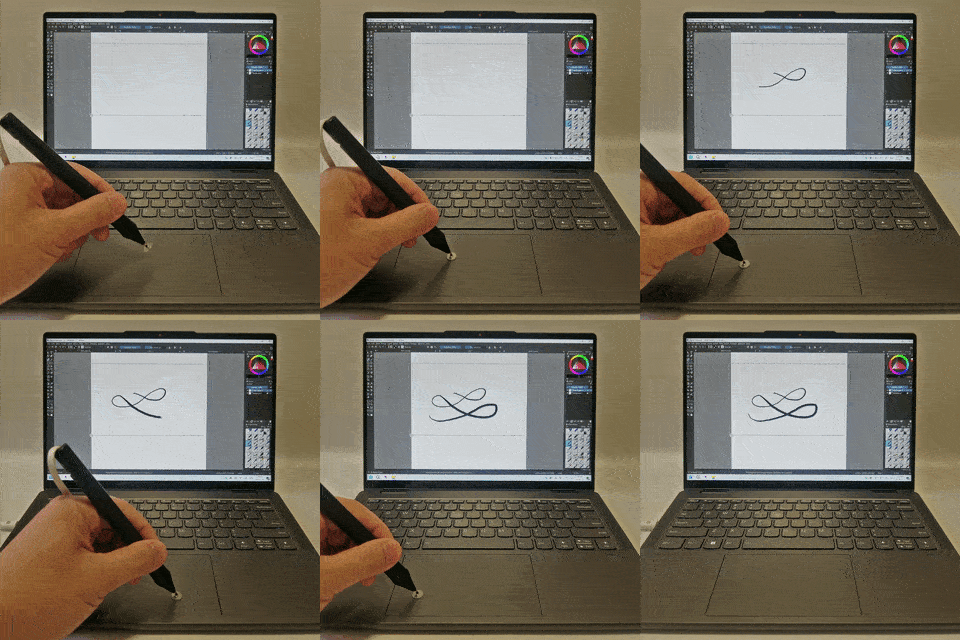
The SonarPen draws on Windows Tablet / notebook touchscreen like any other active stylus.
For notebook computer without touchscreen, when the SonarPen driver is enabled, the touchpad becomes a small pen tablet. All the strokes drew on the touchpad by SonarPen will be projected onto an onscreen overlay window and forward to the drawing app canvas under it.
Gnome does not support Huion tablets well, so I use the official driver. And it looks nice.
Linux Mint 20 I had problems with my Huion, had to write a script to keep the huion pen “set to” the monitor.
Linux Mint 21.1 Cinnimon is what I am using now, I have a Huion 22 Kamvas it was a simple breeze, it was easy to just set the monitor pen to “only” use that monitor ( since I use 2 monitors )
Ia also did not have to adjust pressure, or anything, it worked smoothly and perfectly, I’m pleased with this version of mint 