Thank youuuuuuu!!! c:
1 Like
Sorry for the late reply. Thanks so much for helping me!
1 Like
Was having trouble with understanding how to import the bundles in and this made me realize I was trying to import it from the wrong place! Thank you so much
1 Like
These are so good! Thank you so much for sharing! 
1 Like
Where would I find the “bundle file” ? Ive downloaded the file twice and unzipped it but wasnt able to locate the bundle file.
Thanks in advance.
Depending on the display preferences of your OS, probably Windows 11, the bundle file that you have downloaded was perhaps renamed to the file name extension ZIP which is wrong, and that although factually bundles are a special kind of ZIP file. Another possibility is, that through their structure they are given the description ZIP compressed folder (or something like that, I usually don’t use that illness called Explorer), which doesn’t change their file name extension that you are probably unable to see right now.
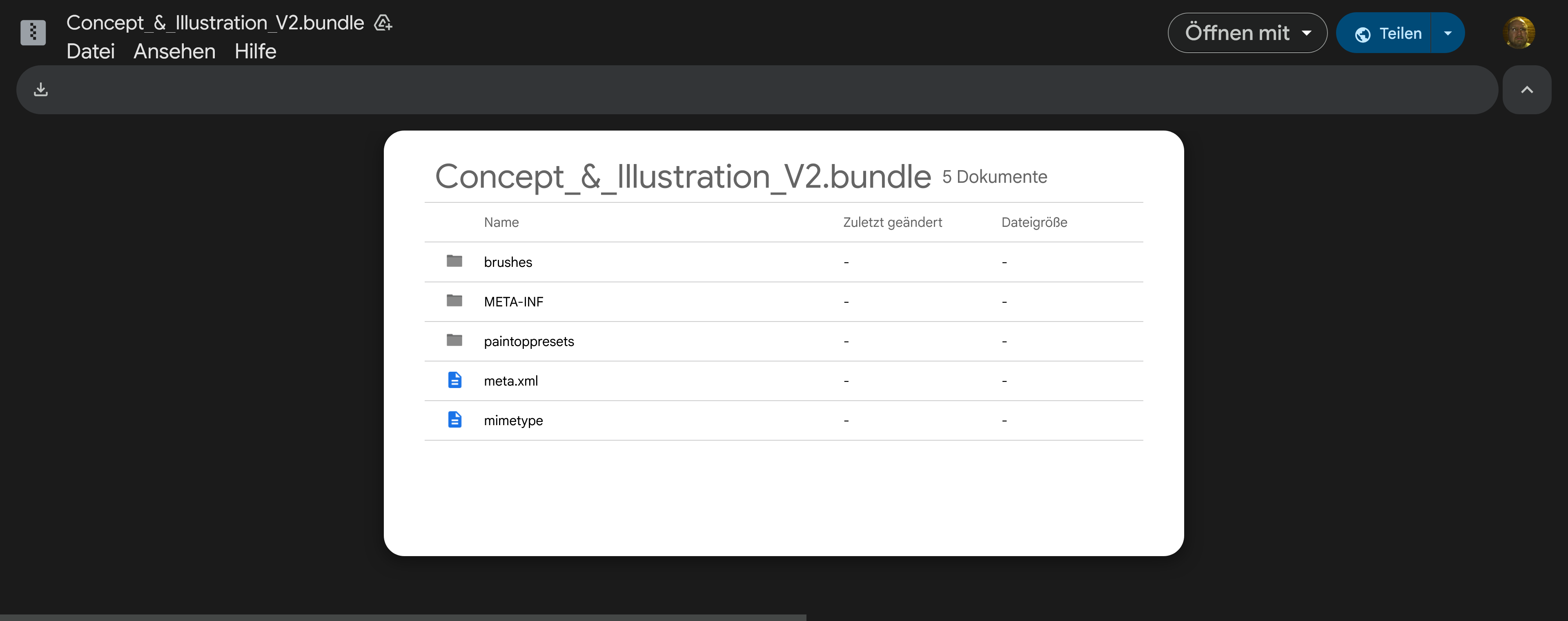
As you can see, even the download page shows that you’ll download a bundle and not a ZIP file! So, you already downloaded the bundle, but your OS may have treated it erroneously.
So if you change the file name extension from ZIP back to BUNDLE, you should be able to import it.
Your next issue usually will be that your Explorer doesn’t display the file name extensions, which is one main reason for users not knowing what they do because they can’t even see what they are doing. So, assuming you are using the Explorer in Windows 11, you have to set at least the two hooks in Explorer where the arrows in the screenshot point to, to enable you seeing the file name extensions. →
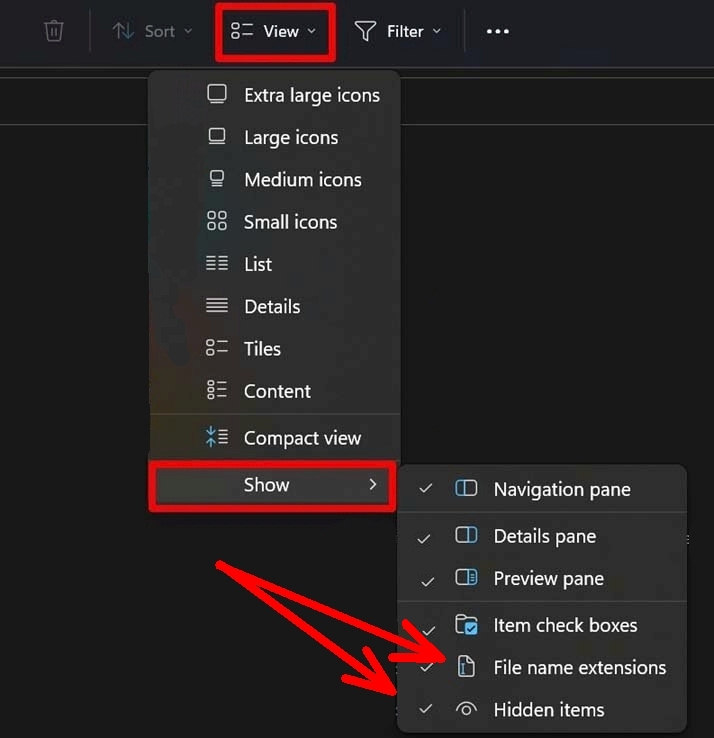
After doing that, you’ll suddenly see a lot of files and folders you never before saw, as well as that your files file names suddenly show a so-called file name extension, which is the only measure that will make working with some kind of files possible in the first place, like Krita’s settings file kritarc, which has no file name extension at all, but Windows forcefully would add one if you can’t see the extensions, which would make Krita ignoring it and leads to support requests.
So, if you use Windows (11), you now should be able to see if it has the correct file name extension .bundle and if not you have to rename the file Concept_&_Illustration_V2.zip to Concept_&_Illustration_V2.bundle and can now import it via:
A bundle is installed in Krita via the menu ‘‘Settings’’ >> ‘‘Manage Resource Libraries…’’ and in the opening dialog you have to click the button + Import in the next dialog browse to the downloaded bundle, select it and confirm the selection. Now Krita imports that bundle, and you can use its content, so the brushes in case of this bundle.
In case this BUNDLE comes in an archive-file, like ZIP or RAR for instance, then you have to unpack the archive to get the BUNDLE-File it contains, then you can proceed as described above.
If you use a different OS or have further questions, then answer the standard questions you should already have answered with this support request of you above:
What is your OS, and which version it is?
Which version of Krita are you using?
From where you got your copy of Krita? Krita’s homepage, Steam, Apple, Epic or Microsoft Store, Android App Store, repository, Flatpak, snap, RPM, etc.?
Then briefly state what your issues are, where you are stuck. Describe them in a way that a person that doesn’t see and know what you see and know about your issue is able to understand your issue. We often get answers that have no usable information in them, try avoiding that.
Thank you!
Michelist
1 Like
Thank you for share
2 Likes