Hello,thanks for the feedback. I’m not familiar with that OS but i will look into the issue.
1)Does the plugin work if you start the program with admin rights?
2)Does the plugin work(without admin rights) if you just simply copy the image into the folder and then simply choose the image that way without using the “Open image file…” function?
Hi ,
- when I start the program using “sudo open ./krita.app” (which I guess is starting the program with admin rights) I have the same problem, the Plugin runs but when I click on “Open image file…” it gives me a popup message “Exception occurred:…”
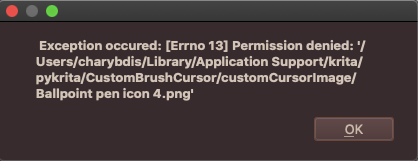
them when I click on O.K.
Another message…
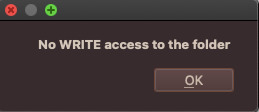
this happens with whichever folder I try to load an image from…
All my other programs have no problems , loading images from these folders.
And I do have Read & Write Permissions.
- I’m not quite sure I understand “if you just simply copy the image into the folder and then simply choose the image that way without using the “Open image file…” function?”
Which Folder? How do I simply choose the image?
1.) That’s weird. I’m not sure what might be the problem in this case.
2.) In the first picture where the program displays the exception - the program stores the plugins under '/Users/charybdis/Library/Application Support/krita/pykrita/ folder.
This plugin can be found there as well.
So when you download and install the plugin,it will be copied there.
The images that are used for the cursor are stored in the folder called “customCursorImage”. The script simply displays(as small icons) and uses(for the cursor) the image files stored in this folder. Therefore you can manually just copy an image file of your choice into this folder and it will be displayed along the others when you activate the plugin. As a workaround this should work until i can think of something to solve permission issue.

The plugin window should look like this. By default there are 8 images provided and are displayed and you can choose between them just by clicking on one.
hi, sorry, how do i download it from github? i can’t see the option :c
Click the green <>Code button → Download ZIP then import into Krita following the steps written here:
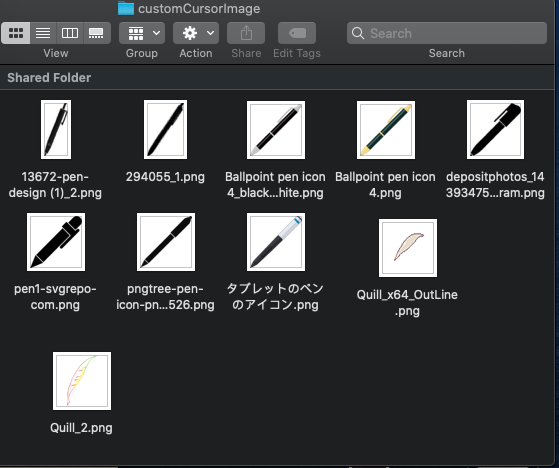
Ok, I added a image to the “customCursorimage” folder and it did appear along with the defaults (why they are appearing now I don’t know) unless by putting an image in the folder , some permissions or something change but even so, when I select one it doesn’t change the actual cursor of the tool I’m using.

Also, as you will undoubtedly notice, some images have become black silhouettes of themselves, I think this was caused by me double clicking on them a few times…
Does it matter in preferences>General>Cursor>Brush Cursor Icon: which it is set to?
Oh…
Excuse me, they’re “black silhouettes of themselves” because the images themselves are mostly black and due to the “custom theme” I’m using, they are consequently hard to see. Sorry about that.
I didn’t notice because they stand out quite clearly when I put my own image in the “customCursorimage” folder.
However, to reiterate, when I choose one in the Plugin running in Krita, the actual cursor of the tool I’m using doesn’t change to the image I’ve selected.
Hey artsy you still need help?
Thank you for updating your plugin @TengriKhan!

Michelist
1 Like
This plugin is amazing, thank you so much TengriKhan for making it!
Now my transition from photoshop is way easier.
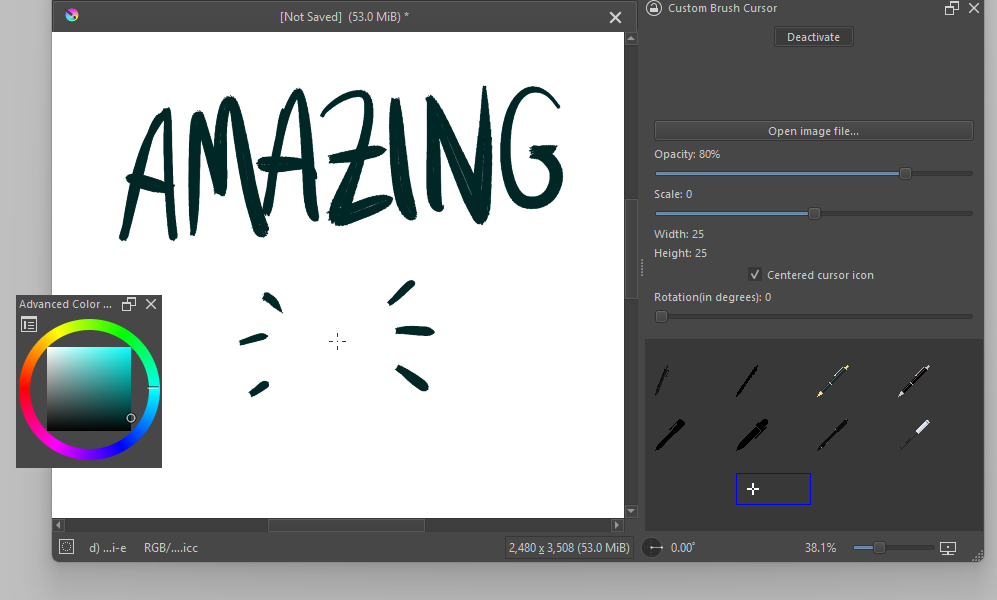
The only downside is that I have to re-Activate it every time I open Krita, select my custom cursor (at least it’s there along with the others and I don’t have to load it again) and make all the modifications I need.
Am I doing something wrong? (It’s like it is not saving my settings)
My Krita’s version is the 5.2.9 and I’m on Windows 11.
1 Like
Yes, the plugin is a bit barebones at the moment and i understand it’s inconvenient that settings are not saved because it’s not implemented yet. I would like to implement all functionality first - hopefully without bugs - then focus on the GUI and settings as GUI needs some work to make it more dynamic.
Can’t promise a timeframe for these.
Thank you so much for this! As someone with hand eye coordination issues along with color vision issues I keep struggling with the cursers. Now I can set it as something that works for me. This would be a really cute option for streamers/video makers too!
3 Likes
Ooh I see, no problem! It’s understable 
I’ll wait and keep an eye if you need testers.
1 Like
@TengriKhan: Thank you for updating!
Michelist
1 Like
Any additional core functionality that could be useful? I was thinking about using real-time tilt values for skew/distortion on the cursor icon but doesn’t seem to be that much useful overall. And pen rotation isn’t widespread enough for some reason so yeah…
Otherwise i’ll start making the GUI more dynamic,want it to work almost entirely the same as the “Brush Presets” docker as i really don’t like the amount of space the docker takes up compared to its simplicity.
1 Like
PNG crosshair plis
1 Like
Hey,updated the plugin. Now it saves the settings. Please re-download and see if it works correctly.
Just realized it currently only saves the settings when the plugin itself is turned off with the button first and not when the program is closed without turning off the plugin,whoops 
2 Likes
hai uhh, sorry i just installed the plugin, how do i possibly edit the cursors out if possible..? i’m uh, not rlly the smartest when trying to set my stuff up in general so i believe it’d be a little better if there was an explanation, thank you so much for the plugin! <:3
if not, i believe i’d like to have Gimp’s cursor put in, i believe it looks sweet to work with if that’s okay, thanks again! c:

I’m not sure if i understand this. Edit out the cursors?
Also you can add your own cursors with the plugin’s “Open image file” button. Browse to the image of the cursor (with transparent background) and when opened it should appear in the list.
I’m not sure if Gimp cursor icons are readily available to be used.
1 Like