No, we’re using the Intensity mode. As we said it’s for making the white background inside the group stay transparent when we turn off(visibility) the halftone filter to check the value picture. But we realized, from you mentioning multiply blending mode, that setting the group layer to multiply can make this structure simpler. Thanks.
So the final would be :
Group Layer (Mode : Multiply, Pass Though : Off)
└ Filter Layer (Halftone(Intensity))
└ Paint Layer (Where we paint values)
└ Paint Layer (White background)
We apologize that we didn’t clarify this purpose of the behavior at first : ‘Free to edit the tone values with quick brushworks anytime by having the filter to take both color and alpha into the account, without putting or affecting anything further.’ We thought it was too basic and almost thought the current behavior was a bug tbh.
Summing up, so far it seems using filter layer is the only way to achieve this clean, because other options have problems :
Method 1 - It doesn’t take color into the account.
Method 2 - It requires painting on an opaque white layer.
*We forgot to mention in the picture we posted, that one more negative of painting on an opaque white layer for halftone mask is that, the filter(mode:intensity) would just lower the opacity instead of reducing the particle sizes when you softly erase any of the layer purposely to lower the ‘tone strength’, not actually to lower the opacity.
Now we have found a way to achieve the result(using filter layer) and the way doesn’t overburden our PC, we think it’s all good for now. But we still think it’s better to implement the behavior internally.
Maybe we can discuss this later again. Thanks for taking time to engage.
If you use intensity mode then you can also set the opacity of the background in the halftone filter to 0 instead of using multiply to achieve the same result. This way you could make the dots (foreground) have any other color without them changing color due to the multiply blending mode, but for black and white I guess it is the same.
We think we understand the point but again, the reason we don’t use the built in background removal is for making the white background inside the group ‘stay’ transparent when we turn off(visibility) the halftone filter to check the value picture.
Yeah yeah, I meant just your last setup with the white layer in the group but using the built in background in the halftone, just as a method to use if someday you want to use another color for the halftone.
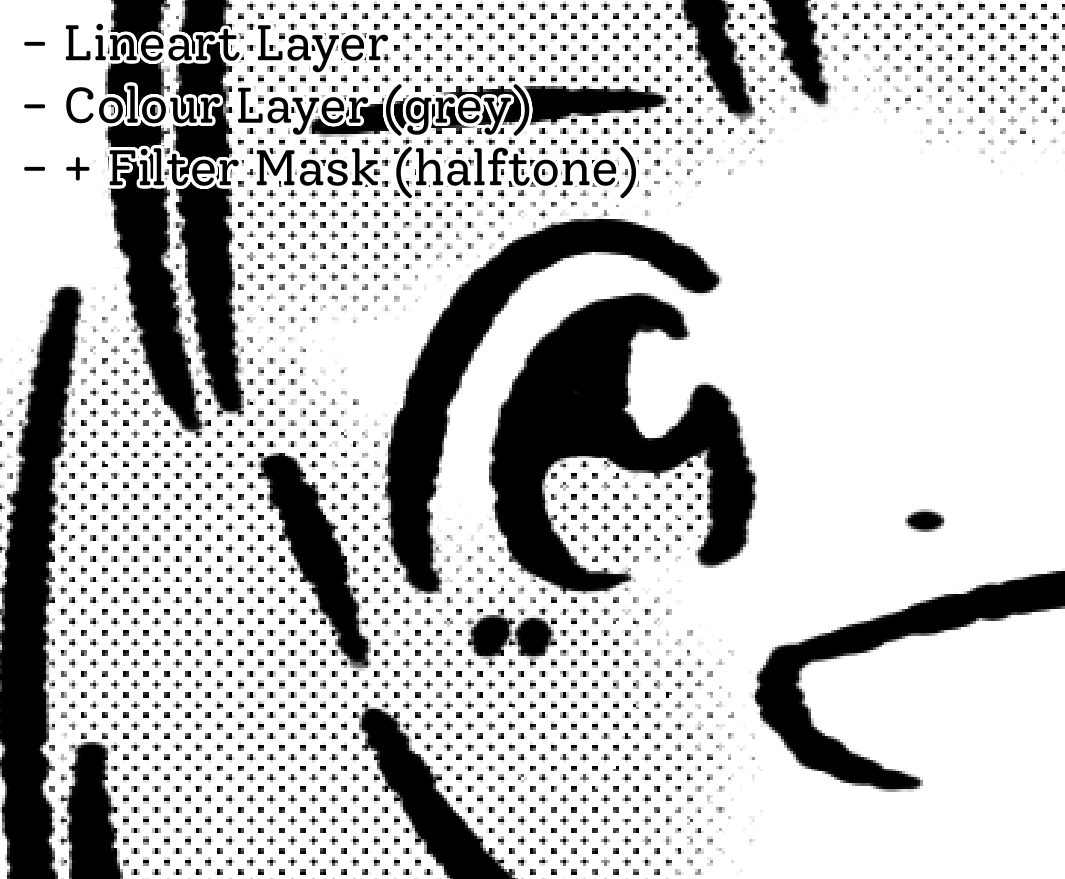
I found another workaround for the screentone which will show pure black/white pixels based on intensity instead of opacity. With this method, you don’t have to paint in white layer, you can just paint from the default blank layer and still get the intended effect.
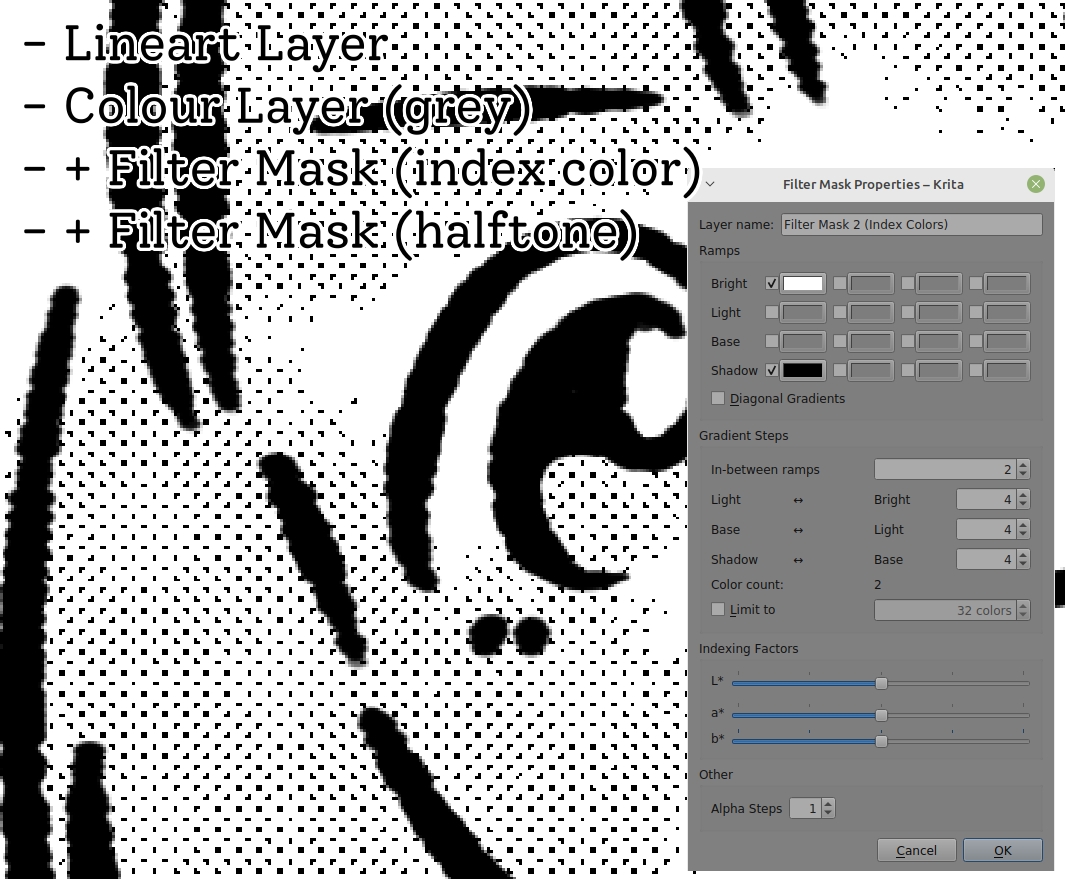
This converts all of the grey/half-transparent pixels into white colour.
We can stop in this step and it already shows the intended result.
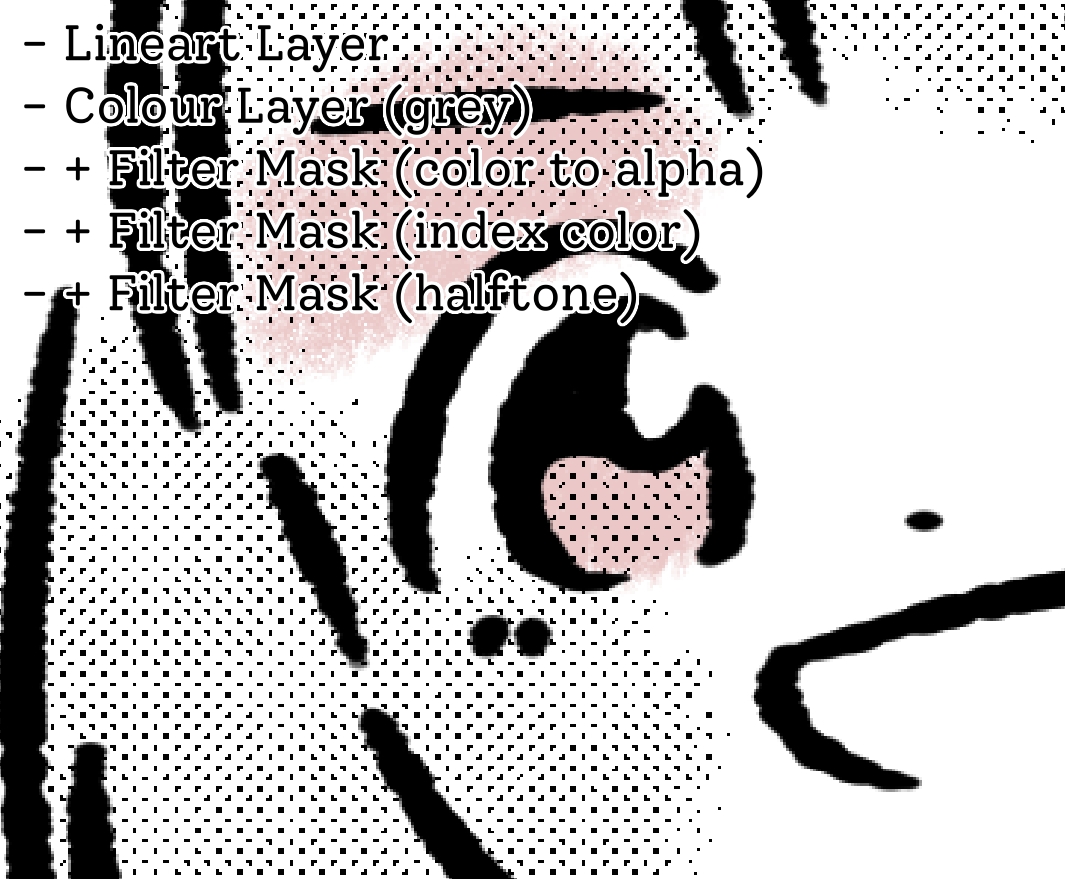
But there are some unwanted white specks on the coloured layer, which will be visible if you paint under that layer.
In that case, we can do the cleanup by using this Step 4: Apply Filter Mask (color to alpha) on that same layer too
So now the white specks that used to be grey/half-transparent, is now purely transparent and we can safely colour under it without the unnecessary dirt from the screentone effect leftovers.