 Hello @John_doedoe and welcome to the forum!
Bathing your PC display in extremely hot water to shrink it?
If you at least had named your OS … If you call a workshop for support for your car’s brakes that broke on a highway, don’t you tell the workshop which make and model it is?
Considering you are using Windows¹, because most Windows users tend to believe there are no other operating systems, you need to enter your %LOCALAPPDATA% folder, that is where Krita stores most of its settings, and there, at the very end, below all folders (even below the one named krita), you will find some files with krita in their filename from which one is the file kritarc, this is the file you need to edit or delete, depending on your abilities in handling text-only settings files.
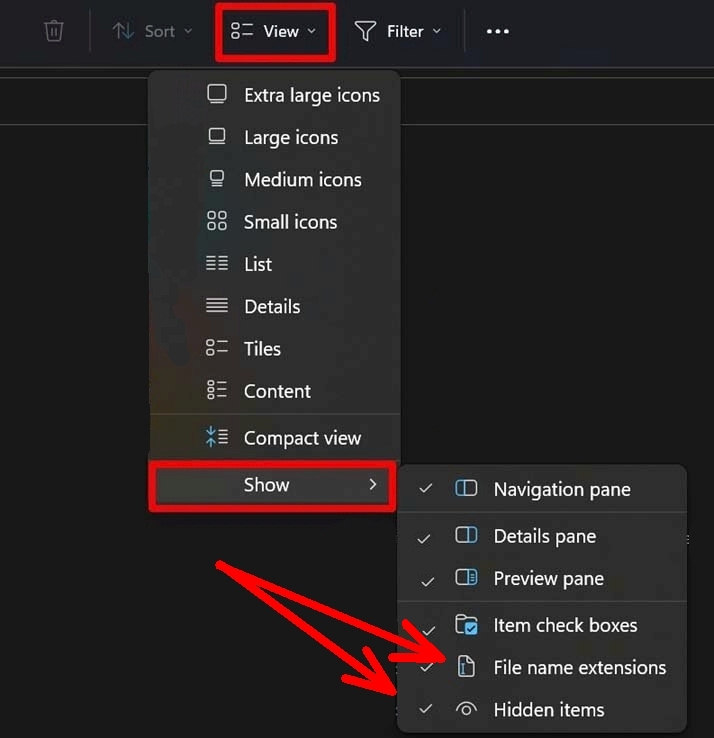
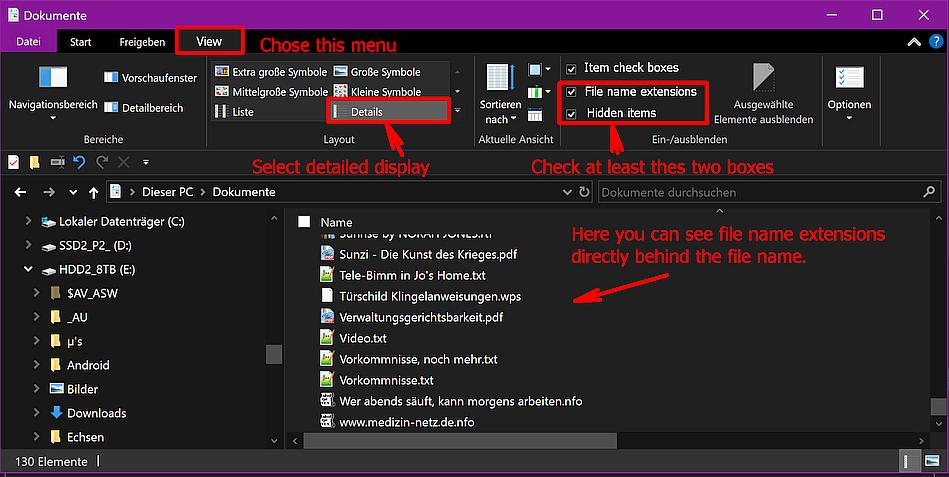
Before you can begin, you need to set up your Explorer in a way that allows you to see hidden files and folders as well as hidden file name extensions, because if you don’t, you won’t be able to save made settings to the edited kritarc (at least not with Windows 11). This is, because Windows knows what is good for you.  And at least the freaks in Redmond believe that former sentence is true!
By the way, if you want, you can revert these settings after you made the changes to your kritarc.
For Windows 11, you need to set at least the last two hooks where the arrows point at:
For Windows 10, you should set these options:
So, to reach that folder, you need to enter %LOCALAPPDATA% into the address bar of your Explorer and hit Enter, this will open a folder with the name local, there you have to scroll way down to the very end. Now you have to decide, do you want to edit this file, that will preserve nearly all other changes you made to Krita’s UI, or to delete it and let Krita rebuild it from scratch, so you get a factory fresh UI.
If you want to edit it, you can use Notepad or a good editor like Notepad++ and have to search for the term custom_font_size, there you need to change the ridiculously high number you entered there back to 9, which is the standard setting, or maybe to 12 or 14, which for most computers seems to be a sane setting.
After editing it, you have to save it, and if you did not make the settings to your Explorer suggested above, at least Windows 11 will save the file under a name that Krita doesn’t know, and you won’t even see it happen because it is hidden. We already had users that got insane about the fact they didn’t believe this to be true. And we got insane, because we thought with the claimed settings it must have worked for these users - until they admitted they didn’t do what we asked them to do.
Michelist
¹ And if you are not using Windows, I’m back tomorrow.