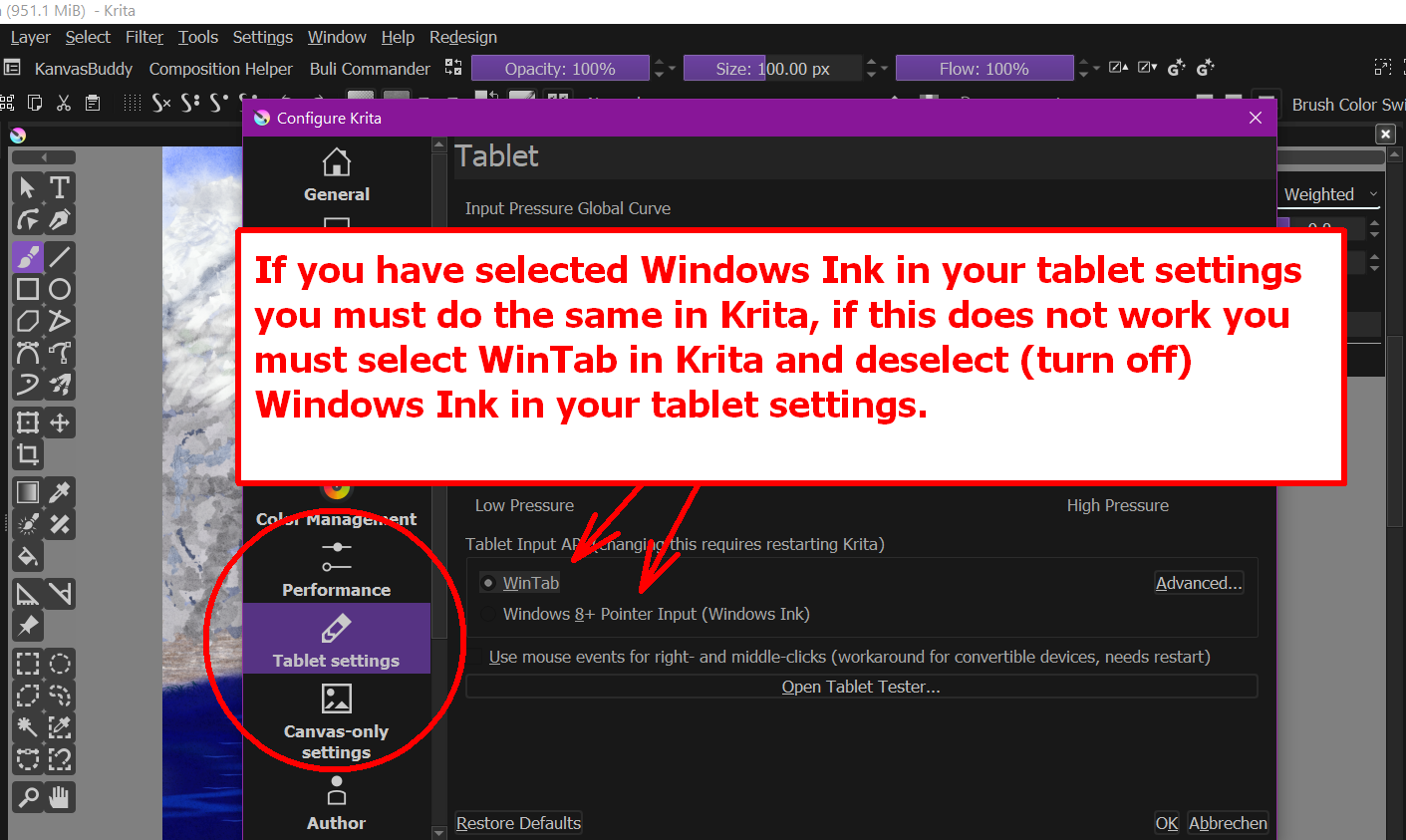
In addition to @Takiro, I would like to add that you can find the relevant settings in Krita under ‘‘Settings’’ >> ‘‘Configure Krita’’ >> ‘‘Tablet Settings’’ and select either ‘‘Windows 8+ Pointer Input (Windows Ink)’’ or ‘‘WinTab’’, depending on which setting you select in your Huion driver.
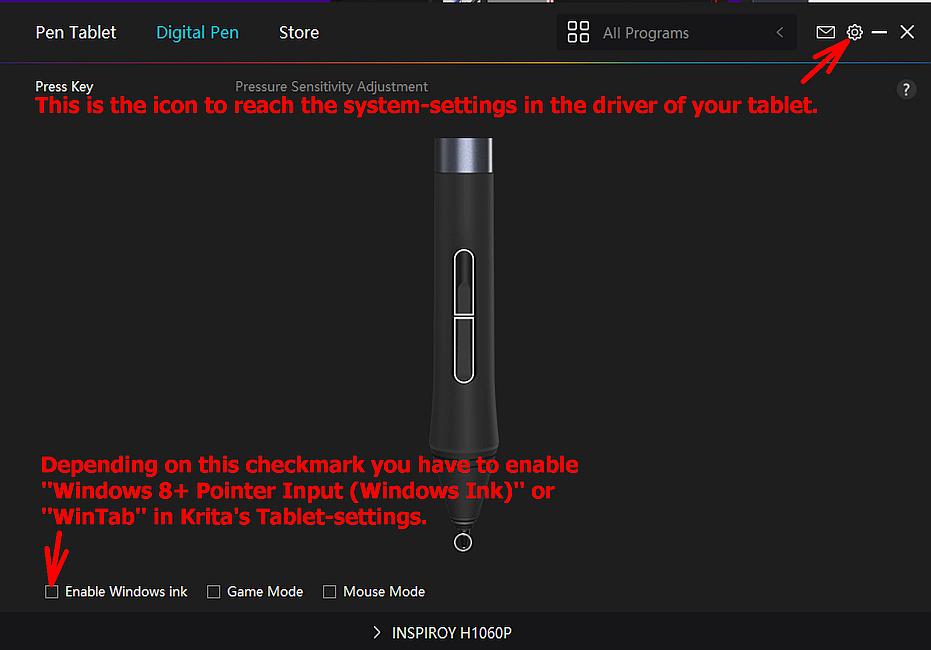
If ‘‘Enable Windows Ink’’ is checked in the driver, then ‘‘Windows 8+ Pointer Input (Windows Ink)’’ must be selected in Krita, this setting must be confirmed in Krita with OK, and I myself always restart Krita afterward.
If you select ‘‘WinTab’’ in Krita, you must uncheck ‘‘Enable Windows Ink’’ in your driver.
Furthermore, until recently, it was often necessary to grant administrator rights to the Huion driver in order to ensure full functionality in all “operating modes”.
This setting was located in the driver’s system menu, which can be accessed via the stylized gear icon in the top right of the title bar of the driver interface, and if I remember correctly it can be found there in the General tab. If you do not see a request to grant administrator rights when starting the driver, it is worth trying to grant the driver administrator rights there.
If you are asked to grant administrator rights when starting the driver, you already have the latest driver, which no longer requires this.
This should be familiar to you:
These are the relevant settings in Krita, they have to correspond with your driver’s settings:
Michelist