A while ago I shared InkBalloon here, a plugin focused on creating and editing comic speech balloons inside Krita.
Since then, I’ve continued working on the project and recently added a new tool: Comic Page Manager.
The goal is gradually building a complete comic workflow inside Krita, helping artists spend less time managing files and more time creating comics.
Current features include:
InkBalloon
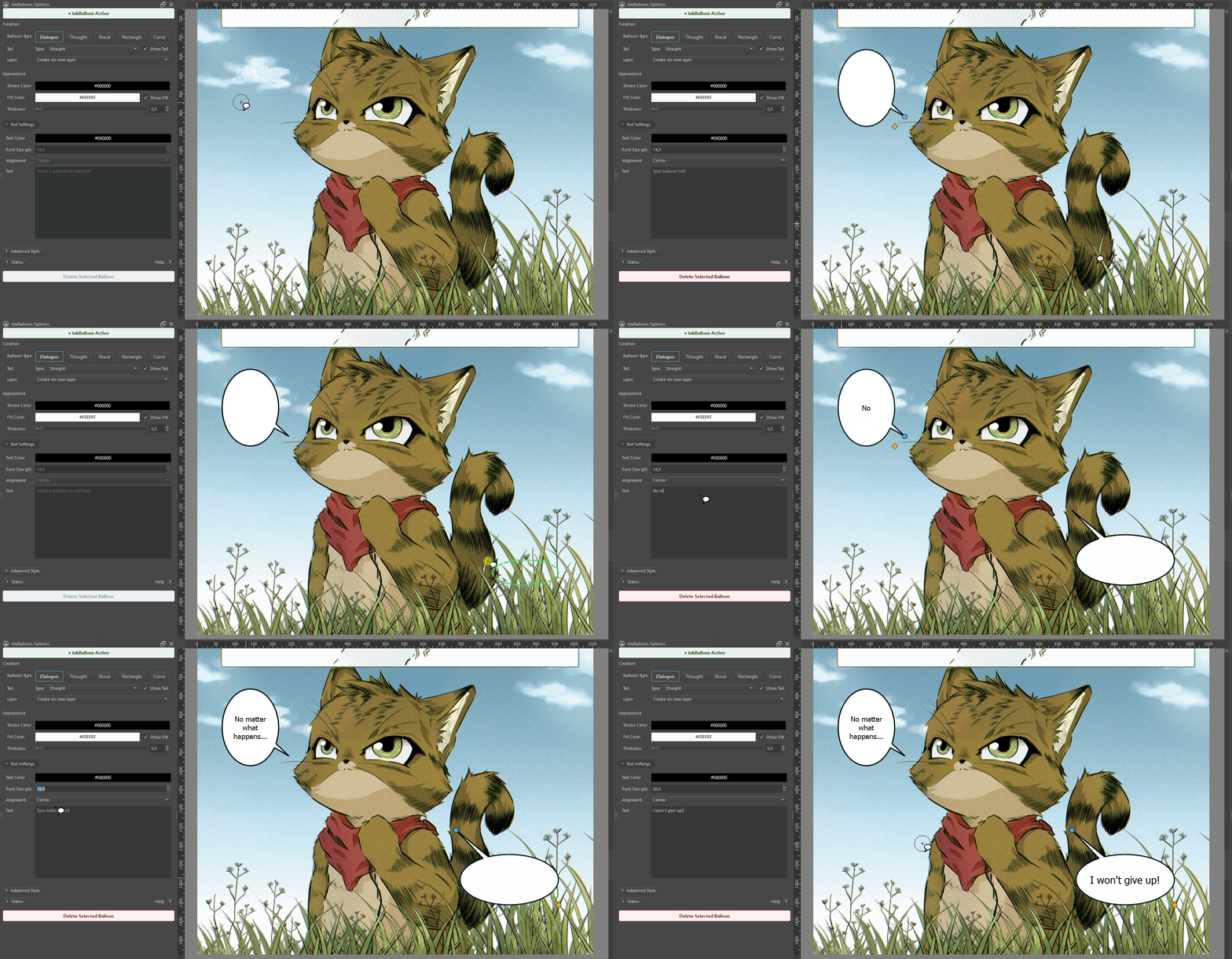
Dialogue, Thought and Shout balloons
Editable balloon shapes
Straight, Polyline and Spline tails
Move, resize and reshape balloons
Custom colors and fonts
Automatic text fitting
Comic Page Manager
Chapter organization
Page management
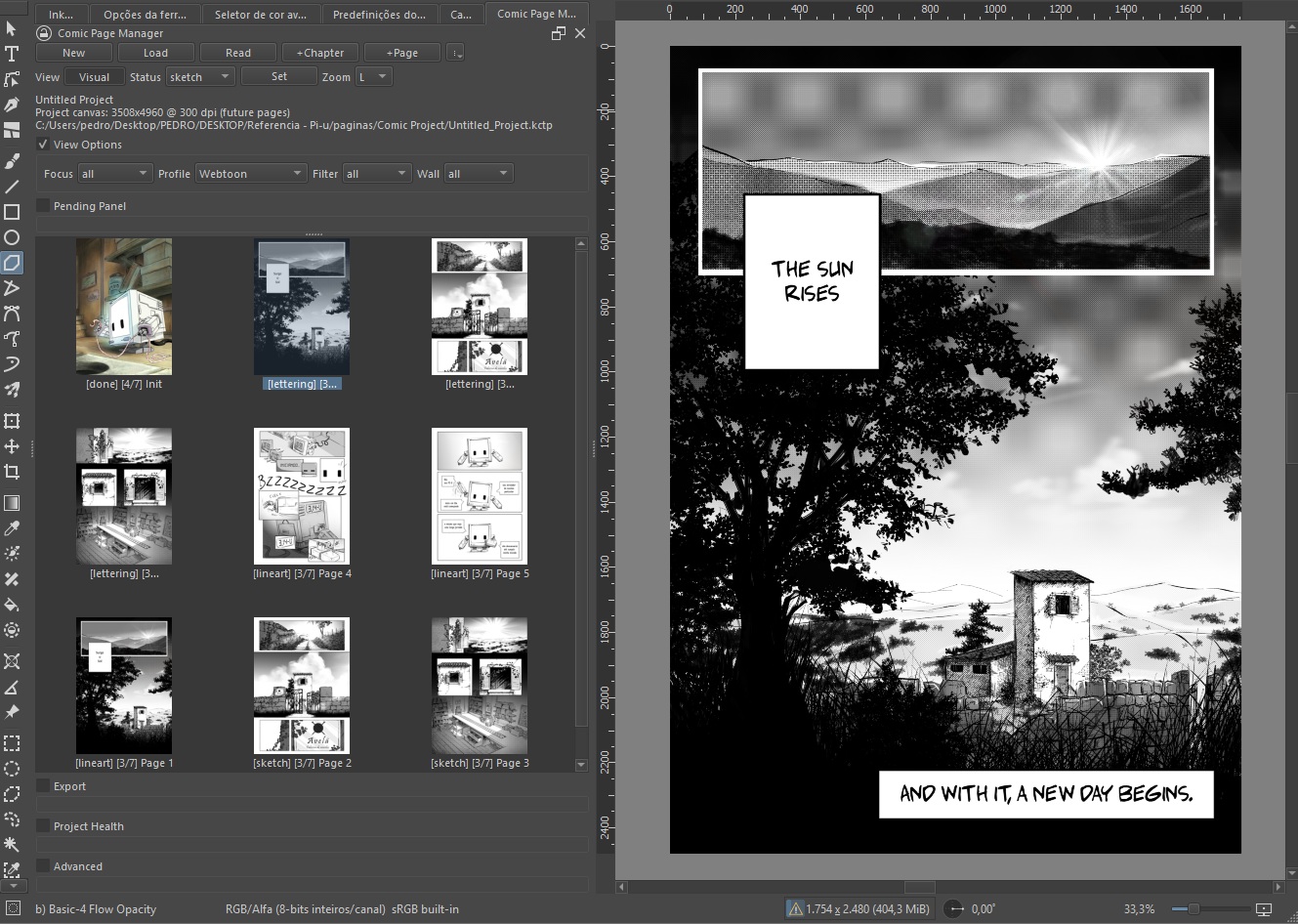
Visual page thumbnails
Quick page navigation
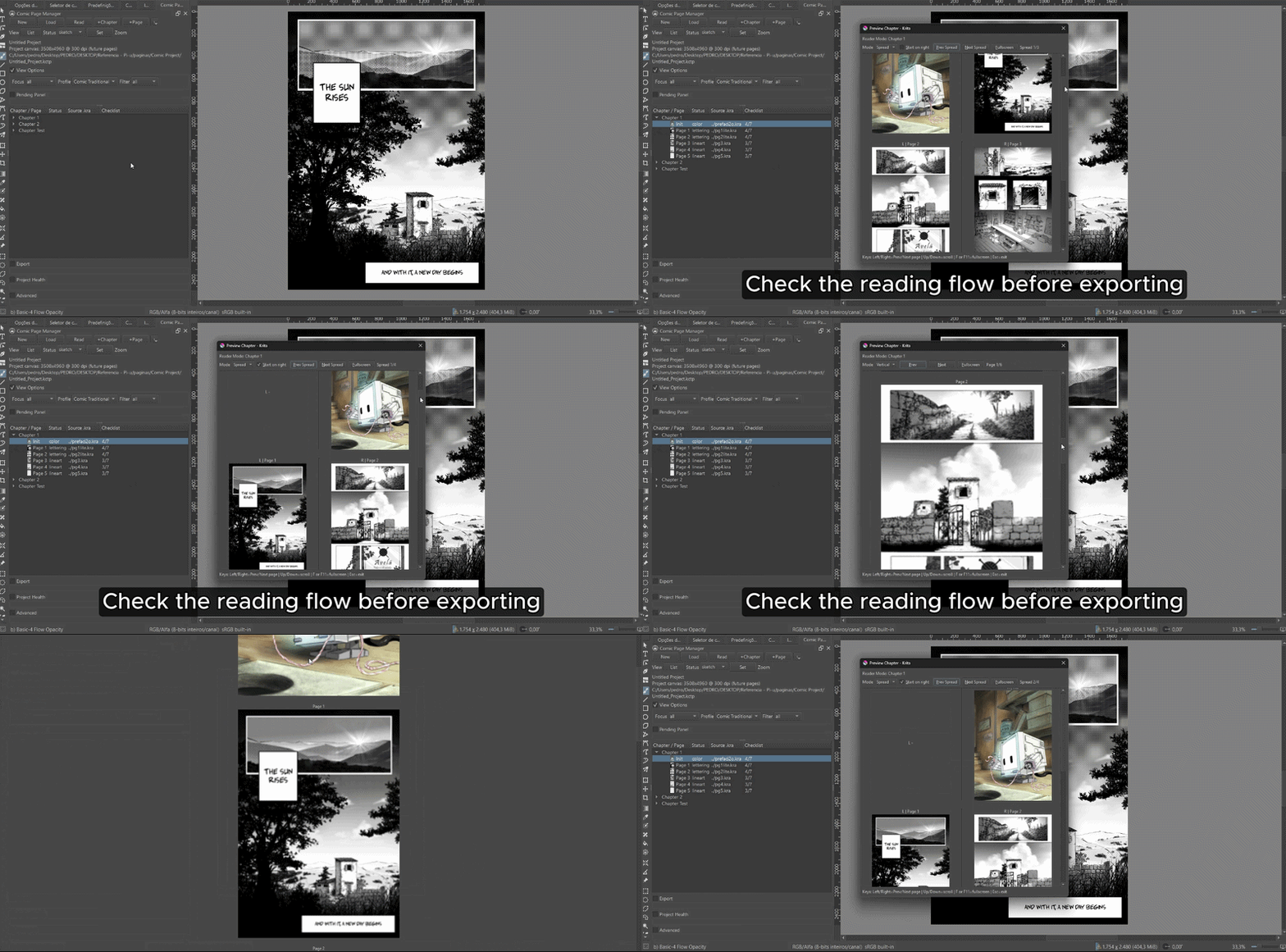
Reading preview directly inside Krita
One of the most interesting additions has been the reading preview, which allows reviewing comic flow without constantly exporting files or opening external readers.
I’d love to hear feedback from comic creators and Krita users:
What parts of your comic workflow still feel difficult inside Krita?
What features do you feel are currently missing?
What would make comic production smoother for you?
I’m especially interested in hearing from people creating manga, webcomics and long-form comic projects.
How interesting and exciting! Though Krita already supports to preview comic pages inside the software, it’s always fine to have more way to check the details!
I’m now drawing comic by Krita, and what confuses me is about the cross-page. Though I can create a template with the size of cross-page, the default preview will always take the cross-page size file as a single page. Not only the preview becomes awful, the pages after the cross-page will also be in the wrong places. I do want a function to mark a cross-page file as “cross-page”, then I can have a right preview!
At the moment Comic Page Manager focuses mostly on page organization, navigation, thumbnails, and reading preview, but proper cross-page support is something I’ve been thinking about as well
Being able to mark a file as a double-page spread and have the preview place it correctly in the reading flow would definitely make reviewing comics much easier. It could also help avoid the page order issues you mentioned
Thanks for bringing this up — feedback like this is exactly why I’m sharing the project early. I’ll add it to my list of ideas for future versions
I’m looking into alternative distribution options as well. In the meantime, feel free to send me a private message and I’ll see if we can find another way to get it to you
Ahh that’s great! I’ve already thought of a new feature… I usually design the early story on paper. Therefore, when I turn to Krita, I’ve already known the pages I need roughly. I’d prefer to have a function to automatically create empty pages with the needed number instead of creating them one by one!
And in fact, I’m a Chinese user. Though I could read EN, I do want have a translation in other languages! That would enhance my willing of paying for your kit(even if you use translator, I’d be really appreciated with your effort.)
The feature to create multiple empty pages at once is actually something I was already planning to add. I agree that it would make the workflow much smoother for artists who already have their chapter structure planned before starting in Krita
Regarding the language support, that’s a very good point. The plugin is currently available only in English, but I’m considering providing translated versions in the future. A more complete multilingual system is also something I’d like to add as the project grows
And thank you for letting me know that language support would make the tool more appealing to you. Feedback like this helps me decide what improvements should be prioritized next
I had decided to move to Krita and start working on comics, even though I hadn’t taken that step before for several reasons.
Although they added some helpful features that were good, I saw your addition and I really needed it.
I accessed the extension link and found it costs money. I don’t mind buying it if it’s to support you, but if it’s just a trial version and might be developed later, and I have to pay again for the improved version, I’d rather wait. (I am unemployed and don"t have a stable income at the moment. )
I don’t have any suggestions at the moment since I haven’t fully explored Krita to see what I really need (I just hope it supports my language). Maybe later I’ll know what I need.
Thank you! I’m really happy to hear that the tool looks useful for your workflow.
And don’t worry, this is not a trial version. The current version is fully functional and I’m actively improving it based on user feedback and my own comic workflow.
Also, if you buy it, you’ll receive future updates and improvements at no extra cost. In fact, the recent Comic Page Manager update was released as a free update for everyone who had already purchased InkBalloon.
I completely understand your situation, so there’s no rush. Feel free to keep following the project, try Krita, and see whether the tool fits your workflow. As new features are added, existing customers will continue to receive them without having to buy the product again.
As for language support, that’s something I’m looking into as well. If enough users are interested, I’d love to make the tool accessible in more languages in the future.
It’s a small paid project because it takes time to develop and maintain, but I try to keep the price affordable and all future updates are included for existing users
I’m also actively working on new features to make it more valuable over time
Hello again. I purchased the plugin but I have no idea how to install it on Krita.
I want to clarify that this isn’t the first time I’ve added content; I’ve added brushes and other things before. I’m using Linux. Do you have a method? Please let me know.
If it is a standard Krita plugin then you should be able to import it into Krita according to the steps in my template:
Plugins are installed in Krita by clicking on “Tools” >> “Scripts” >> “Import Plugin from File”, in the opening dialog select the file you just downloaded, and click on OK to confirm the selection, then confirm Krita’s message(s) till Krita says that the plugin is installed and restart Krita. Usually your plugin is now usable.
In the case you misclicked or had deliberately chosen to not activate the plugin while installing it, you have to search it in Krita under ‘‘Settings’’ >> ‘‘Configure Krita’’ >> ‘‘Python Plugin Manager’’ and activate it by setting a checkmark in front of it.
You have to confirm that setting with the “OK”-Button and restart Krita again to be able to use the plugin.
There are different ways but I don’t describe them here because they would provoke additional help requests from those who always have to try everything without having understood anything.
Thank you very much for your plugin i can’t wait to try it !!
I have also one question about your plugin and the fact it’s for sale. If it’s very useful and is appreciated by users, is it still possible that one day it merges with Krita even if today it is for sale ? (i assume your plugin is not open-source). For example, the comic manager tool was an optional plugin at the beginning.
That’s an interesting question! At the moment, the plugin is an independent project and is not open-source. I’m developing it separately from Krita and funding its development through sales
Could some of the ideas eventually inspire future Krita features? Of course. Krita has a long history of community contributions and good ideas finding their way into the software over time
For now, however, my focus is on continuing to improve the plugin and adding features that help comic creators work more efficiently inside Krita
Hello again, thanks for the method. I did not know that I had to open it in a different way than the one I know (I was trying to download the add-on, such as Brushes, but it did not work for me)
I tried the InkBalloon add-on and it was good, although I had difficulty understanding how to use it (it later turned out that I had to press a big button in front of my face in order to add a bubble ) and I have many suggestions.
Yellow color: This is an addition, and this is what I had, which is excellent
Red color: What I made myself later after I tried the addition
Green color: the type of addition I need + the ability to combine two bubbles like the black one I designed
Blue color: When I was experimenting with enlarging the font, I discovered that if I moved away from the bubble, the letters would disappear (I don’t know if it would have an independent effect or not, but I would like to point out)
This is due to the addition of InkBalloon
As for adding a manga page manager, there is no comment because I have not tried it
I’m sorry but I don’t understand how to use it
If it is true, I did not know how to transfer the pages that I had drawn . I hope that there are short videos that explain everything (it is important that it is short and does not have the ability to watch a clip with a long explanation, and it would fail to have a translation feature. )


 (I am unemployed and don"t have a stable income at the moment.
 )
)


 )
) ) and I have many suggestions.