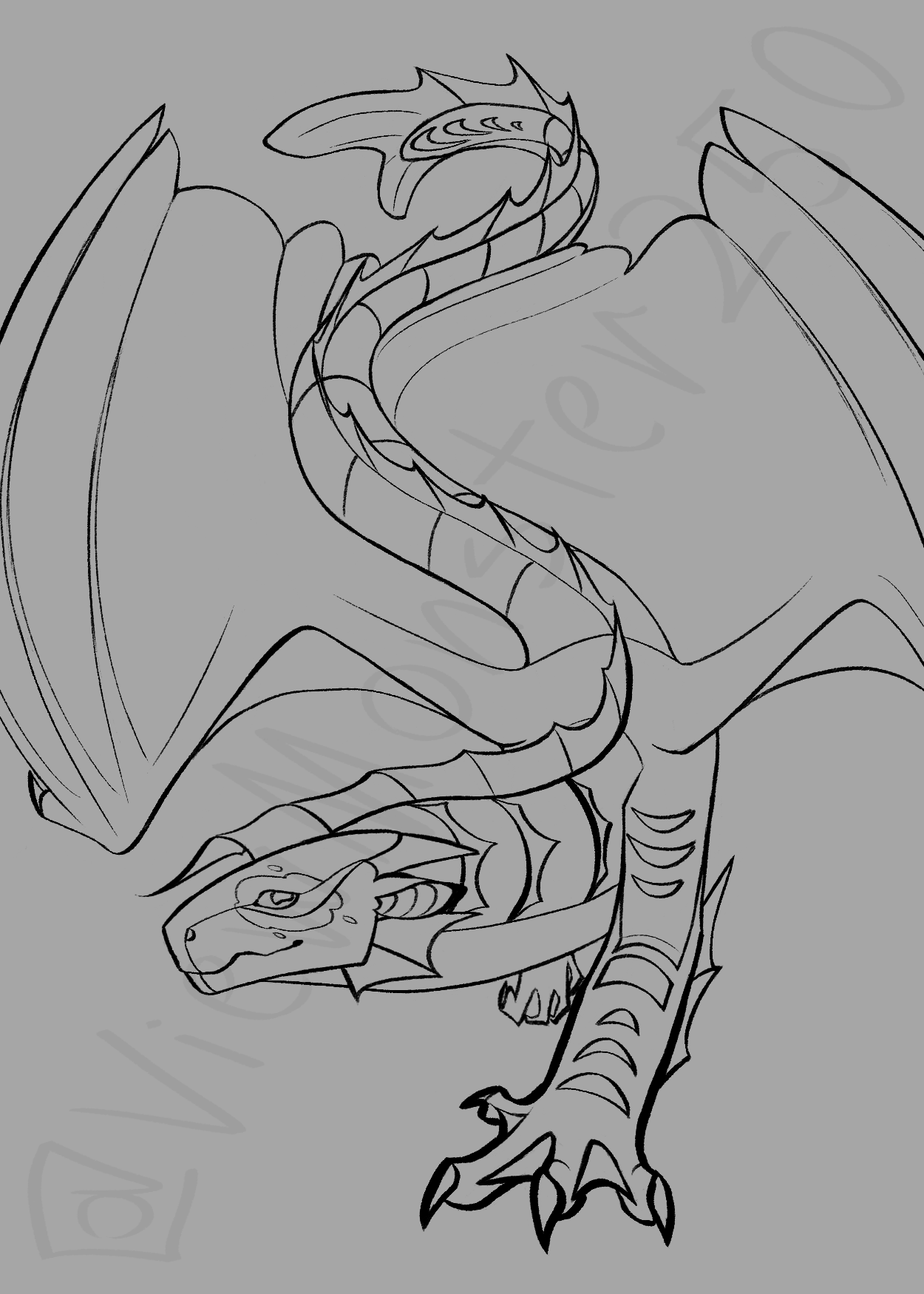
I’ve been using this bundle for a while now, absolutely in love w/ it ! especially the good line square + fade alt brush  ︎
︎
3 Likes
Hi, I really like the look of these brushes, and I tried to install the package, but it doesn’t show up in the Resources section or under Krita’s default brushes. It says the package is installed, but I can’t use it… so I don’t know what to do, especially since I haven’t had any problems installing other packages, idk what to do
 Hello @Shuichii, and welcome to the forum!
Did you restart Krita twice after import to update the database?
Michelist
Where are the brushes? I downloaded this now and imported it as usual, and almost as always, these bundles don’t appear in the list.
Which brushes are in this bundle so I can at least try to find their names?
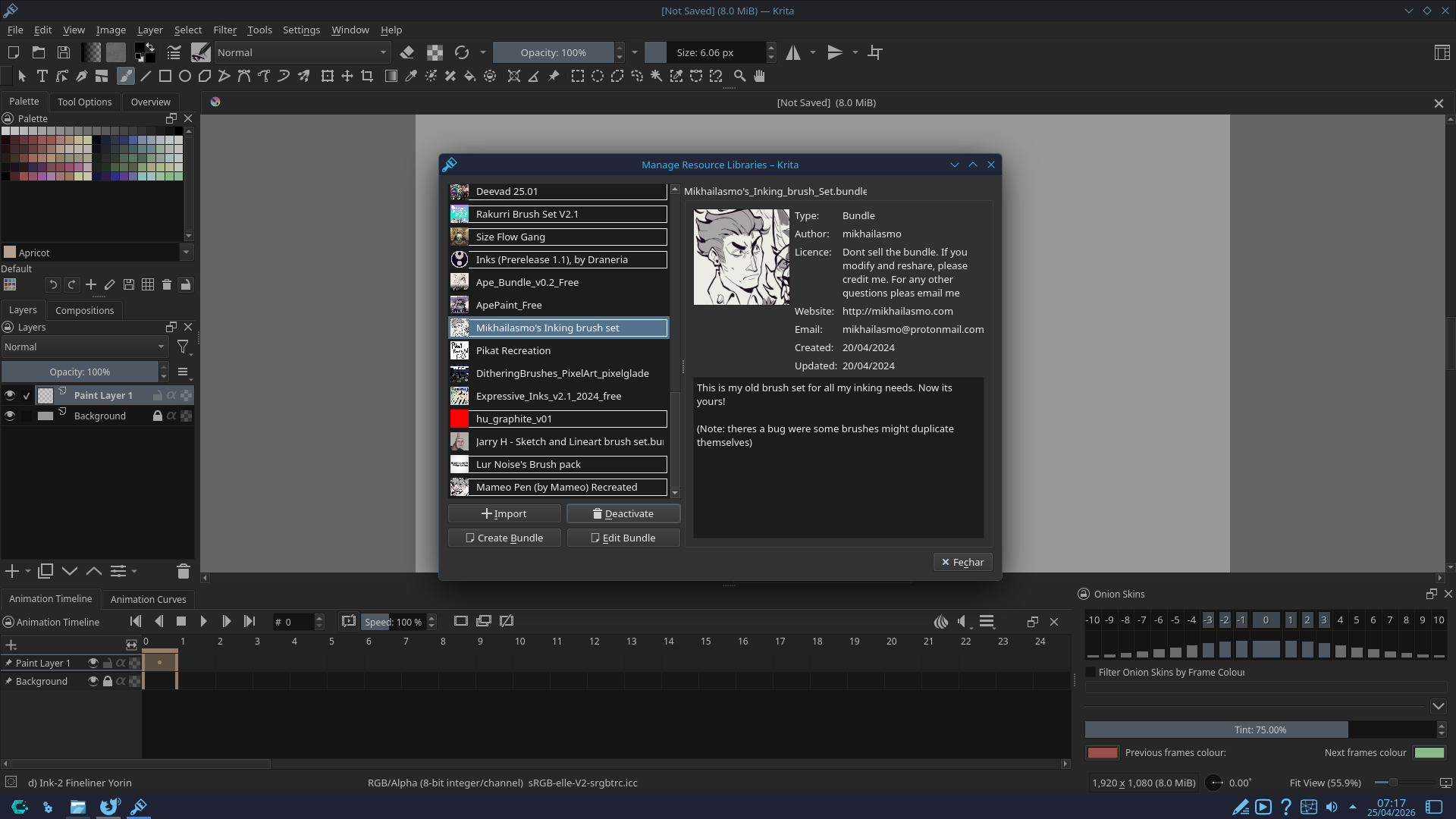
Restart Krita twice if you can’t see resources after you imported them.
And then, in principle, it is so simple, if you would know your Krita well:
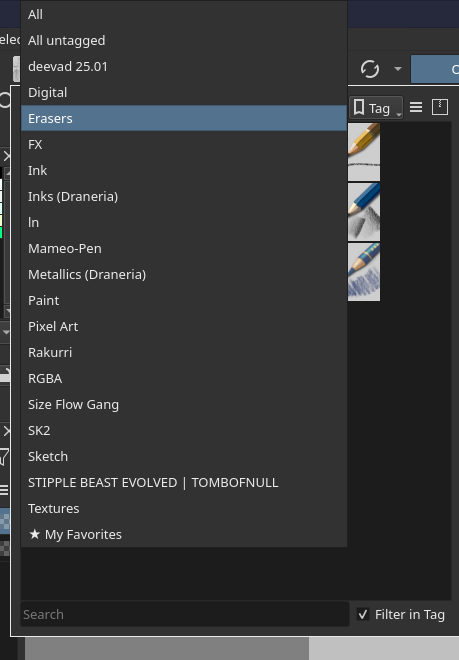
So, in Krita’s menu Settings open the dialog Manage Resources..., in the second drop-down menu scroll down to the very end and select the just imported bundle, now the presets are shown to you if the first drop-down menu is set to show Brush Presets.

There you can directly go and tag your imported resources if they shouldn’t have tags to identify them quicker in the future.
Michelist
Thank you!
Yeah i tried but…nothing happen
Then the only thing that I know is to delete your resource database, then Krita will rebuild it completely including all resources it finds in your resource folder. If you have tons of resources imported so far, then it can happen that Krita gets stuck while rebuilding the database, then you have to terminate Krita with your task manager and start it again. With my maximum installation which holds nearly every resource I ever downloaded for Krita I sometimes have to terminate two or three times, but it holds over 600 bundles/11,000 brush presets and so much more.
The file name of the database is resourcecache.sqlite and you will find it via Settings > Manage Resources... where you then have to click on the button Open Resource Folder, there you have to scroll down below the folders to find it, but you must terminate Krita to be able to delete this file, as long as Krita runs the database is locked.
Michelist
I made an account for this site just to tell you how much I love these brushes. “The good line” & its variations are absolutely amazing!
2 Likes