I clicked on the button you created in the toolbox…whether I press TAB or your button…it doesn’t matter, both don’t work with the display/function
1 Like
Could you please add pixel numbers and numeric values to the Opacity and Size sliders, similar to how Krita’s default sliders work? Also, Would it be possible to include a minimal mode where only the sliders are visible, hiding all other icons and options?
1 Like
I can though it would be a little tricky to replicate krita’s sliders completely but I can add numbers right under sliders themselves that would be too hard. Though I’ve decided against adding those when doing initial design because it’s kinda cluttering the ui and procreate(which I was replicating to an extent) havent had these slider values ether.
Correct me if I got it wrong but you want to have only sliders visible on a toolbox, right? If so, yes, I can add such an option though it would and another button to the ui which is kinda cumbersome unless I’ve come up with a more elegant solution 
2 Likes
An elegant solution? That means ? It’s ready soon and we can do part?
Well, I’m thinking about how to address these suggestions so I cant promise any specific timeline but I hope to get to it in coming weeks
1 Like
i unterstand you^^ very nice
I get that it’s a tricky one, but without the numerical indicators, it’s tough to gauge the brush size and opacity accurately.
You don’t need to add those features right away—I was simply sharing feedback from a user’s perspective. You can include those if you feel they’re needed—totally up to you. 
1 Like
yeah, I get it and I most appreciate the feedback, it’s really valuable!
2 Likes
hello
na?
hmmm???
1.2.0 release was in a making since forever (life happens who would thought of that huh!) but it’s finally here!
Added few features based on suggestions from forum and reworked/refactored kinda alot of underlying code:
-
Added settings button and rearranged settings a bit
-
Added the feature to show sliders values so you would see exact number values under opacity and brush size sliders
-
Added a new default behaviour where selecting Brush tool right after Transform Tool would automatically deselect any existing selection(you can disable that in settings)
-
Added an ability to select which tools you want to see on a panel to trim the panel to bare minimum, “focused” mode(you can do this in settings dialog)
-
tried to fix a panel disappearing in fullscreen mode by setting it’s position on Krita start and as an alternative method binding a panel visibility to [TAB] key(you can set this up in settings)
-
refactored a bunch of classes here and there and hopefully fixed some small bugs
You can download it here: 1.2.0 release · mks do / krita touch ui addon · GitLab
or by direct link: https://gitlab.com/mankydo/krita-touch-ui-addon/-/archive/1.2.0/krita-touch-ui-addon-1.2.0.zip
3 Likes
sorry for a long wait but I’ve finally managed to return to the plugin and I’ve tried to fix your problem as best as I can (although its kinda hard to to when you cant reproduce it)
Firstly I’ve added explicit positioning of the panel on the Krita start so it wouldn’t go offscreen
and secondly I’ve added a binding to the [TAB] hotkey so the panel would show up every time you would go fullscreen with a tab. It’s turned off by default(it’s a little hacky) but in your case if the panel would still be not there I suggest you to try this setting out and maybe it would solve your problem.
2 Likes
I’ve been using a panel for a few days now and as a feedback to myself added a new button: Select-Then-Transform.
It is doing exactly what it said: enabling outline selection tool and when the selection is made the panel would activate Transform tool immediately without the need to click on transform tool separately.
As usual you can find an archive here: https://gitlab.com/mankydo/krita-touch-ui-addon/-/archive/1.2.1.fix/krita-touch-ui-addon-1.2.1.fix.zip
and repository itself here: mks do / krita touch ui addon · GitLab
2 Likes
Okay, that’s awesome… I’ll try it out now, because Krita is a special case for me hahaha =)
Okay, so it’s there; it’s displayed in non-full-screen mode. But when I press TAB and I’m in full-screen mode, it’s not there, even if I change the setting.
It’s sad to hear 
Sadly I can’t make a fix if I can reproduce the bug and as you can guess I can’t I’ve tried my best but apparently I guessed wrong.
Just to be sure: when you go fullscreen there are no panels at all? With both button-on-a-panel and TAB setting enabled and TAB pressed, right?
Hey
You asked: And with the “Buttons on Panel” and “TAB” settings enabled and the TAB key pressed, right?
So, when I press TAB on the keyboard, it goes into full-screen mode. If I hold TAB down, it jumps back and forth very quickly, and my Dockers disappear. Your panel isn’t displayed in full-screen mode.
However, when I try to take a screenshot of the active screen using ShareX, I only get a screenshot of your panel. Is it being treated as a separate screen?
Are you using Windows 11 or Linux?
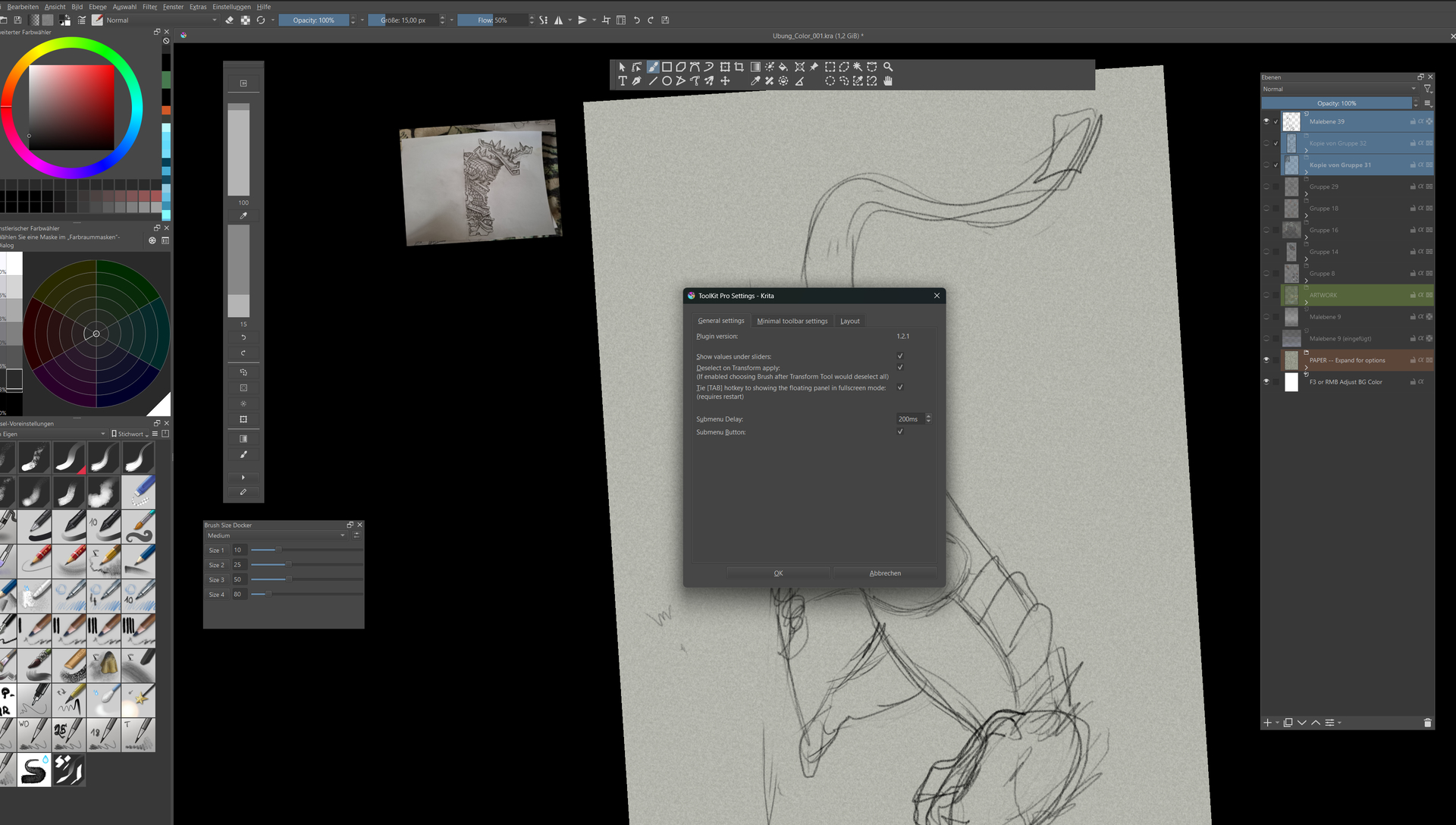

interesting!
I’m using linux but I’ve tried plugin on a windows pc(albeit an old one, 10) and got identical behaviour to linux one.
But what you are describing is exactly what I was thinking is happening: the panel in fullscreen moide would be created just fine but placed somewhere out of the screen and I’ve tried to fix that. My thought was it would be just somewhere off screen but it turns out it’s being created on your system under the main krita window instead of on top. At least that’s what your description is looks like.
One more question: the second image you’ve shared is the screenshot of the panel that you see when you are holding TAB button down?
Okay, I’ve got it.
If I drag the interface to another screen, not where I’m drawing (I have a Wacom display),
and leave the docks on the Wacom and press TAB… that works correctly. On the other screen, your panel is displayed in full screen. What could be causing this?
Ah, I need to correct that; it’s displayed, but as soon as I select something and want to continue drawing, it disappears.