Returning once more to post something for resources! This time: templates.
I like a very nondestructive approach to my texturing templates, since that lets me change them & adjust them for each piece easily. I also like very complex texture combos, that sometimes also do color adjustments besides adding texture. So, this will be a little masterpost of any templates I create for myself.
!!! WARNING !!!
If you don’t have an extremely beefy machine, don’t use these to paint on them. Everything will be laggy as hell, since there’s a ton of effects, adjustments, and tiling layers. It’s better to paste into the templates, as that’ll give you a much better time.
These are also separated into only three layers: swatching layer (flat, no texture), painting layer (very textured, deep), and overpaint (lightly textured, less intense). If you want, you can try experimenting what layer combos of yours should go where for best results.
Tip 3: use your own textures! I used textures I made myself, but I’m sure adding a scanned, tiling watercolor texture, or an oil pastel texture, or even gesso, can make things more lively & to your liking. Like I said, I tried to make these very flexible & they come with different brush swatches already, so you can instantly preview your work!
Template previews
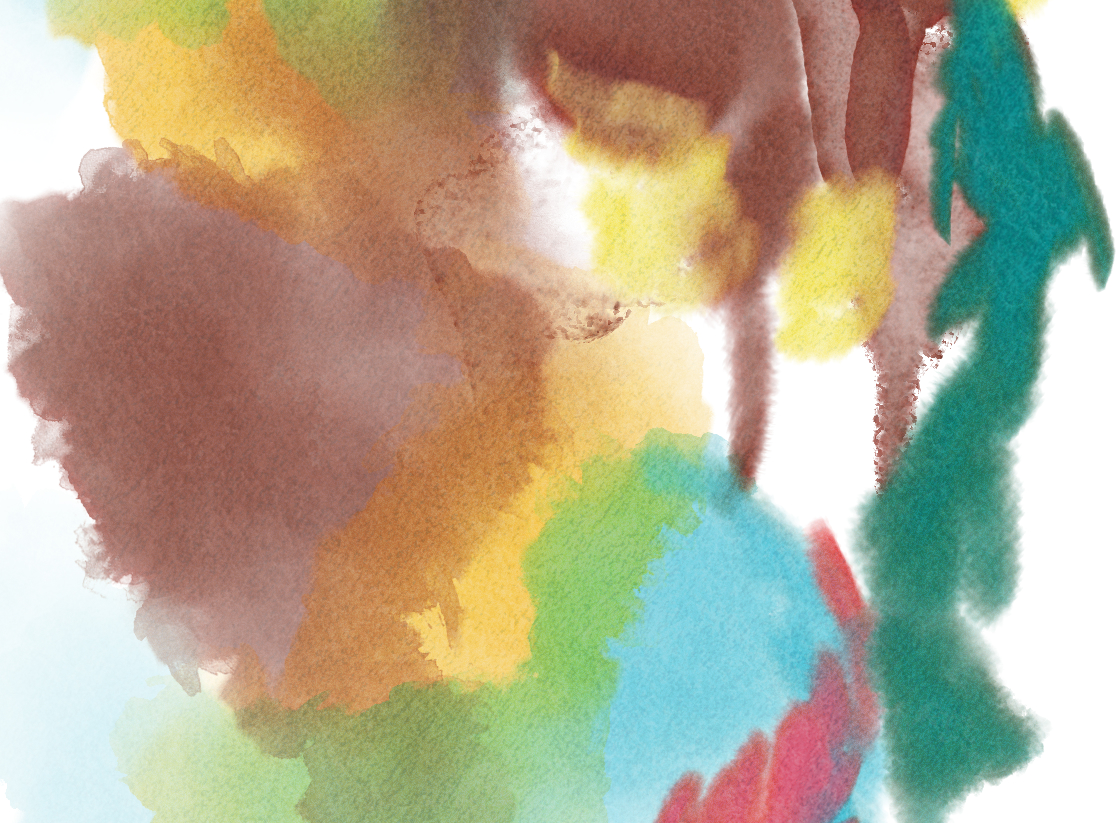
“Watery” template (grainy, favors thin strokes, loves bleed)
On normal/ basic/ PS-like brushes (using my set):
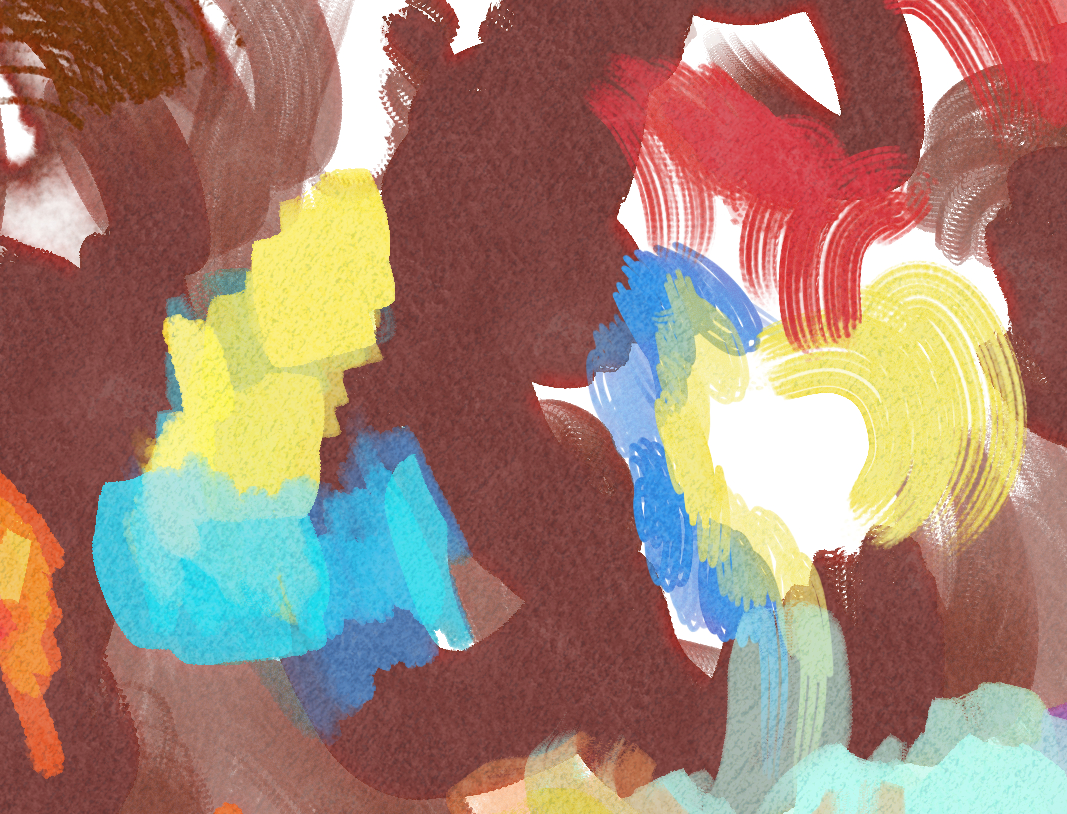
On thick paint (RGBA brushes & smudge engine):
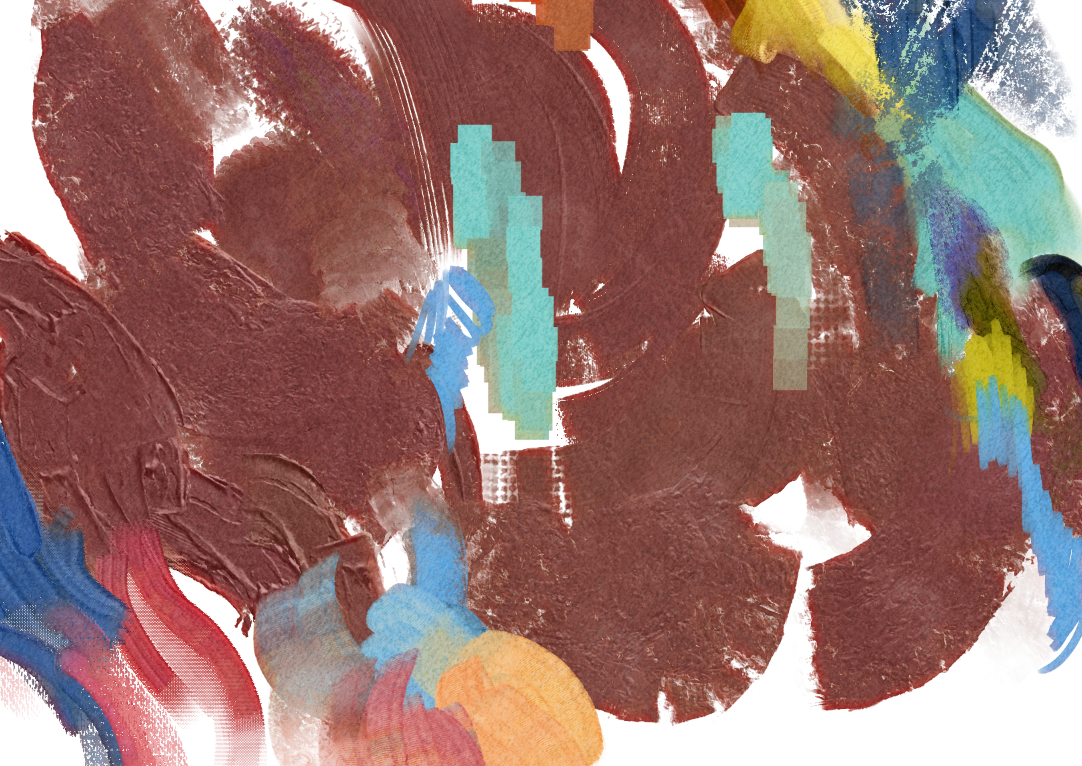
On watery/ wash brushes (Pesi’s watercolors):
Template tips
-
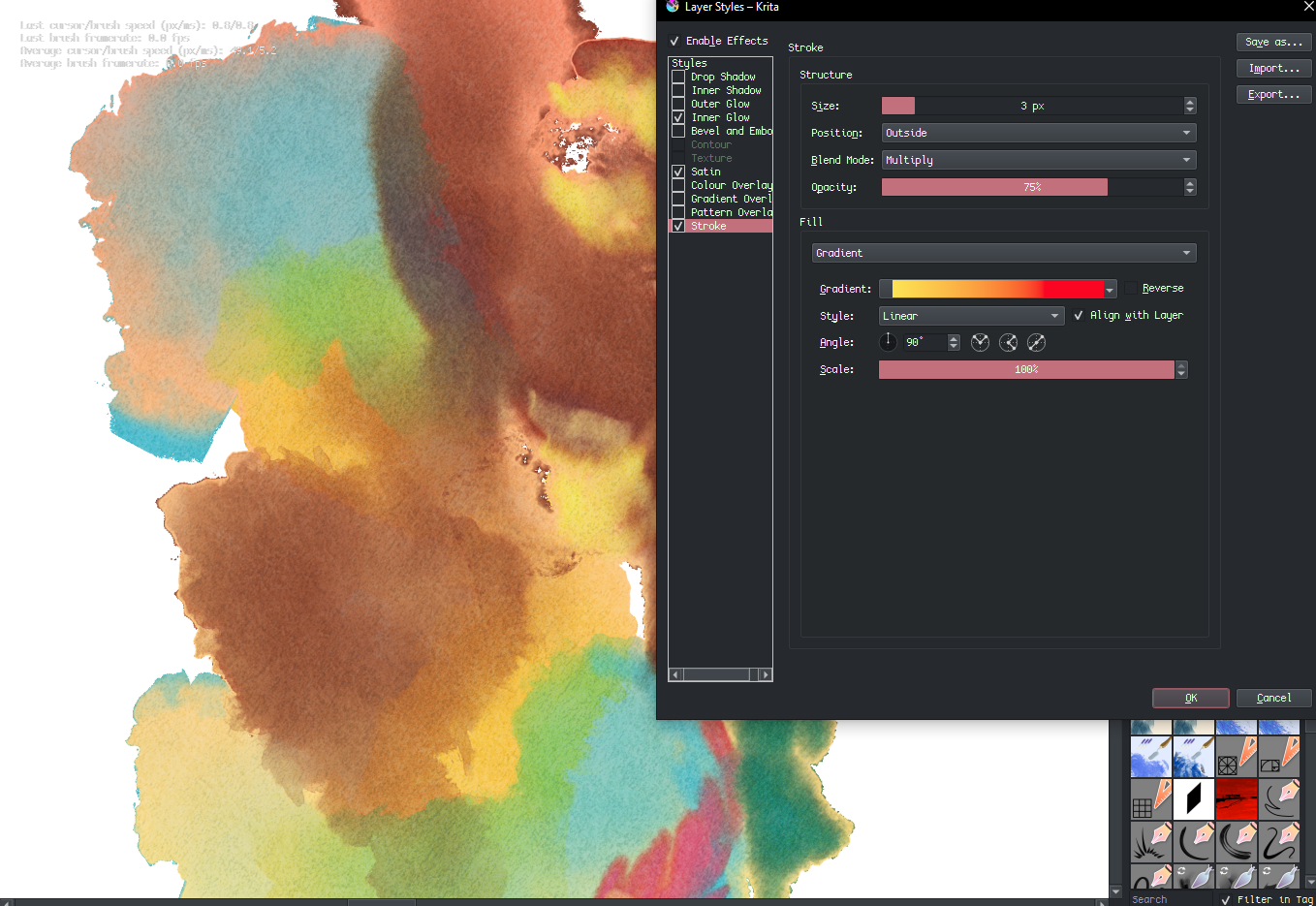
Go to layer styles → inner glow to change the mood of your art!
-
Layer styles → satin will add a coloured edge to your art. If you want a more drastic effect, go to Layer Styles → Stroke, position = outside, fill = gradient (and create a simple gradient). Like this!
Play with the “style” of the fill, it can give some really amazing results with colorful gradients!
This effect will also play very nicely even if you’re working with many, many layers. If your watercolor piece is made of many layers, just put a layer group in place of the Paint Layer 1.
Thick painting template
On normal/ basic/ PS-like brushes (using my set) without overpaint:
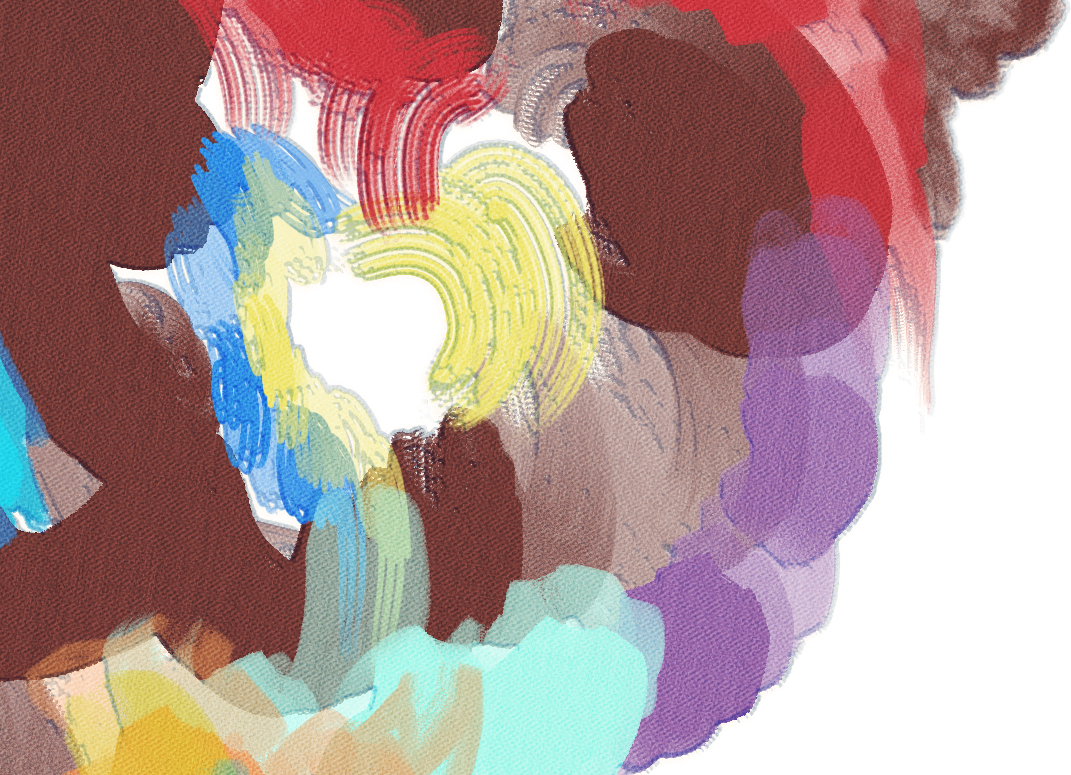
with overpaint:
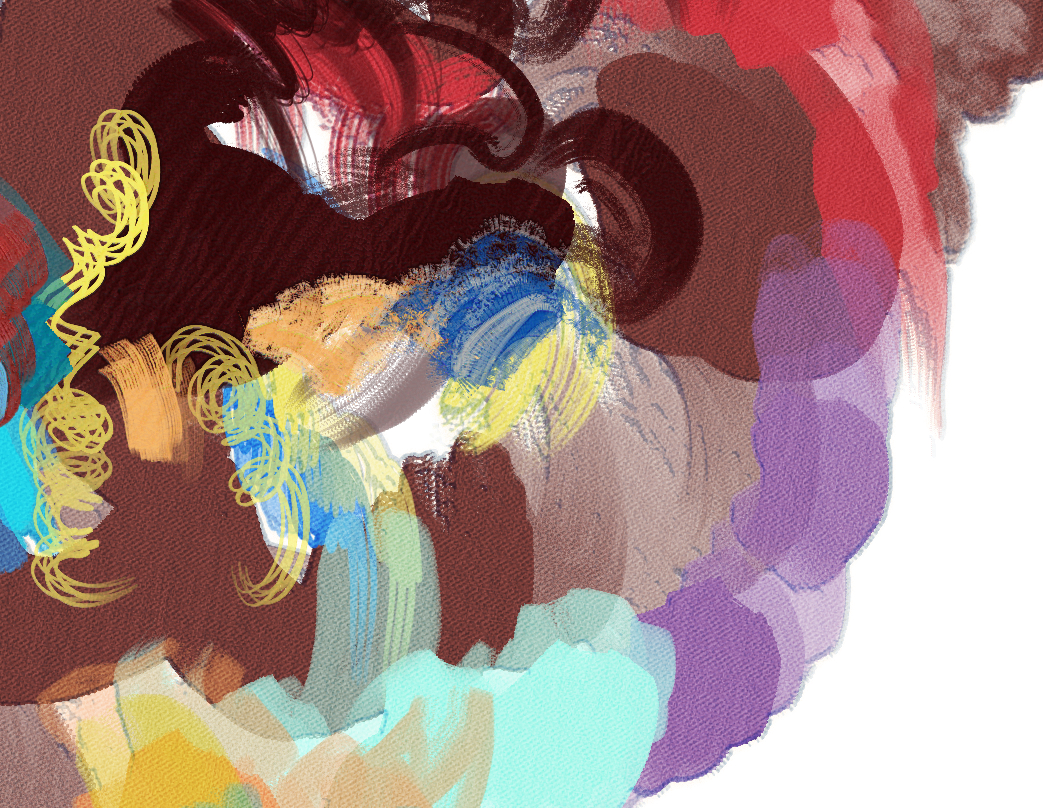
On thick paint (RGBA brushes & smudge engine):
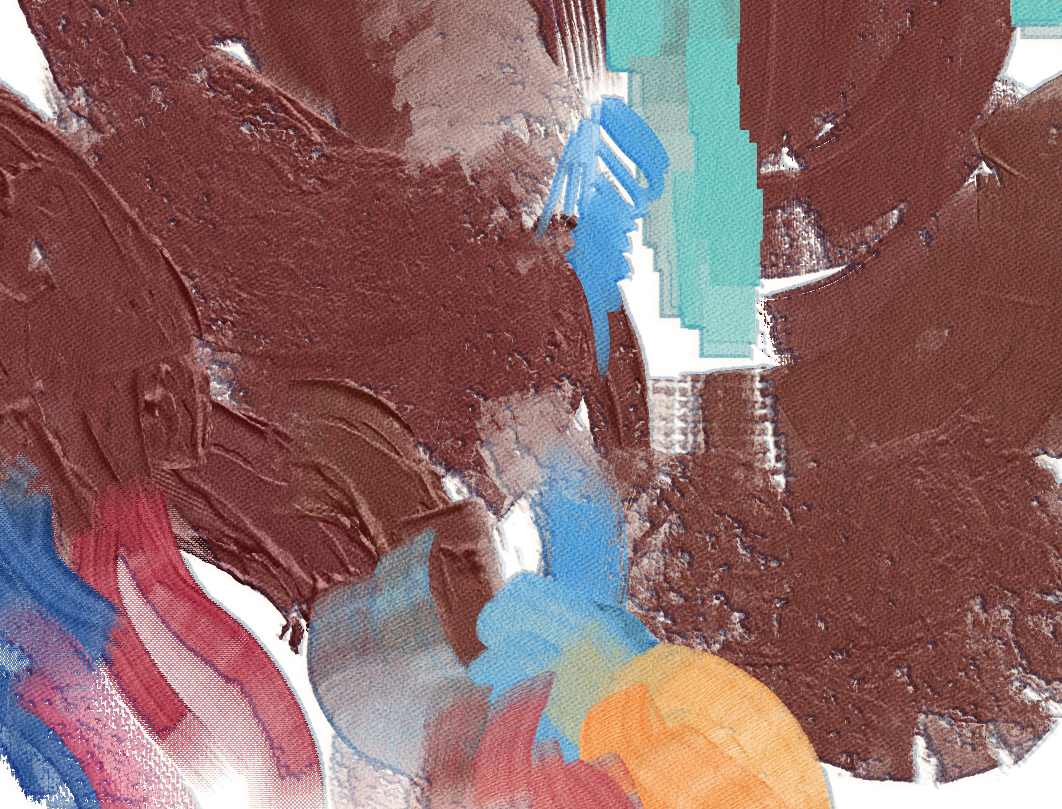
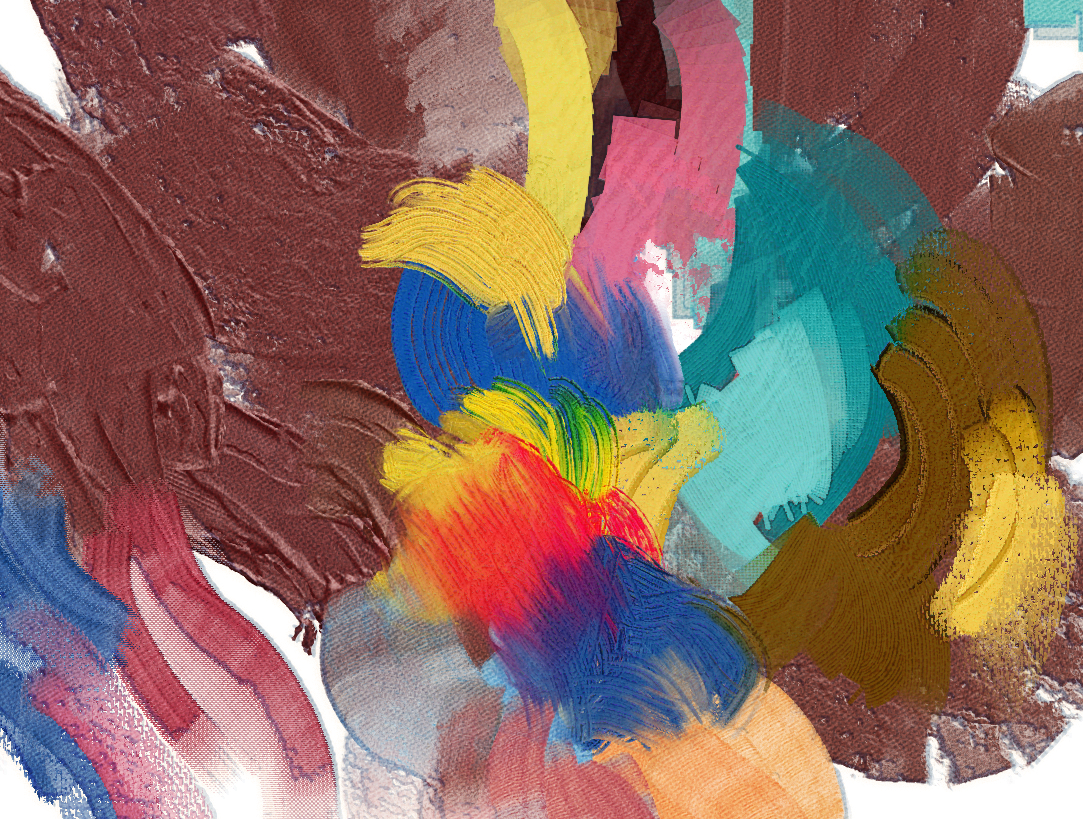
On watery/ wash brushes (Pesi’s watercolors):
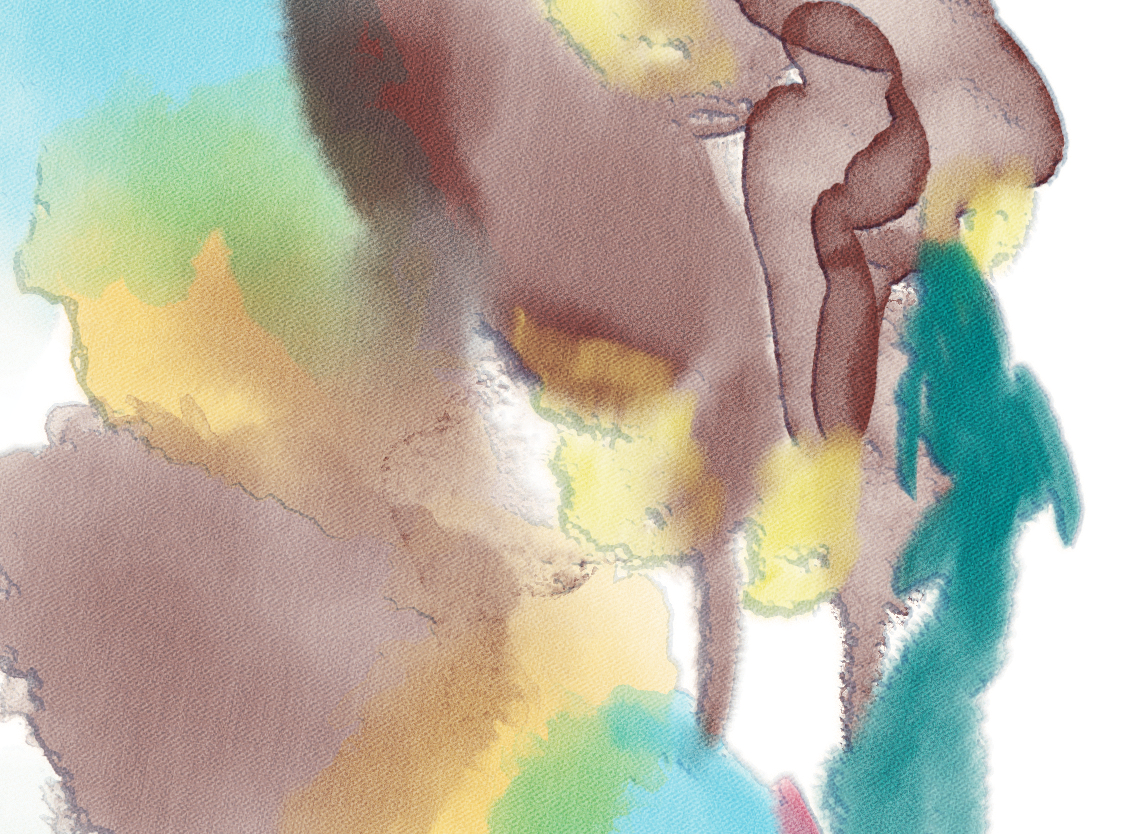
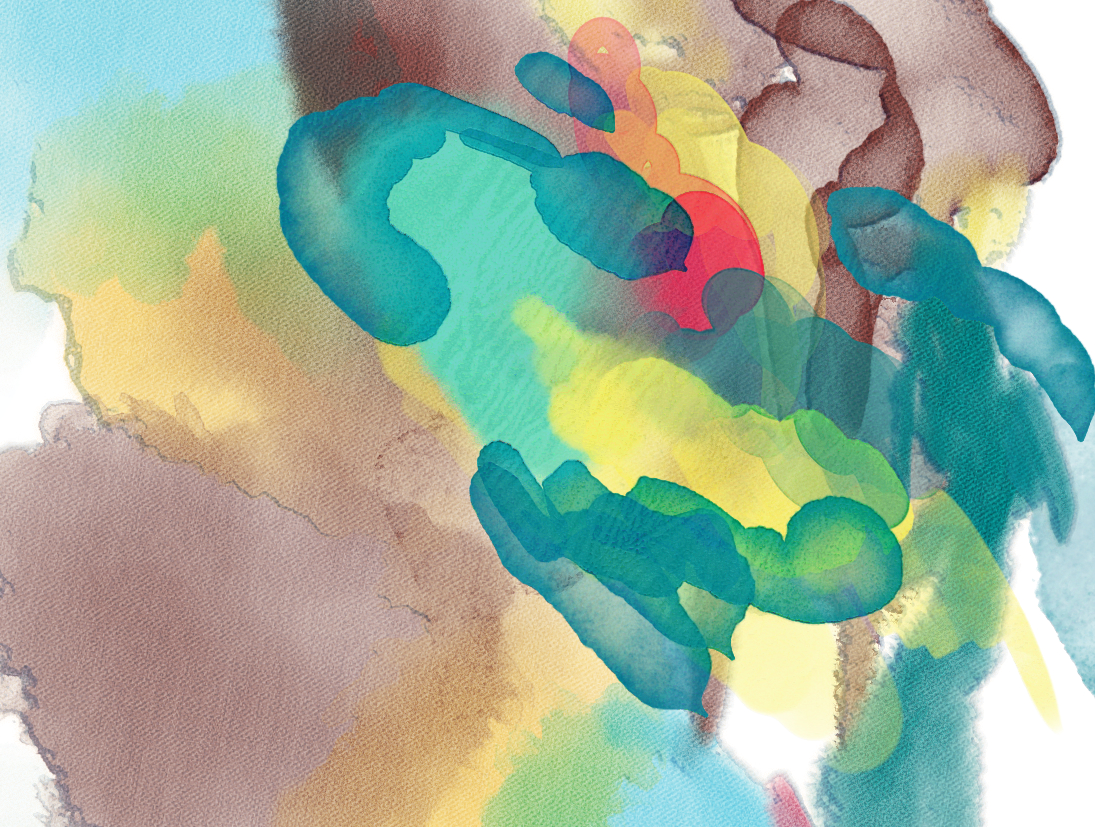
Template tips
- change the first 2 texture modes & play with them; see what looks best!
- Overpaint isn’t necessary, but it can give a much more lively effect on the finished piece (imo)
- Check the layer style to adjust the look of washes/ more transparent areas. Adjusting the color gradient in “outer glow”, along with changing the blend mode, can drastically change the mood of your work!
Download link
As per usual, the download link is the link to all my freebies, in a subfolder called “Templates”.
Go and create !! 