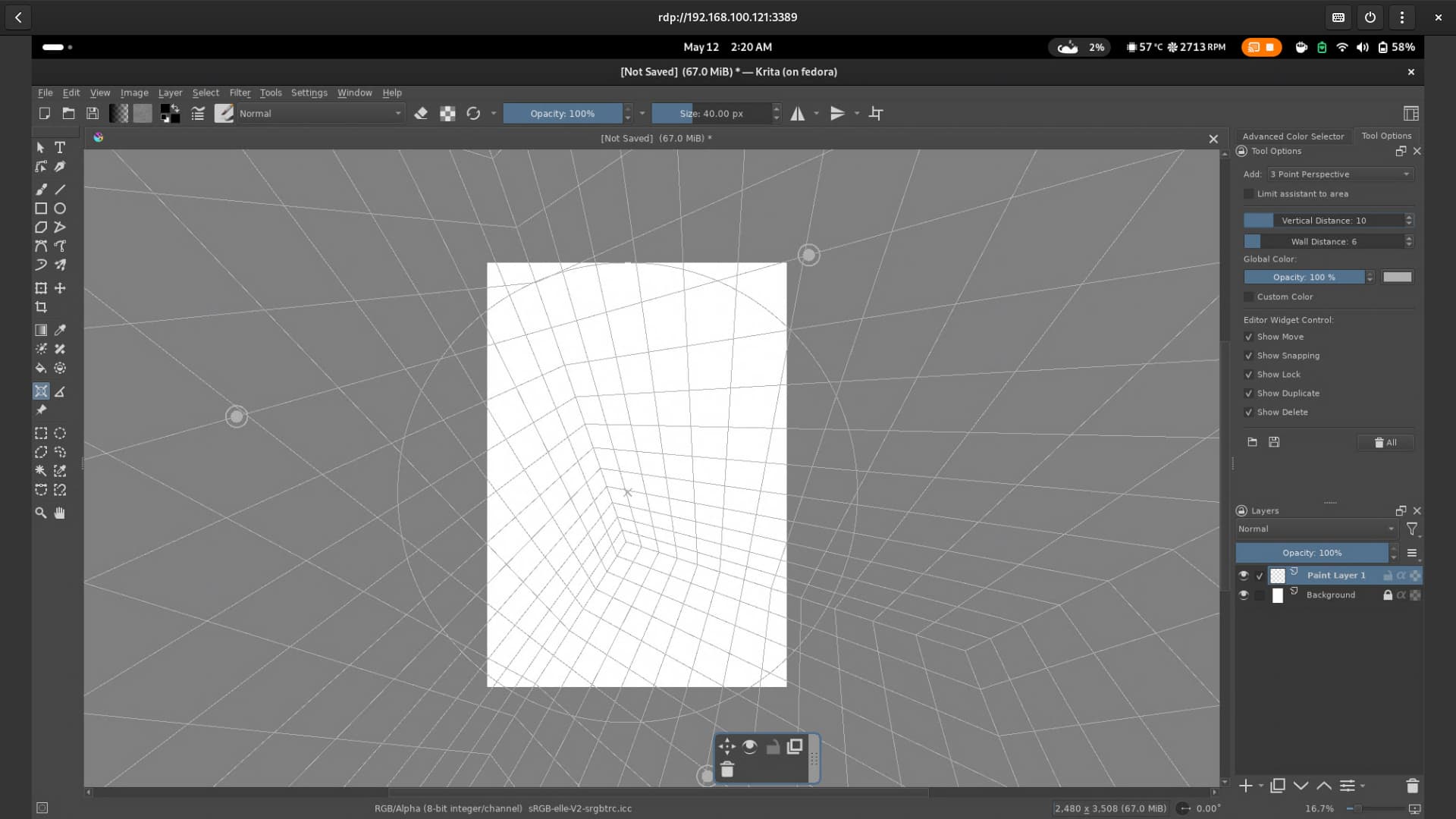
There’s still a lot to do, but the most important part (for me personally) is the grid decoration, which is kinda done. The way it works is that it looks like you’re in a middle of a cube “room” and you have sliders to adjust how wide and tall it is. Not really sure how useful this actually is? (Everything is drawn using 2D QPainter functions so I’m kinda limited by that)
Also I decided to not include the “auxiliary” handles that are used in the Vanishing Point and 2 Point Perspective assistant for alignment. It’s useful, but visually really messy to have 2 pairs of them for each vanishing point in this assistant, maybe it should be a toggle? IDK how the UX for that should be. But it might be necessary because the VPs can be really far away.
Let me know if you have any thoughts or specific things I can refer back to … a lot has been said about how the assistants system could work better, it’s kind of difficult to sift through it all.
(Video looks laggy cause I’m running it over RDP connection )
I’m curious to see how the snapping works with this. With krita’s 2 point perspective I often have the brush shoot off in the wrong direction because the brush snapped to the wrong axes/point.
Both the 2 point perspective and the 3 point perspective could have a way for the user to switch the point the brush is snapping to.
maybe a selectable and/or controlled with a shortcut
snap to:
all points (like it is now)
x point
y point
z point
(names are an example)
I’m not sure if something like this is possible but I would find it great.
I’ve never been very happy with them for the 2PP, the handles are indeed a mess visually, and only useful in some situations…it’d often be more useful if you could move them off canvas without changing the horizon, maybe even a plain “zoom” that changes the effective field of view.
I’d say the 3 point perspective should work a bit like a virtual camera, the current way to manupulate are pretty nice already, add a way to zoom and roll around the center point, and I think it’d be perfect for me.
I’m not sure how you want to handle the actual snapping, but I agree with Dynline, having the ability to enable each vanishing point separately would be very useful to me. I actually wanted to add that to the 2pp too eventually, so far you can only toggle the “vertical” lines.
Btw. I also wanted to add an option to implicitly calculate the 3rd vanishing point for the 2pp perspective, and not just use parallel lines for the vertical direction. That’d effectively make it a 3pp too when enabled, but then the naming will be kind of misleading…
This should be easy enough to implement in the Assistant Tool’s Tool Options widget, that way it would have to be per-assistant, which should be fine I think.
I want it to be easy to change with a shortcut though … but I’m unsure how it could work. When the Assistant Tool is active, it has the concept of a currently selected assistant. But a shortcut that (presumably) can be activated outside of the Assistant Tool will have no concept of a currently selected assistant, so it won’t know which one to change the snap direction for. So the shortcut would have to be like Toggle Snap to Assistant, which toggles a global-ish flag?
Just something to think about … the per-assistant snap direction in the Tool Options is low-hanging fruit I think so I’ll work on that first.
In the 2PP assistant, it’s already possible to “zoom”, hold ctrl-shift and drag one of its the vanishing points. Painting with Assistants — Krita Manual 5.2.0 documentation though I call it changing the FoV. I’d appreciate some advice on how to navigate the terminology here … I’m not a 3D or photography person, so camera lingo like “zoom” or “focal length” are lost on me. Someone before suggested I add a way to specify focal length for the 2PP assistant, I don’t understand how that is supposed to work. This is linear perspective, there are no lenses
 )
)