My computer has had problems lately with shutting down even when it’s fully charged, and usually this isn’t a problem. Krita’s autosave has been very helpful with keeping my files. However, this time when I reopened it, the UI became really big? I don’t how how to fix it, and I can’t draw like this. Help? I’m trying to attach an image, if that doesn’t work, I hope my explanation makes enough sense.
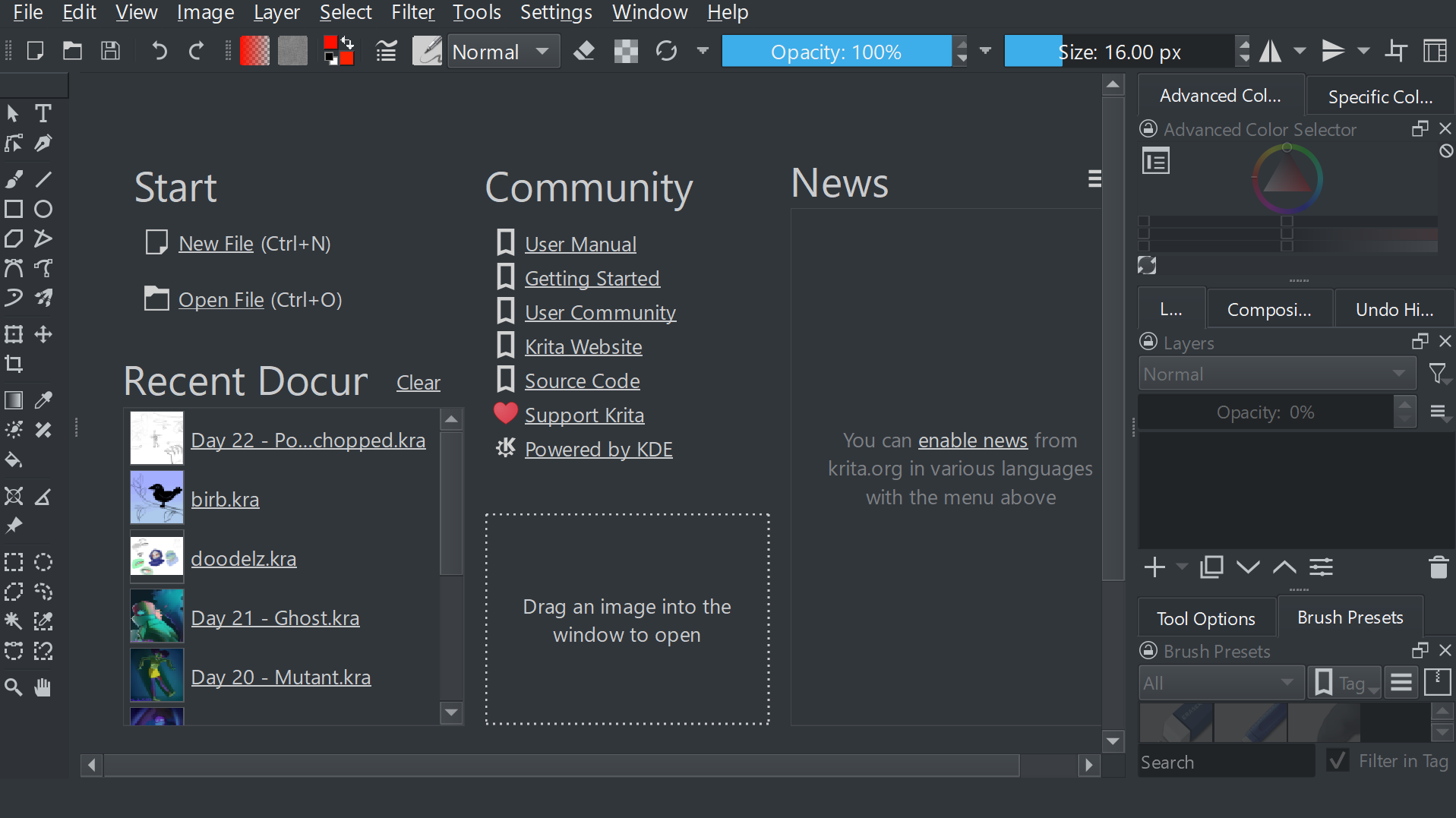
Does it happen only with Krita? Because my first thought was maybe something happened to screen resolution setting in Windows itself because of the sudden shut down.
 Hello @ShadowGirl56, and welcome to the forum!
You could try to toggle the setting ‘‘Enable Hi-DPI support’’ under ‘‘Settings’’ >> ‘‘Configure Krita’’ >> ‘‘General’’ in the tab ‘‘Window’’. Don’t forget to restart Krita afterward.
If that doesn’t do the trick, you could try to reset Krita via ‘‘Settings’’ >> ‘‘Reset All Settings’’. If you want to preserve your current docker-setup, you can save it beforehand via the rightmost icon in your toolbar, its tooltip is “Choose Toolbar”, just enter a name for your setup in the input-box and click on the save button, this allows you to call it in cases your docker-setup gets messed up. Don’t forget to restart Krita afterward.
If it does not work, then please report back with a brief explanation what you did and where you are stuck, and additionally tell us which version of Krita you use and from where you got it, e.g. Krita homepage, Steam, Microsoft Store, Epic Store, elsewhere.
Michelist
Yes, it’s only with Krita. The rest of my computer hasn’t changed.
Hello @Michealist!
I tried some of your tips, but they didn’t work. “Enable Hi-DPI support” was already toggled, and toggling it on and off + restarting the program didn’t seem to make any changes.
I reset my settings and the UI didn’t change, although the colour reverted back to default so clearly it did something?
Additionally, I’ve found that this only happens when I open Krita from my desktop. I opened it directly from my applications folder and there was no problem.
I downloaded Krita from the Krita homepage, and I’m on Windows if that helps? I don’t remember what version I got exactly. How could I check?
Thanks for the help!
I suspect that your self-terminating PC has messed up something with the scaling of your desktop, but here I may be completely wrong, to say something like that definitively I would have to have access to your computer or sit in front of it.
You can try to create a new shortcut to Krita from your applications folder and place it on your desktop. This works via Explorer’s right-click menu and should be self explaining.
In Krita via ‘‘Help’’ → ‘‘Show system information for bug reports’’, you can see it also in the upper right corner of the splash-screen when Krita starts.
Michelist
Make a new shortcut maybe. Windows made them a bit odd with windows 10 at least.
For the start bar shortcut you need to made it with the app open.
Not necessarily, you can also (re-)activate the Quick Launch area like in former times, I think this is much more comfortable, especially for power users. 
Simply create a new toolbar in the taskbar. So RMB on a free area of the taskbar, then at the menu item “Toolbars” select the item “New Toolbar” to create the Quick Launch toolbar, and then in the address bar of the appearing dialog window insert this string
%USERPROFILE%\AppData\Roaming\Microsoft\Internet Explorer\Quick Launch
and confirm.
Now the good old quick launch area is available again.
Then in the new toolbar you can disable via RMB the text display and the title display for the icons of the shortcuts copied there to gain space, and with “Fix all taskbars” also disabled via RMB you can place this old new program launch area at the location of your choice. I, for example, traditionally use the area to the right of the Start button.
Michelist