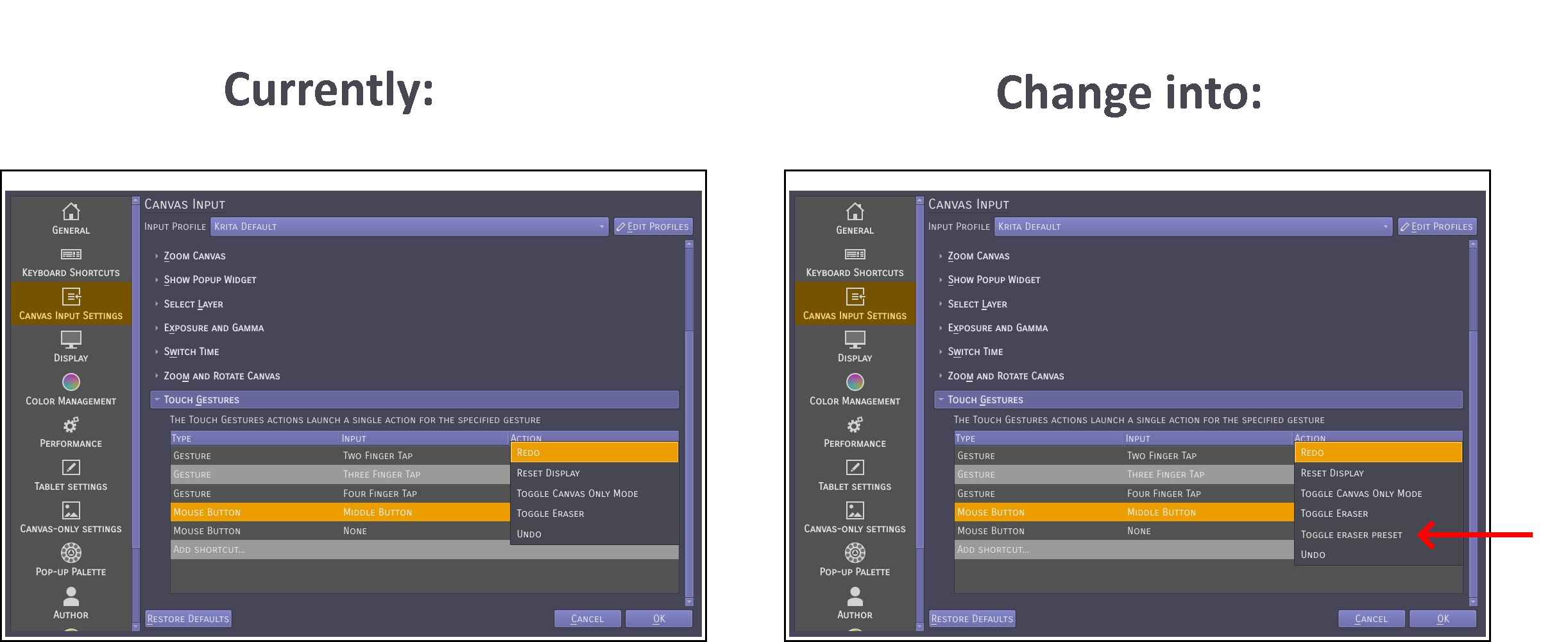
Howdy! I’m using Krita on Android with an S-Pen, and I love how customizable the app is! However, one limitation I’ve run into is that the S-Pen button can only be mapped as a “mouse button” which means the only eraser-related option available under Canvas Input → Touch Gestures → Mouse Button is “Toggle Eraser.”
That function just switches the current brush to eraser mode and back, but it doesn’t allow switching between two different brush presets, for example, if I want to use a very low-pressure brush with a hard eraser.
Since “Toggle Eraser Preset” already exists as a keyboard shortcut, it would be incredibly useful if that same action could appear in the Touch Gestures menu. That way, S-Pen users on Android (and stylus users on other touch devices) could map it to their pen button or other touch inputs without needing keyboard access.
I know Krita has a “S-Pen Actions” section under tablet settings, but unfortunately those options don’t work on some Samsung devices, for example, the Galaxy Tab S6 Lite (and a few other models).
I actually didn’t use the pen button to switch to the eraser and just selected it from the toolbar for a looong time, but once I learned that I could map the pen button to do something it just feels convenient and intuitive!
Another workaround to this is to use an app called Key Mapper (foss app) and using any controller (I use a cheap VR BOX controller) you can map any button on it to a keyboard key, in order to make a budget shortcut controller, with that you can set a button to “Toggle Eraser Preset”!
…That said I’d still prefer to use the pen button haha
Ah I see, that’s good to know! Still, I’d prefer for someone else to vote for this if they found it useful, voting for my own suggestion feels selfish haha.
I’ve been thinking of other ways to deal with this anyway, like using parts of a remote shutter controller and placing them on the stylus to have extra buttons!
This feature makes obvious sense, so I’ve implemented it and it will be in the next version. If you want to use it already, you can grab the Krita Plus Nightly Build, which you can find by scrolling down on the downloads page on krita.org (Krita Plus, it’s not in Krita Next yet as of writing.)
I’m sorry for taking so long to reply!! I had a bit of a troublesome week and didn’t check stuff online.
Thank you so much for implementing this!! You’re awesome!
I just tried it out and it works perfectly! Drawing feels much more flexible now! Thanks again!