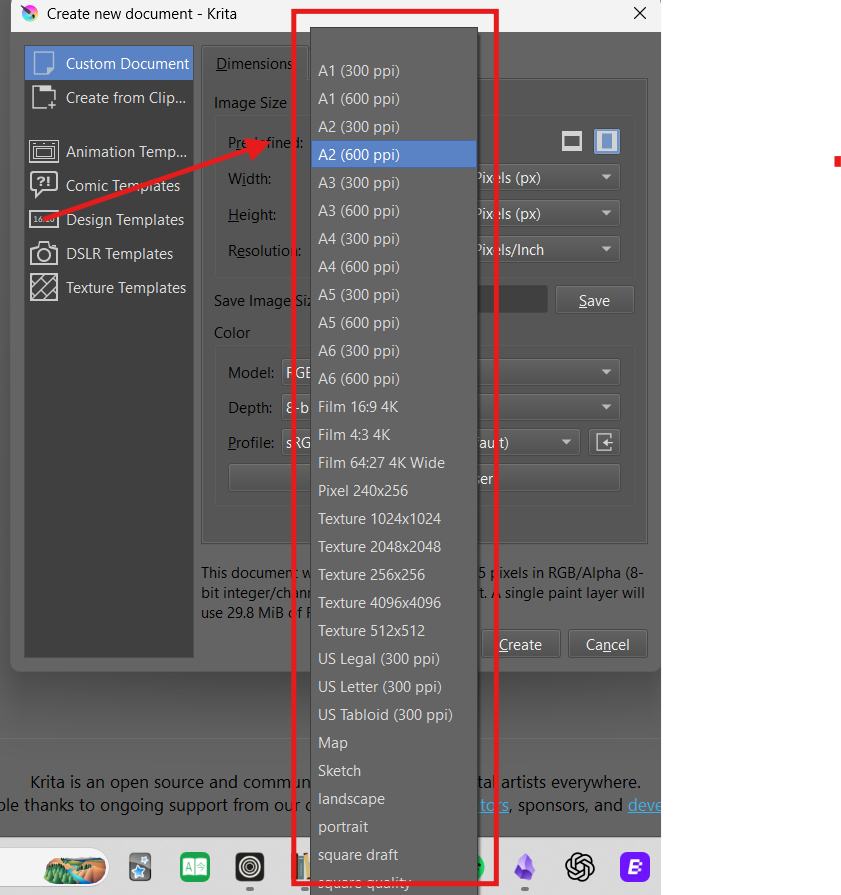
This is not a solution, but it may help you to create something more comfortable for you.
As a first step, you can remove the Template groups on the left side. In Krita, open any document, new or existing, and then do ‘‘File’’ >> ‘‘Create Template From Current Image’’, in the opening dialog you can select whatever you will drop on the left and a click on remove will do the rest.
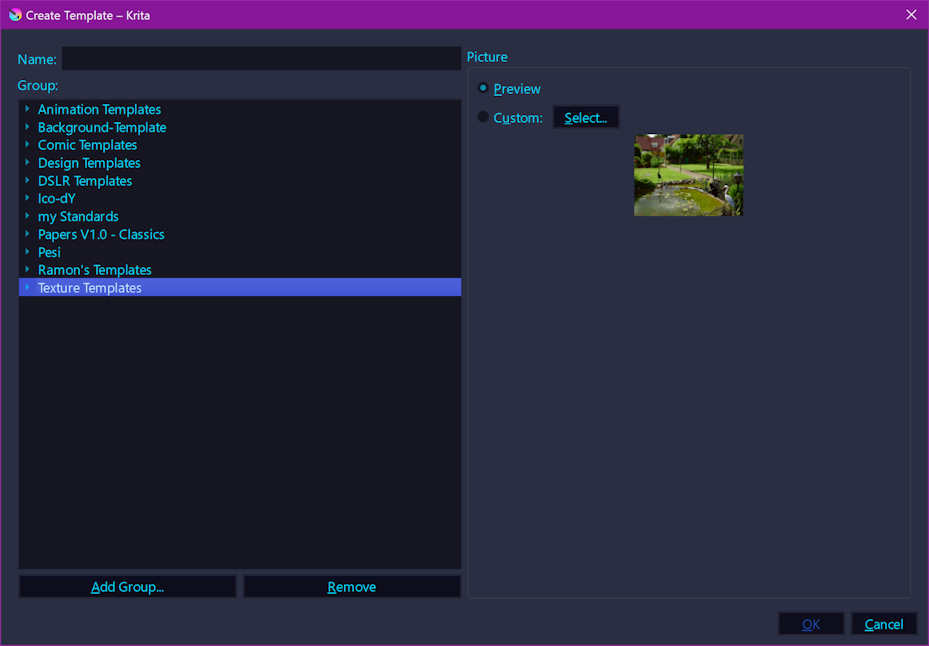
Now again open the Template dialog and create a new group in which you put the templates with the sizes you use and want to see. After you selected the first time anything from this new created group, it will stay the preselected group, and you can select from the options you like and prefer.
For things done in the following described paths, we won’t offer any support! Who believe they have to tinker in this area, have to be able to help themselves if they shred anything, and that is very possible. So, better don’t do it, or you will cry when we deny support for your self created PITA!
For those using Windows or repository versions under Linux, you can enter Krita’s installation directory and there enter the path share → krita → predefined_image_sizes in which you then delete all entries. BUT, this is nothing anyone not computer savvy should even think about, because the possibility to shred your Krita and produce unneeded support requests in the forums is not minimal. More the other way around!
For those using Linux and macOS, and who know how to unpack the Linux AppImage or the macOS DMG, you will find what you are looking for in an identical path-construct. If that is it worth for you, you can only decide yourself.
Michelist
Is there any way to do this on android? My predefined_image_sizes folder is only showing presets I created; not the stock ones.
Please excuse me, the following may sound harsh, but it is intended to protect you from yourself through the use of clear words, I don’t throw with cotton balls to describe it to you.
I am not saying this to hurt you or anyone else, it is only to make it clear that it is for your own protection!
My predefined_image_sizes folder is only showing presets I created; not the stock ones.
Yep, it can’t, you are in the wrong path structure!
I’m sorry, but to do this in Android, you need in-depth knowledge of this operating system, which you do not have. Even I have only a very limited knowledge of the deeper structures you have to tinker in.
With a little luck, you can remove the predefined groups in the way I described. To do this, open any document and then open the dialog box shown in my screenshot via “File” >> “Create template from current image”. There you should be able to remove the unwanted groups and create your own group. And if you add your favorite templates to this group, you no longer have to deal with the sizes offered by Krita. The fact that you mention only being able to see your own templates indicates that you are in Krita’s resource folder, but not in the unpacked structures of your APK, where you would find what you need to remove the predefined “standard sizes” from this dialog box.
In short, you are in the completely wrong folder structure. So please keep your hands off it and don’t destroy your installation!
Michelist
apk extractor app did the trick. thanks, presumptuous jerk.
LOL, then at least my presumption led you in the right direction, because you were wrong before, or you described the situation I quoted incorrectly.
Michelist
I use windows and don’t really know what I’m doing most of the times.. I guess my only option is to either wait them for a feature to remove them or just keep using it that way
You don’t have to select one to create a new image. You can simply ignore them if you don’t need them.
I can write a script for you that would remove the predefined sizes, the groups can be easily removed if you follow my description from my first posting above. There are two things you have to consider with that script, you have to run it after each update of Krita, because Krita then recreates these entries, and you have to consider if you can or want to trust me. 
But if the users wouldn’t trust me, then they probably won’t download several Gigabytes from my cloud each month.
By the way, I see it like @Takiro, I would simply overlook their existence and not use them, but if you want that script, I’ll write it.
Michelist
So, I created this script for anyone interested (and additionally one for the Steam version of Krita on Windows), you can download it from the folder I link at the end, but if you want, you can create it yourself instead of downloading my ready-made solution.
Be aware, if you decide to use it, you do it on your own behalf, will and responsibility, I don’t take any responsibility if you use it! I can only assure you, that I’ve tested both scripts thoroughly without issues, and that I don’t intend to harm anyone.
For users of the standard Windows installation of Krita into the folder c:\Program Files\Krita (x64)\ the batch you have to create looks like this:
@echo off
del "c:\Program Files\Krita (x64)\share\krita\predefined_image_sizes\*.*" /s /q
end
For users of the Steam version of Krita on Windows, where Steam is installed in its standard folder structure under c:\Program Files (x86)\Steam\, the batch you have to create looks like this:
@echo off
del "c:\Program Files (x86)\Steam\steamapps\common\Krita\krita\share\krita\predefined_image_sizes\" /s /q
end
For both versions, the following applies:
Simply create a text file with the editor of your choice, even Notepad will do, and name it kill_predefined_sized_canvases.bat (or whatever you like) but use the file name extension bat or it will not work!¹
In this text file, you write the above text for your version of Krita and save it to any place you like and have read and write access to.
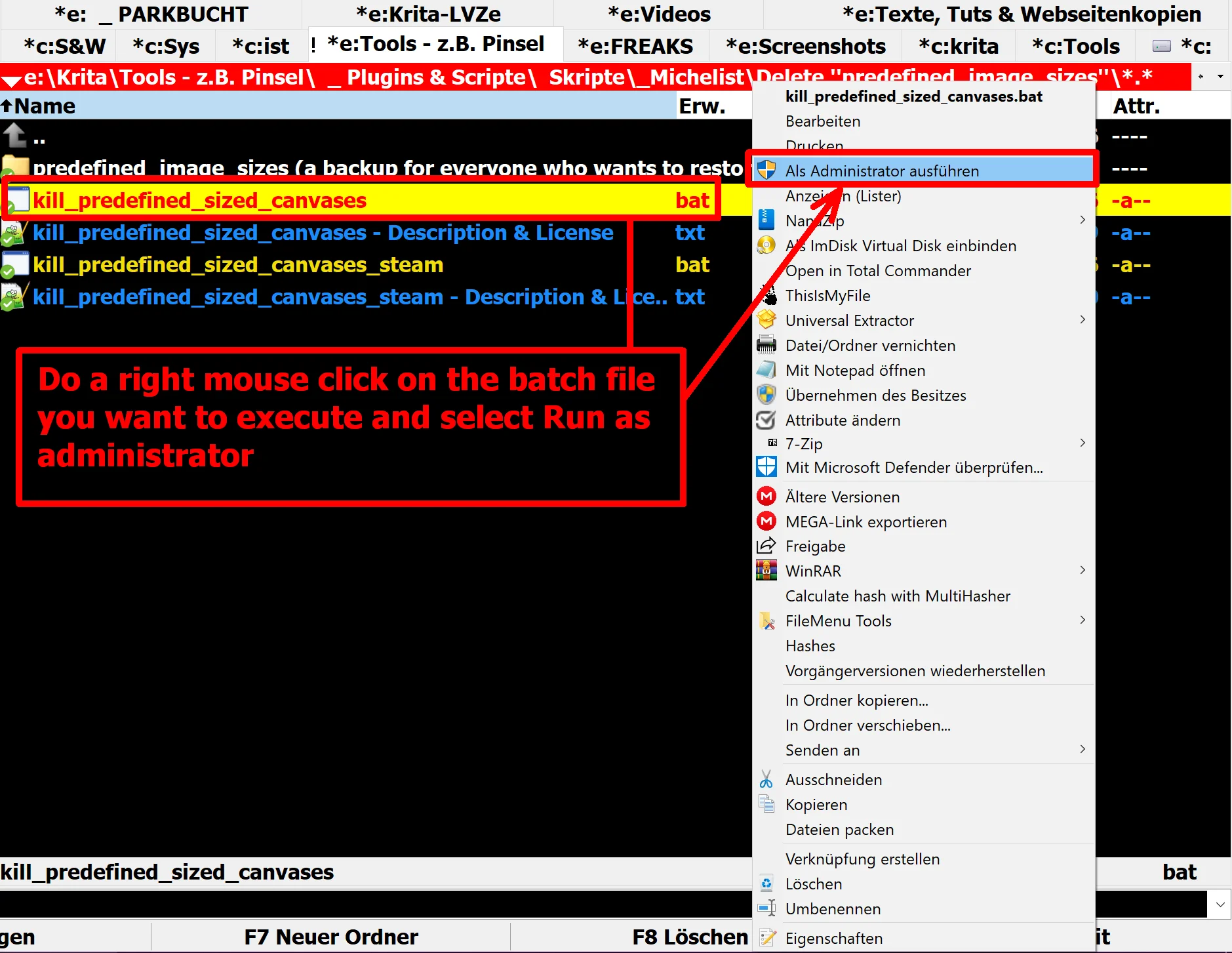
If you want to use it, you have to run it with administrator privileges, and after every update of Krita or after a re-installation, you have to re-run it once again with administrator privileges (for instance via a RMB (click with your right mouse button) on the bat and then select Run as Administrator, see screenshot for example).
For those of you who prefer this as a ready-made solution, you can download the batch files as well as a small description which also includes the license from the cloud folder I’ll link below. In that folder you will find two batch files and two descriptions whose include the license that applies, furthermore you will find a folder which contains a subfolder with all the predefined canvas size templates you can delete using my batch scripts and a small description where to put them for those of you who may want to restore the predefined canvas size templates once in the future
This is how it looks in my file manager:
The license that applies is the MIT-License, you’ll find it also in my descriptions.
Have fun!
Michelist
¹ For Windows 11 users:
You will very probably need to enable the view of file name extensions in your Explorer, because if you don’t, then Windows 11 believes it has to rename your file name extension from bat to txt, because a batch file is a text file, but one of a special kind.
You need to make these settings in Explorer if you can not execute the files you saved as bat:
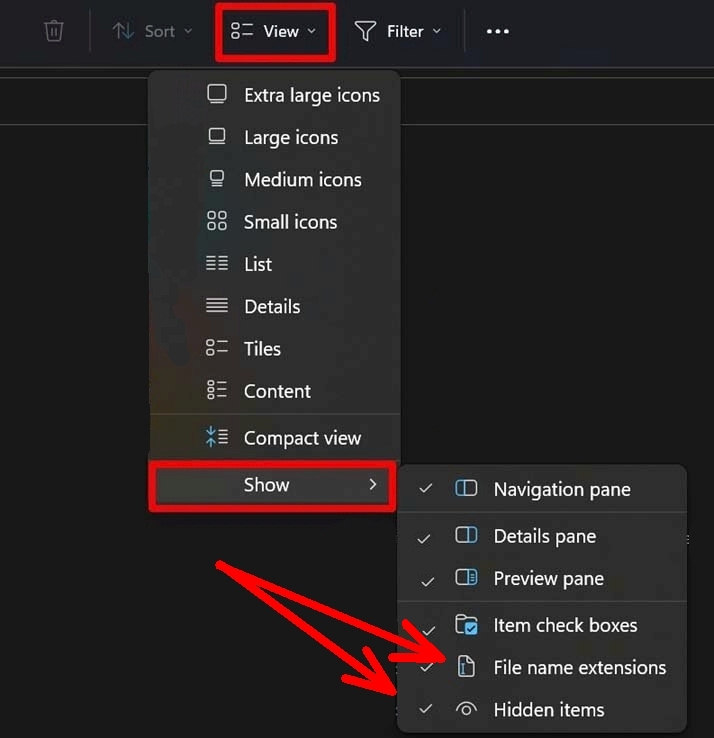
For Windows 10, this setting is found here:

Yes but it’s just annoying that theres dozens of sizes that I don’t even use at the top of my sizes. I hate that a simple thing like this isn’t configurable in a foss
What has Krita being FOSS to do with it? You can open the install directory, go to the folder that contains the sizes and delete them (assuming you’re on Windows). Takes perhaps 30 seconds to do.
If it is only that your self defined sizes are below the stock ones, that can be managed via using the right naming conventions, usually you can use a Space at the beginning of your self-defined file sizes, an underscore will do too if I remember this correctly, maybe even a dot, but that may hide them on Linux or macOS.
This way, you can place them at the top.
Michelist
FOSS app’s are usually heavily customizable
And there’s only the sizes I made there, not the ones that krita put which I don’t wanna deal with.

Any drawing/painting software comes with templates for different sizes; this is not unique to Krita.
CSP, FireAlpaca, etc. all have this feature. You can choose a template and simply enter the size yourself, and Krita will remember it for you.
Did you restart Krita after creating these canvas sizes? For me, it works using a space in front, as you can see in this screenshot of my standard canvas sizes above the stock selection:
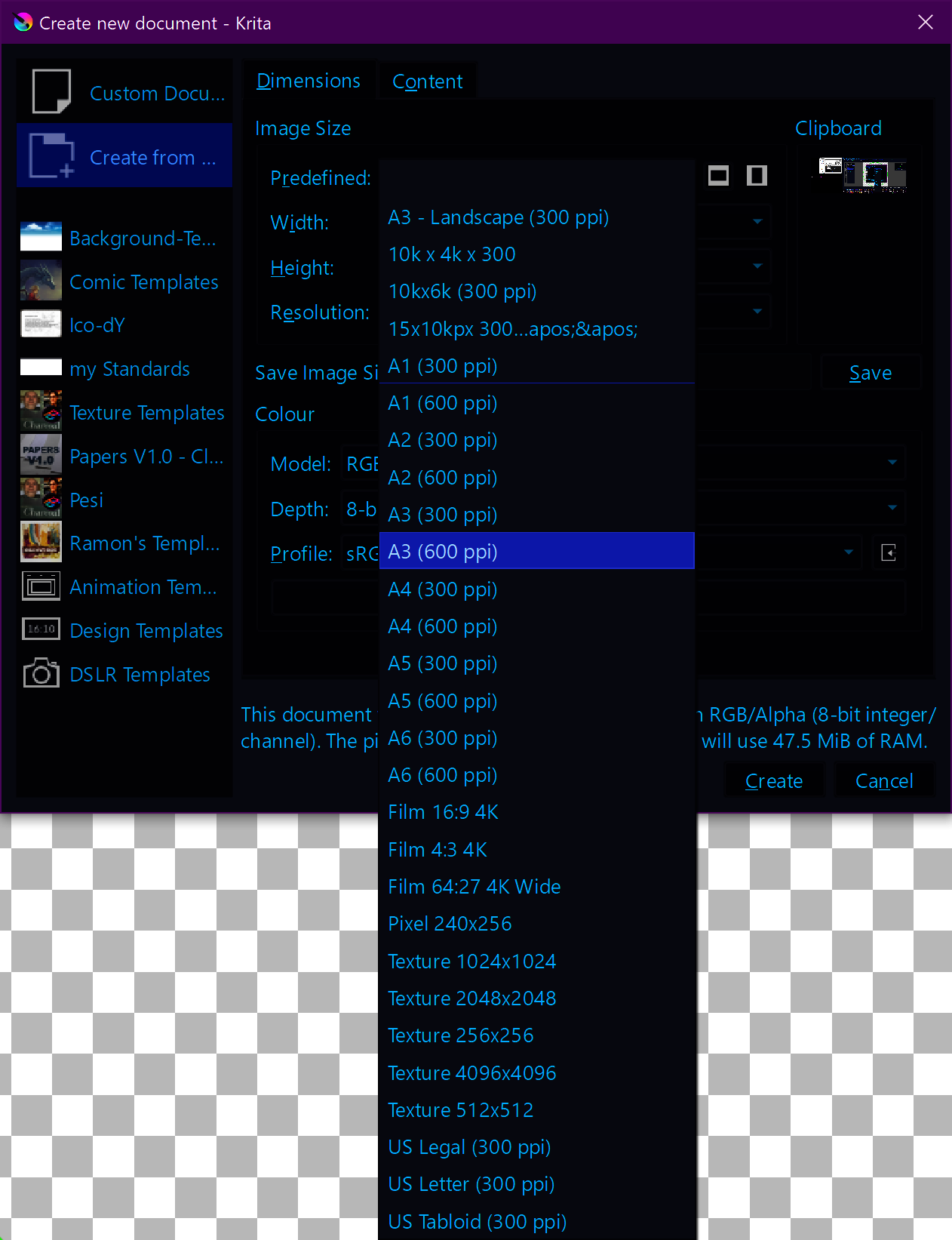
Michelist
No. FOSS apps are not different than any other when it comes to customization. It always depends on the application.
I tried deleting the preset sizes from the install directory and they are gone after I start Krita. Worked like a charm for me.
When I open predefined_image_sizes. There isn’t the sizes krita puts in start. There’s only the sizes I created.