I am familiar with 3D animation and what I refer to as scaling keyframes where after having put down some keyframes, the user can select whatever keyframes and scale them on the timeline to be longer or shorter. I am not familiar with the terms neither in 3D or 2D and I mention this because I don’t know what terms to look for to see if it even exists for krita. Basically the idea is the ability to change the distance of a selected group of keyframes on the timeline so that they play faster or slower. So for a walk animation instead of taking 1 second I can ‘scale’ it on the timeline to be quicker or slower than 1 second. Someone suggested this idea makes no sense but I don’t know - it seems to make sense to me and I haven’t found a way to do this in krita.
Oops, I’m not the best user to help you with this since I don’t animate myself.
But as far as I know, you can insert a special kind of frame that will repeat the content of the frame in front of it, and you can put in as many as you want. This way you can “stretch” things in time.
But I think it will be best you’ll study the corresponding chapters of Krita’s well written and usually very informative manual on this. This way, you may discover the solution you are after, and you’ll very probably will learn many other useful aspects of Krita’s animation dockers, like the timeline docker and the animation curves docker and their way to work (their internals).
And hopefully, in the time between while you are gaining knowledge, there will someone with more expertise than me answer your question. 

ROFL, the links to the chapters in Krita’s manual!  I already had searched them up, and they waited “glued together” in my clipboard-extender to be inserted here, and then I forgot about them …
Michelist
The timeline is frame count. The time duration (or interval) is determined by the frame rate which is adjustable in the Animation Settings Menu and it’s up to you to work out the time from the frame count.
“in front of it” should say, “before it” to be exact.
This is the ‘Hold Frame’ that is indicated by a horizontal blue line on the Animation Timeline.
Any keyframe automatically has hold frames after it, until the next keyframe or an empty frame.
You can select a continuous range of frames by the usual method of clicking the first one to select it then doing Shift+Click on the frame at the end of the range. The selected range of frames will be highlighted.
Then you can do right-click on the selected range to get the options, that include ‘Hold Frames’ with four sub-options:
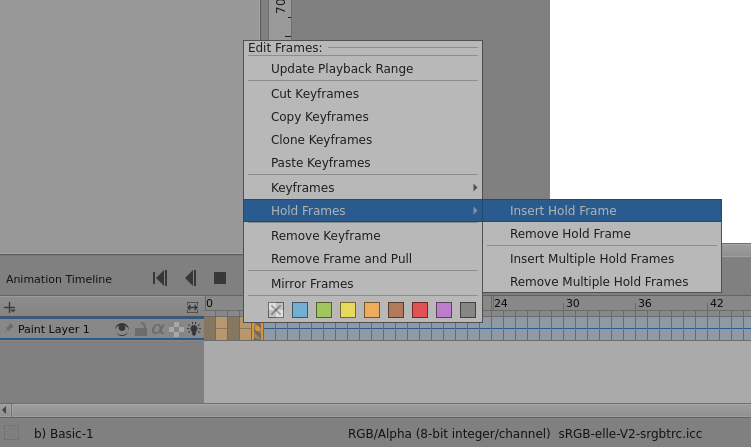
It will be useful for you, I would say ‘essential’, to explore the user interface by exploring all icons and control buttons by hovering over them with the cursor (using a mouse for stability) to read any tooltips and also right-clicking them to see what options are available at any point or stage.
There is a lot in krita and you can only become familiar with it by finding it and trying it.
Thanks all. It was the right click and hold frames and inserting or removing multiple frames process that I was looking for.
This topic was automatically closed 4 days after the last reply. New replies are no longer allowed.