I was trying to figure out a way to transform a flat screen from an image into a different perspective. The Perspective Transform tool works great when the thing you are starting with is oriented towards the camera, but it’s tricky to use otherwise. The Warp transform tool is close to what I want, but it defaults to twisting the image. Here are some tests I did:
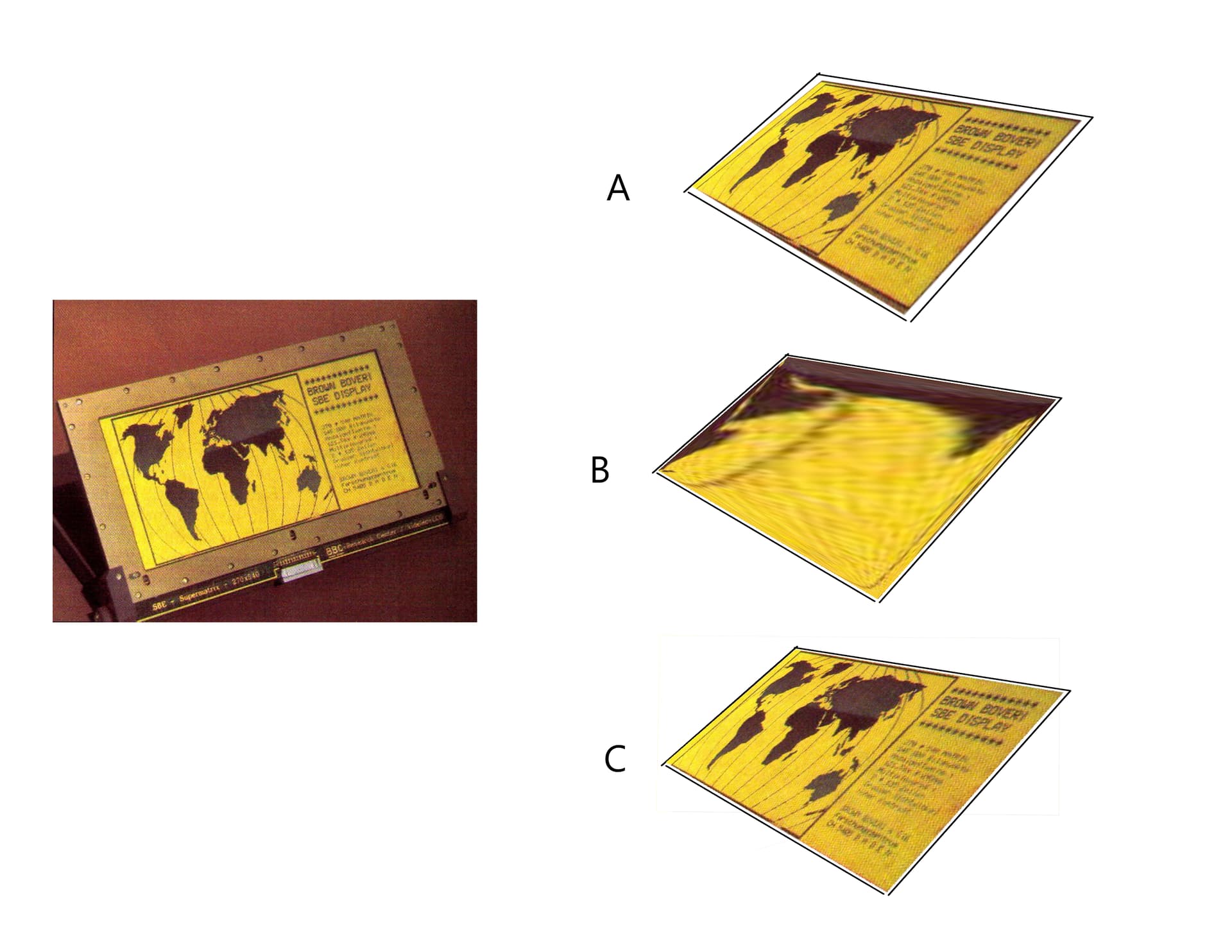
A: I cut out the screen and did my best to align it with the perspective tool. It technically works, but it’s hard and time consuming to get this into a specific point in the composition this way.
B: This is the result of the Warp Transform tool, with anchor points at each corner, and the settings set to “Strong (Rigid)” and Flexibility = 10.0. Obviously this destroys the image, but it keeps the image a perfect four-sided polygon. I thought this was what I wanted when I was testing with a single color box…
C: This is the Warp transform tool again, anchor points at the corners, but the settings set to “Default (Affine)” and Flexibility = 0.5. Found these settings by testing everything. This is SO CLOSE to perfect here, but I can tell the image still bows inwards slightly, by looking close at the edges. The bowing is even more pronounced in other tests I did. This might work still in most cases for my purposes, but it’s still not a quick or intuitive process.
Any other suggestions on what to try? I want to do a lot more photobashing using methods like this, so I’m trying to find an efficient workflow.
