Type of device* : Apple
Brand and version of the device: Macbook Pro
System** : MacOS 13.4.1
Description of the issue (you can include screenshots):
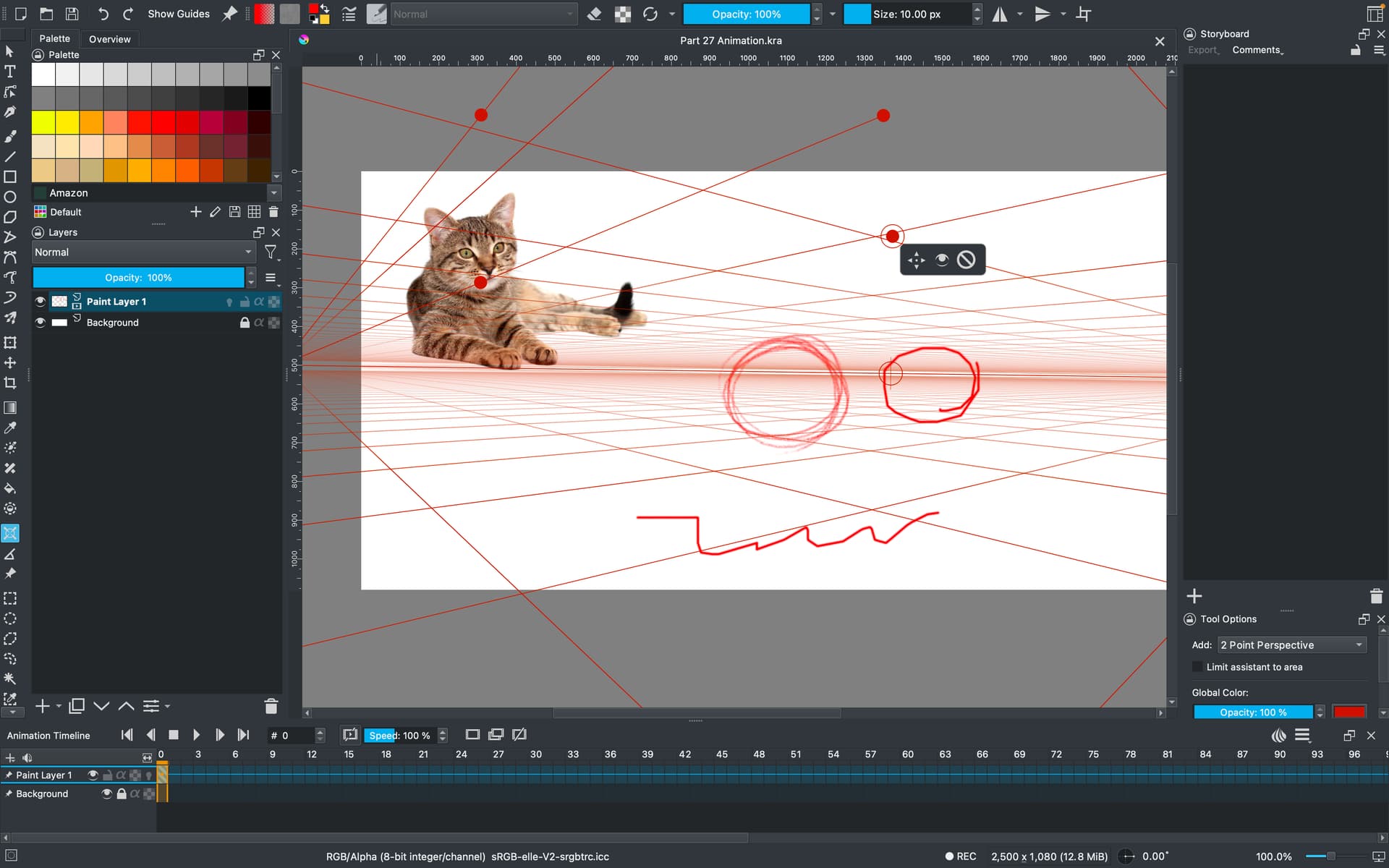
So I’ve started to move towards Krita from procreate for animation and I’ve run into a snag. I’m trying to storyboard so I made a perspective grid using the assistant tool. I usually just keep it up while I draw but when I tried to draw using it, the line was jagged and messed up. At first, I thought it was my tablet, since I’m still getting used to it, and it’s a bit janky but when I used the mouse it did the same thing. However, when I turned the perspective grid off my lines were nice and smooth. Is there a setting or something I’m missing?

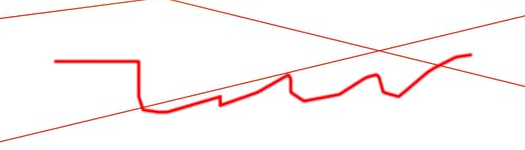
(The bottom line is the line drawn with assistant on)
(just another example)
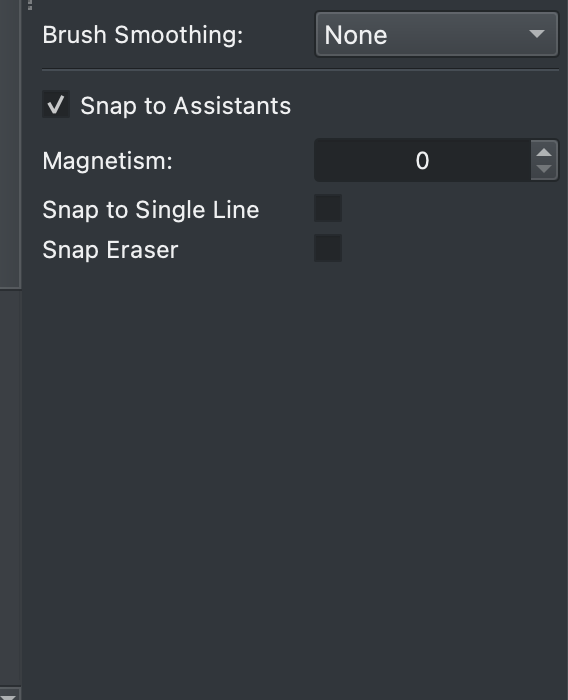
Have you checked the “snap to assistant” option in the tool option docker for the brush tool?
(It’s not a Perspective grid Assistant, it’s a 2-Point Perspective Assistant.)
Which version of krita and which graphics tablet (make and model) are you using?
This line is a contender for the suggestion by @raghukamath:
This circle looks more like a ‘classic’ tablet problem:
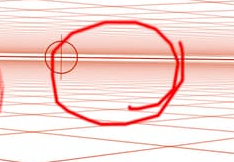
I’ve tried using Snap to Assistants in this situation with various Magnetism settings and I get something like it with very low Magnetism settings for the line but not for the circle.
I notice that ‘Rec’ is shown on the status bar but the Recorder docker is not present.
Even with recording active at a maximum rate of 1 fps I don’t see the effects shown for the circle.
Oh whoops thanks for the correction.
I’m using Krita 5.1.4 and the Artisul M0610 Pro.
The circle and the line were actually made when I used my mouse. I may be doing something incorrectly but is the point for this box to be checked or unchecked? Because I have the same problem whether its checked or not. (Thank you to you and @raghukamath for taking the time to help btw)
The Snap to Assistants box, if ticked, will cause the drawn stroke to snap to and track the assistant preview lines (the ones that follow the cursor).
I find this is most useful and least confusing with Snap to Single Line enabled and Magnetism set to 1000. Then draw single line segments one after the other.
Using Magnetism of 0 seems pointless to me though it does have an effect.
With the settings you show and using a mouse, I do get a wobbly line but a circle is nothing like the one you showed.
I find this surprising.
What if you try a Perspective assistant or a Concentric Ellipse assistant?
Note, I have experience using Snap to Assistants and it can be tricky to get the hang of it at first, especially with different assistant preview lines going in similar directions.
Practice is needed.
Another thought: Do you have Brush Smoothing set to None or something else?
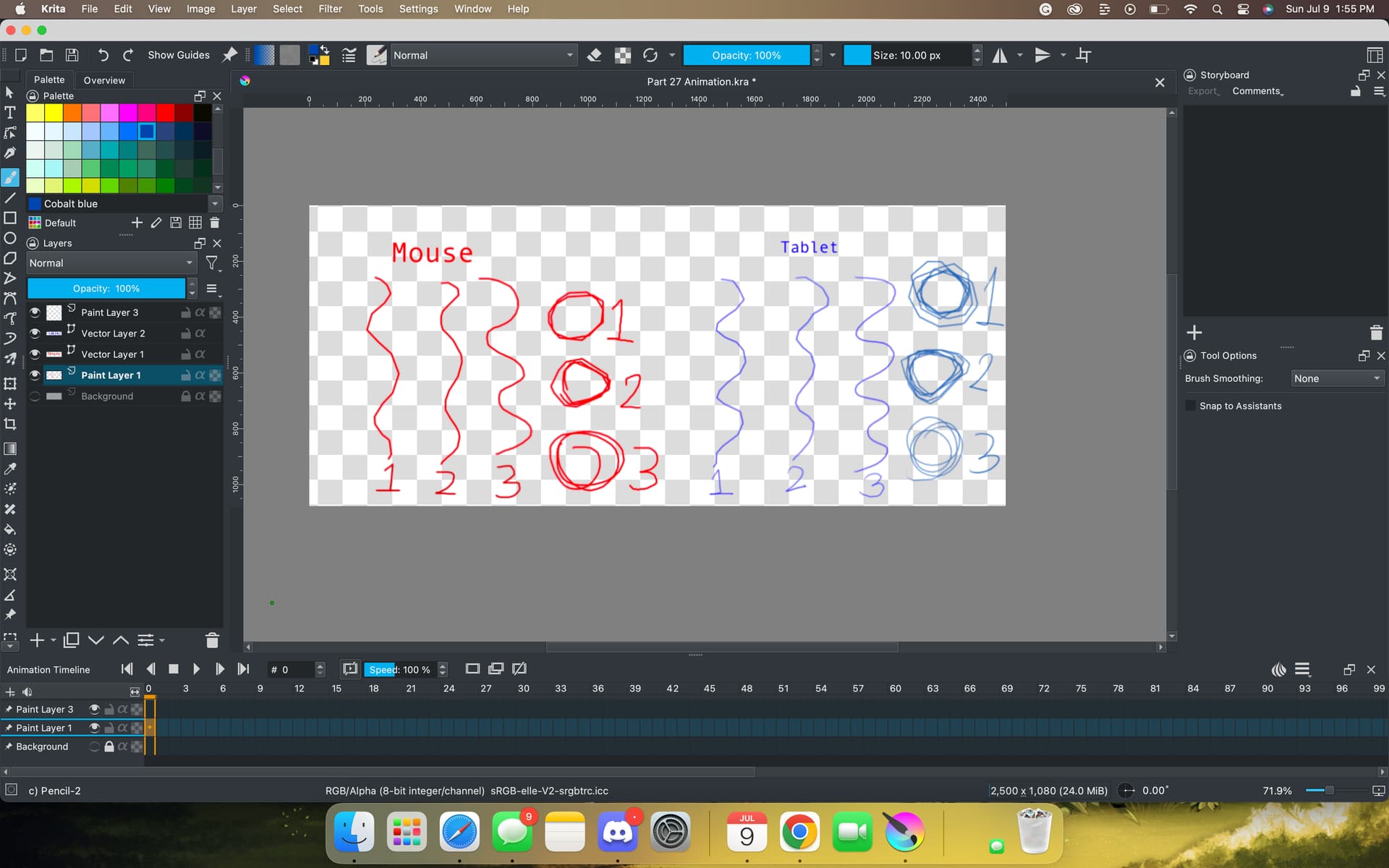
So I did a thing to get a better visual example of what’s happening
Red lines are what I did with the Mouse. Blue lines are what I did with the tablet. Brush smoothing is off on all of these test
The lines labeled Line 1 are the lines with the 2 point assistant active
The lines labeled Line 2 are the lines with 2 point assistant and snap to assistant (magnetism 0) active
The lines labeled Line 3 are the lines with everything off
Concentric Ellipse assistant seems to work though.
The lines labelled ‘3’ are normal expected lines, obviously.
The lines labelled ‘2’ are more or less what I get but that combination of Snap to Assistants and Magnetism should not be used, in my opinion, because I can’t think of any purpose for it.
I assume that you also mean that Snap to Assistants is off?
Those lines are not right and they are not what I get.
I should have asked you to update to version 5.1.5, which is what I’m using.
Please try this with version 5.1.5.
Do you mean that you don’t have this ‘janky’ line problem with freehand drawing or do you mean that you can snap to them properly?