I just started using Krita a few days ago as an alternative to Photoshop, and I really enjoy it! I’m planning on using this more in the future, but there is one issue I need some help with. I’m trying to turn the hardness of my brush all the way down and create a circle with edges that fade away.
In this picture, the photo on the left is the Photoshop brush I’m trying to achieve, and the right is my attempt in Krita. Instead of fading away, it makes a defined circle. I’ve done everything I can to fix this, I’ve tried all different kinds of brushes, gone into the brush settings, set it to Soft, turned the Hardness all the way down, and even installed air brushes, but nothing has worked. Does anyone know of any other things I could try? Thanks!
One factor in play there is that you’re using a 16-bit integer colour depth.
That seems to give harder edges, which seems surprising but I don’t know why that is. Someone else may be able to explain that.
Is there a reason why you’re using 16-bit integer instead of 8-bit integer?
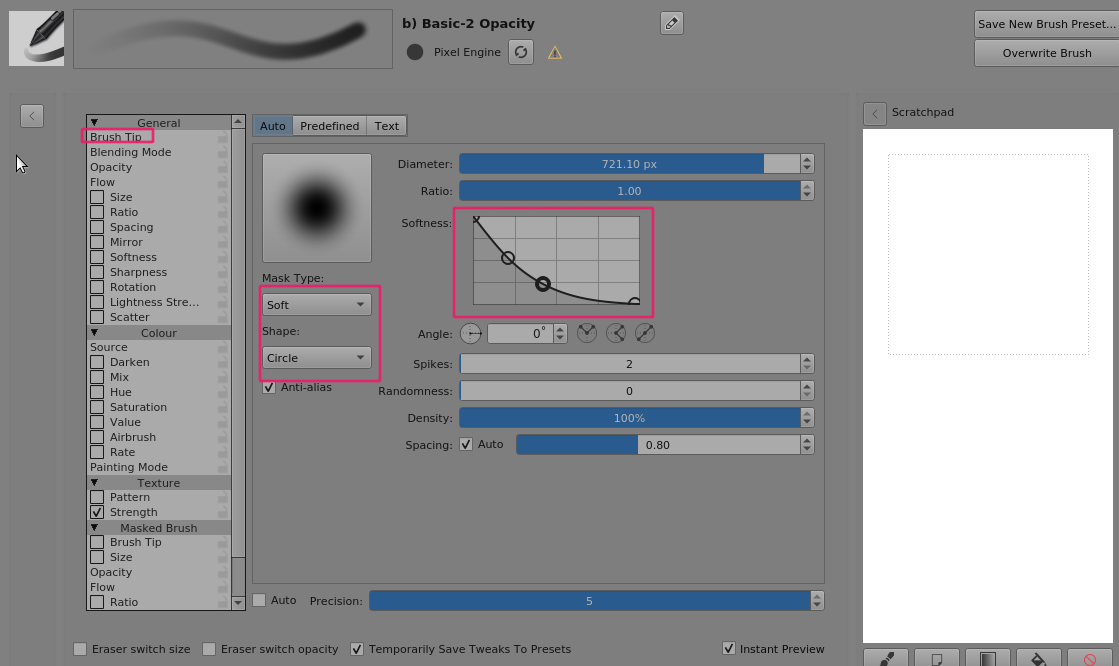
To get a smooth/soft fade out at the edges, you can adjust the Softness transfer curve as illustrated here to give a more gradual fade out:
I’m unfamiliar with the 16-bit integer color depth and what / where it is. This is just how it was after I installed Krita, so I don’t know how to change to 8-bit.
Also I tried adjusting the Softness curve like you demonstrated, and it still gave a hardened circle. Will switching to 8-bit fix it?
It seems that’s how the brush looks when using a linear color profile.
To use 8 bits you can select it in the new image dialog. Or you can change it for an open image in “image->covert image color space” menu.
That should do it.