New to Krita - Am I doing this wrong, or is Krita selective about how it imports brush bundles? Some seem to come in and are accessible via the dropdown, some seem to get completely lost, or have to find them via all - is there a script or a knack to importing a bundle or brush pack and having them as their own categorised, accessible panel/dropdown (like PS or Clip Studio)? It feels quite hard to find where they are, and I can’t tell properly if I’m pressing to view the Storage Resources, or hiding them!  Other than that - which could be completely me being new to it all, this is an amazing program! Thank you to all involved!
Hello @Pete_Lankston and welcome to the forum 
Can you give an example of a specific resources bundle or file collection that you are having difficulty with?
What is the “dropdown”?
Can you upload a screenshot of that part of the UI as you are using it?
Can you post a screenshot of this part of the UI that you find confusing?
1 Like
It sounds like you’re talking about two dropdowns here-
one is the Tags dropdown, with “All”, “All Untagged”, and various others. Tags are set manually, either by the creator of the bundle or the user. If the bundle creator didn’t create a tag for their brushes, you can do that easily under Settings->Manage Resources, by switching from ‘Local Resources’ to the bundle, selecting them all (Ctrl+A), and using the + next to ‘Tags’.
There’s no way to filter brushes by bundle in the preset chooser (though it would be nice), only by tag.
The other dropdown is ‘Storage Resources’, which shows a list of bundles, and clicking on them deactivates or activates them (deactivated bundles are greyed-out). They can also be (de)activated under Settings->Manage Resource Libraries.
1 Like
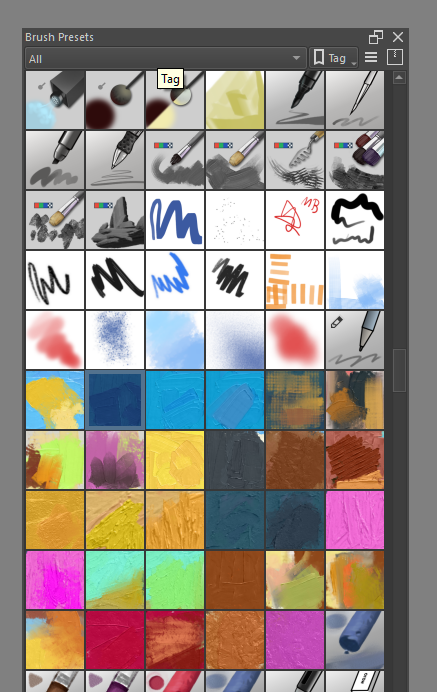
This is probably just me trying to get to grips with the software! - I could be looking for brushes that are incompatible with Krita - Grut and True Grit etc? I can import and see them under brushes in PS, but can’t find them after adding them into resources. But then funnily enough, a couple show up as brush tips under the brush editor…?
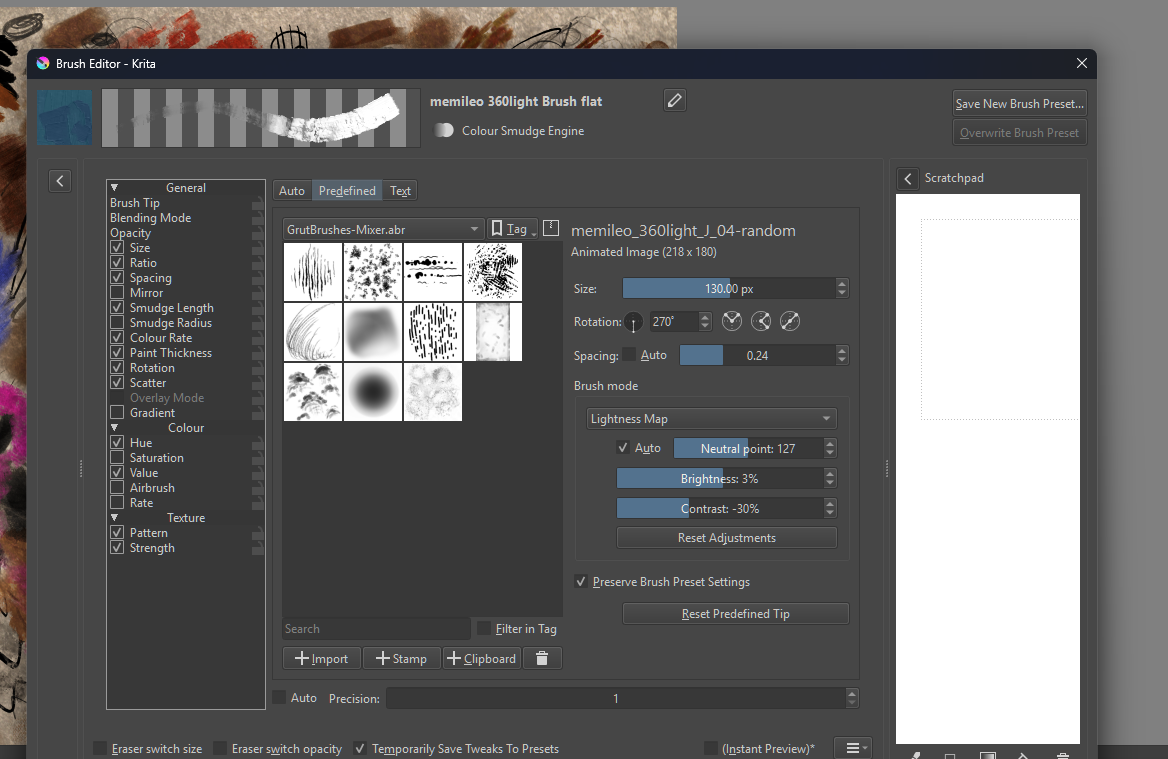
Thank you! Yeah, it seems like I’m mixing up presets with brush tips and also their extensions and functions?
All Photoshop .abr brushes are ‘incompatible’ with krita because as well as being made for Photoshop’s internal painting software, they use a proprietary internal data format.
What krita can do is extract the brushtip image from a .abr file and give you that in the Predefined Brushtips.
If some .abr files don’t give you a brushtip then there may be a version/format problem with them but it’s not an area I’m familiar with.
The UI screenshot you’re showing is the Brush Editor. It’s used to examine and adjust the properties of a Brush Preset and can also be used to Import a brushtip file and control how Predefined brushtip images are used in the Brush Preset they are attached to.
.kpp files are Brush Preset files. They are painting ‘devices’ that you … paint with. They are listed and selected for use in the Brush Presets docker.
Brushtip files are purely image files and can be .png or .gbr or .gih. They fit on the end of Brush Presets as Predefined Brushtips.
.bundle files are zipped collections of mixed resources that are Imported as a named set and can be enabled/disabled in the Settings → Manage Resource Libraries subwindow.
Edit:Add:
There are thousands of brushes that are compatible with krita because they are made for krita. You can find some excellent collections/bundles here for download on the forum in the Resources: Brushes and Bundles category.
Try them
2 Likes
That’s fantastic! Thank you so much for the fast response! I’m slowly finding my way, with your help!
All the best, and thank you for the warm welcome!
1 Like
This topic was automatically closed 4 days after the last reply. New replies are no longer allowed.