While I was trying to paint the grass of a lawn, I was looking for an option where each bush-shaped brushstroke could vary color on the green tone, but I didn’t find anything if you don’t darken brush strokes etc… You could have an option of brushes in which with the variation of pen pressure, the color changes as per the selected gradient (overrides the single color) so that the color furthest to the left of the gradient colors the tip with the minimum pressure, the one on the right with the maximum pressure and those in middle ways.
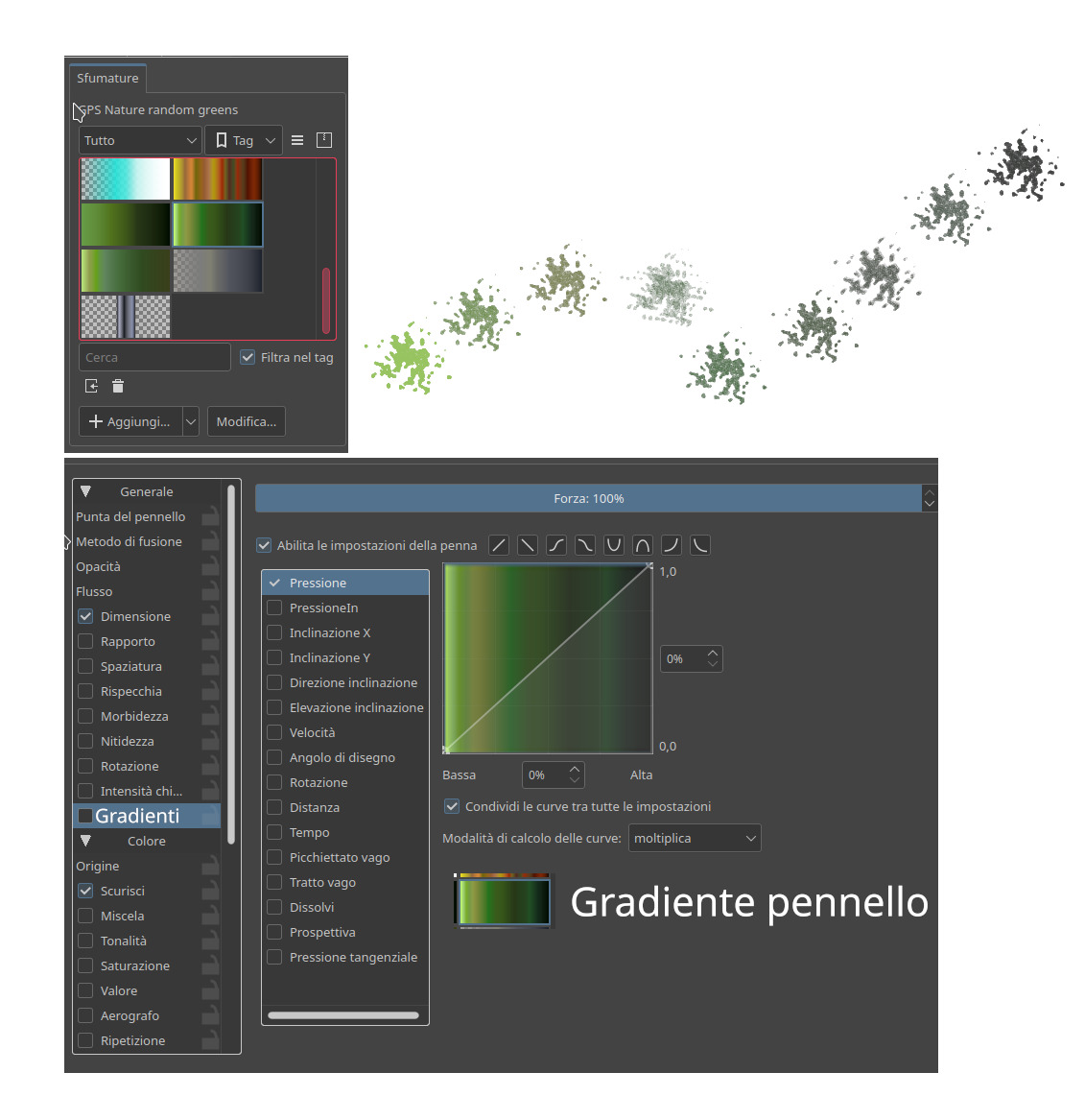
I knew it! but it is random, without real control. As I think it is managed with pressure, see photomontage, an invert gradient would also be needed but it could be done by inverting the pressure line (therefore I superimposed the gradient on the pressure line).
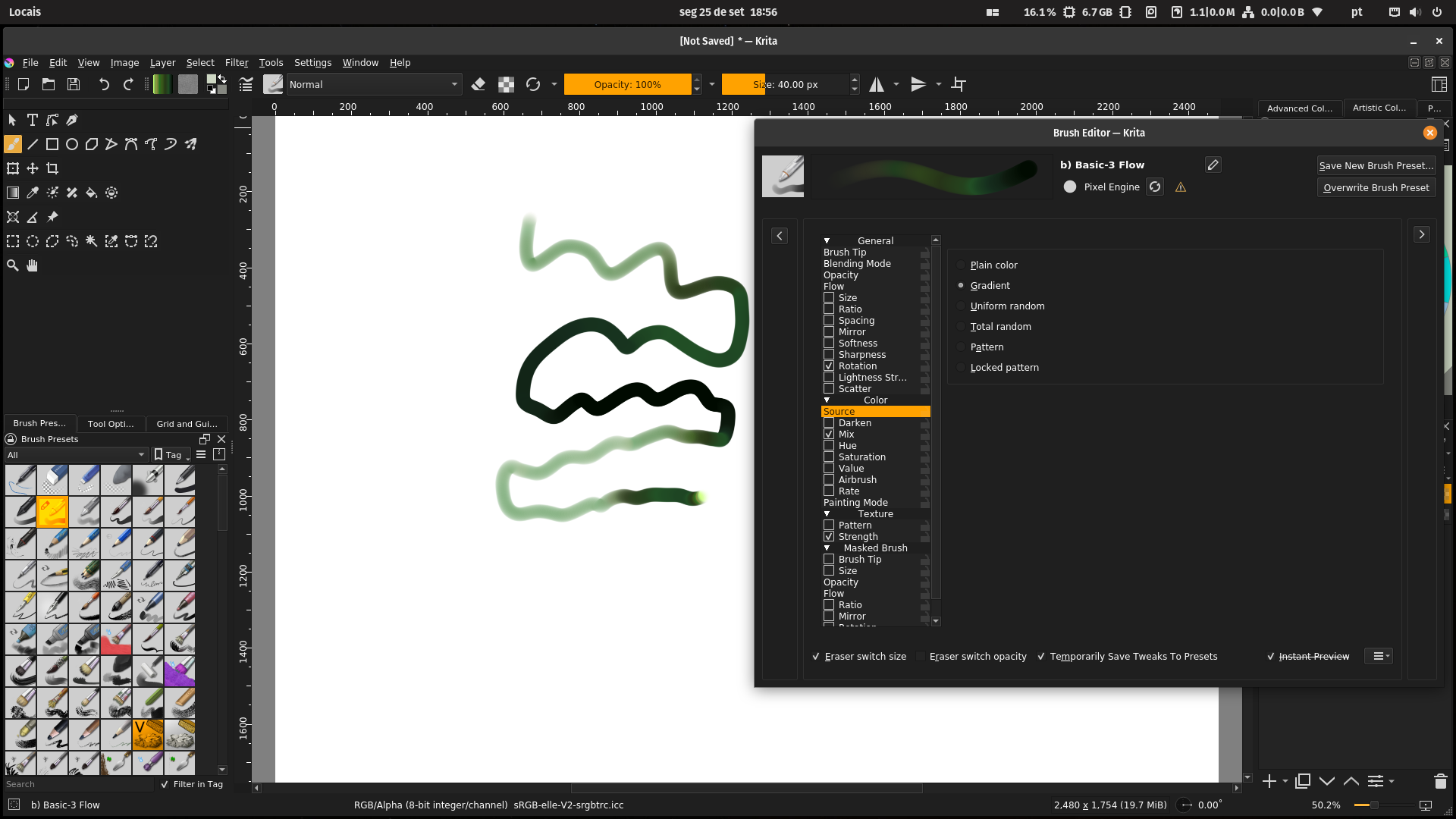
Not actually random, I would say confusing to setup in fairness. To ‘gain’ control over the gradient do the following:
- Select Source → Gradient
- In the Mix Option enable Pen Settings then select which parameter you want to control the gradient
Cheers
It actually works as I wanted! if there was a function to reverse the gradient without touching the pressure line it would be better but I’m not complaining. Can I ask one last thing? if you want to erase or color in an image with a series of colors contained in a gradient, without touching the other colors, can this be done? I mean: we have a gradient with red and blue, and with the eraser I pass an image with many red, blue and yellow dots, the yellows must not be touched because they are outside the parameters of the gradient, this can currently be done using some combo of options ?
Not that I know of, but I could be wrong. Maybe it can be done when grouping the layers, plus some Layer’s blend magic interaction.
If you want to erase some discrete colors you can always use (multiples) filter mask with the color to alpha option.
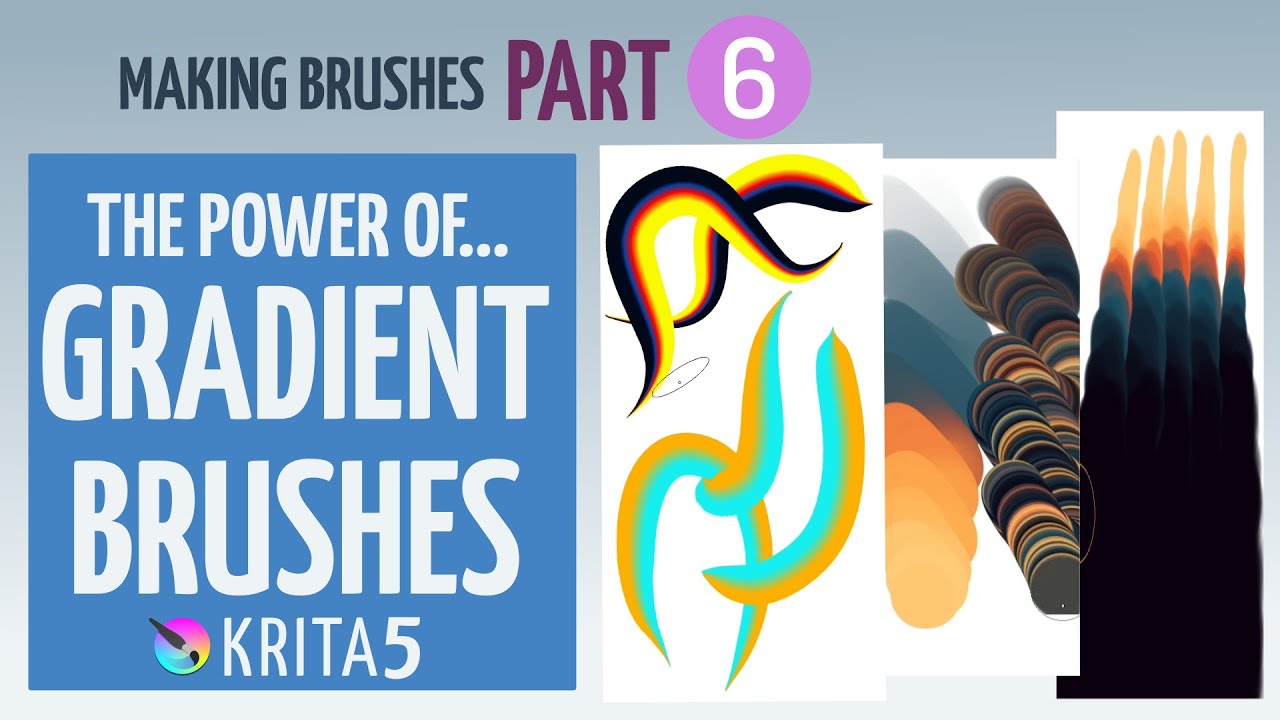
here is a nice tutorial on gradient brush use
So, I have a few thoughts about colouring image, with a gradient:
duplicate the layer of the piece of art you want to work with. turn off original ( and keep that on top of your layer list ) under the copied layer, create a blank layer.
on your copied layer if you need to, create a mask, then go to the layer below and add in your gradient.
The layer copy of the orgiginal, you can then reduce transparency, a bit, and you will see your gradient coming through, using a gradient brush, with your same gradient applied to it, you can now touch up things. this can be done by adding other layers as needed as well.
your original copy can be used to reintroduce the image as needed. Also preserves it form any mistakes you may have decided you didnt like with the gradient work.
You can also stack versions of gradient layers, and use your brush to erase lines of the over gradient to reveal the under gradient. which can make some really nice colour effects.