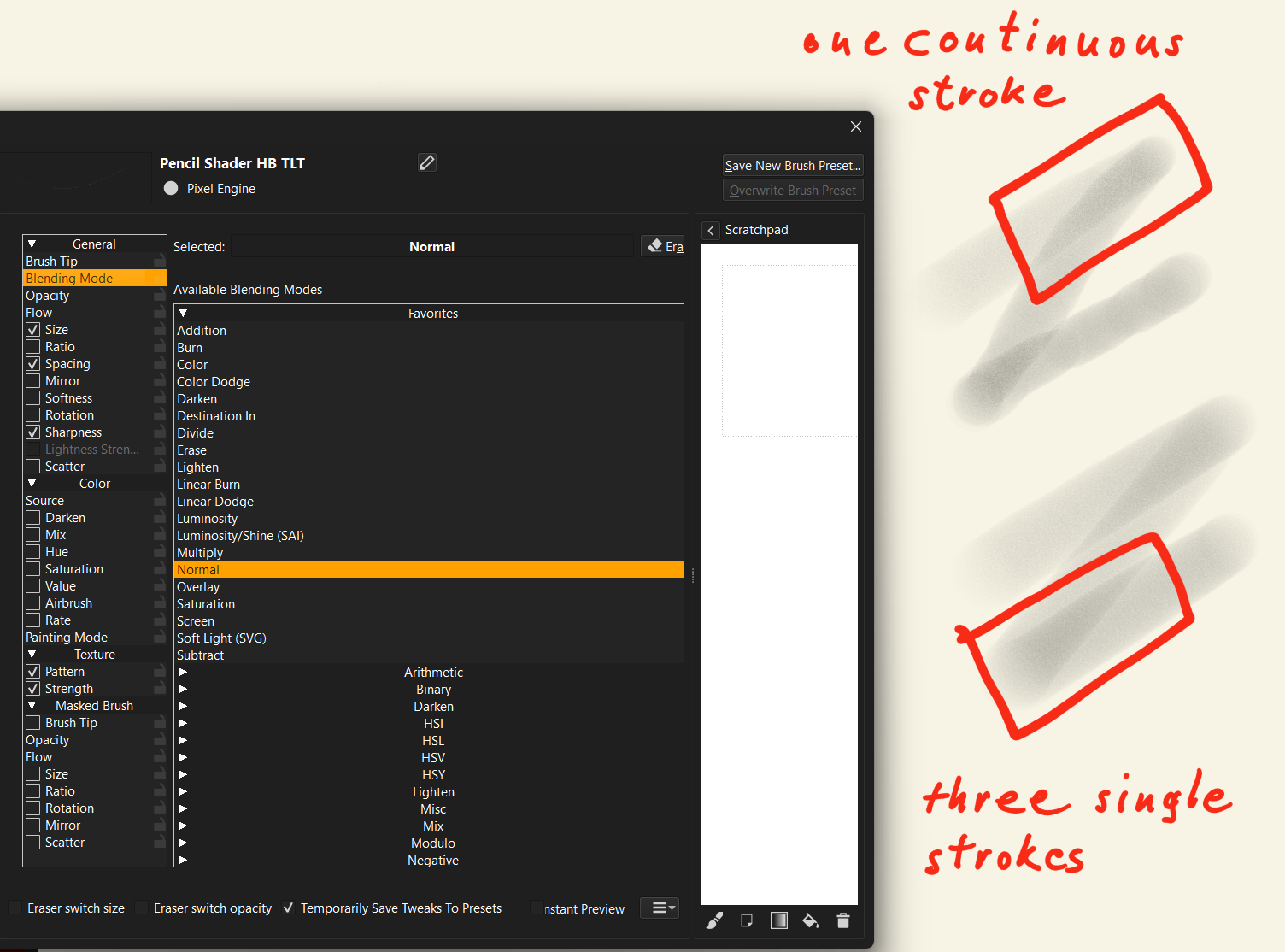
There may be a particular Brush Blending mode (there are a large number of them available) that gives you some of the effect you want.
I mostly don’t understand them so you’d need someone else to explore that possibility. You could experiment with them.
Since this is caused by either the opacity or flow, turn off the pressure for opacity, and mix the color you need and paint with a completely opaque color. I usually do that in my painting.
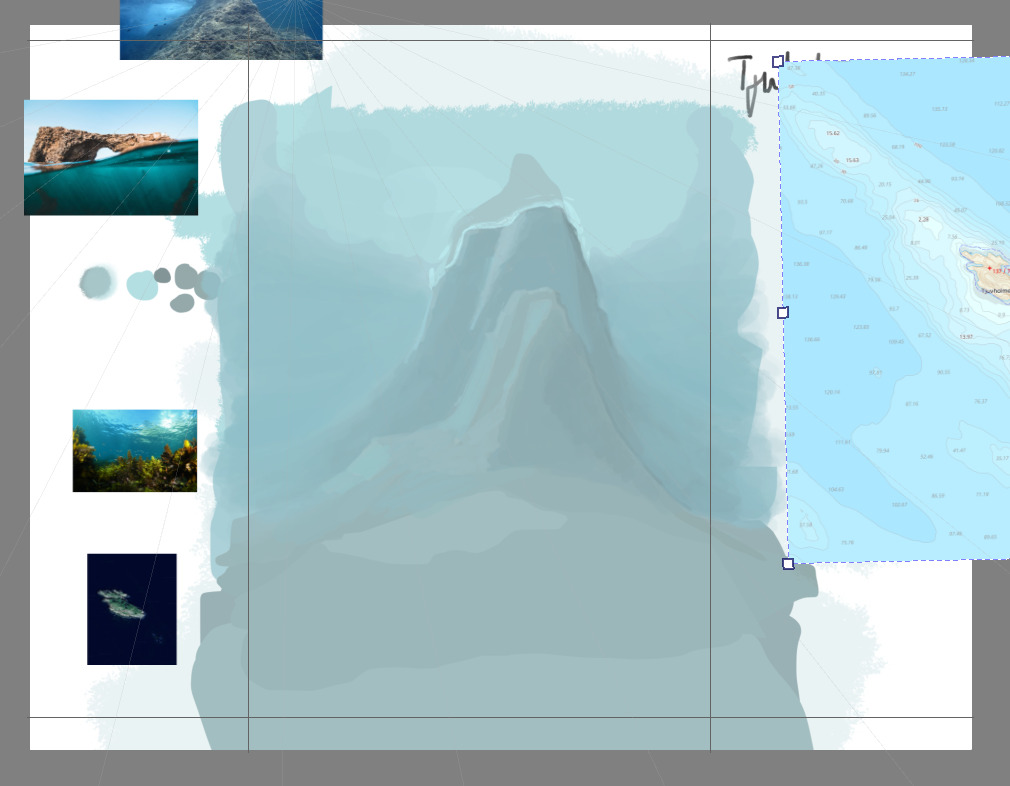
I set up the canvas a bit larger than I need for the painting so I have room around the sides for sketches and color mixing. Makes for a more fun and learning experience too!
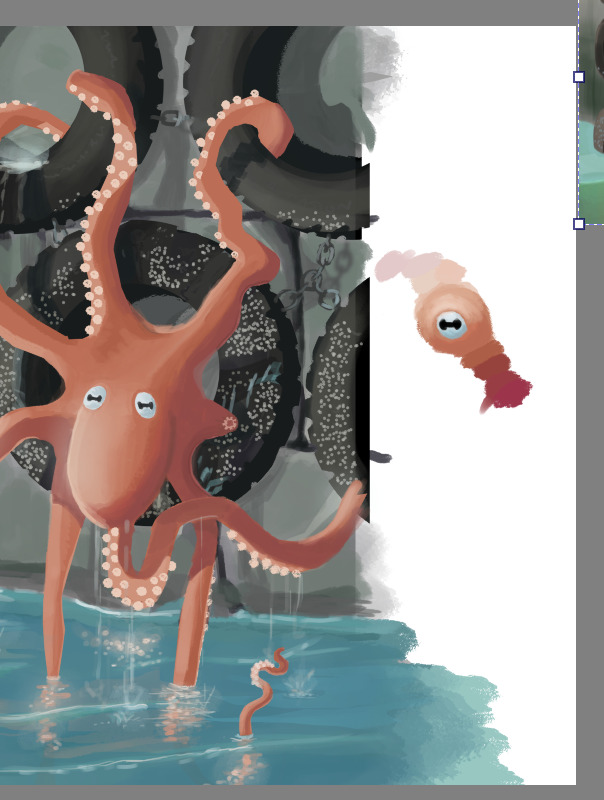
The extra area also allow me to ‘practice’ the shading i need, and I can pick the colors directly dfrom the practice, like the octopus eye in one of the screenshots.
Thanks for the input, but I think my question was a bit different.
I found out how it works after some more testing
It is possible to fully avoid the overlapping but then the brush is not very realistic anymore.
E.g.:
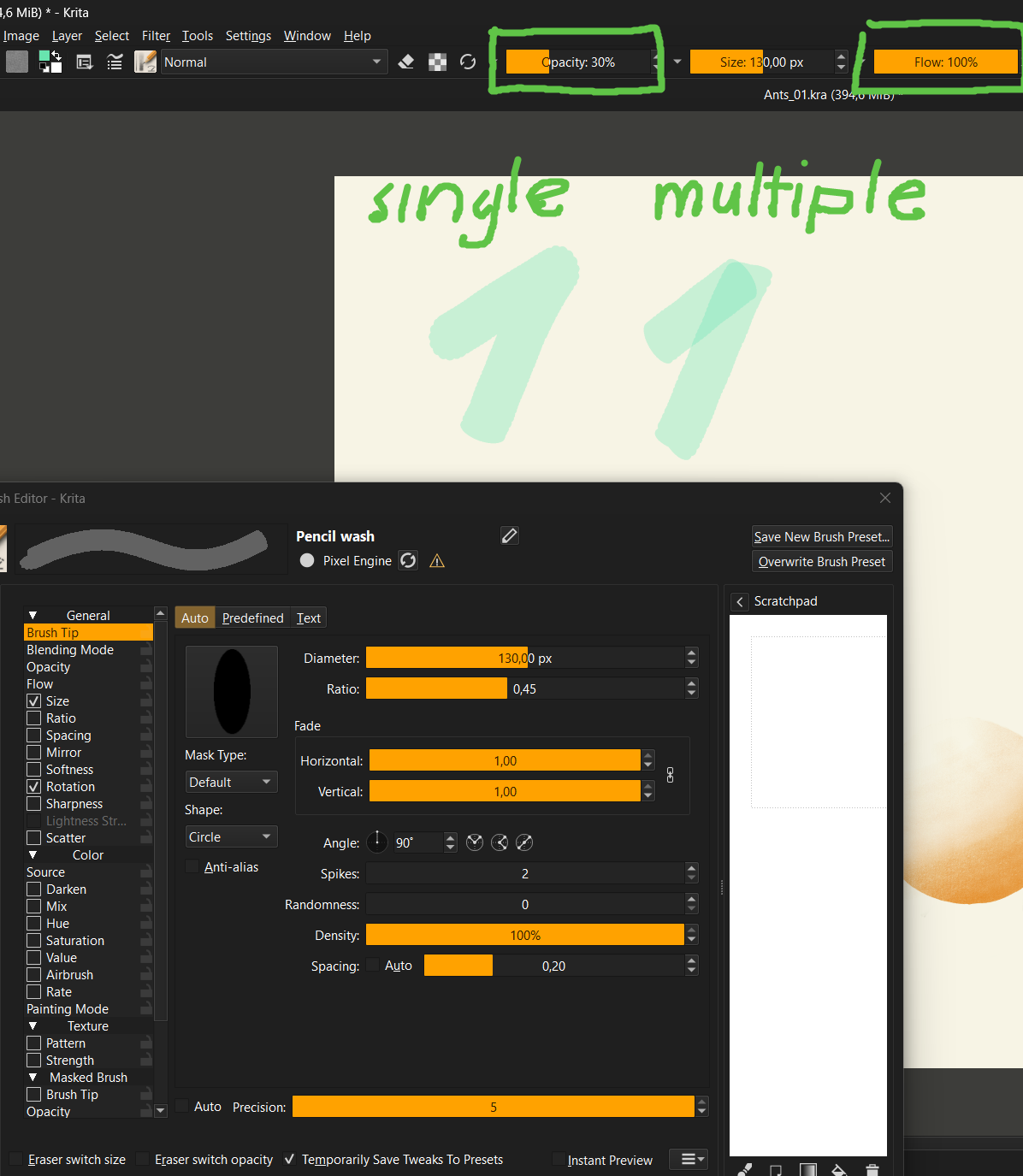
Painting Mode = Wash
Brush Tip Density = 100%
Opacity = 10%
Flow = 100%
Texture Pattern = off
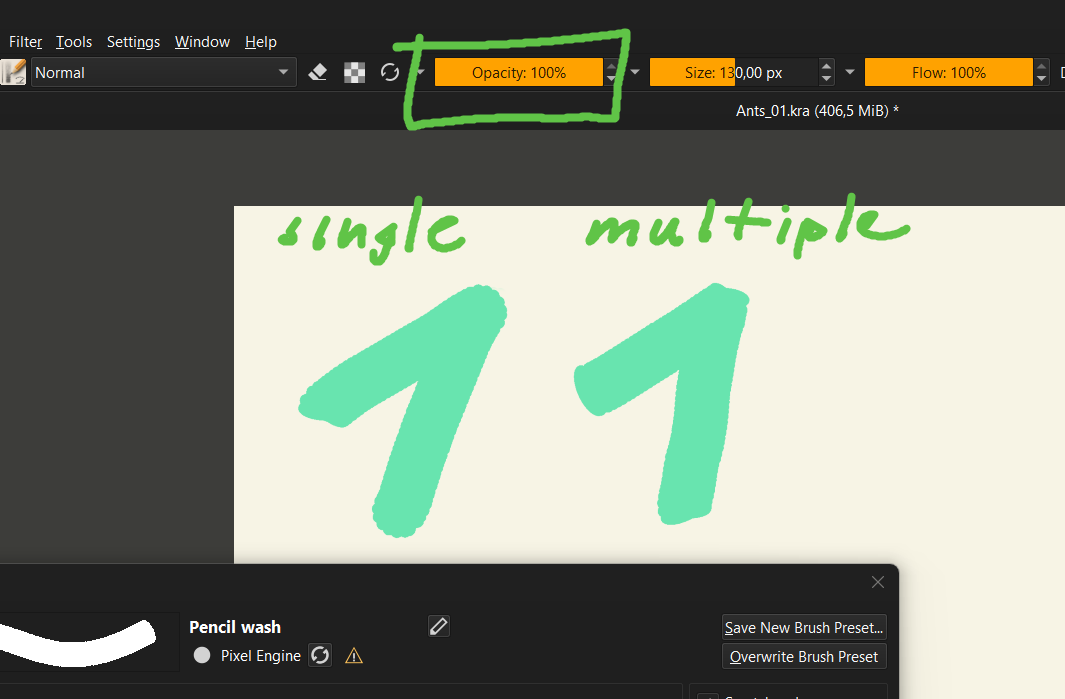
In that case a single stroke does not show darkened overlapping (multiple strokes will do though).
To get no darkening with multiple strokes as well, Opacity has to be 100%.
But then the brush works more or less like a single color fill (boring
As soon as e.g. a texture is involved or Tip Densitiy is less than 100% or Flow is less than 100% or brush mode is Build-Up etc. overlapping starts to appear. Which, after understanding it, is good, as I can now create pencils that shade similar to real ones
It is really interesting how the various settings effect each other.