 Hello @Jomy_D, and welcome to the forum!
You unfortunately did not name your OS nor the exact version number of Krita, so helping is difficult because only unspecific. I hope you have already updated to the most recent version of Krita 5.3.2.1 which you can get from:
After opening Krita and getting this error report click it away and then enter your resources folder via Settings > Manage Resources... where you have to click the button Open Resource Folder which will then open the resource folder. There scroll to the very end and select all the bundles shown there and copy them to your desktop. Restart Krita to get this error message again and then click the error message away but then click the button + Import, in the opening Explorer dialog window browse to the bundles you just copied to your desktop and select all of them, then click on the OK-Button to import them, confirm the request to overwrite the existing ones. After Krita is ready with importing them restart Krita. Does it now work?
If that did not do the trick, then you can try if a rebuild of Krita’s resource database resourcecache.sqlite will solve your issue. To rebuild it you need to enter Krita’s resource folder again the way I described above, and then, depending on your OS, you can close Krita directly - that is when your Krita uses the OSs file manager - if it uses Krita’s own file manager dialog, then you have to notice the path to your resources folder, because closing Krita should close that file manager dialog too. Now browse to the just noted folder with your regular file manager.
And now you have to delete your resourcecache.sqlite. With a little luck Krita will now accept your bundles when it starts up the next time after it rebuilds the resource database.
If both actions don’t help, you need to wait for our developers finding another solution to this issue. I have had this issue two times times and for me both of the above described ways worked without issues.
Furthermore, if you want to provide screenshots of Krita, which is in principle very welcome, then please don’t use your phone for that, usually you can create screenshots with the key right of F12 which is mostly named Print but sometimes also Prt and other abbreviations that point to the action of printing something, with language specific keyboards it can of course be in your language. After you pressed that key you can insert the screenshot into Krita via CTRL + N for new picture and then selecting the second option on the left Create from Clipboard and click on Create:
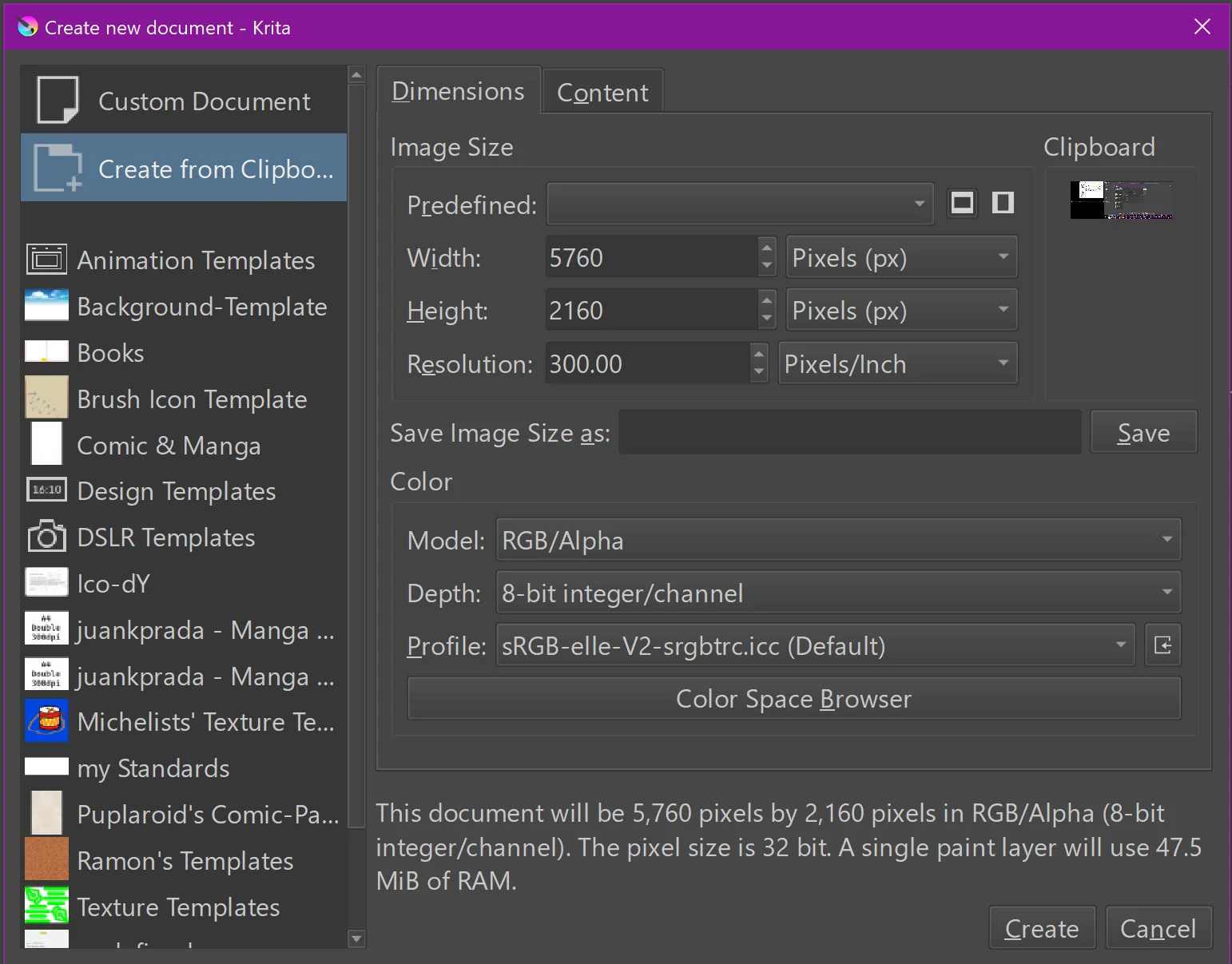
The advantage of real screenshots are pictures that are clearly visible, have no light reflexes on the screen and more.
Alternatively, you can use any program you like to make your screenshot into a picture that you can upload to the forum.
Please always include the status bar and the title bar of Krita in your screenshots and get the Tool Options Docker in front, that is usually found on a tab below the Advanced Color Selector in the upper right corner of a fresh installation of Krita.
Michelist