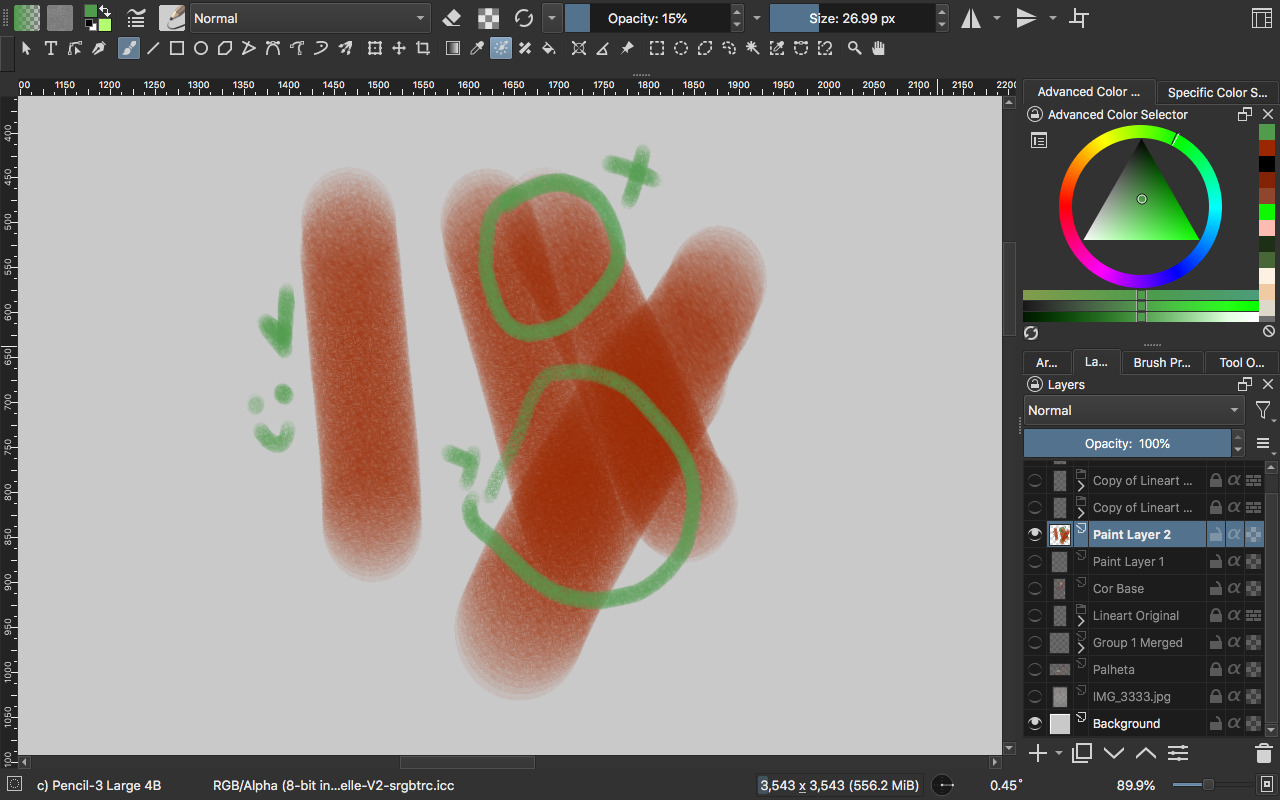
Hello, I have a problem with painting. When I paint, brushstrokes overlap and this causes a second, darker tone to appear. But I didn’t want that effect. Is there a way to configure the brush to not do this anymore?
Just to give an exemple, in this video the guy is painting a skin, I would like my brush to do that instead of creating layers of brush strokes, so it’s more suitable for painting the skin.
That artist is using Photoshop, not Krita (the part I watched, anyway).
If you’re new to Krita, you need to watch Krita tutorials.
For your question, try using a different brush. The one you’ve chosen, Pencil-3 Large 4B, is designed to be used at 15% opacity. That’s one of the reasons you’re getting build up when you stroke over the same area.
See if you like Basic-5 Size. If that didn’t help, write back again.
Others in the forum might have even better ideas for you.
That is a normal behavior when using low opacity with any brush, every new overlap will basically double opacity on overlapping parts hence creating darker and darker layers.
What you can do to avoid that when using opacity anything lower than 100% on a chosen brush is to change Brush blending mode from Normal to Greater (found under Mix group of modes). That way you will not get increased values on overlaps unless you increase opacity manually or by increasing pressure.
Option to change blending mode of current brush can be found on top toolbar next to brush icon. (see picture) And if you want the normal behavior back you simply change the mode to Normal again.
However, choosing some 100% opacity brush to layout your base color and then painting over it with slightly darker or lighter color using textured brush such as the one you used in example will most likely give you the desired effect (adding skin texture).