I’m using a self-compiled 5.1.0 prealpha but had another user confirm with 5.0.6.
Process:
-Create a layer with a white background layer.Create an empty layer and scribble something on it, set it to “multiply”. Create another empty layer on top of that, and draw e.g. a filled white rectangle on it. Make some black marks on this layer and set the layer to multiply.
-Merge the top layer down onto the middle one with ctrl-e. Note that the white rectangle on the top layer now covers everything under it on the middle layer, even though the layer was set to multiply.
It seems to be the not-Normal blending mode of the middle layer that causes that to happen.
There are similar results with other not-Normal blending modes.
If you group the two upper layers then you get the same effect so it’s not due to blending effects coming up from below.
Well the issue is, there are multiple opinions on what the “correct” way to merge layers is. In general, there is no way that presevers the final composition if any blending mode other than “normal” is invovled.
I would have to dig through the code, but it looks like there is a special case when both layers have identical attributes, they are merged as if they were two normal layers in a group that has these attributes (in this case, multiply mode).
If they are different, they are basically just thrown in a group as they are and the group gets merged, losing all attributes.
I remember that I discussed with Dmitry a while ago that I wanted a different way to merge layers, but it never reached the top of my bucket list, so I haven’t implemented it yet
I’m not sure about other blend modes, but I have a hard time seeing where the user would expect merging multiply layers to work this way. Even just merging a fully white layer on multiply onto another layer set to “multiply” results in a white layer.
When merging layer A onto layer B, is there any reason to consider what the blending mode of layer B is in the first place? Shouldn’t it just treat the contents of “B” as pixel data and composite the two layers together using whatever algorithm is specified in layer A, then composite the resulting merged layer using whatever blend mode was specified in layer B ? The order of operations here seems odd to me.
Afair, when layers A and B have a similar blending mode; they are first merged together as normal pixels, then the common blending mode is applied on the resulting merged layer.
No idea if it is right or wrong; merging down layers with blending mode always have been complex unless having a solid non-alpha layer under.
Only Mypaint figured a way to manage this long time ago; if you can check it, create little layer stack with random blending modes and see the feature after a right click on the layer “Convert to Normal Painting layer” that fully preserve the appearance of the layer, but in normal mode this time. Now, if you try to merge down two layer in Mypaint; both will have that pre-processed before the merge; and the result will be really savy about the appearance of the artwork. It’s a hidden gem 10 y/o innovation of Mypaint.
That is pretty much what I wanted to implement, merging into the “raw” bottom layer, and just keeping the attributes as they were.
I’m sure Dmitry explained why not everyone may want that result though, but honestly, I forgot in which case the current way may be preferred
Playing with some combination, it still doesn’t make much sense to me either.
Interesting, guess I need to checkout MyPaint code once more
Right now I’m not sure how you can keep the alpha channel when baking the result.
But regardless, to me it would be of limited use, you need to do that with all layers you merge, and basically accumulate the opacity of all layers involved, so you can’t really paint much below it anymore, it just stays covered up with the previous result.
I also find what @hulmanen and @Lynx3d expose more pleasant. The top layer is combined using its blending mode with the raw pixels of the bottom layer (only the color components) and then those values are blended again with the bottom layer using src over (taking the opacity value of the top layer into account), and the bottom-merged layer keeps its blending mode. I don’t think you have to take the alpha/opacity into account forthe first mix with the blrnding mode, but I’m not sure. One issue would be those modes that are alpha modes in essence, like erase or dst atop.
@LunarKreatures pointed out elsewhere that if the two layers are placed in a group and the group is merged, everything seems to work as I would expect. So perhaps that same compositing logic can be used when merging two layers outside a group?
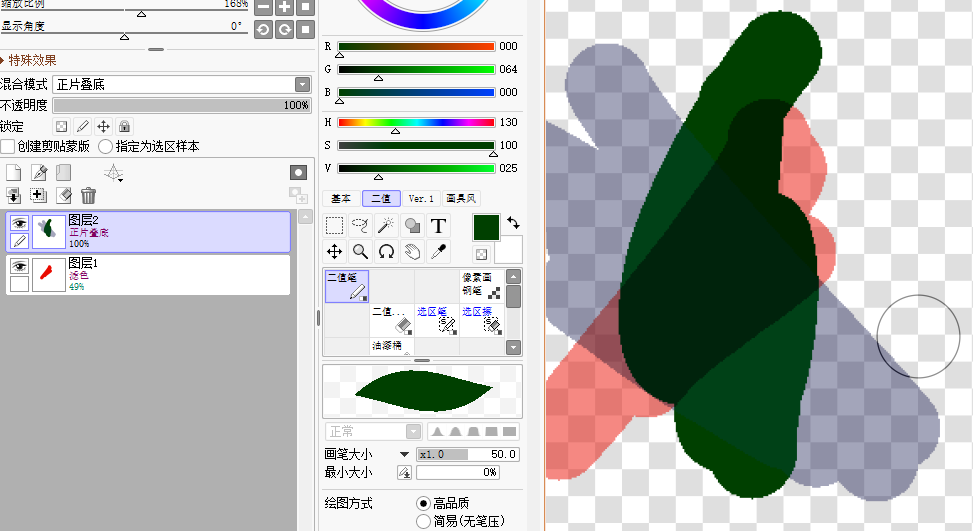
When merging a layer with the lower layer, use the blending mode of the above layer for calculation. The final result uses the blending mode of the layer below. Layer alpha becomes 100%.
Select two layers and merge them. The calculation uses the blending mode above, and the final result becomes “normal”
Select multiple layers, and the final result must be “normal”
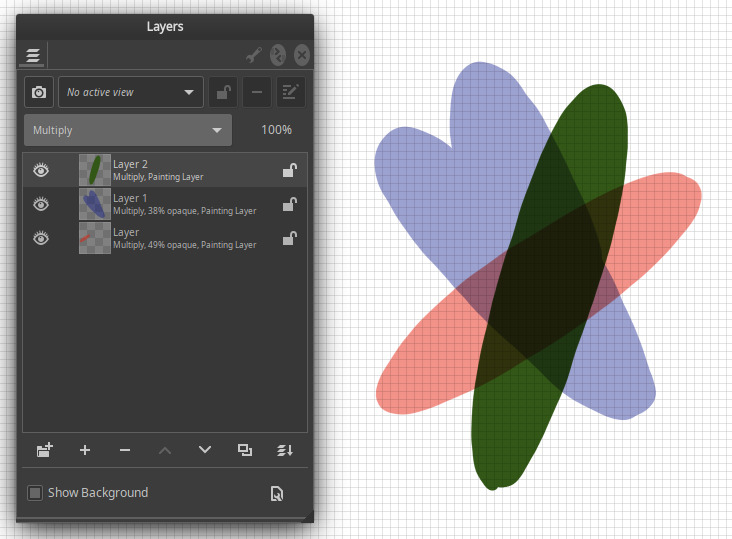
gimp
The calculation uses the blending mode above, and the final result becomes “normal”. Layer alpha becomes 100%.
I can’t select multiple layers……
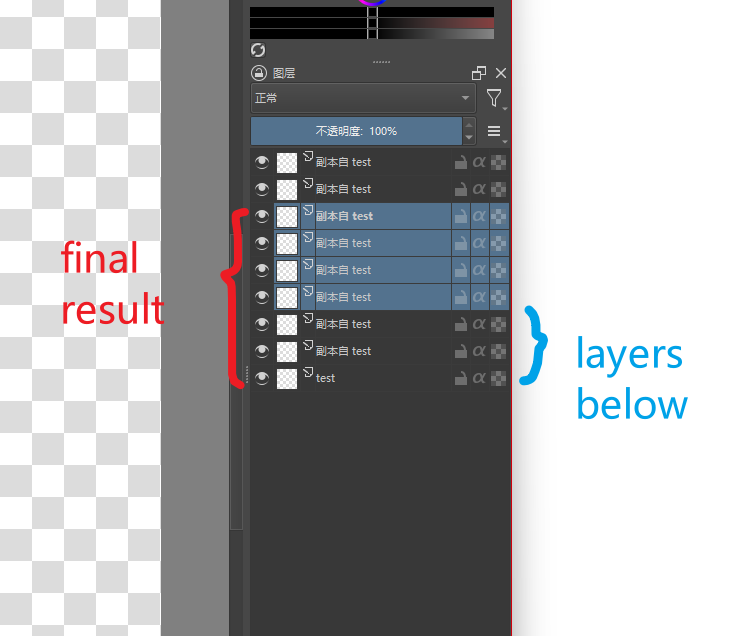
krita
1.Two or more different blending modes:
The calculation uses the blending mode above, and the final result becomes “normal”. Layer alpha becomes 100%.
2.Two or more same blending modes:
①If all layers have consistent alpha, their layer opacity is assumed to be 100%, and then they are calculated by “normal”. Finally, change the result to the previous blending mode and alpha
②If the layer alpha is inconsistent, but you have selected multiple layers to merge.
Blend their translucent pixels according to “normal”. Blending mode remains unchanged and layer alpha changes to 1
③If the layer alpha is inconsistent, and you directly mix it with the layer below through “Ctrl + e”, it will be calculated according to the selected blending mode. The final result becomes 100% normal
In general, krita’s mixing is complex (I may not have the correct algorithm in the above). And in some cases, the results of layer merging are very different from the original. If it needs to be changed, I vote for Sai’s algorithm.
However, I’m not sure if we really need to change it: as shown in the figure below, mixing cannot keep the image unchanged when multiple layers use different blendinging modes. Therefore, in the actual painting, there is basically no one to merge these layers at will. Also I can’t think of any algorithm that can take into account the calculation of the above and below layers when merging
@TheTwo I agree that there are many cases where the results can not be the same after merging. That’s just how it is. But in this specific case we do not have that problem - it can be the same, just needs to be implemented differently. And it already is implemented differently if the layers are in a group and the group is flattened. I don’t see why it should be different when two layers with the same blending mode are merged together if they are not grouped. The logic should be the same IMO.
In general this creates confusion about what the blending modes even mean. I expect it to mean “composite layer pixels over the stack below, using the selected algorithm”. But as it is now, it seems in some cases, the pixel data itself is changed based on what blendmode is active for that layer. That’ s pretty unexpected to me.
I tested mypaint.
I see exactly the same after the merge and before the merge.
It really is magic.
Hope krita can do it in the future.
This helps users who don’t have enough raw to reduce the memory consumed by krita.
We first calculate the mixing result of the selected layer and the below layer (red) , and then calculate the below layer mixing (blue) separately. Subtracting blue from red should be what we need(“New layer from visible” is fast, so I assume it is not slow)
My only concern is the transform mask. The merge operation involving it will become very slow anyway. (I just used “new layer from visible” and it’s stuck and can’t be undone…) considering all the layers below undoubtedly increases this risk.
I just wanted to mention that multiply has a special property: it is associative. It doesn’t matter if you do (a*b)*c or a*(b*c), hence merging two multiply layers is straightforward without considering the rest of the layer stack.
Addition is another example, but outside of that, you need to do what TheTwo described above. I just found the code in MyPaint (it’s in layer_new_normalized() in lib/layer/tree.py and tile_flat2rgba() in lib/pixops.cpp), it does indeed calculate a new layer from the projections below the layers to be merged and the final result, with the smallest possible Alpha value.
Also, I found that there are modes that can’t be normalized, like erase mode.
Oh and since you mentioned masks, keeping masks of the bottom layer was one major reason I wanted to implement a “merge into raw” function, it’s so tedious to do manually, and you must not forget about certain things.
Flattening a layer currently bakes in the layer opacity too and resets it to 100%, that’s rather destructive IMHO, you must never forget to double check that opacity is 100% (I’ve ruined my progress more than once becaue of that…).
Applying masks individually would be a great option too, btw.