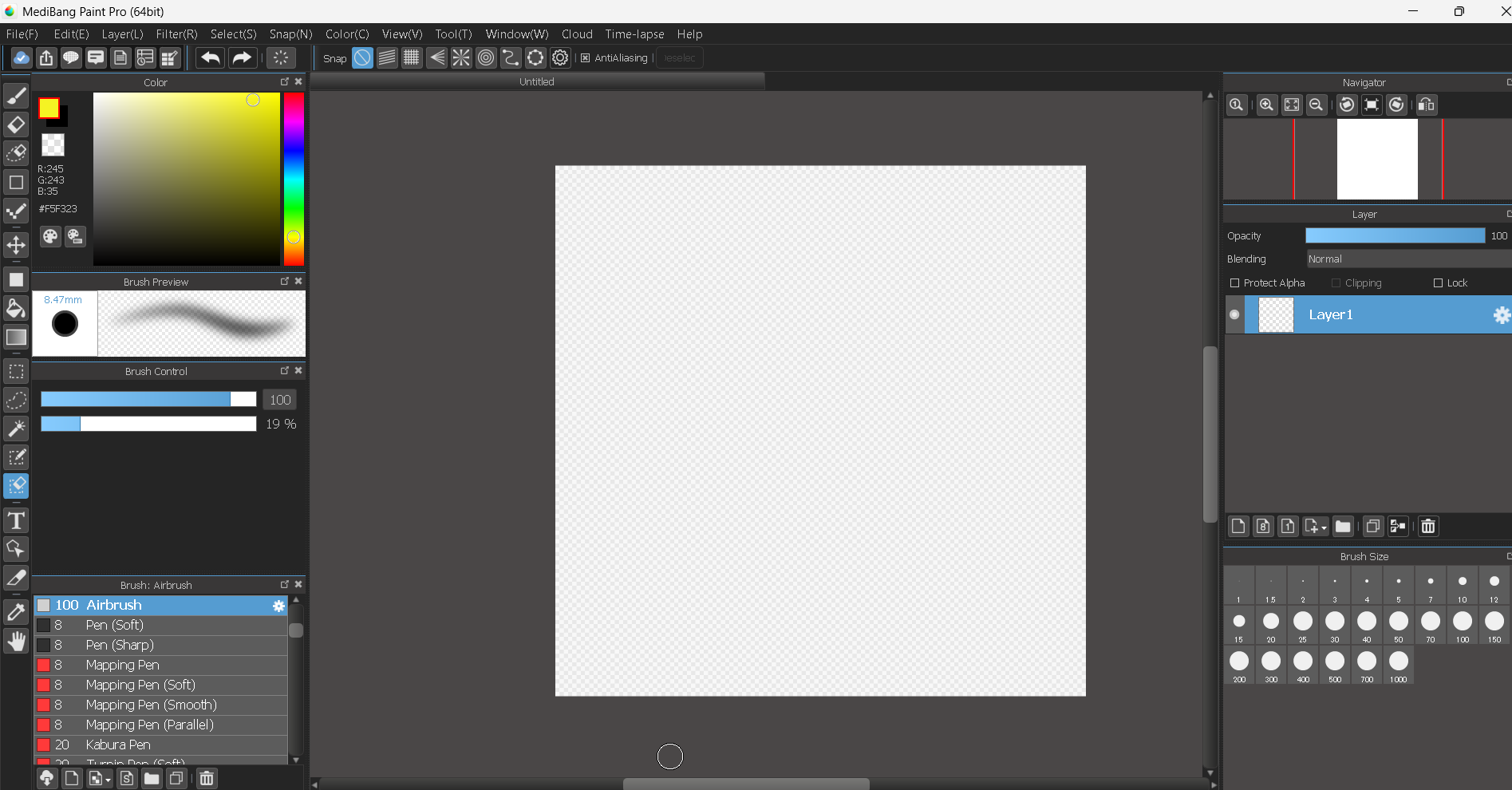
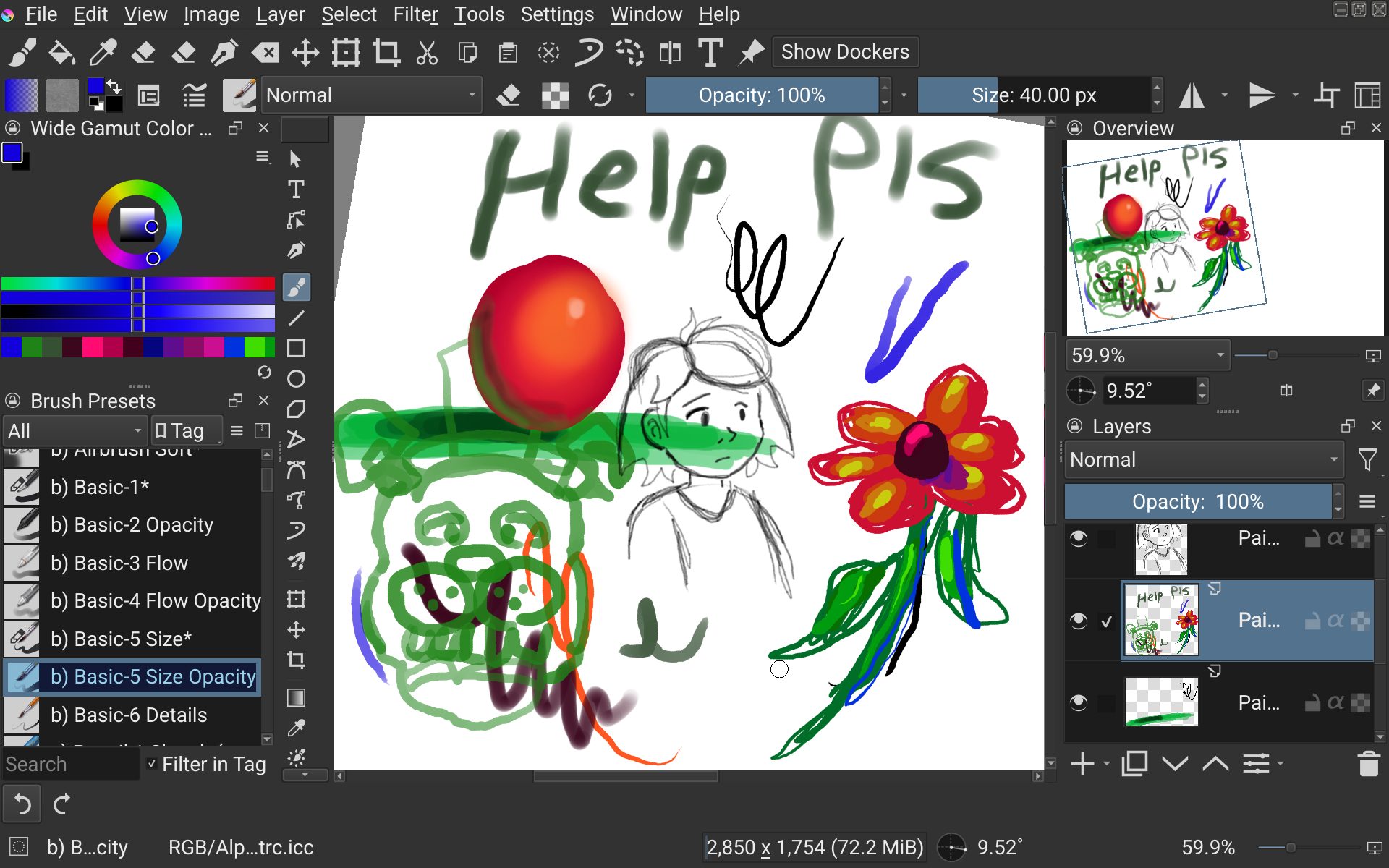
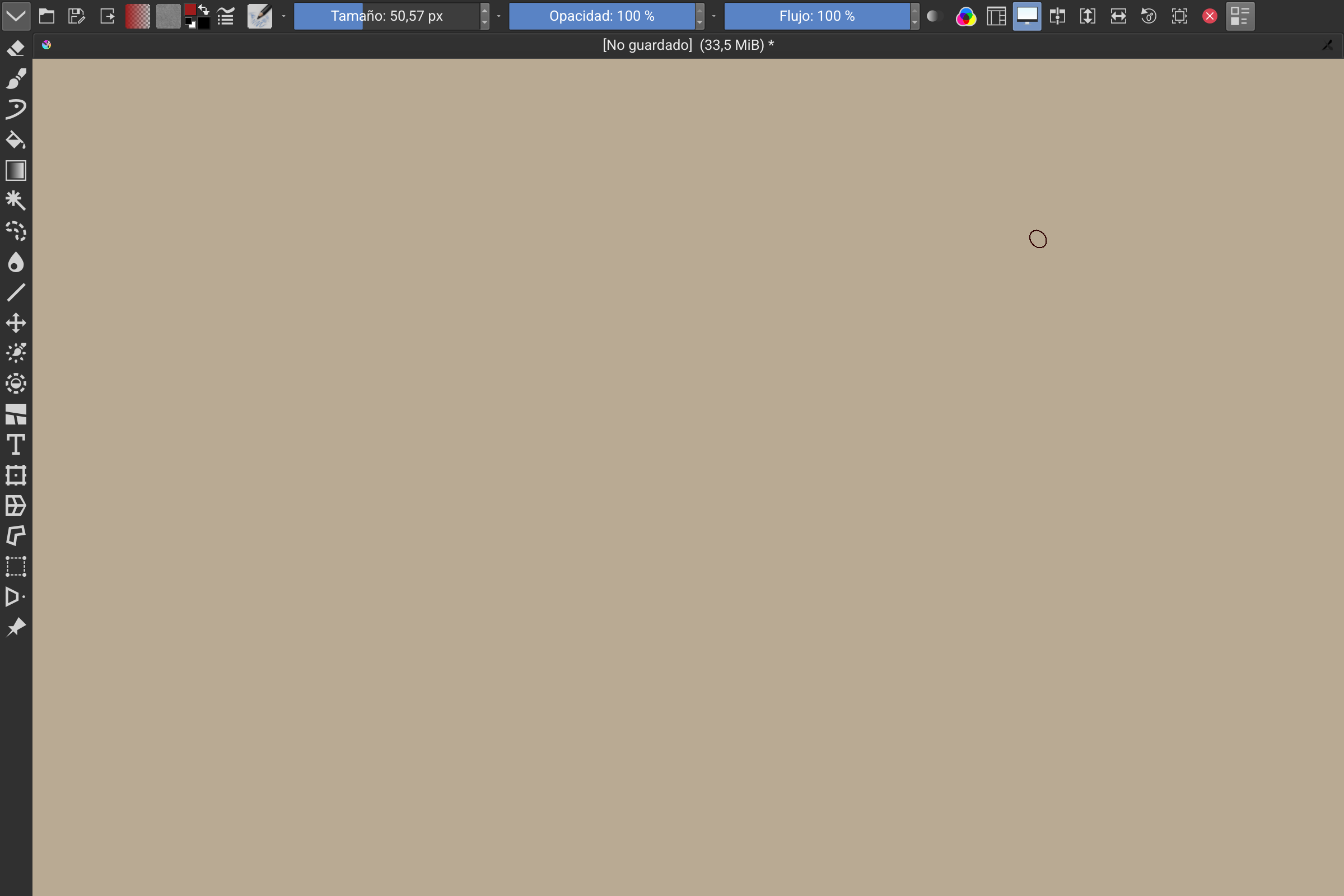
Hello, I’m new to Krita, and I find it’s Ui very confusing and overwhelming. I came from Medibang and liked its UI a lot.
Thank you
Hello, I’m new to Krita, and I find it’s Ui very confusing and overwhelming. I came from Medibang and liked its UI a lot.
Thank you
Except for the brush preview and upper bar (afaik), all those dockers can be easily found in the docker section (configuration > dockers)
The only tweak you’d need to do is click the hamburger menus for the color wheel and brush preview to swap them to that square color selector and list mode, respectively
 Hello @BigMike05, and welcome to the forum!
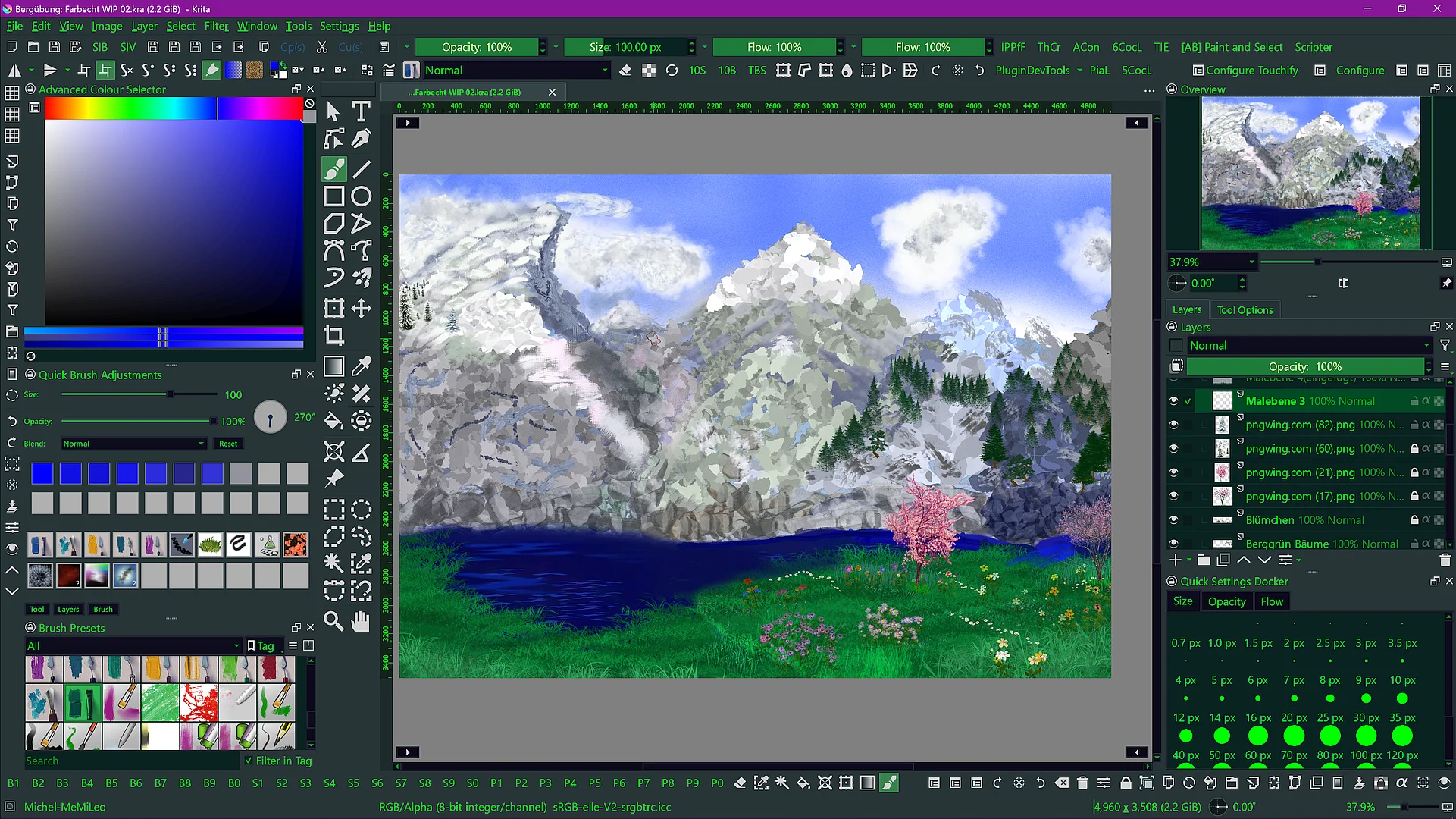
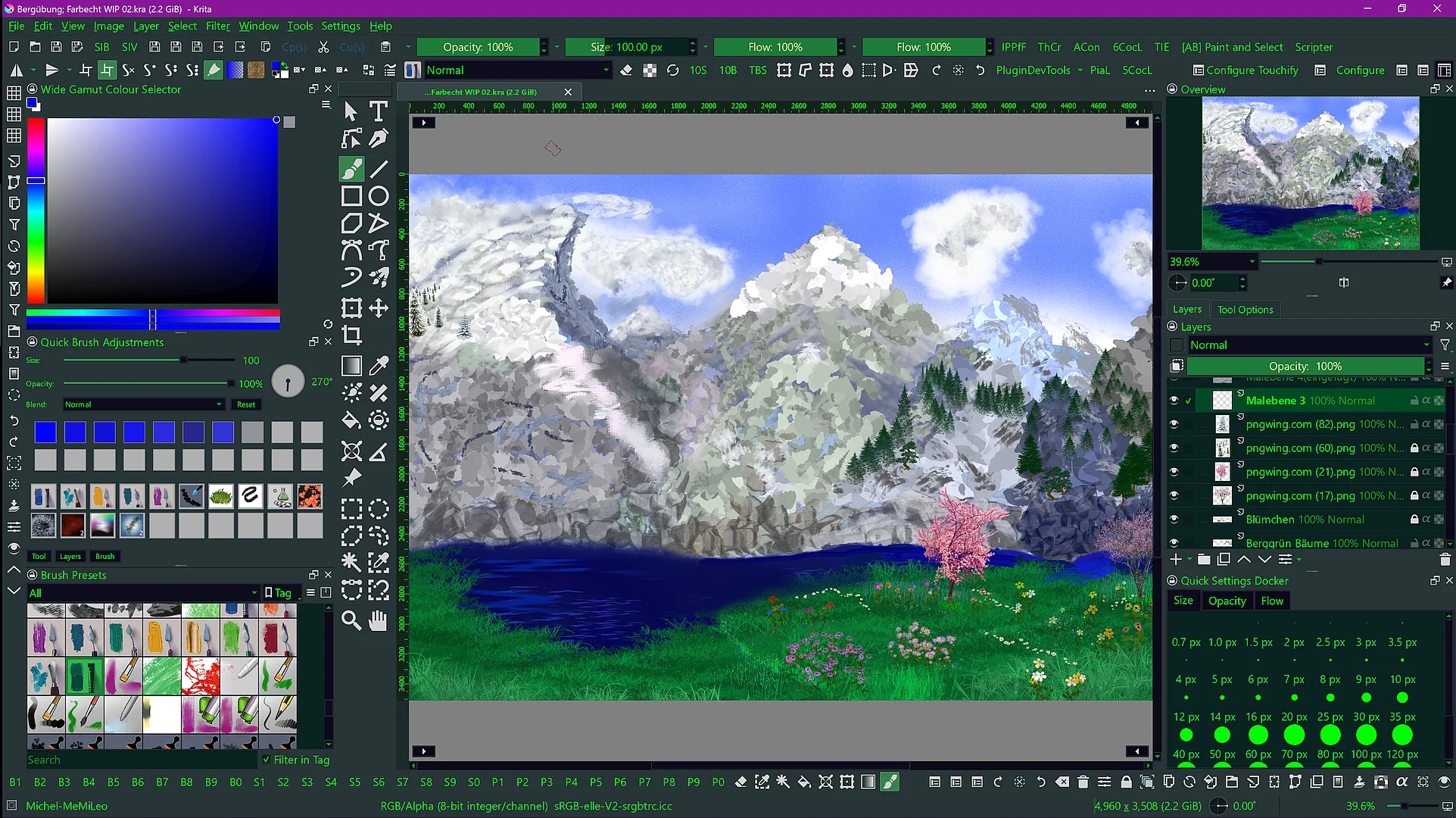
Unfortunately you use Android, so you will only profit in part because you can’t use the plugin which would offer you the “Quick Brush Adjustments” Docker, but if you ever consider to change to a desktop version of Krita, or anyone else is interested in the nearest possible full setup, I have put here together what currently is possible. With Android, you can use it too, but without said docker:
I have created two workspaces for you, MediBang_with_ACS.kws where ACS stands for Advanced Color Selector and MediBang_with_WCS.kws where WCS stands for Wide Gamut Color Selector and to get this near to your MediBang configuration you have to install the plugin Quick Access Manager, it is described also over at GitHub and that is → the direct download-link of its most recent version.
This is how it looks:
With Kritas Advanced Color selector, download: MediBang_with_ACS.kws
With Kritas Wide Gamut Color selector, download: MediBang_with_WCS.kws
I have to admit that I did not remove my additional toolbars on the left side and at the bottom, and the two toolbars above the canvas are usually one behind the other, but I was too lazy to remove them out of this setup for you. The one on the left will not be shown in your Krita because I have created it as an extra toolbar a normal Krita does not have, the one below is Krita’s standard “Edit” toolbar, and it will only show the elements that are available in your Krita, so the symbol-part on the right. If you stay with that configuration or adapt it to your liking I let up to you.
So you will have on the left the Brush Presets Docker and one of the Color Selector Docker’s, and on the right side you have from top to bottom the Overview Docker, the Layers Docker together with Krita’s most important docker as a second tab the Tool Options Docker which allows fine-tuning of every tool selected in Krita’s so-called Toolbox on the left edge of the canvas, and below at the bottom you have Krita’s Quick Settings Docker which allows quick access to Brush Size, Opacity and Flow with its tabs.
To import the Workspaces into Krita, you go via Settings > Manage Resources... where you have to click on the button Import Resources and then select the downloaded workspace file you want to import, so MediBang_with_ACS.kws or MediBang_with_WCS.kws. To activate them you go via the menu Window where you select Workspace and there select (one of) the imported workspaces. And if you dislike it, you can go back in the menu and select Default which will give you what you initially had and dislike. 
And if you want to try out other dockers of Krita, you will find them via Settings > Dockers like @Crimson_Crate already mentioned above.
Michelist
Edit: Typo
Thank you for this, I’m definitely going to check this out.
Hi, I use this interface, which I’ve been using for a long time in Krita. You can find my configuration videos on YouTube. Now with the 5.3 beta update, greetings.
for the colorwheel:
You can click on the three lines next to the color wheel to select the color wheel/selector you wanna use.
as for the Quick settings docker:
Go to the upper side of your screen you see a view options. Go to settings > Dockers > Quick settings docker.
The dockers are orginized by alphabeth so you should find it easy.
Hope this helps!
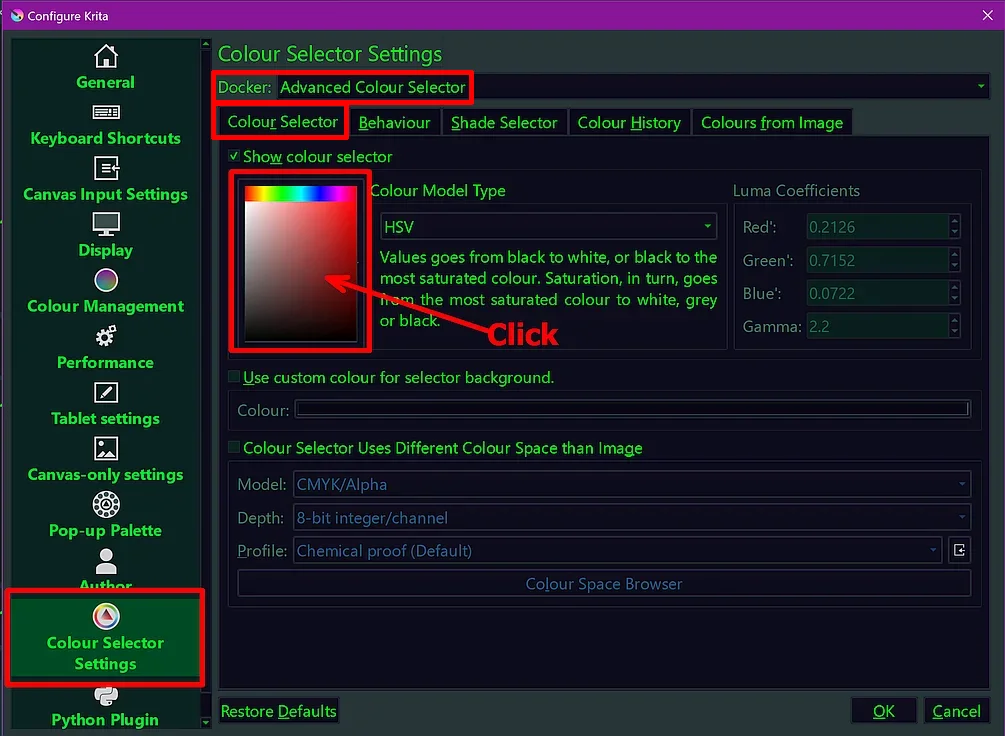
In Krita you can set the color selector look & feel for either of both color selectors via Settings > Configure Krita > Color Selector Settings in the first tab > Color Selector.
To be able to set it, you have to click on the currently shown selector, then it will show you the available color selector form’s.
Color Selector Settings - select form of selector:
Color Selector Settings - the choices offered:
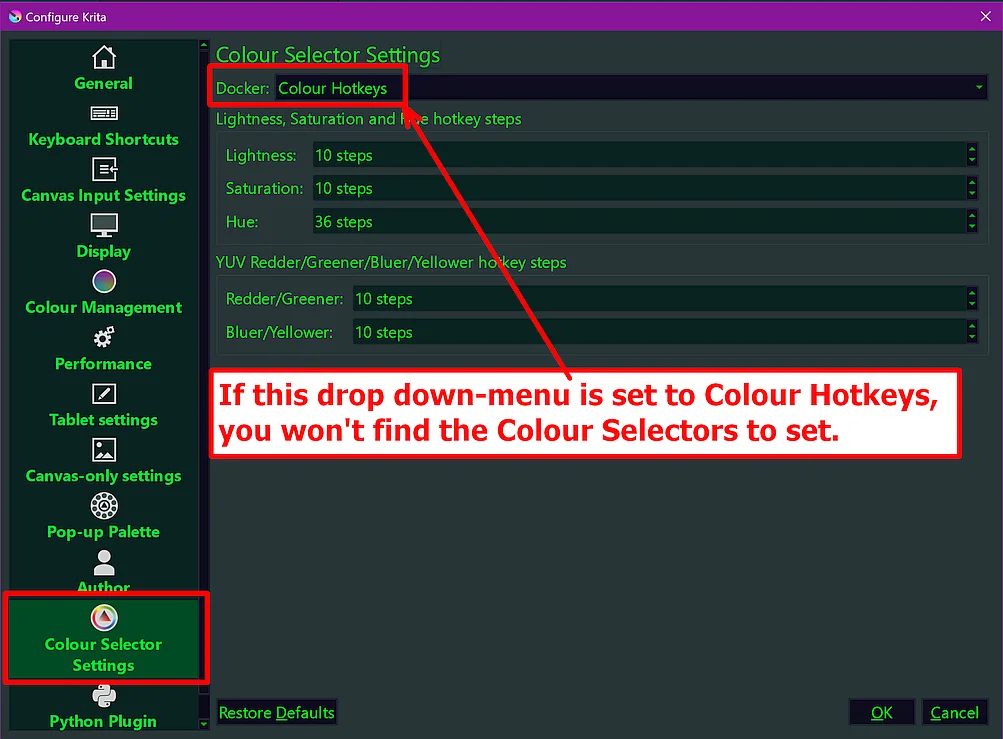
By the way, in the Color Selector Settings always set up the drop down-menu at the top so that it shows Docker: Advanced Colour Selector, which is the usual standard.
Color Selector Settings - what you do not need for this:
Michelist