I do not think you can change this value directly in the user interface. You can smoothly change the brush size by holding down shift key and dragging.
If you want to configure the brush size increments, you will probably need to create some scripts to achieve this. I have included a guide below:
Tools → Scripts → Scripter
Copy and paste script below
from krita import *

def increaseBrushSize(presets):
   activeView = Krita.instance().activeWindow().activeView()
   currentPreset = activeView.currentBrushPreset().name()
   steps = presets.get(currentPreset, presets["default"])
   nextSize = next((s for s in steps if s > activeView.brushSize()), steps[-1])
   activeView.setBrushSize(nextSize)

presets = {
   "b) Airbrush Soft": (20, 50, 100, 200, 300),
   "default": (5, 10, 20, 40, 80, 160, 320)
}

increaseBrushSize(presets)
The keys inside the presets dictionary, are the names of the brush presets that you want to configure. The “default” preset will apply to all brush presets, that are not named in the dictionary.
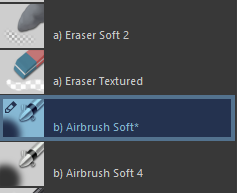
You can add new entries to the dictionary, if you want to specify steps for another brush preset. You can modify the “default” steps, but do not delete the entry.
presets = {
   "b) Airbrush Soft": (20, 50, 100, 200, 300),
   "c) Pencil-2": (5, 50, 75, 100),
   "default": (5, 10, 20, 40, 80, 160, 320)
}
File → Save As
Choose a directory and name the file:
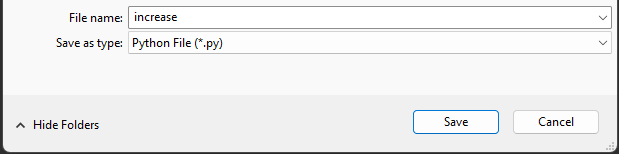
Repeat all the steps above for the decrease script:
from krita import *

def decreaseBrushSize(presets):
   activeView = Krita.instance().activeWindow().activeView()
   currentPreset = activeView.currentBrushPreset().name()
   steps = presets.get(currentPreset, presets["default"])

   nextSize = next((s for s in reversed(steps) if s < activeView.brushSize()), steps[0])
   activeView.setBrushSize(nextSize)

presets = {
   "b) Airbrush Soft": (20, 50, 100, 200, 300),
   "default": (5, 10, 20, 40, 80, 160, 320)
}

decreaseBrushSize(presets)
Now we can activate the scripts with a keyboard shortcut using Ten Scripts
Tools → Scripts → Ten Scripts
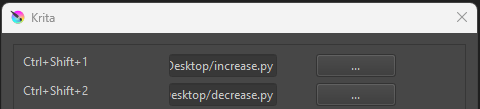
Once both scripts are added you can configure the keyboard shortcuts:
Settings → Configure Krita → Keyboard Shortcuts
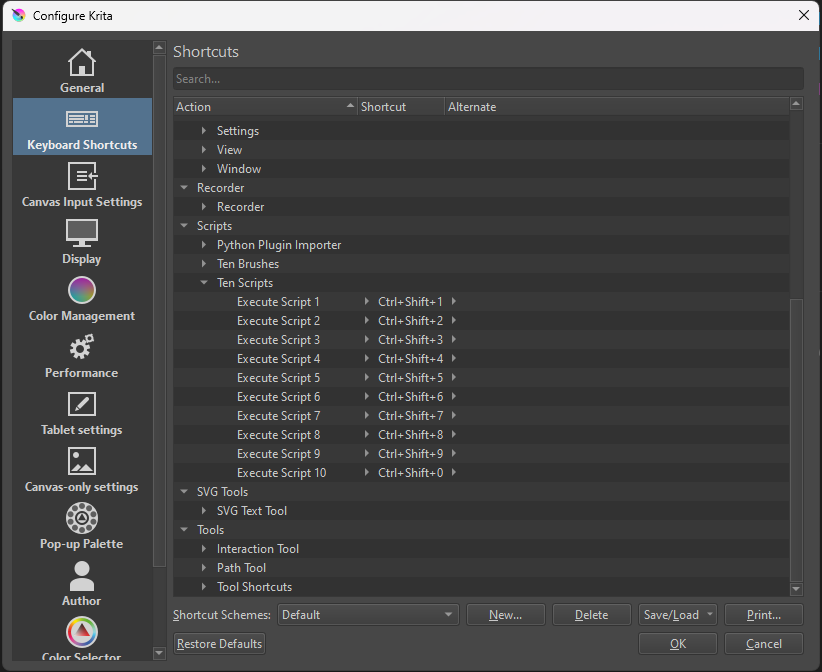
Now it should work, if you have everything set up correctly!