Sorry, this is a pretty basic question but I would really appreciate it if someone would explain to me how to use the contiguous selection tool aka the magic wand.
I’ve been playing with Krita for a couple of years now in my spare time and it’s pretty amazing. I’ve seen stuff about the magic wand in videos and in the documentation and it looks like it could really speed up the painting process, but I’ve just not been able to work it out.
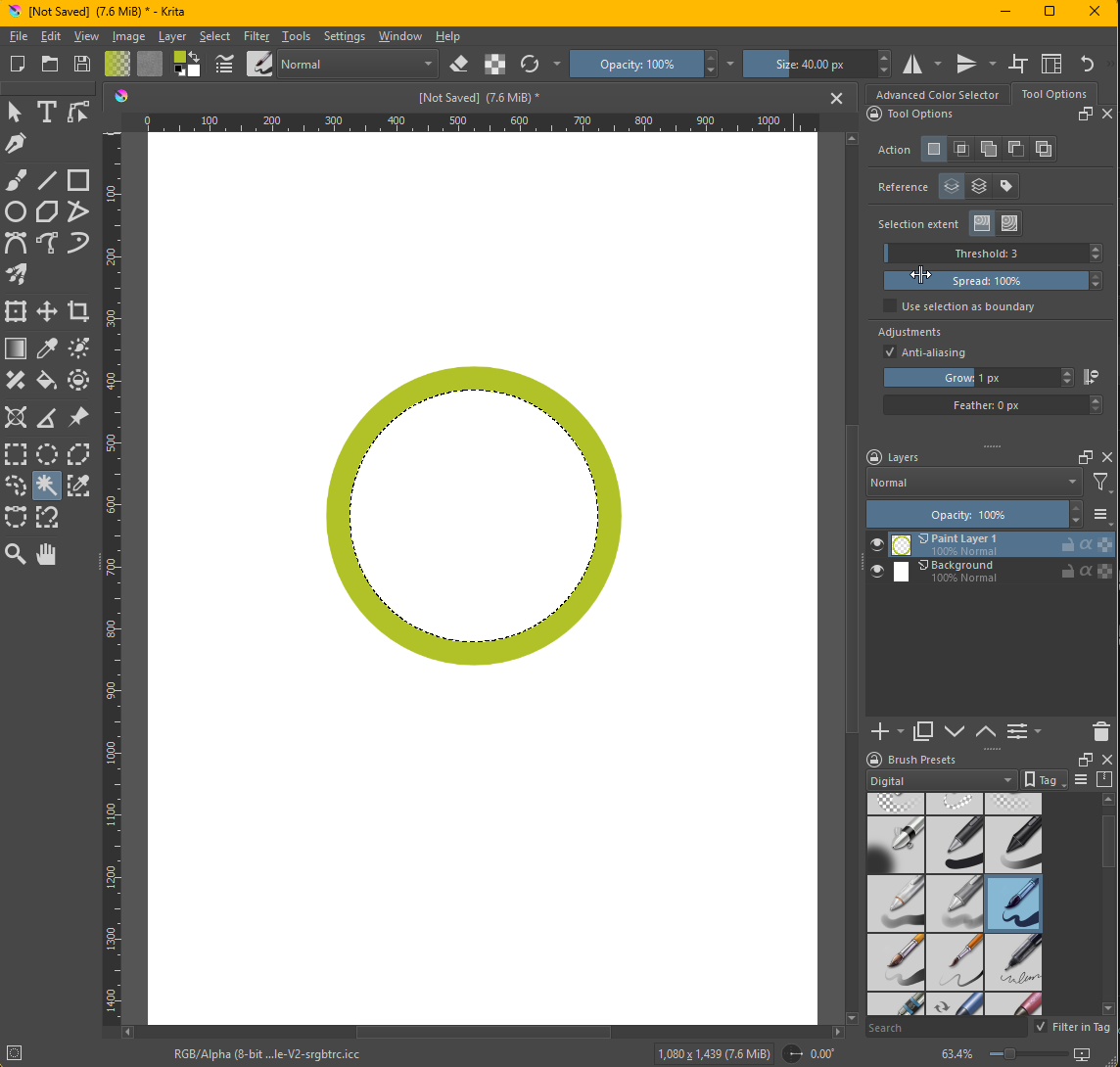
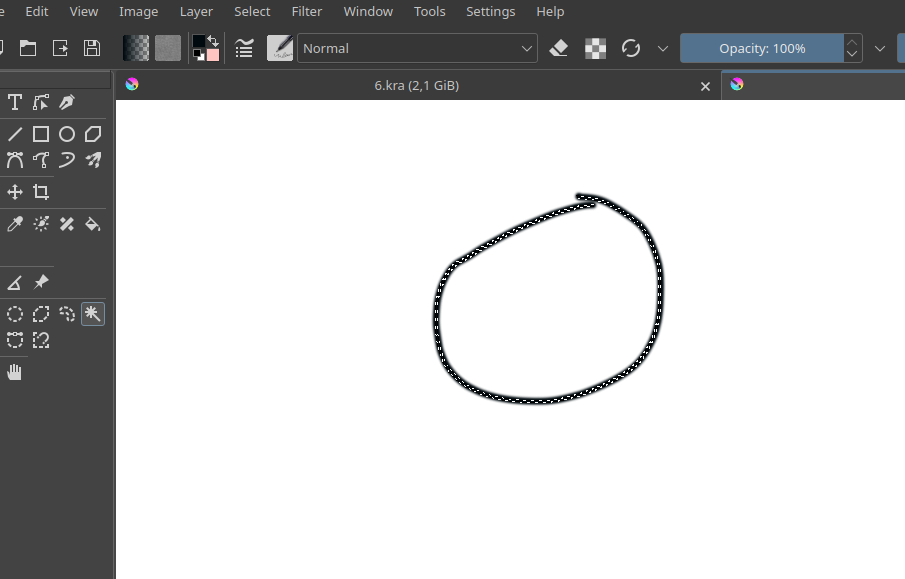
The tool selects the outline but when I try to fill it, it fills the outline, not what’s inside the outlines. Here are some screenshots.
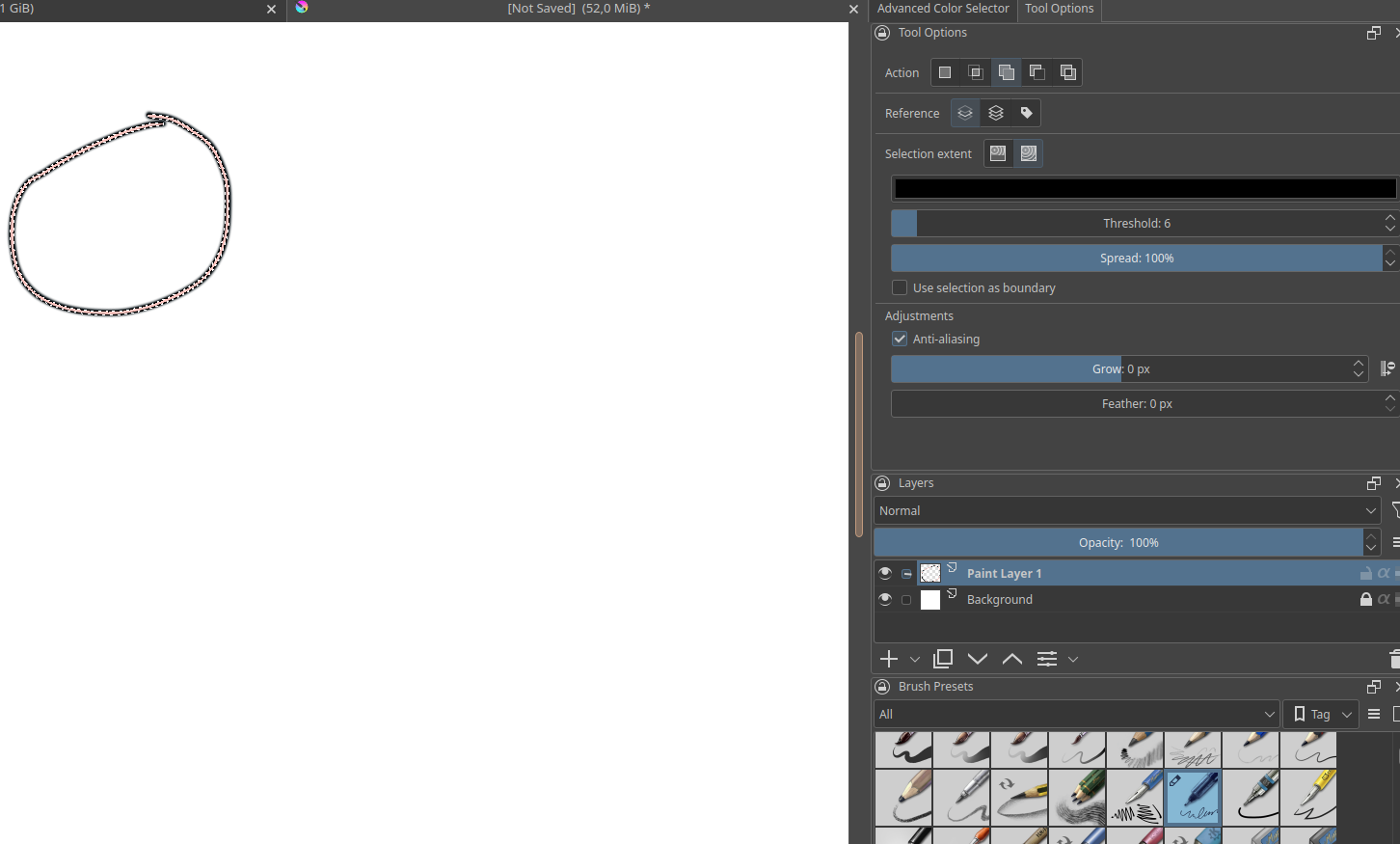
I click inside the circle with the magic wand. Krita selects the outline and the whole canvas. I choose “invert selection” from the “Select” menu. Krita selects the inside of the outline.
Although I’m not completely sure, but if I have understood you correctly, then you want to invert the selection, and that can be done in Krita via the menu Select > Invert Selection Ctrl+Shift+I, that will allow you to paint “on the other side” of your selection.
And if you want to select the line itself, then you’ll often better choose the Similar Colour Selection Tool, that is the selection tool with the eyedropper.
If I have misunderstood you, you can try to describe your concern in other words, or wait for another user with better ideas or understanding than me.
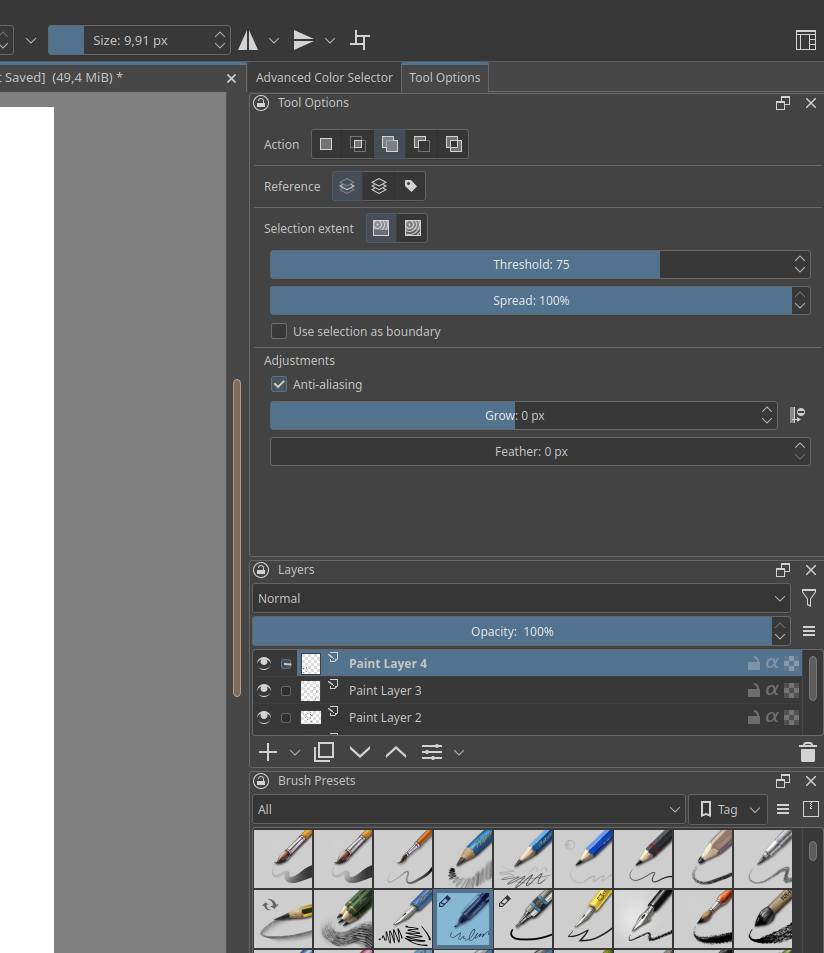
When having problems with use of tools, it’s essential to include the Tool Options docker in screenshots and you’ve done that for your final screenshot.
There are two things I notice about the tool options you’ve chosen:
The Action is set to Add. That will add any new selection to an existing selection. If that is what you want then ok but it’s usual to use the Replace action. That will select only the current selection item and replace any existing selection.
The Selection Extent option is set to ‘Select all regions until a specific boundary colour’ and you have the boundary colour set to black in the tool options docker.
That will select everything except the selected boundary colour. i.e it will keep on scanning and selecting until it reaches the boundary colour (black).
That is why everything except your black outline has been selected.
It’s more usual to have Selection Extent set to ‘Select regions similar in colour to the clicked region’ then specify the colour by clicking on it on the canvas. That will select all contiguous pixels of that colour, subject to the Threshold value which determines how similar the colour needs to be for it to be accepted and selected. For a good and distinct solid ‘outline’ such as you have, a low Threshold value is most suitable.
To learn how to use tools, especially their detailed behaviour, it’s very useful to work with a test/experimental image that you can scribble on, erase, and generally mess about with so you don’t need to worry about the content being ‘good artwork’. It won’t be ‘artwork’ that you need to take care of and worry about; it will be something you can do anything with and then throw it away when you’ve learned the details of how the tool works.
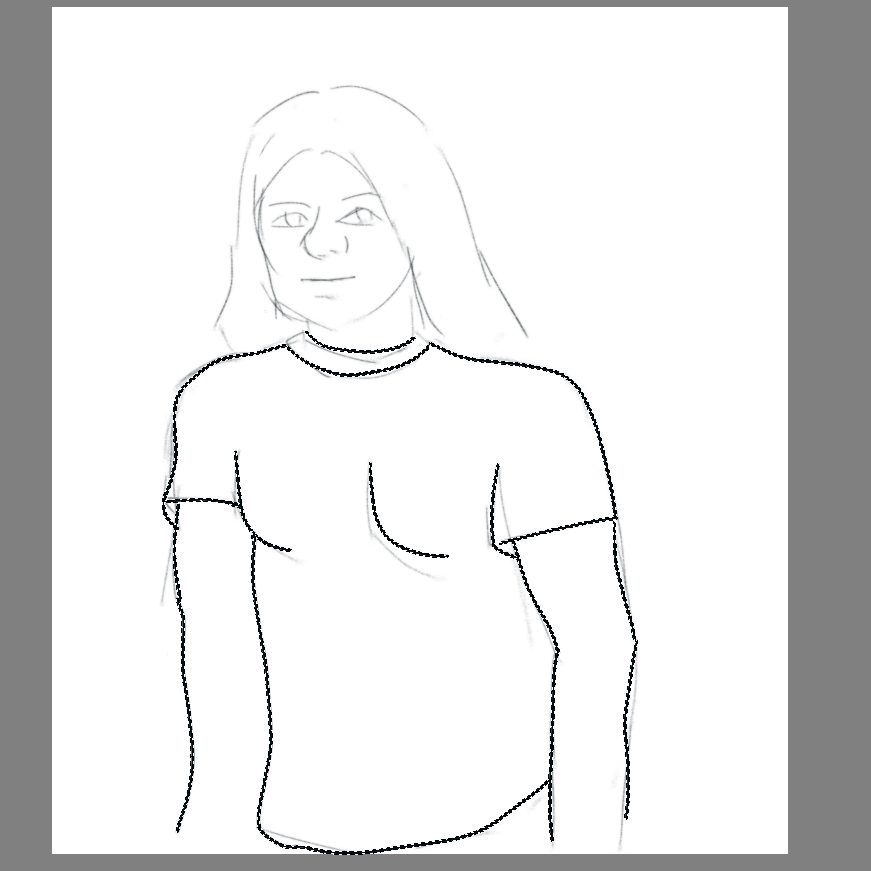
I have here a fantastic piece of art I just made I want to color the t-shirt by using the magic wand. I click inside the t-shirt with the contiguous selection tool selected. For some reason Krita selects the t-shirt but also the whole canvas (there are marching ants on the canvas edges).
But then when I click “Fill with background color” from the “Edit” menu, only the t-shirt outlines are colored, not the shirt itself. What am I doing wrong?
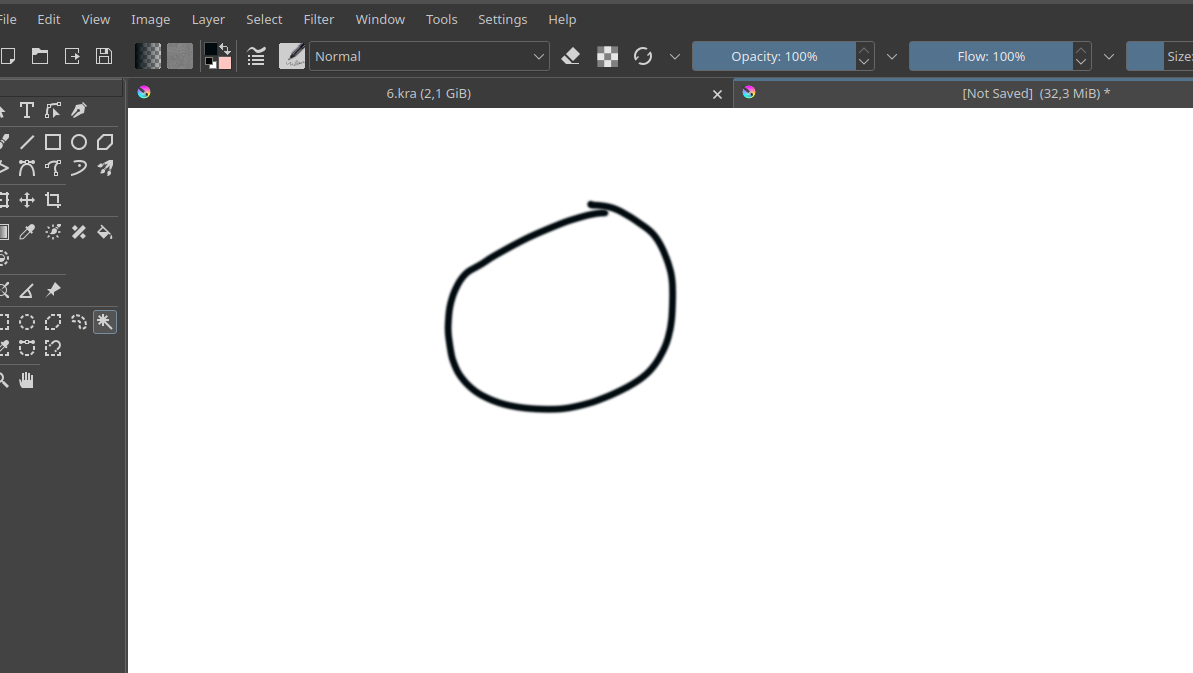
The reason it does not work for you is probably that you have set the threshold value so high that the selection escapes through the tiny gap you have (where the pixels are not 100% opaque) and also selects the outside (this is called a leaking selection). That’s also why inverting the selection would select the inner and outer outline of the circle since it is not closed as far as the software is concerned. Either you have to make sure the circle is closed properly or adjust the selection tools settings so it “stops sooner” when there is a different color value.
In your other post I can see you have threshold to set to 75, try make it smaller like 10 or even lower.
Also set your selection action (the buttons at the very top) to replace (the first one) instead of add otherwise each click will add to the selection and that might makes things difficult especially if you have a leaking selection.
Selections aside, if you want to flat color line art the Colorize Mask tool is maybe much better suited than manually selecting each region. It let’s you quickly put color on line art even if it has tiny gaps or uses semi transparent outlines. You can read more about it here
For simple shapes like in my example you probably can even us the Bucket Fill tool since it works basically the same as the selection + fill method and has similar parameters than the selection tools but it fills directly without having to select something first, saving you one step if you don’t need the selection for other things later.
Okay, the bucket fill tool basically did what I tried to do. I’ll have to look into the contiguous tool more. The colorize mask looks really cool, too. Thanks, Takiro, Ahab and Michelist!
I’m probably also thinking in terms of lines when I should be thinking about pixels and opacity and all that.
That’s true. Raster image software like Krita has no concept of lines or shapes on the canvas only pixels with color values. Sometimes some tools can infer the meaning of some pixels in very specific contexts (like the Colorize Mask) but most of the time not.

 Hello
Hello 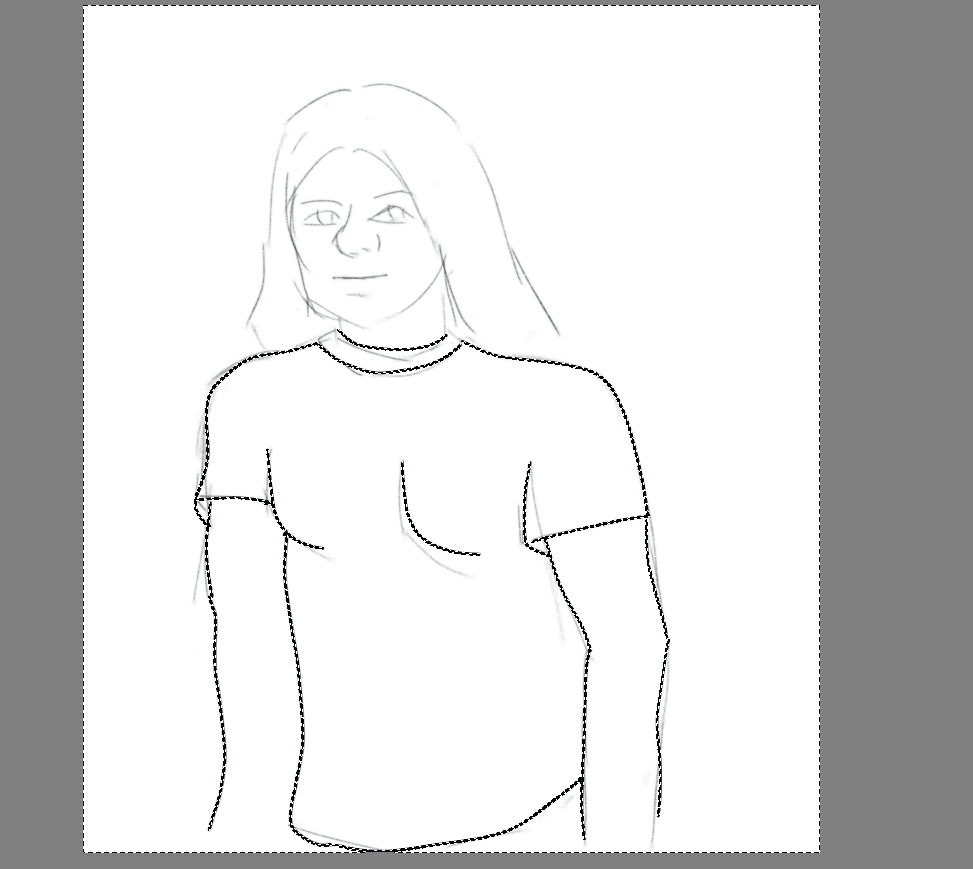
 I want to color the t-shirt by using the magic wand. I click inside the t-shirt with the contiguous selection tool selected. For some reason Krita selects the t-shirt but also the whole canvas (there are marching ants on the canvas edges).