Hello @muwhahahhaha, and welcome to the forum!
Unfortunately, you did not fill out/answer the questions asked in your new created topic.
So, the questions about the exact operating system you use, because there is more than only one version of Windows. Which Windows do you use?
Also, we want to know from you which version of Krita you use, the 3 digits number shown in the splash screen or in the menu:
"Help" → "Report Bug" the number behind "Version:"?
Additionally, we want to know from where you got your copy of Krita. Krita’s homepage, the Microsoft Store, the Epic Store, Steam, and if somewhere else, from where?
And the manufacturer of your tablet, Veikk, we know now, but not the model and its version /model number, if any?
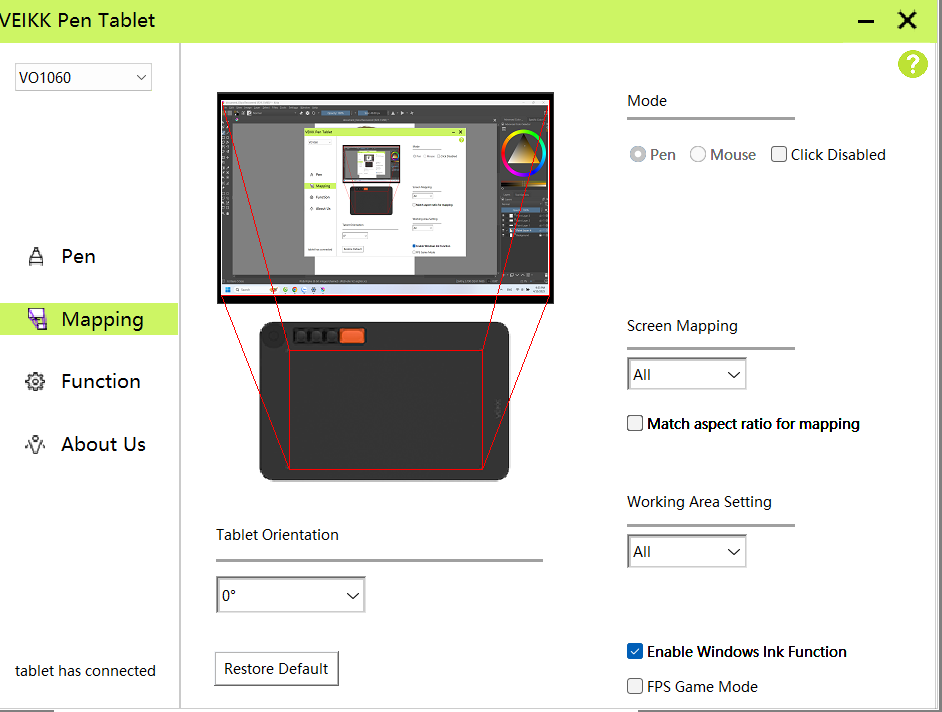
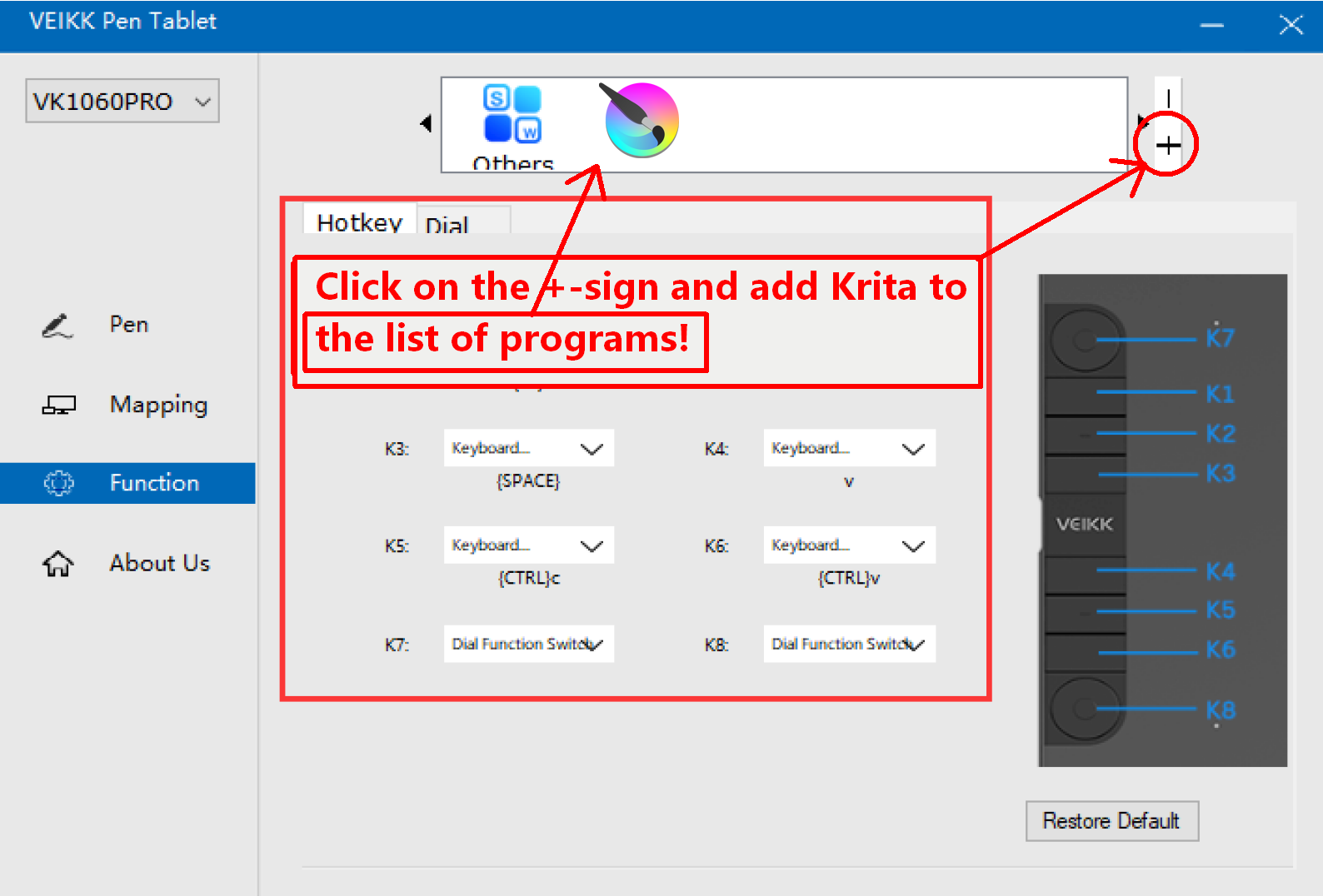
The first thing you should do, after you have set up your tablet and mapped the working area of the tablet correctly to your display, is to create a profile for every software you use with your tablet. So please start Krita and then, in your driver, look on the page “Function”, there you can add Krita to the applications you use with your tablet.
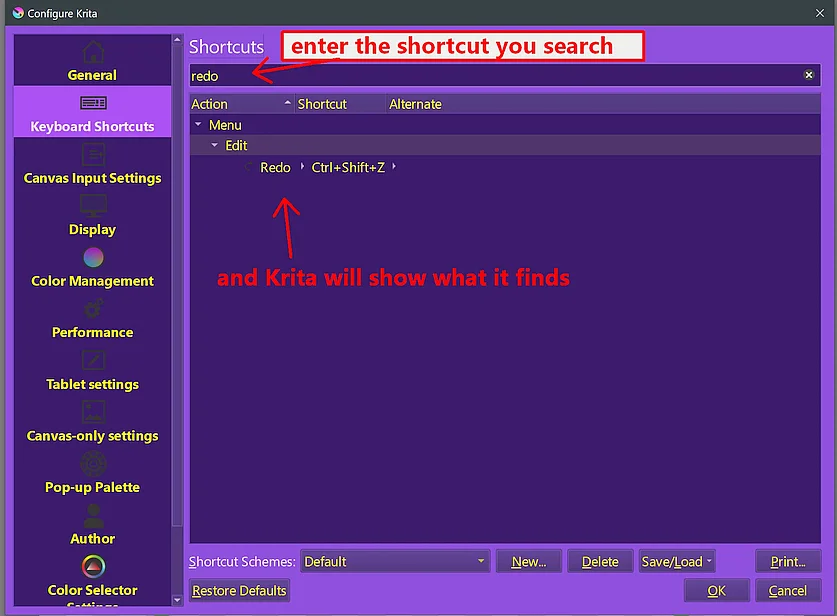
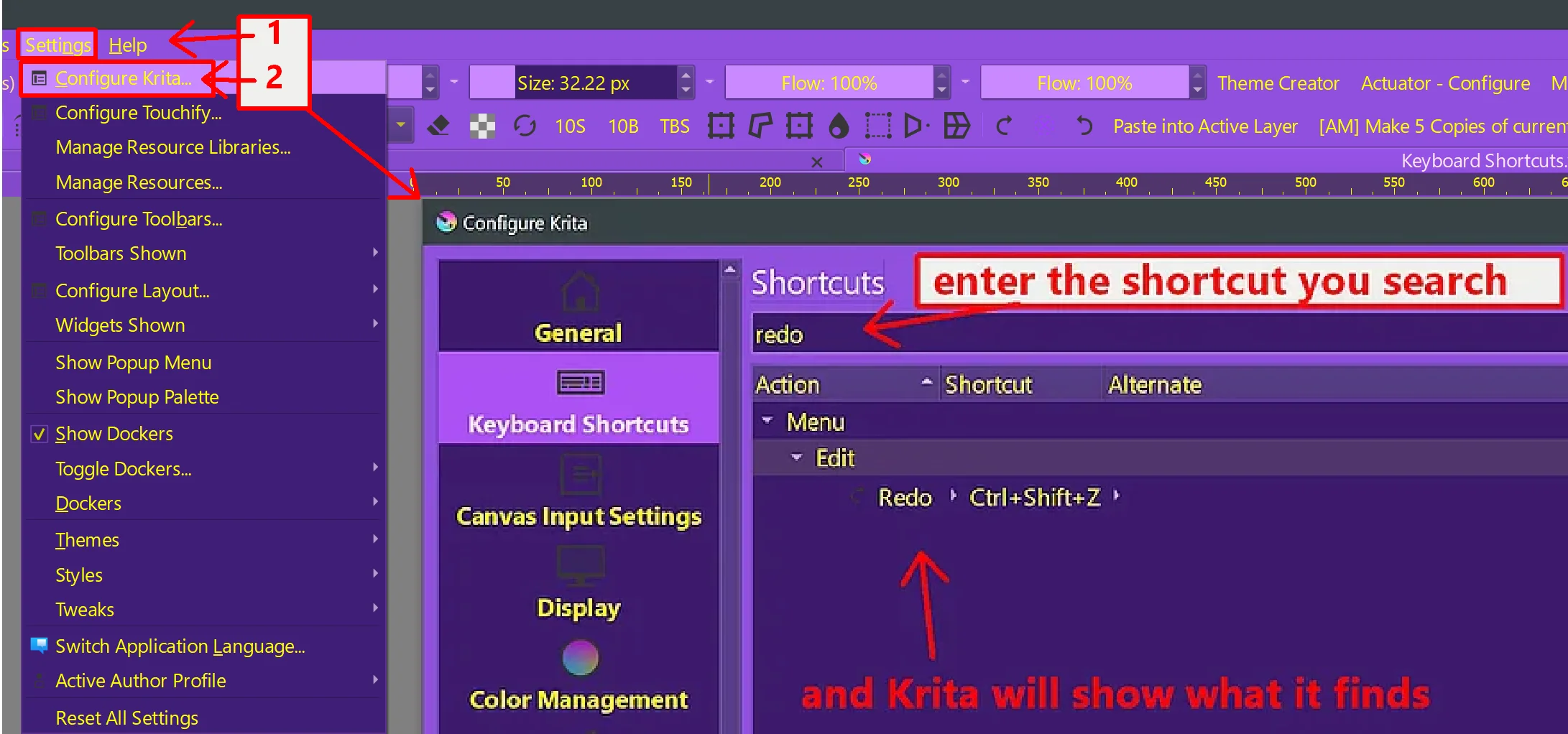
Then, also on the page “Function”, you can set up which shortcut should do what, but you have to set the same shortcuts in Krita too, this is done in Krita in the menu:
''Settings'' >> ''Configure Krita'' >> ''Keyboard Shortcuts'' (always look here first, and for searching a shortcut, you can use the search bar on top of that dialog)
additionally, you can set up shortcuts in the menu:
''Settings'' >> ''Configure Krita'' >> ''Canvas Input Settings''
If these settings do not match each other, then it can not work!
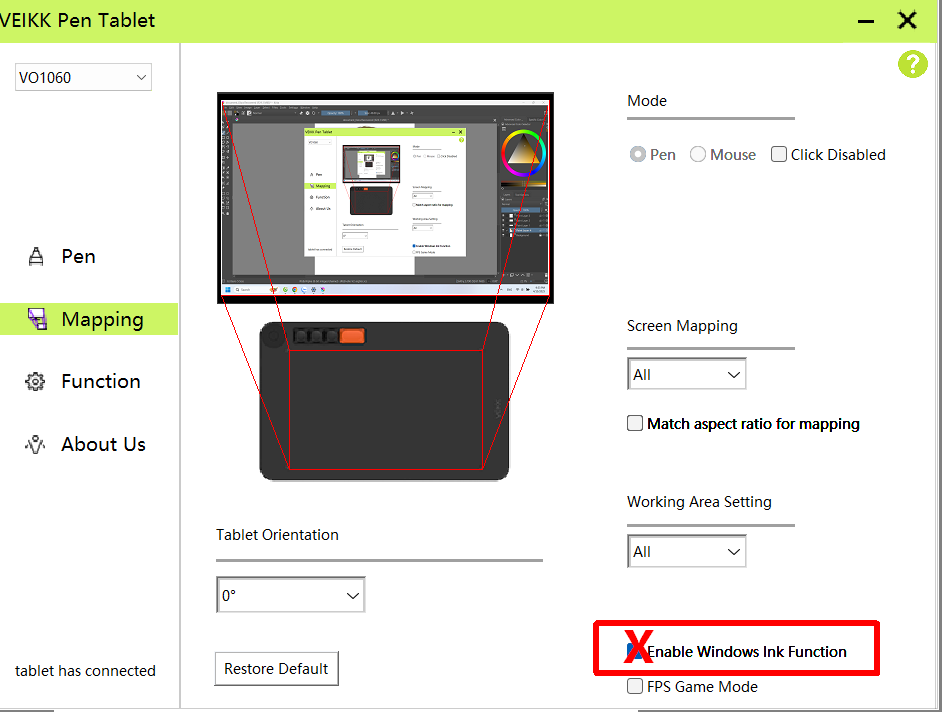
But now we come to a problem. The usual issue is that the so-called API’s don’t fit together, should mean that Krita and your tablet “speak different languages”. Please open the driver application of your tablet and look for a setting called “Windows Ink” and disable it, if you can find it Unfortunately, does Veikk not name this setting in the manuals I just checked.
After you have disabled “Windows Ink” in your tablet driver, you have to go into the Krita menu:
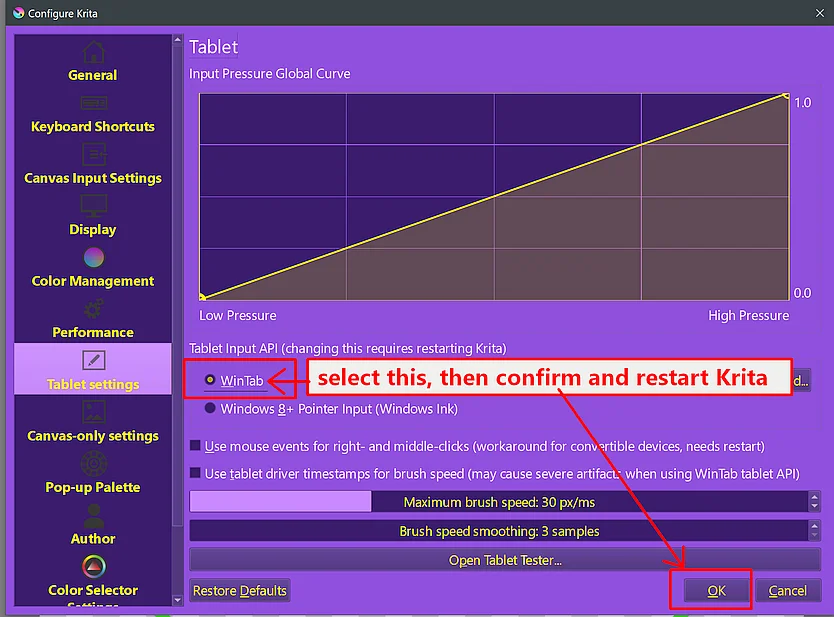
''Settings'' >> ''Configure Krita'' >> ''Tablet Settings'' and enable ''WinTab'',
then confirm that setting with the OK-Button in the lower right corner of that dialog and restart Krita.
But only do this if you can disable “Windows Ink” in your tablet driver, if your driver does not have this possibility, then you have to set ‘‘Windows 8+ Pointer Input (Windows Ink)’’ in the same menu at:
''Settings'' >> ''Configure Krita'' >> ''Tablet Settings'' >> ''Windows 8+ Pointer Input (Windows Ink)'',
then confirm that setting with the OK-Button in the lower right corner of that dialog and restart Krita.
If you have further questions, then please answer first my questions from above. Then describe briefly but exact what you have done so far and where you are stuck and need further help.
Michelist