I can’t tell if this is a dumb question or not but I’ll ask it anyway. Is there a simple way to center a layer on the canvas? I think I’ve been wondering about this for a very long time. Searching for an answer on the web led me to a few YouTube videos that have me jumping through hoops to get there. Am I missing something?
PS: maybe I need to rephrase the question. A simple method is to hand position the layer by eye. I guess it doesn’t get any simpler than that. And that’s the way I’ve been doing it for like… ever. But occasionally I want to get it exactly center. That’s the method I’m looking for.
I have a method I use that’s simple enough for me, but not what I’d consider convenient. Certainly not as convenient as it would be for Krita to snap the center of the Transformation or Move rigs to the snap points, as the Vector objects allow. Anyhow, if I need a raster layers content to be dead center in Krita, I use these steps:
Copy the layer with the content that needs to be centered (right click on it and select Copy Layer).
Go to File > New and select Create from Clipboard (this will place your copied layer into a new document, with the edges of the canvas hugging the content).
Use Select > Select All (or Ctrl + A), so the screen is selected. No other action needed by this, at the moment.
Go to Image > Resize Canvas, enter the dimensions of your other document, and click OK. By default, Krita will expand your canvas around the center point, so the edges should have expanded away from your layer content.
Use Edit > Copy (or Ctrl + C) to copy the selected content of your layer. Some explanation here… In Krita, a document created from the clipboard is set as a “background” layer. So, when the canvas is expanded, the layer ends up with a white boarder around the content of the layer. I had you use select all before, so that we’ll be prepared to select only the content we want from the layer and leave the white boarder out.
Go to your original document and use Edit > Paste (or Ctrl + P) to paste the copied layer into place.
thx for responding and I guess that answers a question I already figured I knew the answer to. My method was to calculate the center of the canvas using the horz/vert rulers (and a calculator lol). Then grab and drag one of those snap lines from the border of the workspace and hand place it at the calculated center value. If I select layer transform, a symbol appears in the center of the layer and from that I can visually hand place the layer center on the snap line. Then remove the snap line. It’s not like I need to do this every day, but every so often I wish it was there. I mean, it doesn’t seem like that would require a lot of code to implement. You can position a layer within the transform tool by entering coordinates. Wouldn’t a simple snap to canvas center be a logical thing to have?
Wait - is there a snap function where I can snap the layer center to that snap line? hmm.. still more steps than it seems like it should take but…
Not for raster layers (that I’ve discovered). The only thing that seems to snap to any point, while using the Transformation Tool, is the cursor. So, if you were to select an area, then turned on snapping for just Image Center, then used the Transformation tool to start moving the selection, the only thing you’d get to snap to the center is the location of your mouse. So, if you were to line up the mouse cursor with the dead center of your selection, you could then snap that to the center. But that’s as good as eyeing it, in my opinion.
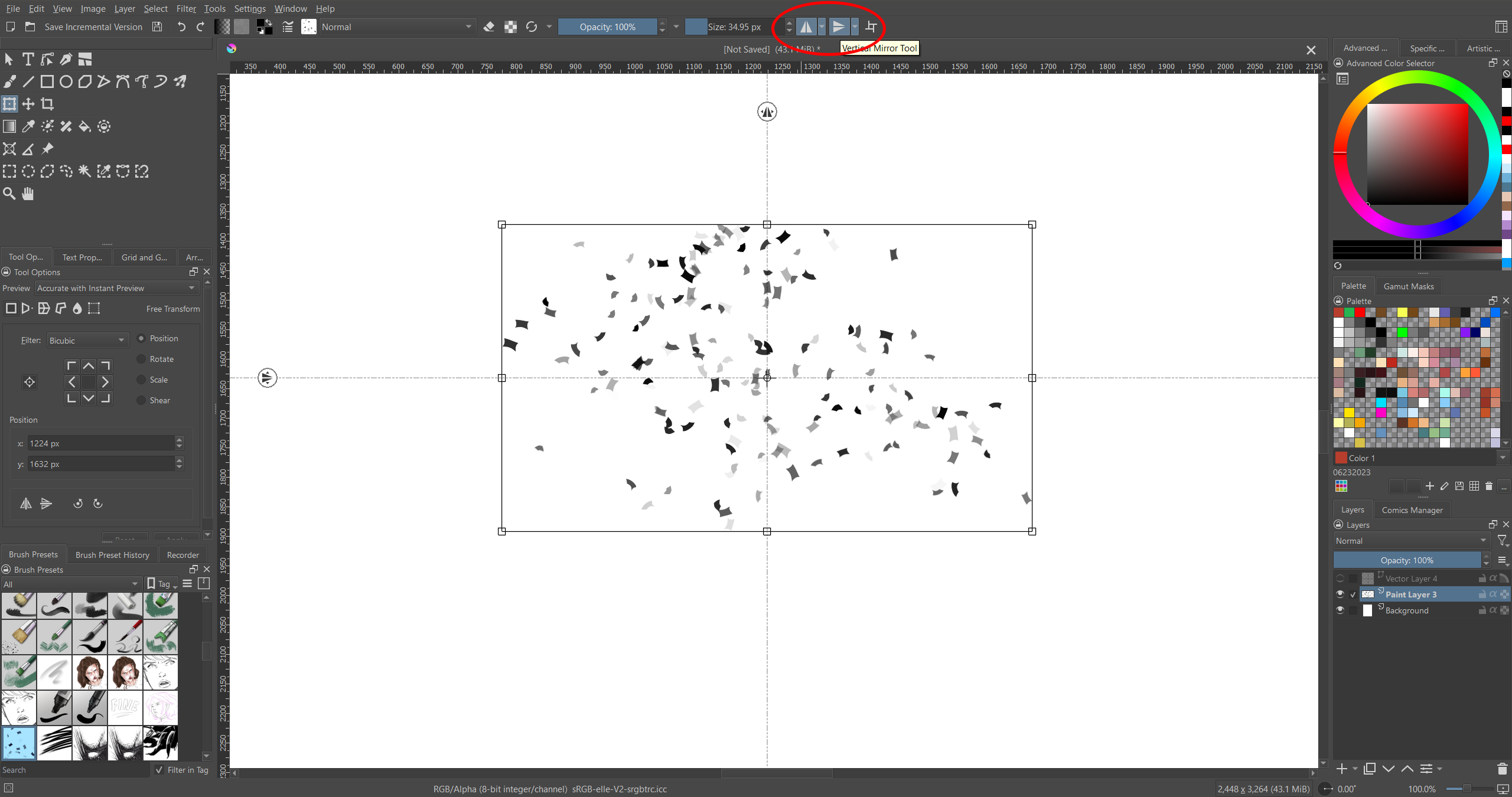
That gave me an idea… Since we CAN snap vector objects to the center, and those objects give us their center positions on the Tool Options dockers, we can snap a line to the center of the canvas and know where the dead center location is. At that point, we can just select the raster layer we need to center, using the Transform tool, and enter the x and y positions we got from the vector line, and the layer should center itself.
(Edit) - Also, just as an FYI. If you need to quickly find your center, you can just turn on the x and y mirroring options (see red circle in screen shot). By default (so long as you haven’t resized you canvas), they’ll cross at the center, and they stay visible while transforming things.