I would like to share a template to create a non-destructive and fully editable chromatic aberration effect. It uses clone layers, blend modes and transform masks. I know there are other methods, but I feel that this is the easiest way for me.
The layer set up is like this:
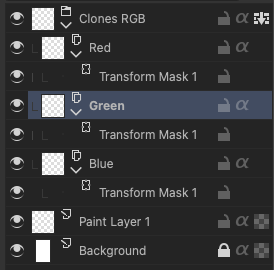
The clones are in a layer folder set to Through (right icon on layers panel). In this example the clones refer to “Paint Layer 1”. The blending modes of the clones are set to Copy Blue, Copy Red and Copy Green respectively. These blend modes are in the “Misc” category.
I added a Transform mask to each clone. Select the Transform mask and use the Move tool to move one “color channel” slightly in any direction, depending on the effect you want to go for. You can repeat this for each transform mask.
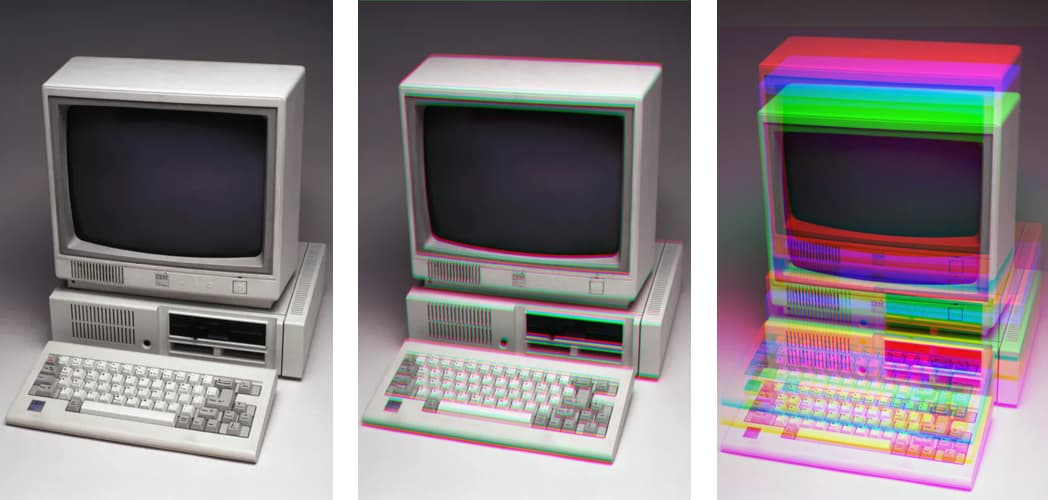
The effect looks something like this (left is the standard image, middle is a subtle effect, right a strong effect):
Some more things to note:
- The clone source can be set to a different layer, or a group of layers. Select the 3 Clone Layers with CMD/CTRL pressed, then right click to bring up the context menu. Select “Set Copy From” and select your layer or group from the dropdown menu.
- If the source layer contains transparent parts, you have to hide it to archieve the right effect.
- If you delete the source, the clone layers are converted to regular layers.
- Simply copying the clones folder into a new document does not always work, which is probably related to to x & y coordinates being different. You may have to re-create this layer stack to archieve the correct result.
You can download a document with the layer set up here: Drime
Use the crop tool to set the correct dimensions of you artwork and paste it in, then set the clone source to the correct layer and the effect is set up and can be tweaked to your liking.
