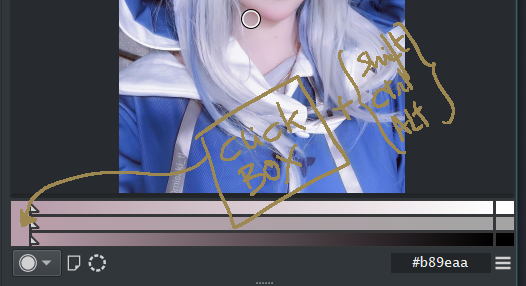
It has been almost 4 years since the devs took out the Color Sliders docker from krita and promised to bring it back as mentioned in the documentation. When will we see it coming back? Has any alternative way been implemented? The Specific Color Selector is very similar but it has no HSV color model.
As long as you don’t need numbers to enter, the Advanced Color Selector can kinda do that.
Edit: And of course there are plugins.
Clearly if the Advanced Color Selector did the job, i wouldn’t have started this thread… As you mentioned there is no numerical input, but also the sliders of the shade selectors are too thin and close together to select precisely.
But most importantly, the color model is different because it depends on what’s currently selected. Even if you set “delta v=1”, the slider doesn’t cover the full range. If you’ve currently picked a bright color, the bottom end of the slider will not be solid black and vice versa - if you pick a dark color youll get mostly dark shades with very the top end of the slider not even at full V.
Okay, if plugins exist, care to list them?
Look into pigment.o in this forum i also remember seeing a plugin for HSV sliders a long time ago on github don’t know if it still works, i also don’t remember the name.
You can try Pigment’o plugin, but i agreed, full range (0-100%) hsv sliders are missing in the ACS.

Thanks all for the suggestions, the line height parameter does improve things at least for that, good to know.
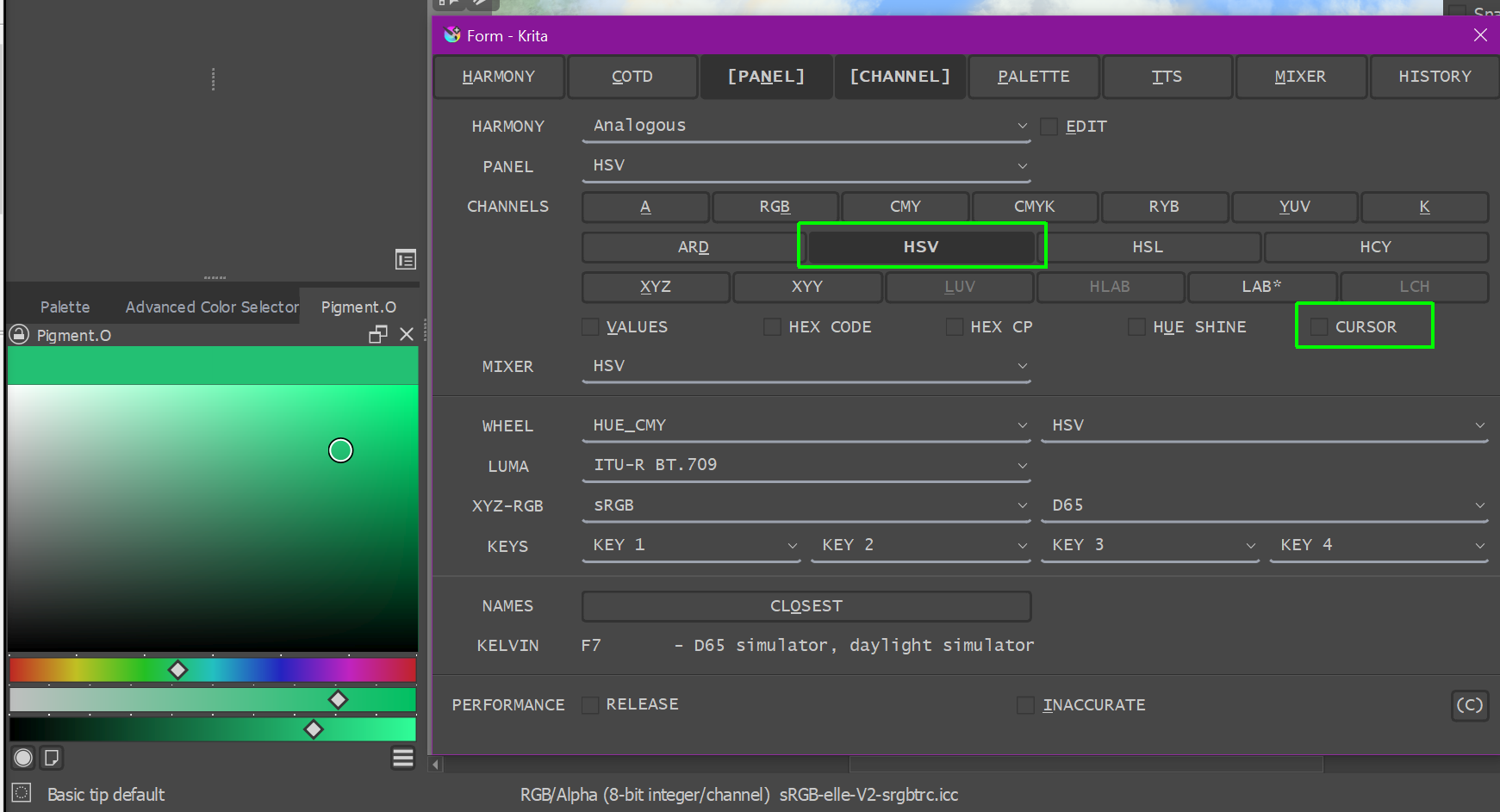
I checked out the Pigment.o plugin and it is much closer to the the old color sliders. The configuration UI is very cryptic and user-unfriendly with names like “COTD” “HEX CP” and “TTS” but functionally it matches the behavior so it’s definitely a valid alternative. I gotta say i prefer the UI of the Specific Color Selector more instead of the big diamond cursors Pigment.o has though - any clue why HSV isn’t included there?
You can change the diamonds to “normal” sliders by clicking on “Cursor” in the settings window. COTD stands for “Color of the day”, since display sizes are limited you should see how to save space, shortcuts are a means for this. Why don’t you find HSV, or did I misunderstand something?
To familiarize yourself with the features and get the shortcuts explained, you could just try the manual of Pigment.O, you can find it among other things always in Krita, if you have it installed, under ‘‘Settings’’ >> ‘‘Configure Krita’’ >> ‘‘Python Plugin Manager’’ and there just click on Pigment.O.
Michelist
The “Cursor” lines are much better, thanks! The HSV mode is missing from the Specific Color Selector docker that’s built into Krita, i wasn’t referring to Pigment.o there. I guessed COTD meant color of the day, i’m just saying that a tab with seemingly random letters doesn’t give any hint as to what it does unless you read the manual, same goes for a checkbox that just says “Cursor” which could mean anything, it’s bad UI design. A text saying something like “cursor style” and a dropdown next to it with “Diamond” and “Line” options would make a lot more sense.
What is “TTS”? Text to speech? You have to go to github where “Tint, Tone, Shade” is mentioned, no explanation on how to use it.
Manuals are meant to be read to get more out of a product, and so I at least take a look at each one first. Unfortunately many manuals are a disaster, but especially this one is a good manual, most (plugin) authors can (should!) take an example from it. And you not need GitHub to read it, it is inKrita’s settings, as mentioned above.
That must not be wrong, but I’m the wrong addressee, it makes sense to express such criticism (also) in the topic of the plugin, so the author learns about it and has the opportunity to respond to it - or not.
Please keep in mind that most of the plugins are created by other users in their spare time, and are provided by their programmers for free. Not everyone is a programmer by nature, many of the plugins were created from scripts that had some purpose and were never intended to be released, some have gradually evolved into a plugin, some were released after a user saw such a plugin on another user’s site and asked them to make this plugin/script available to the public and can be extremely “minimal”. Krita is largely a community driven project.
Michelist
No explanation to what things do but does not read the manual nor presses the buttons to see what it does. Instead reads GitHub list of features to know what things do…
If your that interested with UI issues make a suggestion and I will consider it. However a combobox with only 2 items alone is a waste compared to a checkbox. Also there are people with very small screens and making a dialog box that takes the whole screen is not gewd to say the least.
I’m not specifically addressing this to anyone, just sharing my first impressions as somebody who has just installed the plugin. I’m well aware most developers don’t pay much attention to these things and would rather focus on making the plugin just work and do what it’s supposed to, which it does. This is especially true for spare time projects like this.
I pressed the buttons, some of it had immediately notceable results, other options seemingly did nothing. I’m still not sure what TTS does even after reading the manual, all it does is make these three bars appear at the bottom:
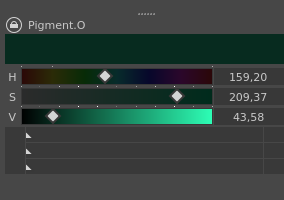
Dragging them moves the upper sliders around and that’s it. I’ve used Krita on a 12’’ WXGA screen without issues so i don’t thing having more verbose buttons would be so bad, but if you’re concerned about space perhaps some tooltips would help?
The Manual:
TTS
Select 1 custom color to adjust it’s amount of Tint, Tone(Luma) or Shade.
MIXER
Select 2 costum colors to calculate the interpolation between both. Calculates by doing linear interpolation in the respective Color Space selected. The available interpolation color spaces are : RGB, CMYK, RYB, YUV, ARD, HSV, HSL and HCY.
…
Click Controls
Neutral + (LMBx2) to Apply current settings.
Shift + (LMBx1) to Apply current settings.
Ctrl + (LMBx1) to Save current settings.
Alt + (LMBx1) to Clean settings.