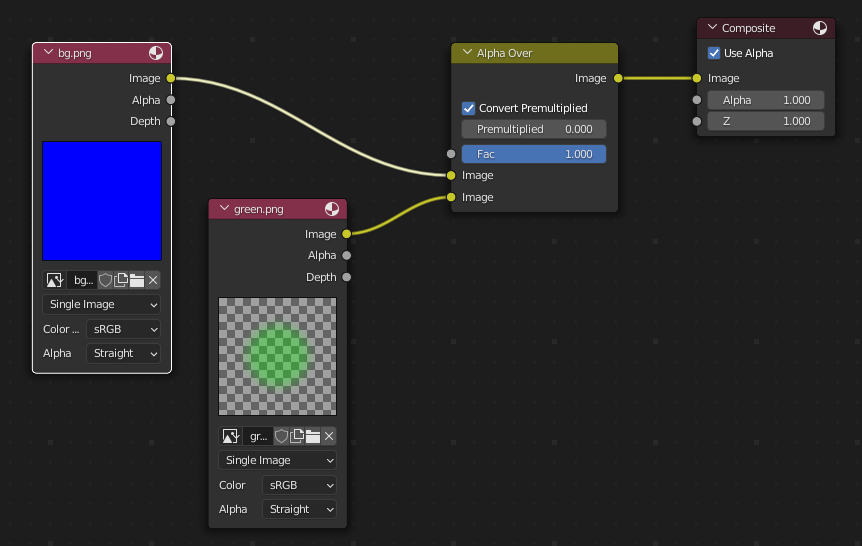
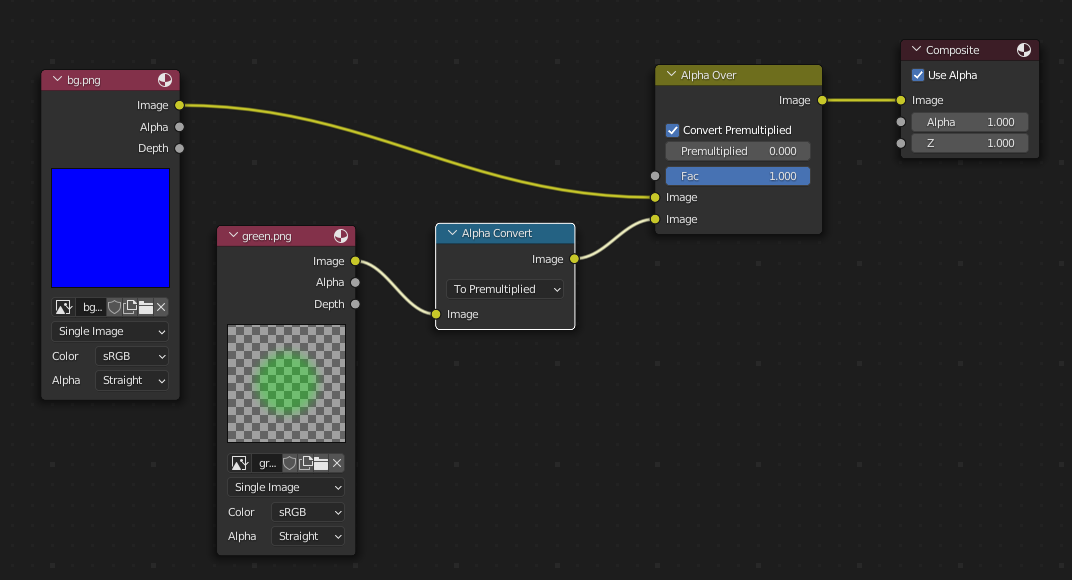
The premultiplied version is only here to show that this is not an alpha premultiplication issue, since this output looks different to all the others.
For Gimp
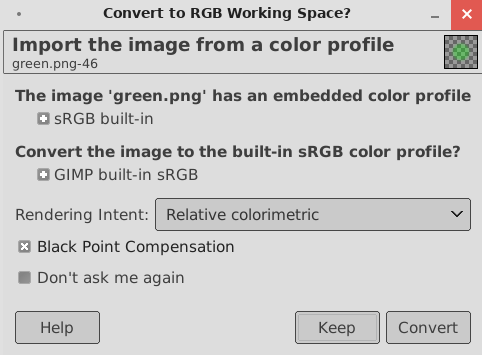
I opened the png and was prompted to chose between keeping the color profile and converting it. However, there was no noticeable difference between either of those choices, so the issue is not here.
Yes there was a topic about that but it seems it was deleted?
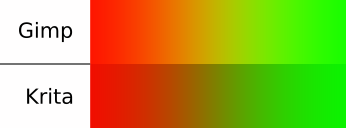
I think the issue is that the blending is made between gamma corrected colors. But that is kind of standard, I think photoshop does it like that as well. I guess that’s because it is faster, but I’m not sure.
I clearly remember I provided a solution for that using if I remember another colorspace (Lab* layer from memory, currently on my phone and not able to check testing files saved on my computer…)
If it has been deleted, really frustrating to spent time and see another explanation/solution being deleted…
Of course! How could I forget this great minutephysics video explaining just that?
And here’s Krita’s documentation on that:
However, changing color space to a linear one like scRGB or sRGB-elle-v2-g10.icc doesn’t just affect blended colors. It also changes colors on a single layer, without applying any blurring or other operation. Every single pixel changes, which messes everything up in my work.
I think rather than having to change color space, there should be an option like the checkbox shown in the minutephysics video (dunno what software this is):
Currently on my smartphone, not able to provide detailled explanation for now, but the idea is to change colorspace of one layer only, not colorspace of document
Thanks for replying even from your phone. Don’t worry though, I’m in no rush.
I searched a bit about using a different color space on a single layer and didn’t find anything yet.
I tried exporting the top layer in a linear space and importing it back as a linked file layer but it doesn’t make a difference.
@Deif_Lou and @Grum999 thanks for the link. Looking at the logs it was me who deleted that user and their post. I believe this is because they requested it. Right now I am not in front my computer to check mails. I’ll check and confirm. Also I can see the post butsome images have been cleaned up. I can ressurect it but I think that will be violation of the user’s wish. I wish they had chosen to anonymise the post and keep them.
I have some part of topics by email
And part of topic are available in google cache but it’s not complete…
I found my video example: @ChameleonScales I think it’s what you said by “It only works for blending within the layer / not between 2 layers”
And… yes, it only works within the layer itself, not between 2 layers.
But there’s a workaround.
It’s tricky, but it works:
I’m not sure why, but colorspace for a group can’t be converted (you can try, but it does nothing)
So just create a group in a Lab document, copy/paste group in an RGB document, and then it works: composition of RGB layer use Lab colorspace
Thanks, that’s an interesting trick! I think we should report this as a bug because it doesn’t seem normal that we have to jump documents.
This also made me notice that changing to Lab (16 or 8bit) doesn’t screw up all the colors in my layers like changing to a linear RGB does.
Always work in Lab I guess.
Yeah that is probably because the whole document is different colour space so the composite is made in the document’s colour space. The layer colour space is local to that layer