I am starting to use masks and I can not do something that seems easy.
I have a blue painted layer and 4 square inside. What I want to do is create a transparent layer on each square so I can work on them.
The only thing I can do is create a mask on the squares but this is not enough, I want it to be a separate layer from the blue layer.
Thank you so much beforehand.
Is this a single paint layer that is painted blue except for four squares painted on it?
Can you post a full screen screenshot showing the Layers docker so that it’s clear what you mean?
It sounds like you need to make Local Selection Masks for each square.
You can add more than one Local Selection Mask to a layer and enable one of them, as appropriate, to work on only that selection.
A Transparency Mask affects what can be seen on a layer.
A Local Selection affects where operations can be done on a layer.
Edit:Add: I forgot to show how to do it:

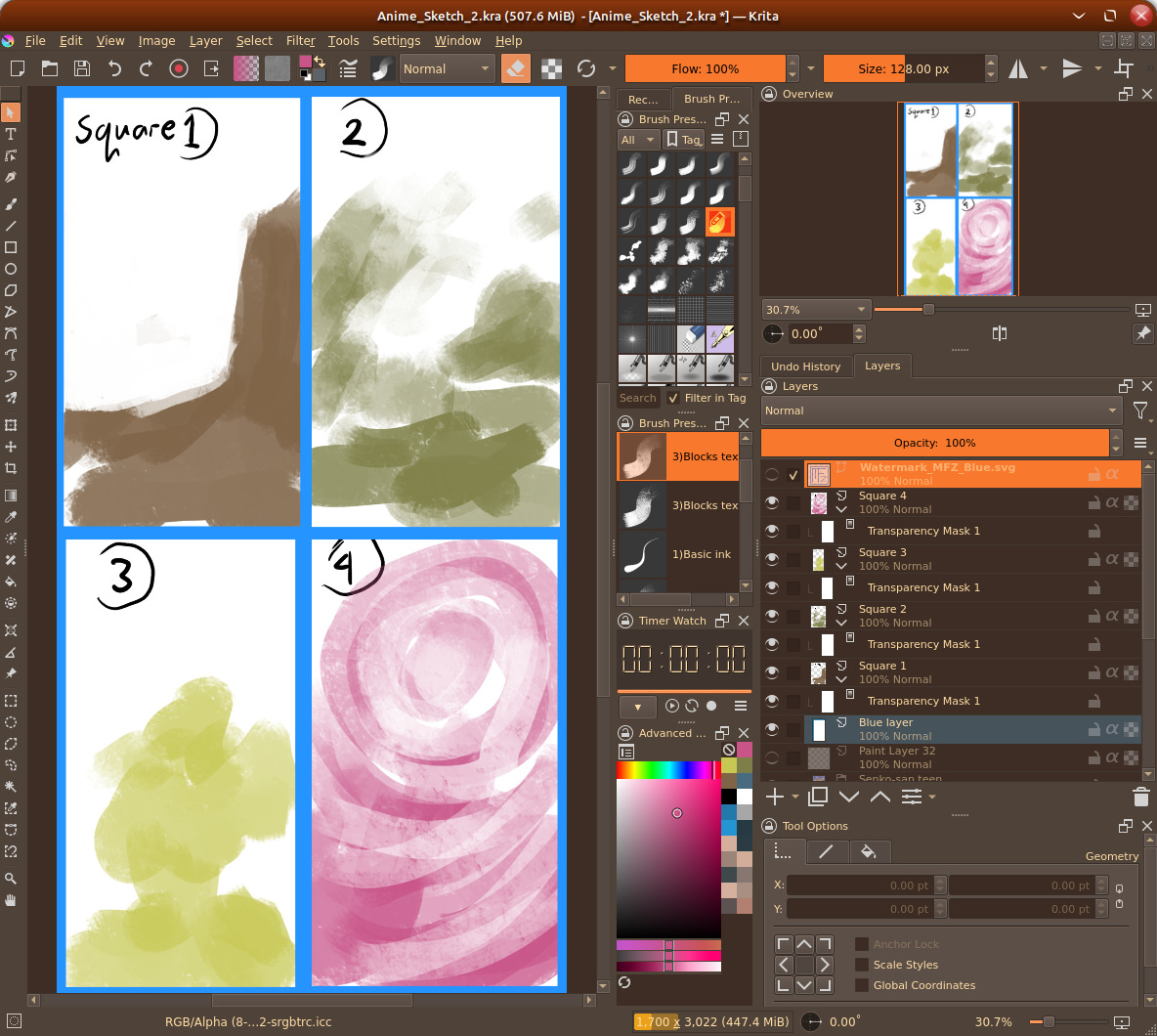


oh I see, I often change the background or each box directly so I rarely use the local selection layer, and more often use the free hand selection tool. 
Alternatively you can use Alpha Inheritance to clip contents to a “bounding box” that is just an opaque colored layer, a white square in my case. The blue frame automatically emerges by having just a fully filled blue background layer.
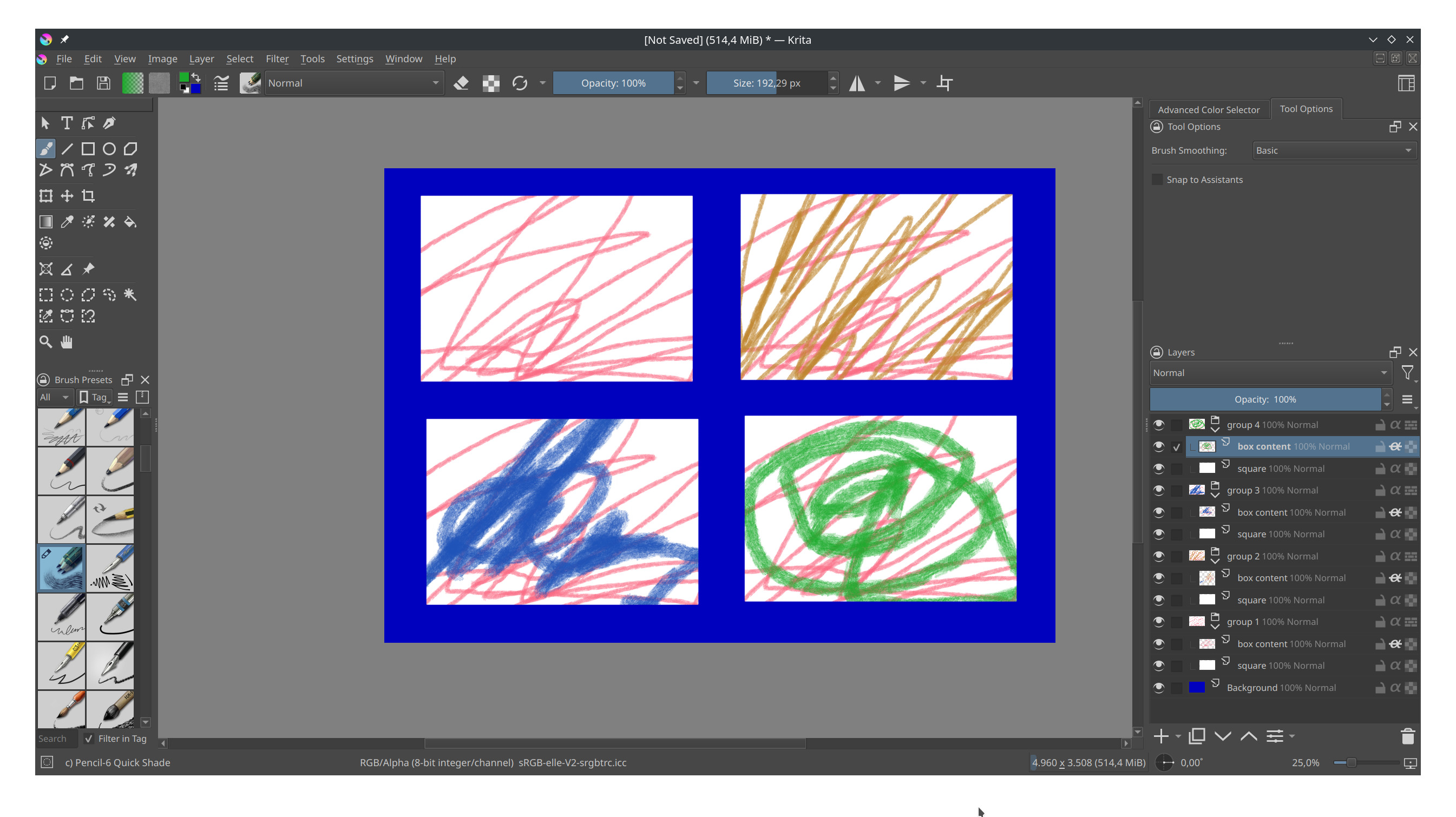

See how the layer above the square layers have the Alpha Inheritance icon active. This would be needed for every other layer (or group) that needs to be confined by the area of the square. The advantage is you can have things go outside the square again easily, if needed. You can use a vector layer for the shape and you can easily change the vector objects and its shape later. Kinda depends what is better for your use case. I even used both, masks and Alpha Inheritance simultaneously in some cases.
I can see that I should have put more effort into this so here goes:

The Local Selection mask called ‘Square-3 Selection’ has been activated/enabled by clicking the small icon at the right of the layer, shown surrounded by a small red box.
Then the colour yellow has been painted on the canvas and will only be applied inside the selected area of the activated/enabled Local Selection mask.
Only one mask can be active/enabled so if you click on the control icon for another mask, the Square-3 Selection mask will be deactivated/disabled.
It’s easier and quicker to try it and do it than it is to read about it or write about it.
@Iruhas If you select the Local Selection mask, you can paint on it in shades of grey to create any selection you like.
Edit:Add: Here, I selected Square-4 Selection in the Layers docker, then painted white on it to extend the selection region, then painted on the paint layer in th extended selection region:

thank you very much, I’ll start trying it in my next drawings. 
Thank you very much to all of you. I have learnt a lot with all your messages.
After two hours testing yours differents methods, the best one for my purposes is the one said by AhabGreybeard, as he said is a very easy one method (once you know it of course, otherwise you can get mad trying how to achieve it).
Very easy and quick, thank you very much again.