Hello everyone,
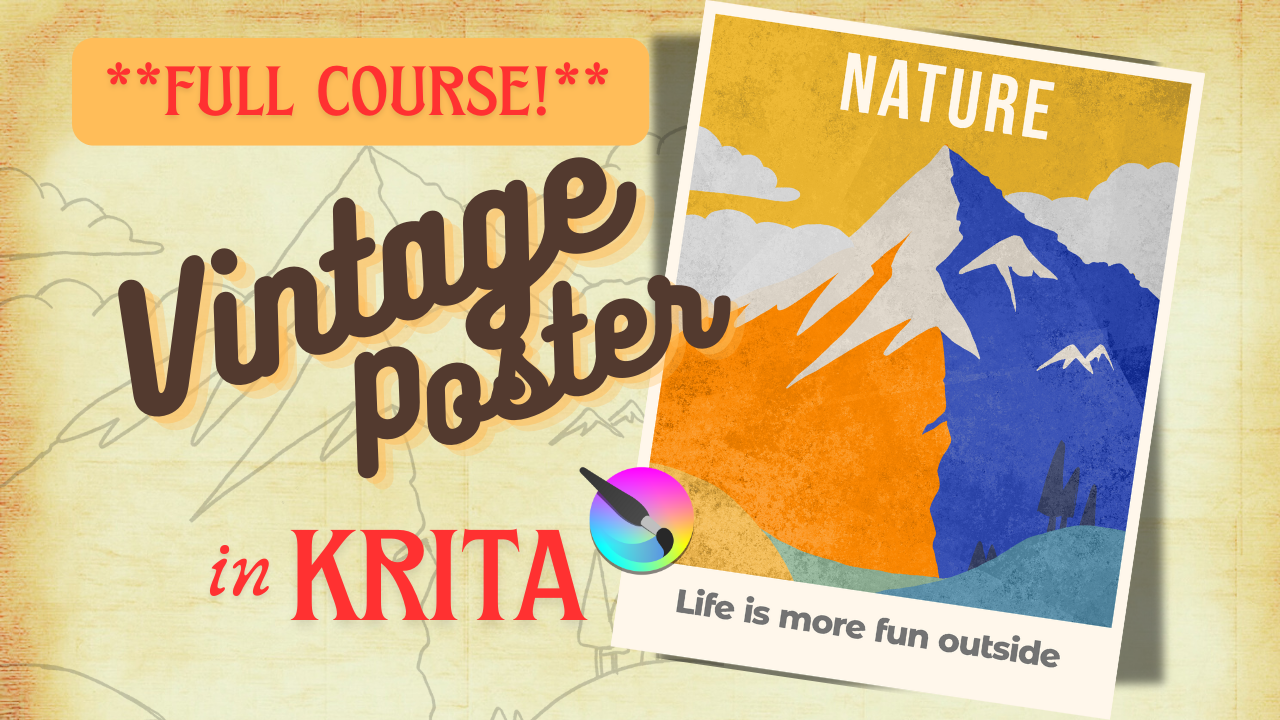
In today’s video, you’ll learn how to create a vintage poster in Krita from start to finish. This tutorial is designed like a mini course, with clear, step-by-step instructions and practical explanations. It is 37 minutes long. I’ll show you not only how to create a vintage poster, but also why each step matters. You’ll also learn how to avoid common mistakes in Krita — and how to fix them if they happen.
Whether you’re a beginner or an intermediate digital artist, this video will help you improve your Krita workflow, understand layers, brushes, color palettes, textures, and typography, and create a professional-looking poster. Also, scroll down to find the links I mentioned in the video. I also added extra helpful links, just because! 
***This tutorial took a full week to create, from research to editing—slightly beyond the 20-hour mark. I did my best to make it clear, useful, and enjoyable for you. Thank you so much for watching and supporting the channel  ***
***
Use the chapters below to jump to any section of the tutorial.
 VIDEO CHAPTERS
00:42 Canvas & Brush Setup
Learn which pencil brushes work best and where to find more. I also show you how to prepare your canvas and brush for painting.
04:28 Guides & Layout
How to activate rulers, change units, add guides, move them, and lock them.
07:53 Workflow Shortcuts
Six essential shortcuts you’ll use throughout the project.
08:43 Paint Bucket Settings (Fill a Selection Tool)
How to optimize the paint bucket tool for the best performance.
11:05 Paint Bucket Rules
Common problems when filling shapes — and how to fix them.
12:41 Palette Docker
Why preparing a color palette before painting is a smart idea.
14:13 Painting the Scene
We paint the poster using a fast and efficient 7-step workflow.
18:08 The 7-Step Workflow (Slide)
18:24 Organizing Layers
How to reorder layers for a clean and logical composition.
21:11 Framing the Poster
Create a frame around your artwork using a single tool.
23:33 Adding a Vintage Texture
Import a texture from Pixabay and create a washed-out vintage effect.
27:25 Adding Text
How to choose fonts, adjust size, match colors, and understand kerning.
33:19 Aligning the Text
Center your text perfectly using a powerful Docker.
35:00 BONUS: Color Harmony Tool
Discover a free online tool to create beautiful color palettes.
37:15 End - Conclusion.
All links mentioned in the video are listed in the YouTube video description box.

 Let me check what’s going on. LOL. I need to be a better Krita dudette.