Crop to content?

I’m moving to Krita from GIMP. In GIMP, I often use the “Crop to Content” tool. E.g., place a rough crop around an object on a transparent background and use “Crop to Content” to shrink the crop tight to the non-transparent pixels. How do I do this in Krita?

Thanks!

1 Like

You have to go over a layer-operation and need at least an additional background layer, then you can do something similar to your ‘‘Crop to Content’’ with ‘‘Image’’ → ‘‘Trim to Current Layer’’, and after that do ‘‘Image’’ → ‘‘Trim Image to size’’ with that layer selected. Now you have an image in the minimum rectangular size possible.

Michelist

2 Likes

The Trim operations remove all canvas content on all layers outside of the final trimmed canvas size.
As such, it’s better to do the Trim to Image Size operation first to remove any accidental off-canvas content that you were not aware of (which can happen if you were careless with previous painting or Moving or whatever).

A Trim to Image Size operation will have no effect if done after a Trim to Current Layer operation. It’s only action is to remove current off-canvas content and that will not exist immediately after a Trim to Current Layer operation.

2 Likes

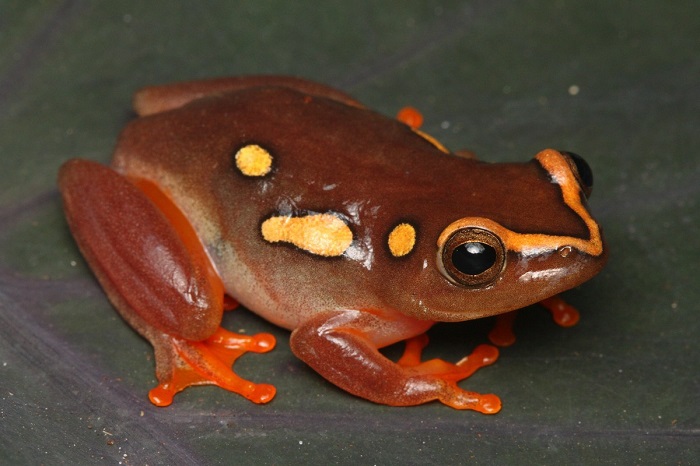
Thanks for your suggestion! I’m really new to Krita and can’t get it working. Here’s an example .kra: https://foxdogstudios.com/static/peter/argus-reed-frog.kra. Does anyone know what I’m doing wrong?

As a result in between: I guess you want to cut out the frog, but the content hidden from the mask seems to be counted as part of the picture, or in other words “it is seen by Krita”, and therefore is taken into account.

Now I have something to play, will see if I get it working.

Michelist

1 Like

Brilliant! Thanks for your help.

:question: Currently, I’m feeling very stupid. But I don’t use masks often.

Michelist

Funny, even though I removed the masked part via ‘Split Alpha’ → ‘Write as Alpha’, Krita still seems to “see it”?
@AhabGreybeard, could this be related to the bug from a few days ago when deleted pixels still existed in a rudimentary way?

Michelist

I made this .kra via scripting (see this post) so might be related to that. Anyway here’s all the source files:


template.kra

I’ve been looking at this and there is something strange about the .kra file that I can’t figure out, involving the background.
@PeterSutton Did you create this image totally from scratch using krita, maybe opening or importing a frog .jpg or .png image, or did you do soem initial work in another application?

I’ve just seen this:

That may have interesting consequences that should be dealt with in a separate topic.
The overall document does not behave as I’d expect it to behave if it was made in the ‘usual’ way. i.e. manually. It’s about the background colour and the behaviour of the background. That’s for another topic.

As for the Trimming to the frog, that is fairly simple but has a complication:

Trim to Current Layer won’t work on the frog because it’s full of pixels. Then, you can’t trim to any mask layer for the same reason.
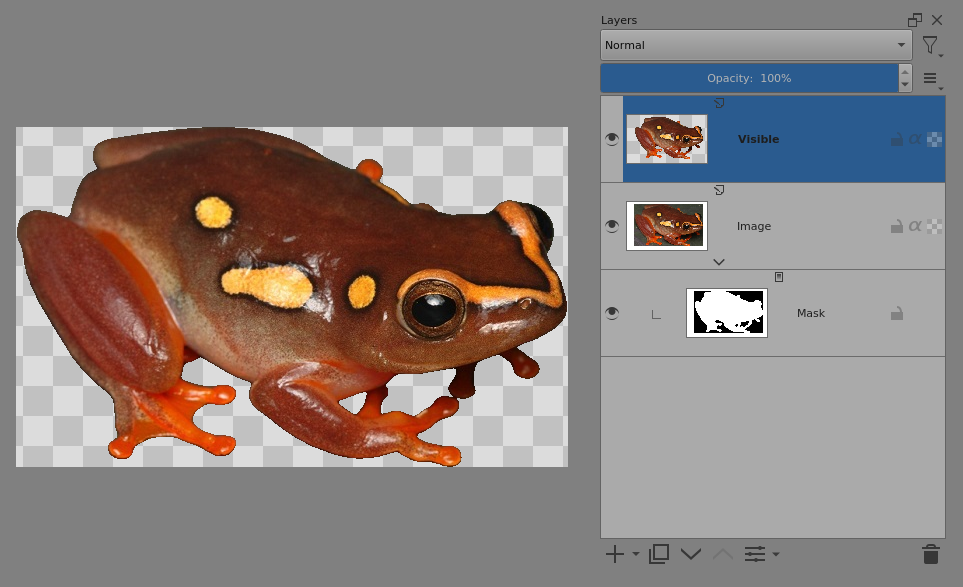
What you need to do is, in the Layers docker, do right-click → New Layer From Visible then you will have a paint layer that contains an isolated frog image.
Do Trim to Current Layer on that new layer.

There follows a small complication:
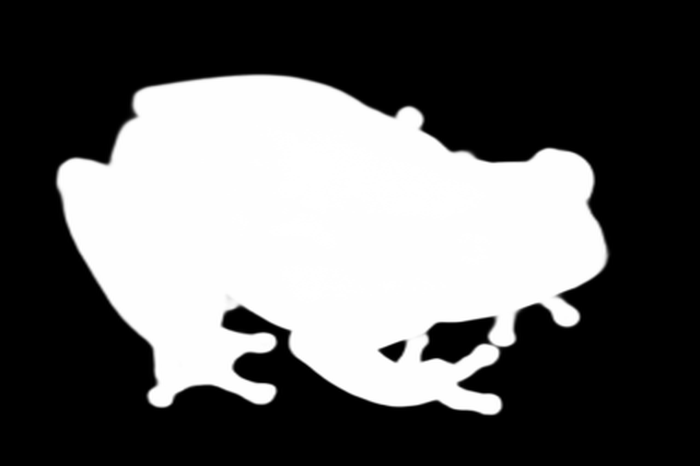
The mask has faint dark grey pixels surrounding the white main region because of the way in which it was made and these barely visible pixels will be included by the Trim operation.

So, before you do anything at all, use Filter → Adjust → Threshold on the mask layer.
That will cut off the mask below mid grey level. You can adjust the Threshold level to get the mask a little bit smaller or a little bit bigger in effect if you want.

Then you can do the New from Visible followed by Trim to Current Layer with the newly created layer selected:

@Michelist After doing the Threshold operation on the mask, I thought it would be a good idea to use a 1.5 px Guassian Blur on it to give a slightly soft edge to the final image, before doing the New Layer From Visible.
However, that resulted in no trimming at all. So, there is something strange happening somewhere that needs to be investigated.

2 Likes

@AhabGreybeard Thanks for your help. I’ve got 1000s of images to process so I’m trying automate as much as possible, ideal inside Krita. So,

  1. Can the background color issue be fixed by changing the different template?

  2. Is it possible to create a new layer from visible via scripting without actions 'cos I can’t get them working via kritarunner?

  3. Is the mask border an issue with the mask source file (which I can probably fix) or an issue in Krita (which I’d have to try script the fix)?

Push-comes-to-shove I can grab the pixels in a script to do the mask, crop and export using the Python library pillow but I’d like to use Krita as much as possible 'cos it easier to tweak the masks and images.

Thanks again.

2 Likes

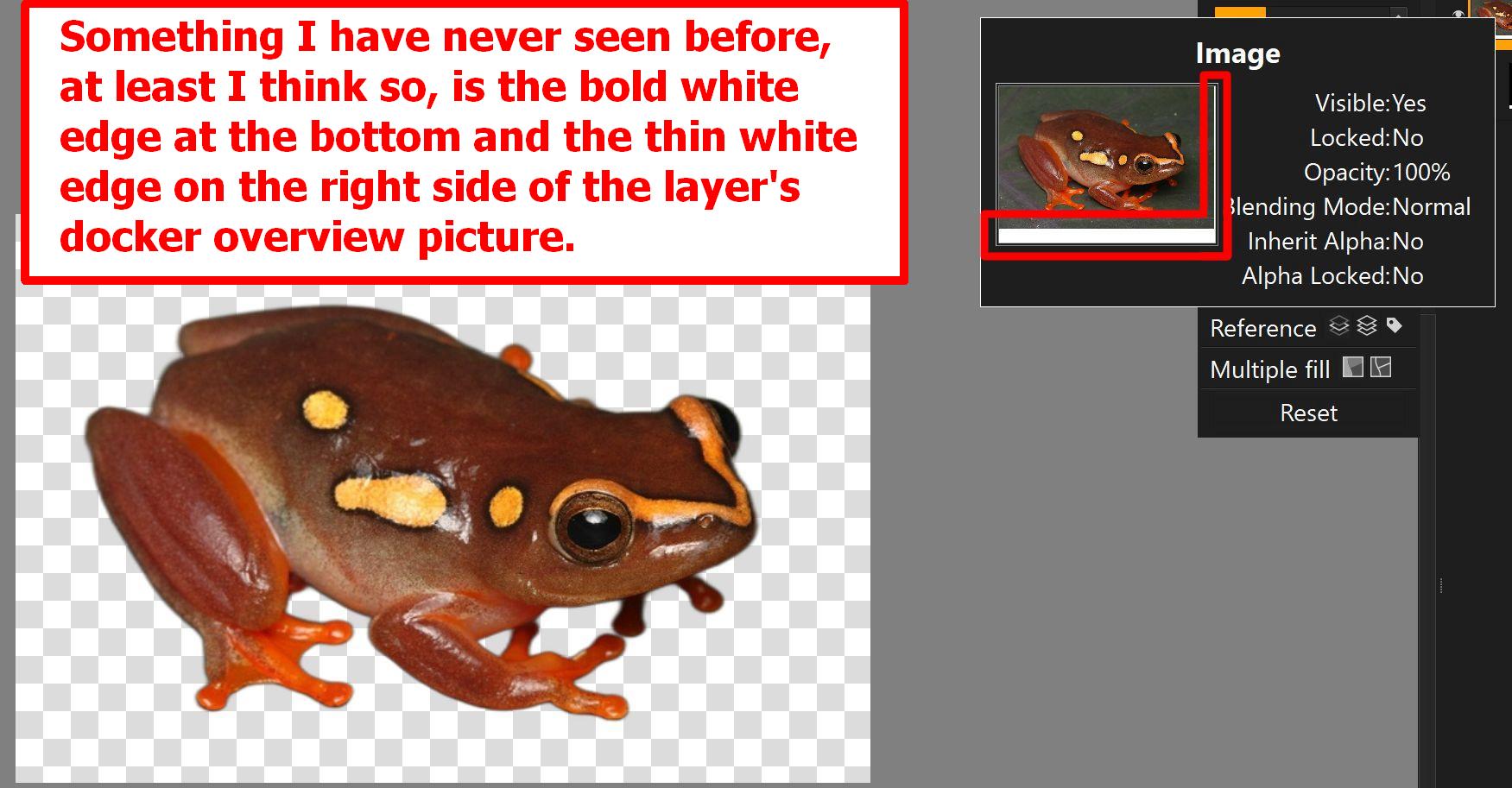
@AhabGreybeard, you are absolutely right. I had subsequently tried to remove the edge of the image, since I could detect it in the layer docker’s overview image after the ‘Image to Alpha’ action and subsequent unsuccessful cropping. But whether I tried to erase the edge pixels or first did a rough manual crop to get rid of them, I had the same failures with the afterward trimming as you described.
The idea to filter hadn’t come to my mind, so thank you for this clue!

@PeterSutton:

  1. I don’t know.
  2. I don’t know, because I’m no coder.
  3. I think it has to do with the source.

Michelist

2 Likes

@PeterSutton

  1. I haven’t looked at that yet.
  2. I have no knowledge of scripting at all.
  3. I’ll experiment with that later but someone else may have ideas.

Thank you for providing an interesting puzzle.

@Michelist It is strange and I’ll probably be looking at it later. I’m sure you will too.

Right now, coffee is not enough so I need food :slight_smile:

2 Likes

I did some more work on the image this afternoon, without useful results, and also experimented with my own images where I did not encounter these peculiarities. I can crop comparable images with my 5.1.5 via mask and ‘New Layer from Visible’ and then crop to layer size.

Something I don’t think I’ve seen before, that is the bold white border at the bottom and the thin white border on the right side of the layer overview image. I looked at various my own and other people’s images in Krita for this, including *.KRA’s uploaded by other users on the forum, nowhere could I detect such borders.

Michelist

2 Likes

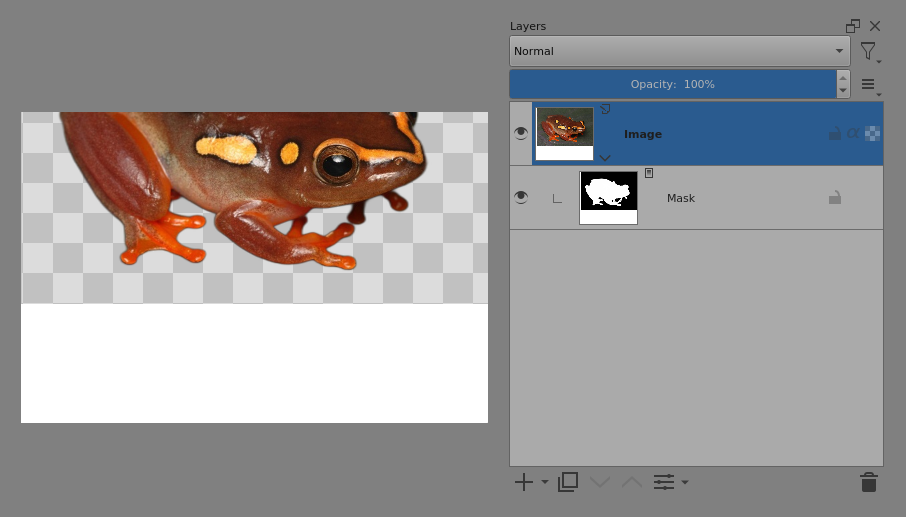
@Michelist It’s that white border content that puzzles me. I was wondering if the .kra file has been set to ‘Background as Canvas Colour’. That might explain why there is a white canvas if you Move the image content upwards but it doesn’t explain that you can see the checkerboard where there is transparency. e.g:

I don’t understand the original .kra file.

As for the lack of Trimming if you apply a small Gaussian Blur after doing a Threshold on the mask (then New From Visible), I’ve used the Colour Picker tool to examine the contents and can’t find anything unusual around the mask or the resulting 'New From Visible layer.

If I make a New File with background as raster layer then Import the frog image .jpg and the frog-mask .png layers, I can do the processing and use a Gaussian Blur on the mask after the Threshold and then the New From Visible followed by Trim to Current Layer does work properly.

1 Like

Ok, 'm free again and back onto fixing this. In my template.kra, from which all the other .kra are built, I deleted the default Background layer. Is that related? I’m completely out of my depth BTW, I don’t know Krita existed 48 hours ago :).

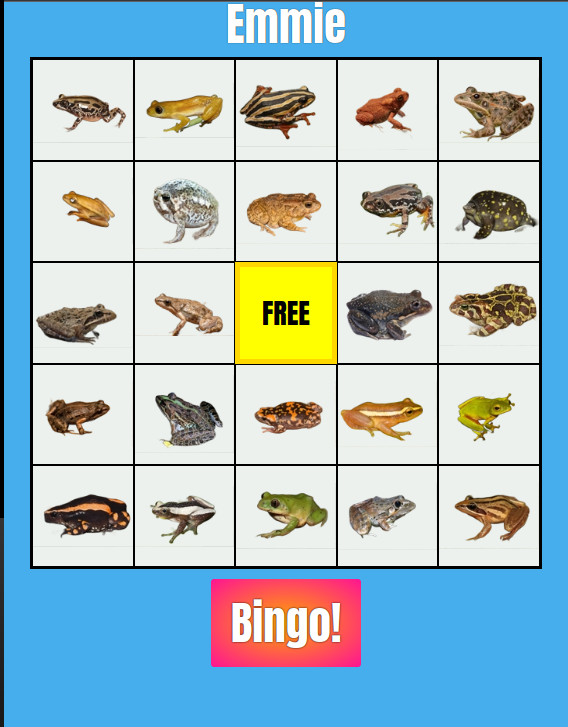
Also even with all these issue, frog bingo is looking great:

1 Like

Is it possible to create a new layer from visible via scripting without actions 'cos I can’t get them working via kritarunner?

This is possible. You can make kra with images grouped into group layer. Then you can get pixelData/projectedPixelData of group without any actions involved. This pixels will be essentially “flattened” content of group with all stuff applied. Or you can get pixeldData of document rootNode, in that case groups not needed, this is literally ‘Visible’ result (after refreshProjection/waitForDone)
Did not try this via kritarunner though. But seems it should work

You can also directly feed this pixeldata to pillow and save png right away, without dialogs mangling and boring stuff. To load Pillow just call “sys.path.insert(0, … your local python installation site-packages path …)” before ( see Numpy/PIL/etc in Krita python - #3 by Ilja_Razinkov ) and then:

from PIL import Image
pixel_data = activeNode.projectionPixelData(…)
pil_img = Image.frombytes(“RGBA”, (ww, hh), pixel_data, “raw”, “BGRA”, 0, 1)
pil_img.save( … output path …)

This way you also do not have to crop anything, just get projectedPixelData of rectangle you need

1 Like

It should not cause any problems. I’ve worked with .kra files that have no Background layer and also .kra files with many Background layers.
It’s just that what I see with your argus-reed-frog.kra file is not like anything else I’ve seen.
Do you make the image files by a scripted resize of the 1px x 1px template.kra file?
Did you make the template file manually or was a scripted generation?

Either way, I’ll look at it a few more times as time goes by and reply here if I find anything interesting/useful.

I hope that the advice from @Ilja_Razinkov and other people here on the forum will be of greater use to you :slight_smile:

Yes;

def create_kra(krita: Krita, image_path: Path):
    image_stem = image_path.stem
    r, g, b, a = Image.open(image_path).convert('RGBA').split()
    image = Image.merge('RGBA', [b, g, r, a])
    mask_path = create_path('maskes', image_stem, '.png')
    mask = Image.open(mask_path).convert('L')
    size = (0, 0, image.width, image.height)
    with closing(krita.openDocument(str(TEMPLATE_PATH))) as document:
        document.resizeImage(*size) # ← Here's the resize
        for name, pil_image in [('Image', image), ('Mask', mask)]:
            document.nodeByName(name).setPixelData(pil_image.tobytes(), *size)
        kra_path = create_path('kra', image_stem, '.kra')
        document.saveAs(str(kra_path))

I made the template manually.

I’ve got a process I’m happy with: I can generate and export image automatically via scripting and manually tweak masks using Krita.

  1. I manually created this template.kra. It’s a 1x1 pixel file with s transparent paint layer called Image with an empty transparency mask called Mask.

  2. I use kritarunner to run a script that makes a directory of .kra files from a directory of images and masks (which I create with remgb).

print('-- SCRIPT BEGIN --')
from contextlib import closing, suppress
from pathlib import Path
import shutil
from typing import Final

from PIL import Image
from PyKrita.krita import Krita


ROOT_DIR: Final = Path(__file__).resolve().parent

TEMPLATE_PATH: Final = ROOT_DIR / 'template.kra'


def create_path(dir_name: str, stem: str, suffix: str) -> Path:
    return (ROOT_DIR  / dir_name / stem).with_suffix(suffix)


def create_kra(krita: Krita, image_path: Path):
    image_stem = image_path.stem
    r, g, b, a = Image.open(image_path).convert('RGBA').split()
    image = Image.merge('RGBA', [b, g, r, a])
    mask_path = create_path('maskes', image_stem, '.png')
    mask = Image.open(mask_path).convert('L')
    size = (0, 0, image.width, image.height)
    with closing(krita.openDocument(str(TEMPLATE_PATH))) as document:
        document.resizeImage(*size)
        for name, pil_image in [('Image', image), ('Mask', mask)]:
            document.nodeByName(name).setPixelData(pil_image.tobytes(), *size)
        kra_path = create_path('kra', image_stem, '.kra')
        document.saveAs(str(kra_path))


def main(argv: list[str]) -> None:
    kra_dir = ROOT_DIR / 'kra'
    with suppress(FileNotFoundError):
        shutil.rmtree(kra_dir)
    kra_dir.mkdir()

    krita = Krita.instance()

    for image_path in (ROOT_DIR / 'originals').iterdir():
        print('Creating .kra for', image_path.stem)
        create_kra(krita, image_path)
        print()

    print('-- SCRIPT END -- ')
  1. After manually tweaking the images and masks, I run another script that crops and resizes the images using pillow
print('-- SCRIPT BEGIN --')
from contextlib import closing, suppress
from math import floor
from pathlib import Path
import shutil

from PIL import Image
from PyKrita.krita import Document, Krita


def clean_dir(dir_path: Path) -> Path:
    with suppress(FileNotFoundError):
        shutil.rmtree(dir_path)
    dir_path.mkdir()
    return dir_path


def create_image(document: Document) -> Image.Image:
    width = document.width()
    height = document.height()
    data = document.rootNode().projectionPixelData(0, 0, width, height)
    image = Image.frombytes('RGBA', (width, height), data, 'raw', 'BGRA', 0, 1)
    return image.crop(image.getbbox())


def export_version(image: Image.Image, output_dir: Path, output_name: str,
                   max_width: int, max_height: int) -> None:
    width = image.width
    height = image.height
    if (min_scale := min(max_width / width, max_height / height)) < 1:
        def scale(value: int) -> int:
            return floor(min_scale * value)
        image = image.resize((scale(width), scale(height)),
                             resample=Image.Resampling.LANCZOS)
    output_path = output_dir / output_name
    print(output_path)
    image.save(output_path)


def export_versions(krita: Krita, kra_path: Path, player_dir: Path,
                   stage_dir: Path) -> None:
    with closing(krita.openDocument(str(kra_path))) as document:
        image = create_image(document)
    output_name = kra_path.with_suffix('.webp').name
    export_version(image, player_dir, output_name, 128, 128)
    export_version(image, stage_dir, output_name, 1280, 720)


def main(args: list[str]) -> None:
    krita = Krita.instance()
    root_dir = Path(__file__).resolve().parent
    player_dir = clean_dir(root_dir / 'player')
    stage_dir = clean_dir(root_dir / 'stage')
    for kra_path in (root_dir / 'kra').glob('*.kra'):
        export_versions(krita, kra_path, player_dir, stage_dir)
    print('-- SCRIPT END --')

Thanks everyone for your help!

3 Likes