I am unsure if this is a bug on my side, but whenever I alt-tabbed or selecting a different layer in my file, my brush color would suddenly change into default black color. This is also without pressing “x” to change the primary brush color into secondary, and without holding the color picker tool, which is very weird for me. I tried googling this but the issues shown there are unrelated with my concern for this at the moment.
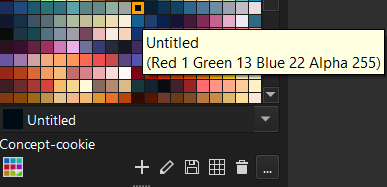
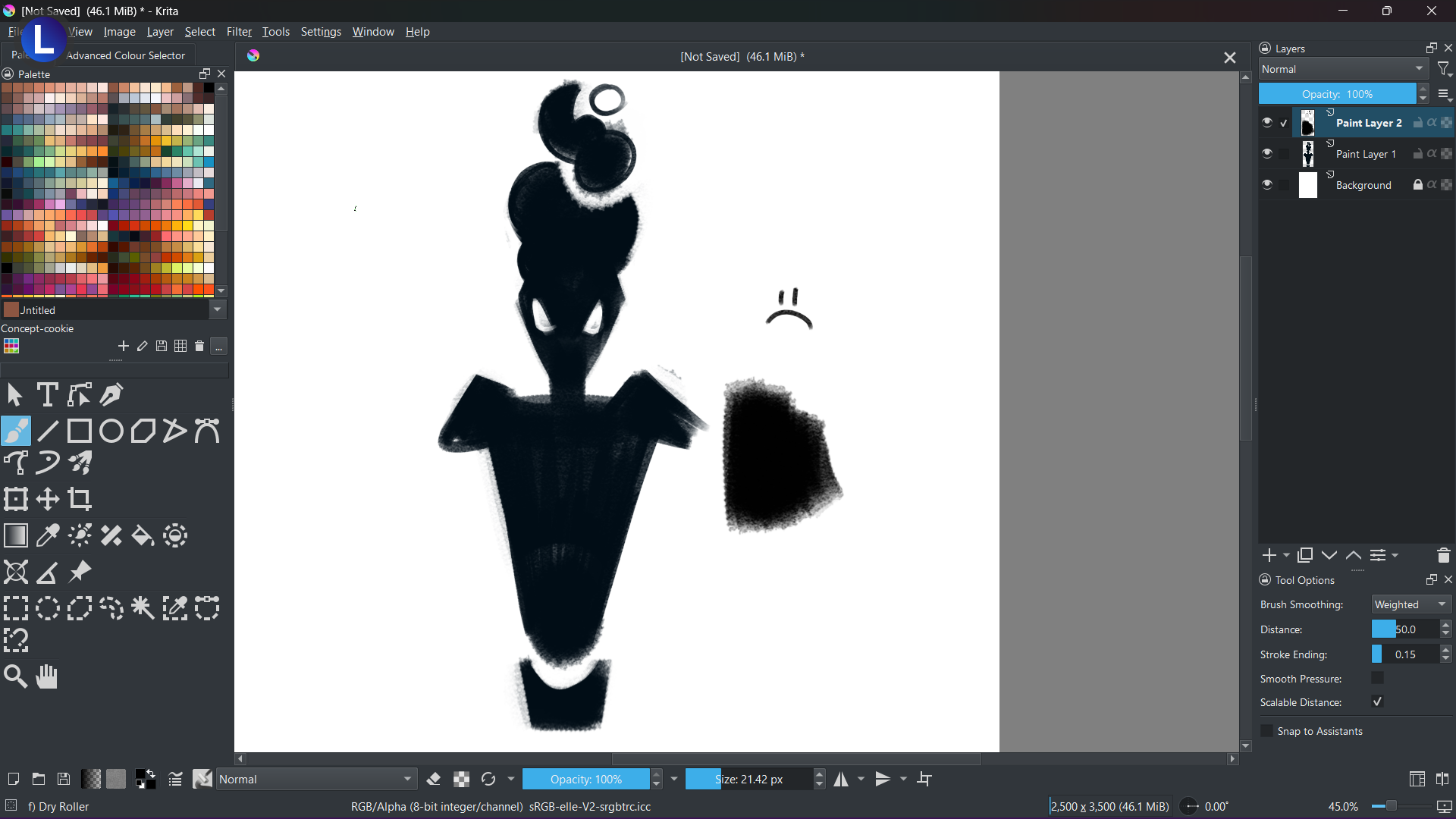
The color palette I am using is from “concept cookie” and the color that I wanted to use consistently is the dark blue one (screenshot provided).
I only can imagine this happening when selecting a mask, since they are grayscale layers but it should not permanently change the selected color.
Do you have the default keyboard shortcut theme active? I know some people prefer the color sampler on ALT key and perhaps this could be an issue when alt+tab out of the application, although I don’t know why it would.
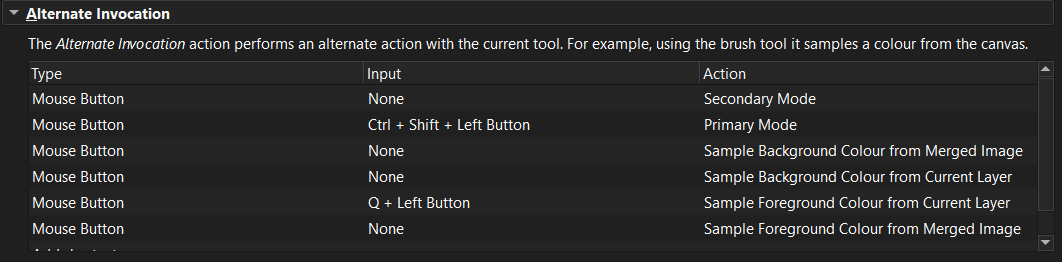
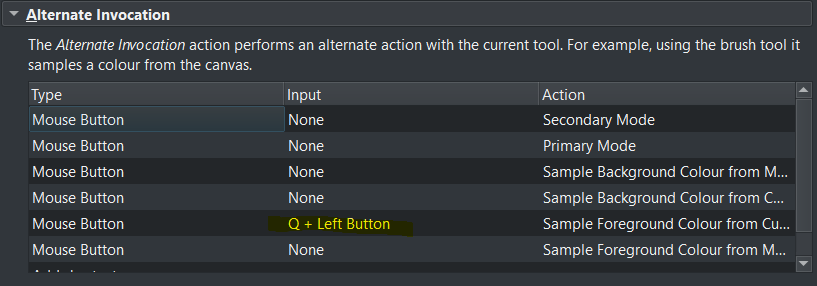
The ALT key may be the case. I have adjusted a few keyboard shortcuts from the Alternate Invocation and made the color picker as “Q + Left Click” instead (which the Q key I press less the most when drawing).
However, the problem still occurs and is still very weird as this did not happen to me from Krita’s previous versions such as 4.3
Hello! I still need help from this as this greatly disrupts my drawing process
Newfound issue: After exiting Krita as a whole and reopening from the same file/ canvas, my brush color changes to default black than the color I want (and I clearly remember not actually using the default black color)
I have never seen another user report their foreground color changing to black unless two situations were true: the background colour was set to black and they were accidentally hitting the x shortcut key which is the default shortcut to toggle to the background colour.
Question: When your Krita resets to black, what is the background colour? By that I mean when you look at the color selector in the toolbar, the one that displays two colours, is one of the two colours set to black?
That would be an important clue to understand what is happening.
Sorry for all the questions but this is a very unusual case. I’ve never experienced this and I have never seen a post where someone else experienced it so there may be even more questions before this gets figured out.
I do suspect there is a problem somewhere in the customized shortcuts you’ve made.
Does your response mean that Krita resets the foreground colour to black even when black is neither the foreground nor the background colour?
Since you did not name your OS nor your version of Krita, I assume you are using the most recent version 5.2.9 and are using Windows. What I can not guess is the version of Windows you use, as well as I can’t assume from where you’ve downloaded your copy of Krita. Should the following hint not help to solve your issue, I ask you to provide the requested information.
Are you running by chance chat apps like WeChat or QQ by Tencent, they could be the culprit, because these are known to “throw” the spookiest issues.
In case you use one of these apps, then you can try to rule them out via terminating them before you start Krita. With terminating is meant that they don’t have to show up in your task-manager anymore after you have closed the apps, and if they show up, then you have to click on them and choose “End Task”. You can start the task-manager via a click with your right mouse button on the Windows “Start” symbol and selecting Task-Manager.
Hello! I only refer Krita and its new updates via their news/ announcement tab within its program, and only downloading it with their official website. As for my OS, I use Windows 11
The 5.2.9 version only causes this sudden brush color change than the previous (even from my W10) versions I had before which, I am sure, had no issues with conflicting shortcuts after I customised or added some plugins
I am not familiar with WeChat or QQ but I checked on my task manager, and there are no programs running on my windows
So… I am very weirded out with my issue as this never happened before from Krita’s previous versions
Do you know how to reset your Krita installation to “default” (but with saving your custom configuration to a backup place)?
I am asking because that way you could test, if maybe your configuration got corrupted somehow.
If the black issue still happens with a default configuration, there might be something wrong with your OS, tablet, Krita combination.
If it works with a “default” installation, you might need to redo your custom configuration step by step and see if one of you changes triggers the “black issue”.
But if it still works correctly after you have done all the customizations, then something was broken in your old custom config.
Hint: Reinstalling Krita will not create a “default installation and configuration”. If something is broken in your current Krita configuration, it will still be broken after you reinstalled Krita.
I am sure I did not use the buttons on my stylus along with the tablet; I only used left click to move the points and the box to move it around the canvas
From within Krita, you can do it via ‘‘Settings’’ >> ‘‘Reset All Settings’’, but you can’t revert that.
If you want to apply your reset as a revertible action, then please do the following:
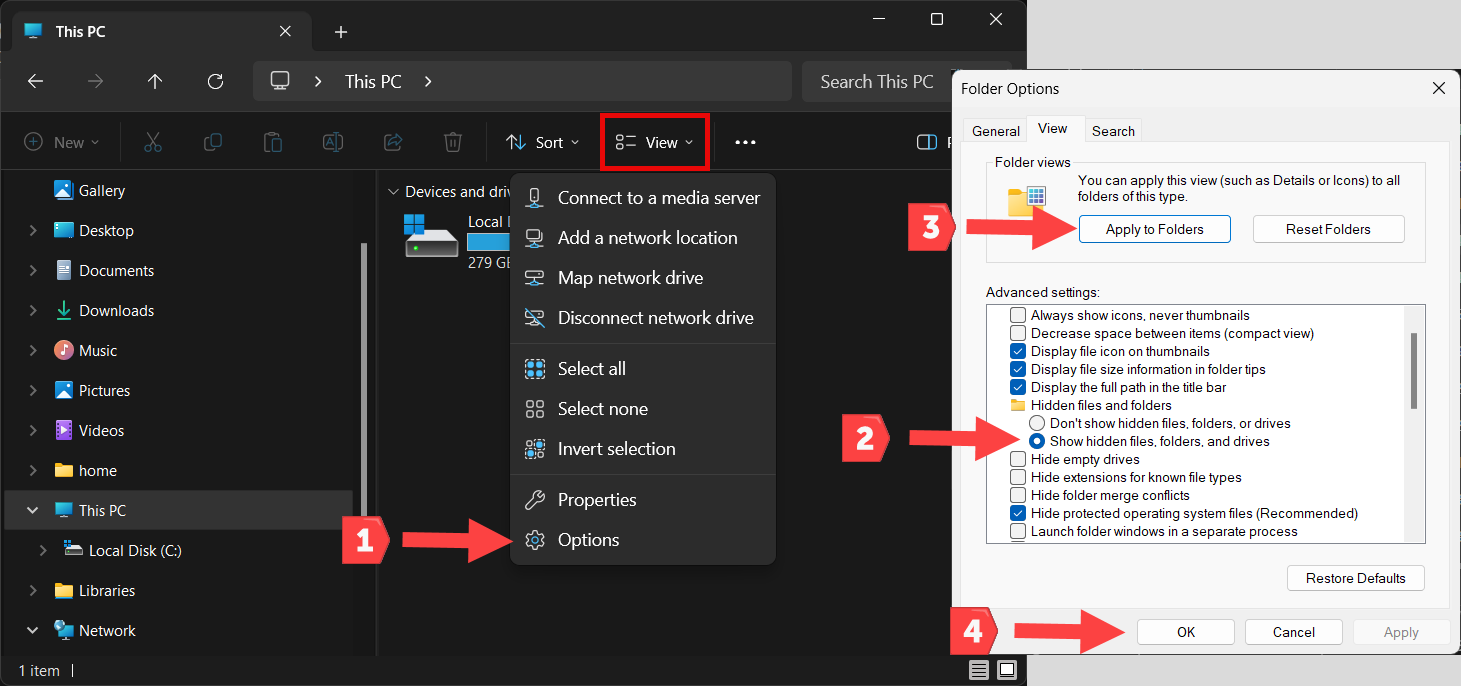
Since you are using Windows 11, you must enable the view of file name extensions in the View menu of Explorer, in that menu you’ll find three checkboxes, and you have to activate at least the view of file name extensions there or Windows 11 will override the settings you have to make below and thus will render your task into an impossible mission.
With the first action you have to decide, do you want to preserve resources like brush presets, bundles, palettes, etc., that you made yourself or installed additionally. If you want to preserve them do this:
Open Explorer and enter %APPDATA%\krita\ in the address bar of Explorer, and confirm this entry with Enter. This will take you to Kritas resource folder (if you have not changed its location in the past). At the end of the resource folder, you will find the file resourcecache.sqlite rename this file to resourcecache.sqlite.old.
If you want to completely wipe them out:
Open Explorer and enter %APPDATA%\krita\ in the address bar of Explorer, and confirm this entry with Enter, then leave that folder (go one level up) so you can see the folder krita and delete that folder. You could also rename that folder to something like krita.old as a backup if you want to.
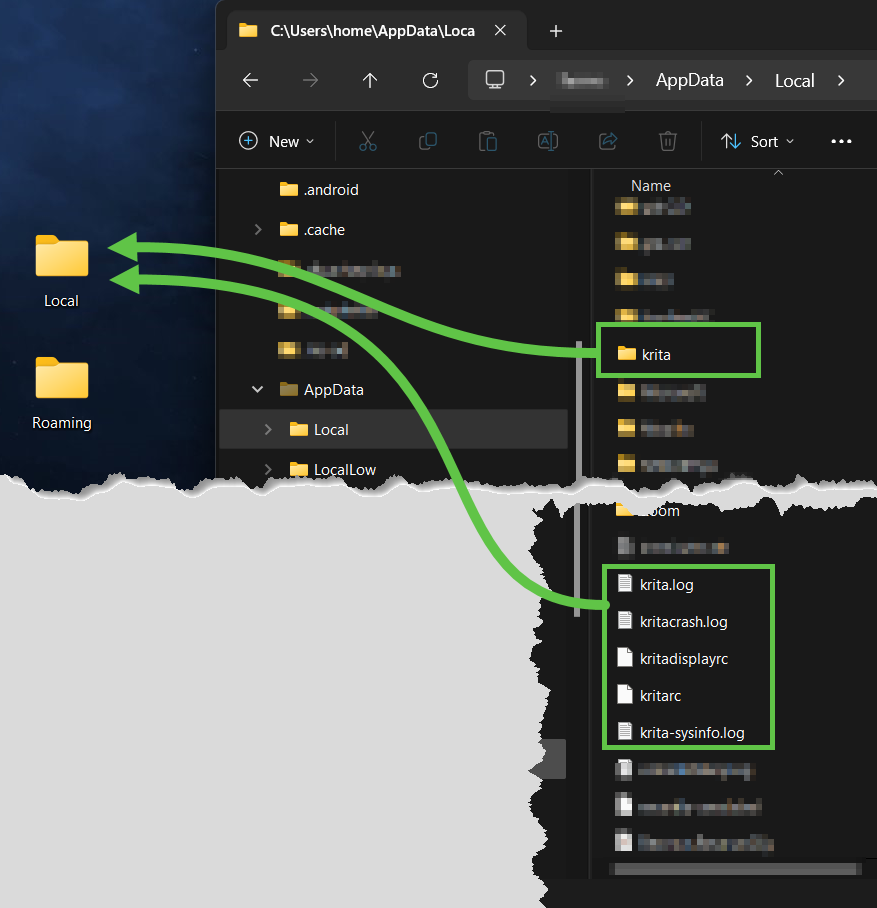
Next, enter %LOCALAPPDATA% in the address bar of the Explorer and confirm this entry with Enter. This will take you to your user folder Local, at the end of this folder Krita stores its settings files. Please rename all files that have krita in their name, such as Krita’s settings file kritarc to kritarc.old (the other files accordingly) or move these files to another folder.
After you have done this, you have reset Krita completely, now you can start it and will have
Please note, you need to handle with files in a directory normally not visible to users.
Krita stores your custom settings, brushes, shortcuts, plugins etc. in a folder called AppData. This folder is not only used by Krita but most other Windows software as well. If you do something in this folder, take care you only handle the Krita files.
First:
Close Krita
Second:
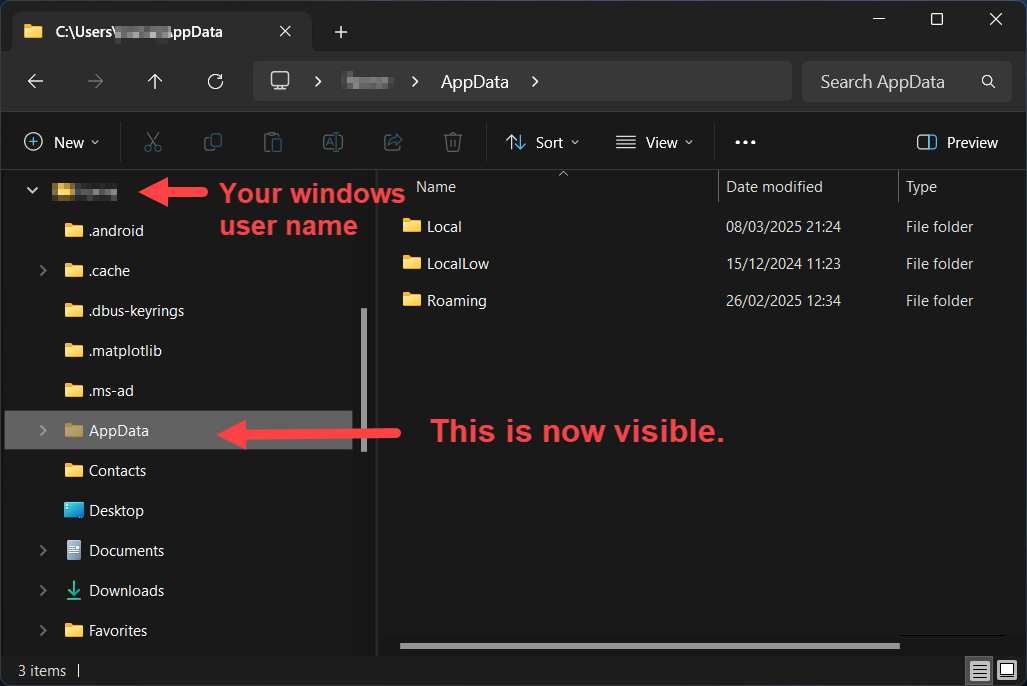
Because AppData is normally hidden, it must be unhidden:
Do this with the view setting in Windows explorer:
Third:
You now need to find the Krita files and folders and move them to a backup location. Don’t copy them to the backup but move them. They must be removed from AppData.
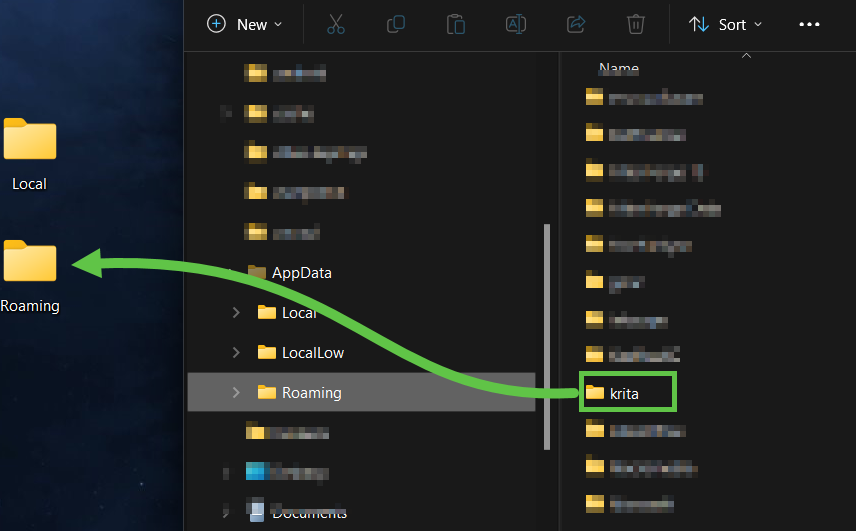
The krita files and folders are in
AppData\Local
and
AppData\Roaming\
I do it this way:
I make two new folders on the desktop and name them like the folders in AppData. Then I move the krita files and folders from AppData\Local and AppData\Roaming to the new folders on the desktop.
Fourth:
Restart Krita. This wil take a bit longer than normal, because Krita is now creating new clean versions of those files and folders in AppData.
You now have a fresh Krita like it was when you installed it.
If you want to go back to your custom Krita:
Stop Krita → delete the new Krita files and folders in AppData and move or copy the ones from your desktop backup folders back into AppData.
Hello, returning to this concern, as after I followed to reset/ clean all of my data (now without the use of plugins and removing possible conflicting shortcuts in the way of color picker); the problem unfortunately still occurs as shown here:
At least it would be worth a try. Do you have older versions, or do you know where you can get previous versions of Krita?
From here you can get even the oldest versions available:
And here you can get the previous version 5.2.6:
You can go for the portable versions, that are the *.ZIP-Files that do not have dbg near the end of the file name, those with dbg carry so called debug-symbols, but you don’t need them, they exist to hunt down crashes and find bugs.
The advantage of using portable versions is, that you can use them without the need to uninstall the recent release version. This way, you can have many versions if you want to, but you can only run one at a time per user account. Only using different user accounts would allow you to run them simultaneously, if you want to.
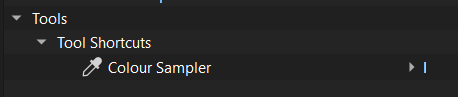
You wrote, you have reset Krita and removed conflicting shortcuts in color picker. But if you reset Krita to its initial default state there should be no custom shortcuts left. But your screenshot shows there is a custom shortcut in the color picker.
Maybe you have not made a full reset.
A last idea:
You wrote it happens if you ALT Tab.
Could it be that you have ALT Tab in the shortcut for switch foregaound background color?