I’m referring to the General document information window. Specifically the area that keeps track of the amount of time spent on a project (Total Editing Time).
Is there a way to manually add additional time to that number? I was just curious. Sometimes I create new project layouts by copying from a previous project. Sometimes I forget to reset that number when I start a new project. It would be nice to be able to increase the amount to make up for lost time. But this isn’t a major issue. There’s nothing in the window itself that allows that. Thought maybe there might be a backdoor option.
You have to edit the file documentinfo.xml in the root of your Krita file, which in fact is a ZIP-Archive, so you can rename it from YOURFILE.KRA to YOURFILE.ZIP and open it with your file manager or archiving program, if your file manager is not capable of doing it.
Your documentinfo.xml can be edited with any text-editor, but I recommend using an advanced editor, preferably meant for coding, because of the color coded presentation of the content (Notepad++, PSPad, Kate, …), but even Notepad will do.
You have to edit the value XXX <editing-time>XXX</editing-time>, I guess it is represented in minutes, but you should be able to figure this out relatively easy by yourself. But do it always with a copy of your original file, so you always have that as a fallback if your editing fails.
Michelist
awesome thanks!
Well… almost there. I was able to make the change to the documentinfo.xml file. Saved it. Then I assume the next step is to create a new ZIP file from the modified contents of the unzipped folder. Rename it to whatever.kra, and then open it with Krita. Only I keep getting an error message saying Krita can’t open the file. The file format can not be parsed. I’m missing a step or not doing something right. Suggestion?
PS, the value there seems to be in seconds. There was a value there of 5460 which corresponds to 91 minutes. I wanted to add another 2 hours (7200 seconds) for a total of 12,660 seconds.
Small script for editing editing-time of active document.
Save before editing time as old editing time gets only updated at save, and also remember to save after editing editing-time.
from krita import Krita
from PyQt5.QtWidgets import QInputDialog
from PyQt5.QtXml import QDomDocument

app = Krita.instance()
doc = app.activeDocument()
doc_info = doc.documentInfo()

xml = QDomDocument()
xml.setContent(doc_info)
element_list = xml.elementsByTagName('editing-time')
do_edit = False
for i in range(element_list.length()):
    editing_time_text = element_list.at(i).toElement().firstChild()
    old_editing_time = int(editing_time_text.nodeValue())
    new_editing_time, do_edit = QInputDialog.getInt(
            None,
            'Change Editing Time',
            'Set editing time to (sec.)',
            value=old_editing_time)
    if do_edit:
        editing_time_text.setNodeValue(str(new_editing_time))
    break  # there should be only one

if do_edit:
    doc.setDocumentInfo(xml.toString())
    doc.setModified(True)
/AkiR
If you’re zipping the main folder created when you extract, remember you should be zipping the contents within the folder, rather than the folder storing them.
My workflow is usually to open the *.KRA file using my file manager Total Commander (Explorer can do it too nowadays), then open the file and edit it, and after editing the file I drop it back onto the *.KRA and answer the question if I want to overwrite the file with Yes. Working this way I don’t create a new archive, the parameters Krita used should be preserved this way. At least for me, this always worked, but I updated only the “Author-Data” this way. But @AkiR’s script is also an elegant way to accomplish this task.
Michelist
Ha! that worked! thanks so much
okay - so… just to clarify for all the non-techy people who might be interested in this:
It’s possible to manually change the value of the amount of time spent on a project (as well as some other info). You can change Editing Time to any value you want. In my case, I wanted to add time to the existing value because I had forgot to reset that value in the Document Information window (File/Document information/Total editing time). I had copied an existing project, removed all the layers, to create new blank canvas. But I forgot to reset the editing time to zero. So I now had an incorrect time value there. Why is this important? It’s not. Unless you’re just wanting to keep track of time spent on a project for historical reference. Or maybe you’re charging for your work. Who knows. I know I spend a lot of time NOT drawing that I would normally consider billable time. Might be nice to keep track of all that in one place. That would be a nice feature to add to Krita: editing time and offline time as two separate values.
Usually, I wouldn’t worry about this feature because normally I create a brand new project from scratch, every time I start a new project. But in this case (an illustrated story with pages that share similar traits), I would often just copy/rename an existing page so I didn’t have to recreate a brand new one. I know I could create a simple blank page template, but there are sometimes things I want to carry forward from previous work - Buli notes for example.
Anyway, in layman’s terms, this is how you change that “time” value:
IMPORTANT: as already stated, create a backup of the kra file. Copy the backup file to another drive, or at least a different folder, somewhere outside of Krita. Also, I am using a Windows desktop so some of the commands might be different for Apple users (or whatever device you’re using).
The file you create when you start a project ends with the extension .kra
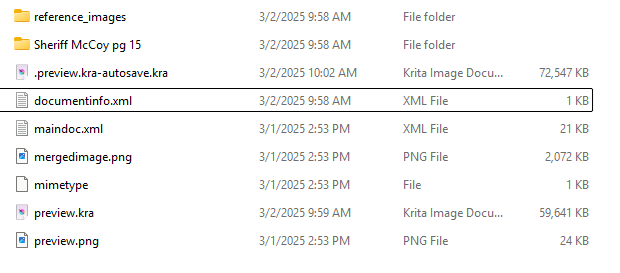
As it turns out, that file is actually a compressed file (like a ZIP file). In fact, by simply renaming the file from *.kra to *.zip, you can now uncompress it with Winzip (included with Windows in the File Explorer). Extracting the contents of the zip file creates a new folder with all the individual files, including this documentinfo.xml file. You can open and look inside the .xml file using Notepad (or any text editor app that allows you to save as simple txt file format). Here is a screenshot of the uncompressed files for my project:
Here is what the contents of that .xml file look like in Notepad:
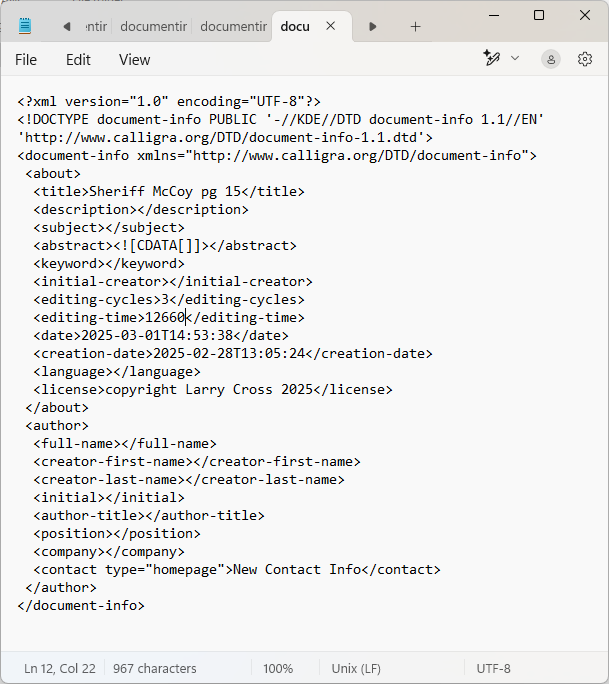
Look for the line item 12660k/editing-time>
The value 12660 represents seconds, with a time value of three hours and thirty-one minutes in Krita. Your value will be different depending on how much time you’ve already spent on the project. Just as an example, a project with a timestamp of 1 hour and 10 minutes (70 minutes) would be represented as 4200 (70 minutes times 60 seconds). That’s the simple math for determining what number to plug in there. When you’re done, save the modified xml file.
So… now to recreate the project kra file, you are going to select all the files that were unpacked (as shown in the first screenshot above) and recompress them using File Explorer (Compress to… command) or whatever app you’re familiar with. Select the ZIP file option and it will compress all the files to a new file file called something.zip.
Change the name of that newly created ZIP file to something called myproject.kra (or whatever it needs to be called). Open it up in Krita. Check the timestamp value in the Document Information window. The value should be correct now.
PS - sorry I just noticed that AkiR had also provided a script for doing the same thing. I haven’t tried it yet but I assume it’s a decidedly simpler method than using the File Explorer method.
Thanks everyone!
As a common hint for editing files using Windows Explorer:
You also made it more complicated than necessary, but my advice and your resulting action was based on information I didn’t have. If you had named your OS (operating system), I would have given you my advice based on that, so it was general advice that is applicable to any OS …
Windows Explorer itself can open and view the content of ZIP files. In case you have installed an archiver like WinZip it will try to open any archives using your archiver, but you can bypass that and go via the RMB menu (right-click menu), click on the to ZIP renamed file and choose “Explorer” from the “Open with”-menu, and then the Explorer shows the content like it would be a folder.
Without an installed archiver, you can open it via double-click in Explorer. This allows editing of files directly in their archive because they are in a virtual folder created by Explorer. You can open such a file like any other file, and when saved, Explorer will update the archive with the edited file. When you leave that virtual folder, everything is done and ready to use.
Michelist
ahh good tips! Thanks for your help Michelist! Any suggestions are helpful.