Can someone please tell me - in easy terms, because every time I try to use Krita I spend 20 minutes trying to learn how to do simple things and being redirected to menus I’ve never heard of and can’t find - how to draw a simple fill circle with no pattern and no outline. Just a solid colout.
Closest I can find is someone who said draw it then use tool options to fill, but there is no fill menu in the tools option - just scripts. The screen shot looks like it said “geomerty options” (?) but that also appears to be non-existent.
There appears to be nothing else called a “tool" menu - I have fill gradient, fill pattern (you’d think this would have a solid fill, but no - too obvious - someone went and hid it somewhere else) edit brushes, set eraser mode, preserve alpha (???) and reload original preset.
Right clicking on the layer also appears be useless.
So, once again, a 5-minute Krita job is now going over the half hour mark (always takes me ages to find something simple - last time it was contrast, which appaearly does NOT exist)
When using the Ctrl, Shift, Alt modifier keys, the keys must be pressed after the mouse button is pressed. This is a ‘post-click modifier’ action.
Some aspects of tool operation use ‘pre-click modifier’ action so remember to use post-click with the ellipse tool.
Shift will give a circle where the initial cursor location gives the corner of the shape bounding box. Ctrl+Shift will give a circle where the cursor is the centre of the circle.
You need to try them and their combinations to get used to them.
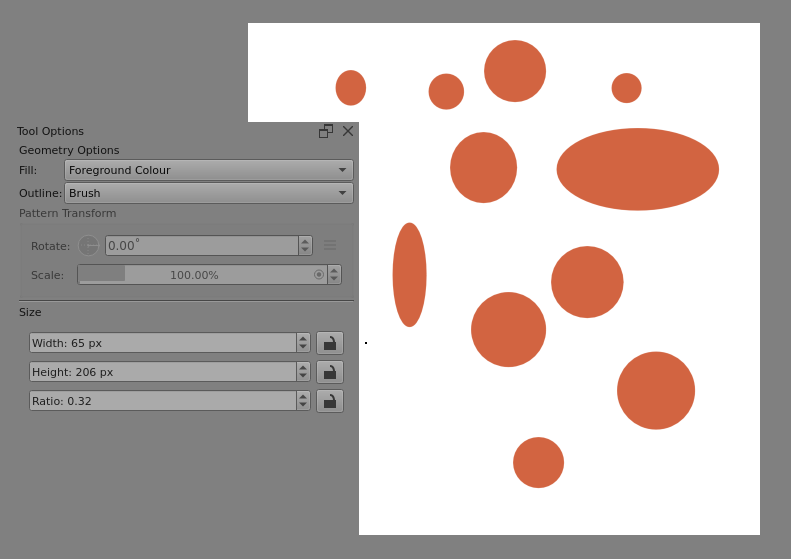
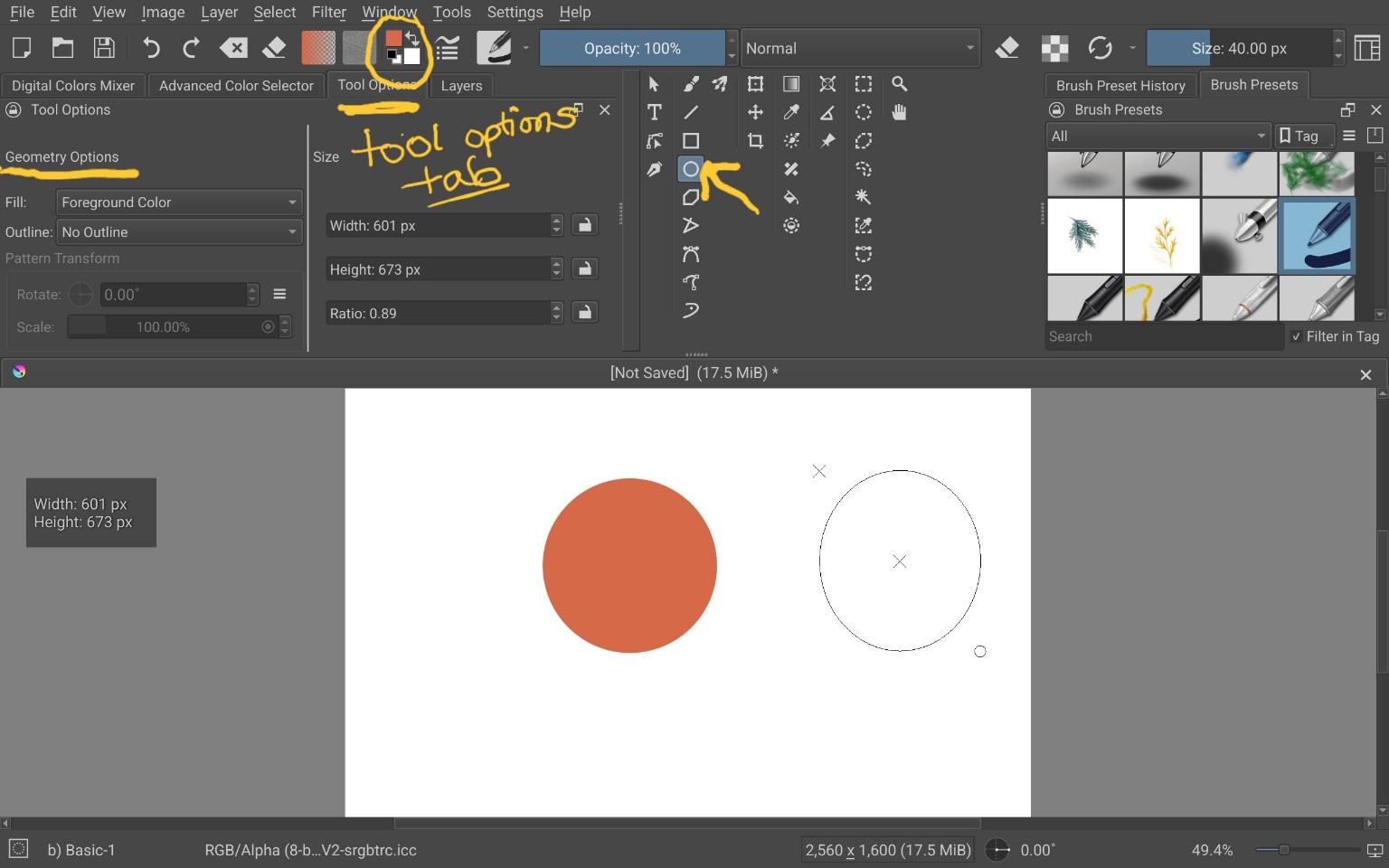
The Fill type is selected in the Tool Options docker. That is an important docker to look at and use, for every tool.
Everyone else here has provided the main information you need. That is, in summary:
Select the Ellipse Tool.
Assuming you don’t want the circle to be empty, set the “Fill” option on the Tool Options Docker to either “Foreground Color” or “Background Color”.
Assuming you want a visible outline, set the “Outline” option on the Tool Options Docker to the opposite option you chose for the “Fill” (so, if you set the Fill option to use the Foreground Color, set the Outline option to use the Background color).
Set your Brush Size before making the circle, because the brush size determines the outline size.
Use the Modifier keys AhabGreybeard mentioned for ease of use situatioins, like making a perfect circle. If you’d like a tutorial on them, I happen to have a video on it for another user, some time ago, which can be watched here: https://youtu.be/OuodcUJ85Z0?si=dFPOHD9XwFjxpdBO
One last thing I’ve discovered, which I think will be important to note when drawing on a normal layer (so not a vector layer), is that the brush you have selected matters. Certain features of certain brush engines don’t seem to work with the Ellipse tool. For example, if you have a Pixel Engine brush preset select, and that preset is making use of the Masked Brush feature, and you then set the Ellipse tool to use the Foreground Color as your Fill, Krita may fail to fill the circle.
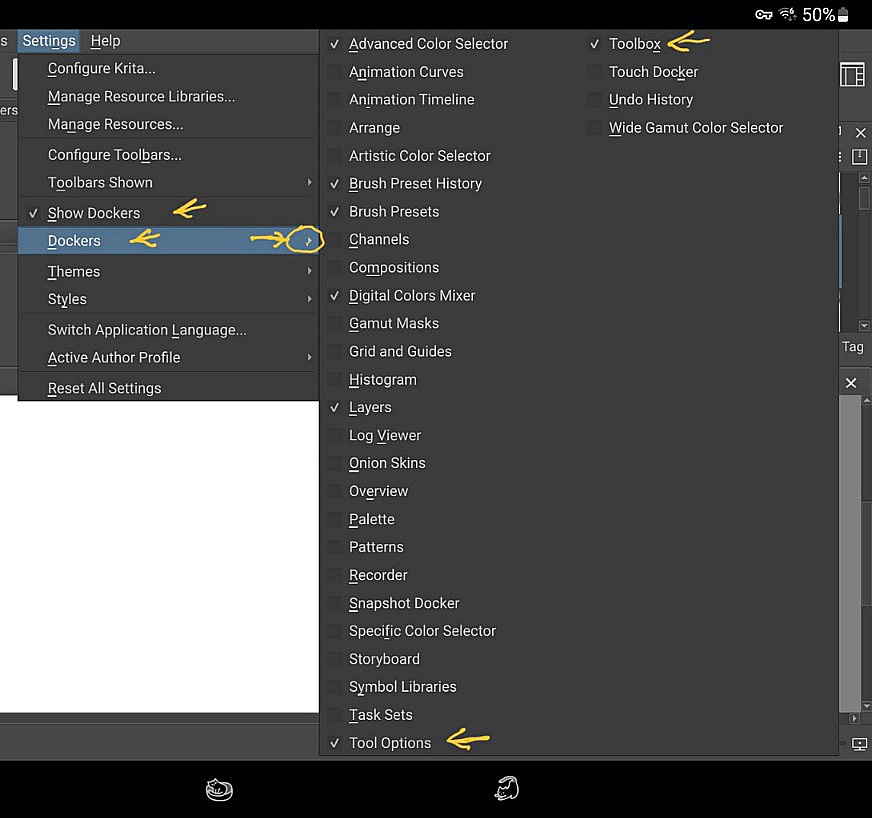
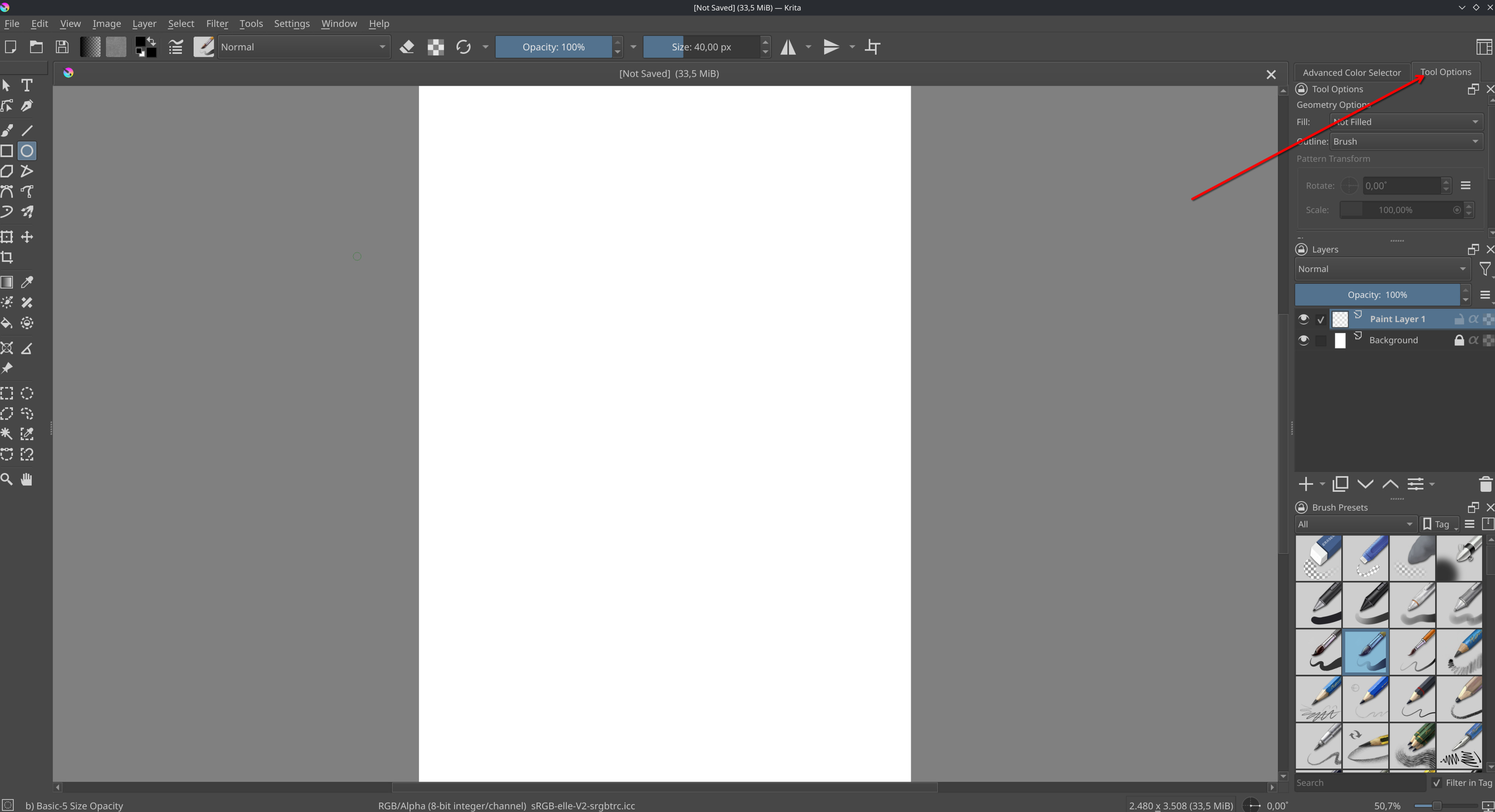
The tool options docker is on the right side in the same area where the color selector is but in a different tab, assuming you are using the default workspace. It’s where you can change how the currently selected tool (brush, shape, transform, etc) should behave.
Because they can be ‘docked’ on the workspace, i.e. be placed in a fixed position.
The Tool Options docker has the options for whatever tool is active, as is explained in the manual and as would be seen and understood if you looked at it.
To know and understand any particular application, you have to use it and explore it and practice with it. Reading the manual is also a very good idea.
There’s a tab with fill patterns at the top menu - no perhaps I’m missing something obvious here, but putting in a “complete fill” pattern here would make sense.
Right, but any pattern chosen there, can be used as a “Fill” for numerous tools (Fill tool, Brush Presets, Shape Tools, Freehand Path Tool, etc). It’s not a single tool feature. It wouldn’t make sense to have the fill setting there, because people set different tools to use different fills. For example, I’m constantly swapping between brushes that use the pattern and those that use a normal color fill, as well as shape tools that are set to use one or the other. If I had to continually swap not only my tool, but the fill option every time, I’d go mad.
But why would you need to? I’m not saying replace them, I’m just saying add it as an option. I assume that whenever you go back to the menu, the last pattern is the one highlighted, so if you never selected it, you wouldn’t have to change it.
Use the Ellipse Tool (not the brush). In the Tool Options, set Fill to Foreground Color and set Stroke to None. Then just click and drag on the canvas. That will give you a solid circle with no outline.