Like the title says, I’m trying to place an oval on top of my painting that makes it so that the area around the oval is white while the inside of the oval contains the painting, in a similar way to how Bob Ross places contact paper with an oval cutout on his paintings
For a non-destructive way, do it like the comic templates:
- A white background layer
- A group with the vector layer on the bottom defining the oval cutout, and the paint layer(s) above with alpha inheritance enabled.
I’m sorry, but could you explain in more detail how to do that? I’m very new to Krita
Alpha inheritance is an elegant, flexible and non-destructive method of manipulating image appearance. It’s also a bit tricky to understand at first but not difficult once you go past an “aha!” moment.
You can read about it here:
https://docs.krita.org/en/tutorials/clipping_masks_and_alpha_inheritance.html?highlight=alpha%20inheritance
The best way to pick up the idea is to play with it and remember the importance of using groups to isolate the effects.
A simpler way would be to put a white/coloured layer on top of the layer stack and use the elliptical selection tool to define the oval (an ellipse is not technically an oval) and then delete the ‘oval’.
2 Likes
In case Lynx3d went offline and won’t see this in a while, here is a picture guide:
Click this button

Choose Vector Layer
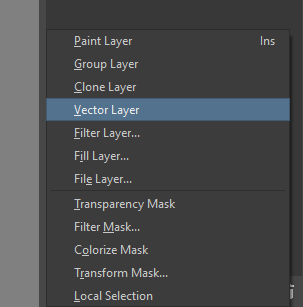
The reason we choose vector is that it won’t lose quality and is easy to manipulate later. This also works with Normal/Paint Layers.
Choose the Circle Tool

And then draw your circle shape

You can use this tool to adjust the position and scale and such

When you are happy, make a new normal Layer

And a group layer

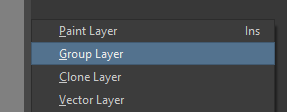
Click and drag the Vector Layer with the circle and the normal layer inside the group layer
It should look like this
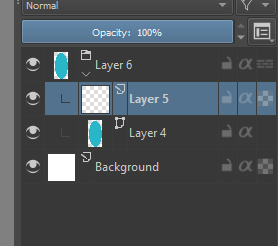
Then click the a-looking button
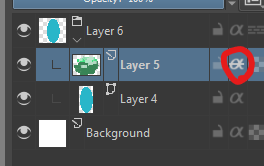
this makes it so the layer below on the folder will be a mask. Now you can paint away!
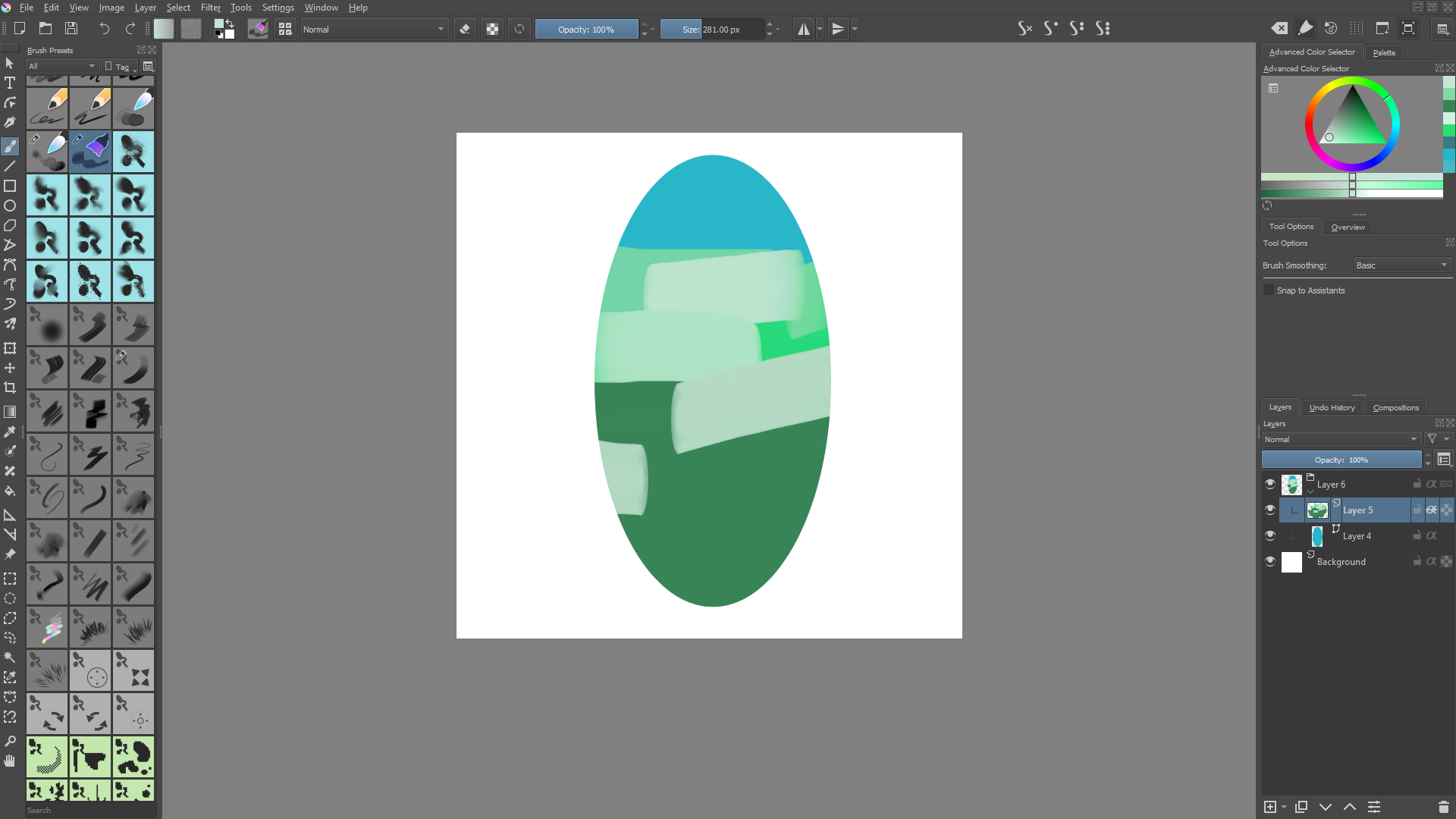
3 Likes
You’re an online manual/tutorial ! 
1 Like
That’s great, thank you
1 Like
When I use the circle tool on my vector layer, it just draws the outline of the circle instead of a filled in shape like you have pictured. This leads to my mask not working properly later on. How can I make it like yours?
1 Like
Oh yeah. Do you see a “Tool Options” docker anywhere? It looks like this:
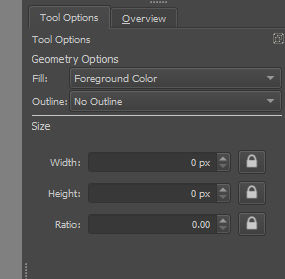
It should be somewhere if you haven’t changed its settings to be a part of the toolbar.
There I use these options (remember to have the circle tool selected
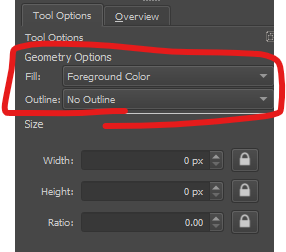
The technique is really cool, since you can do this with whatever shapes! You can even make some fancy brushstrokes on a paint layer and use that as the mask!
With this technique you can do things like this!
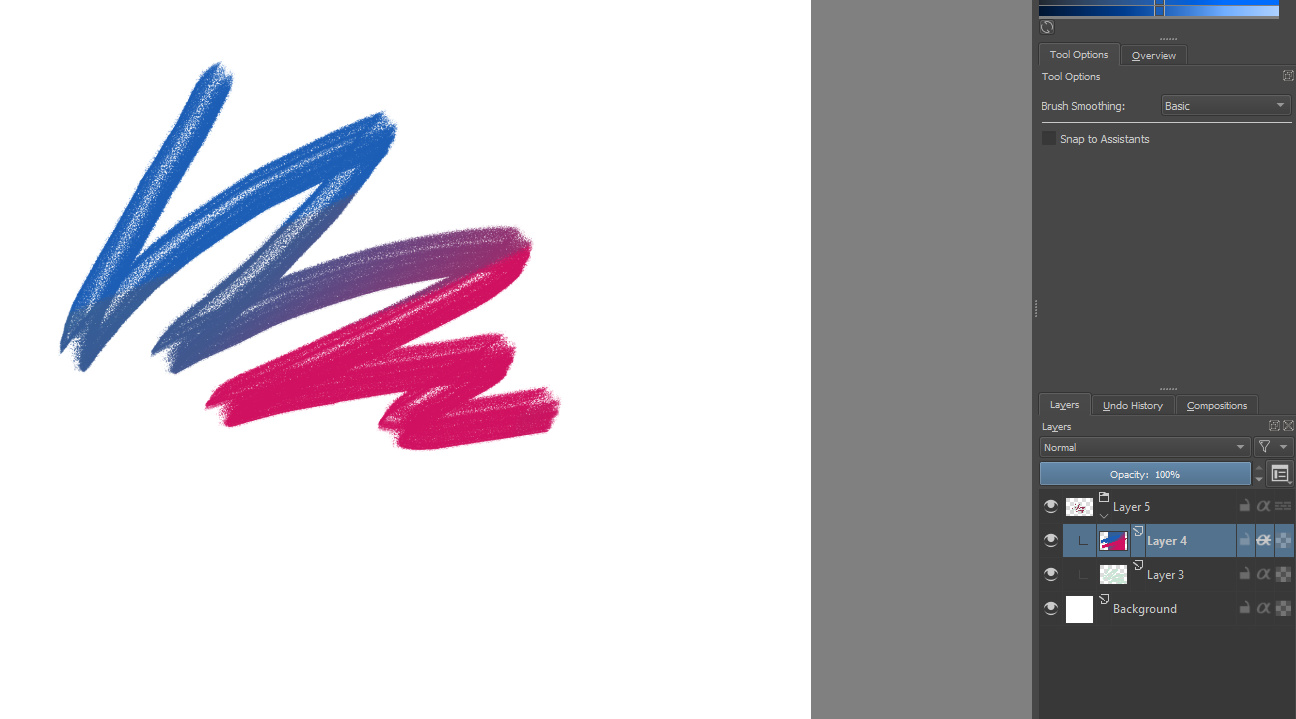
Here the circle vector layer is a paint layer instead.
Also regarding the Tool Options box, this confuses a lot of new Krita users since it works differently than most programs! Most programs have options ragarding the tools on a toolbar or something like that. Meanwhile Krita has this box containing all the options. When you first know where it is and what it does, it’s super! The box’s contents will change depening on what tool you are using!
This topic was automatically closed 15 days after the last reply. New replies are no longer allowed.