Embarrassingly Stupid Question

Started using Krita yesterday. Not a complete beginner - Have used some graphic software in the past. So I understand the difference between vector and pixel drawing. (I think.)

Anyway, I created a vector layer and drew a figure with the Free Hand Selection Tool. But … Now what?? The figure consists of blinking dotted lines. I can’t do anything to it. If I click the mouse elsewhere on the canvas, the figure disappears. Shouldn’t I be able to make the outline of the figure a solid line?? Shouldn’t it remain where it is when I click the mouse again?? Shouldn’t I be able to fill it with a different color??

Oh, I selected it with arrow tool at upper left, but when I released mouse button, selection box disappeared.

Appreciate any help. And thanks for your patience.

This is a selection tool.
An active and visible selection is delimited by blinking dotted lines, and when a selection is active you can only draw inside it.

So everything is normal.

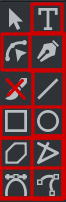
To draw on a vector layer, you have to use tools compatible with vector layer:
image

Grum999

The manual will be very useful for you and is well written and illustrated:

Oh. OK, I get it. I guess the problem was that I tried to draw on canvas with brush and program wouldn’t allow it. So I assumed the other drawing tools wouldn’t work either. Thought selection tools at bottom WERE the drawing tools for vector layer.

Got the manual, as Ahab GreyBeard suggested, and will stay up late tonight reading it. Right now, though, can you can you answer one more stupid question?? Now that I’ve drawn the shape I wanted, how do I fill it with a different color??

Thank you.

If you use the Select Shapes tool to select a vector object, its properties will be shown in the Tool Options docker.
Those are the Geometry, Stroke and Fill tabs. On the Fill tab, you can change the fill type and choose a fill colour or gradient to fill it with.

The Tool Options docker is very, very useful and you should always have it visible or at least consult it to see what you can do with any particular tool or in any situation.

Thanks. That’s pretty neat. Somehow I thought the Arrow Selector wouldn’t work with vector shapes. I had (Still have) misconceptions and lack of understanding.

It does seem as though fill color in the shape is a slightly different shade from the one on Color Selector. Maybe it’s my computer.

Oh one other thing: I don’t find any way to sign out of this web site. Don’t see any place that says “Sign out” or “Log Out” or equivalent.

click your icon on the top right and then the person icon and log out will be there.

Got it. Thanks.

And I figured out why the color in the shape is different from the one in Color Selector. It has to do with opacity. If opacity is 100% color is same. But it opacity is less, color is slightly different shade.

I thought I was learning Krita, but I am frustrated at every turn. I can’t do the simplest things. Frankly, the manual is no help at all.

I want to draw a dotted line. Well first of all, the Line Tool only works on Vector layers, not Paint layers. Is that right, or am I wrong about that same as I’m wrong about everything else??

So I am able to draw a line on a Vector layer. I can even change the line’s color. But I have no clue how to change the thickness of the line or make it dotted instead of solid.

Here’s what the manual says: “This tool is used to draw lines. Click the mouse to indicate the first endpoint, keep the button pressed, drag to the second endpoint and release the button.” And then the next paragraph is about Hot Keys and Sticky Keys. Next page is about the Paragraph Tool. No place is there any mention of altering line’s thickness or changing it in any way.

I assume what I want to do is so simple and obvious the manual author saw no need to mention it.

You guys have been patient and helpful. I much appreciate it.

The manual is for general description of the tools, I think writing step-by-step tutorial won’t be in the scope. However, if you think it needs improvement we are open to suggestions. When you learn Krita enough you can point out the shortcomings and let us know where to improve.

As for your problem here is a solution: There are two ways to create a line with dots, choose anyone according to your needs.

Vector layer way

Step 1 :
Open Krita and a new document. By going to File > New (I hope you choose appropriate size and other settings for this)

Step 2:
Click on the arrow next to the plus icon in the layer docker, Choose vector Layer. A new vector layer will be added.

Step 3:
Choose the Shape selection tool from the toolbox. It is the arrow icon. Select the line you drew on the canvas with this tool.

Step 4:
Go to tool option docker and in the stroke section (the middle tab) change the thickness. And change the line style to get a dotted line.

Here is a GIF to help you visually.

Peek 2021-02-14 11-51

Brush tool way

Step 1 :
Open Krita and a new document. By going to File > New

Step 2:
Click on the brush tool in the tool box to select the raster brush tool.

Step 3:
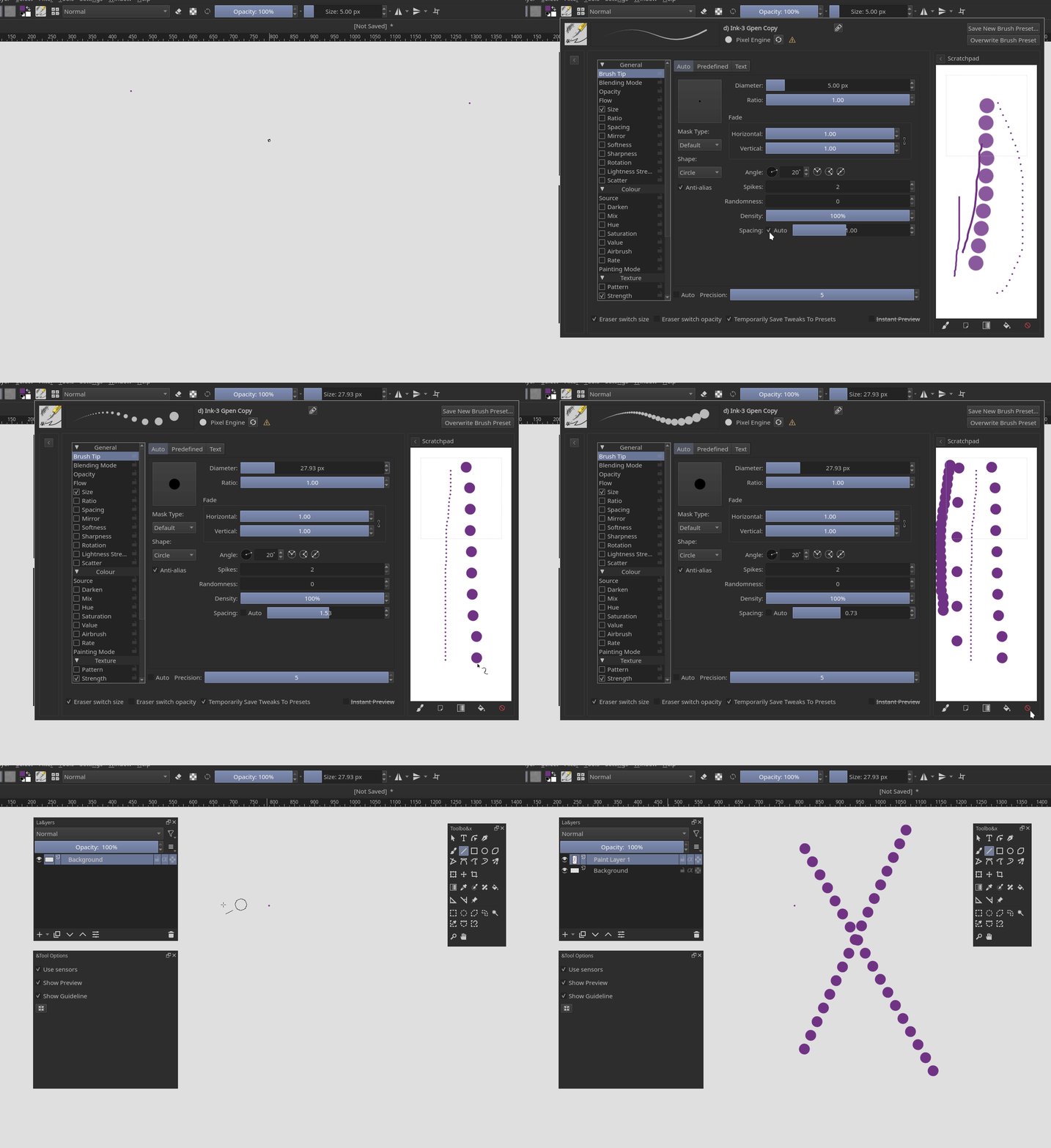
Choose an appropriate brush preset from the brush preset docker. Then press F5 or click on the Edit Brush settings icon (the icon will show the brush you have selected) in the top toolbar. This will open the brush editor.

Step 4:
Go to the brush tip sections and expand the scratch pad just in case if you need to test the brush.

Step 5:
In the brush tip section, disable Spacing Auto checkbox and increase the spacing of the dab. This will give you a brush with dots at regular interval. Test your brush in the scratch pad.

Step 6 :
Choose the line tool from the tool box and draw a raster line on a paint layer. It will have dots now.

Here is a GIF to show this way:
Peek 2021-02-14 12-04

Note :
Line tool works on both vector and raster layer. Line drawn on the vector layer can be edited later but line drawn on raster layer will be editable in limited capacity as it will be raster.

As you can see this is a tutorial very specific to a certain task, this can not be in the manual. The manual can be a place to show what individual tool or feature does but not a place to add tutorials. As an exception we have added some common tutorials if there is demand we can add more of it. But help is really appreciated in improving the manual.
Raghukamath,

Thank you for detailed instruction and posting those short videos. You obviously put some time into your reply and I appreciate.

Problem is, I’m even dumber than I thought. Prefer to use Paint layer, so that’s where I’m concentrating my effort. Have several questions, but for now I’ll ask only one: Can’t draw the line. Tried to do what you said. (By `dab’ I assume you mean the long box next to Auto.) Anyway, I click the mouse, draw the line. But when I release the mouse button, the line disappears.

Any idea what I’m doing wrong??

Can you post a screenshot of the Krita window? Can you draw with regular brush tool? Is your foreground colour other than white? Is there any selection on the canvas just press Ctrl Shift A to deselect all and try painting. Is your layer a Paint layer?

A dab or brush tip is just a component of the stroke. A stroke is made up of several repeating dabs. So by adding spacing you are separating several dabs in a stroke thus making it look like dotted line.

I have made some video tutorials for beginners you can take a look at one of the video which talks about basics of digital brushes here.
https://raghukamath.com/journal/digital-art-with-foss-episode-04/

Please pardon my thick Indian accent.

The line you see is the preview helper, it is not the final stroke. I guess your brush is either too small or has white colour, or it may have erased mode active

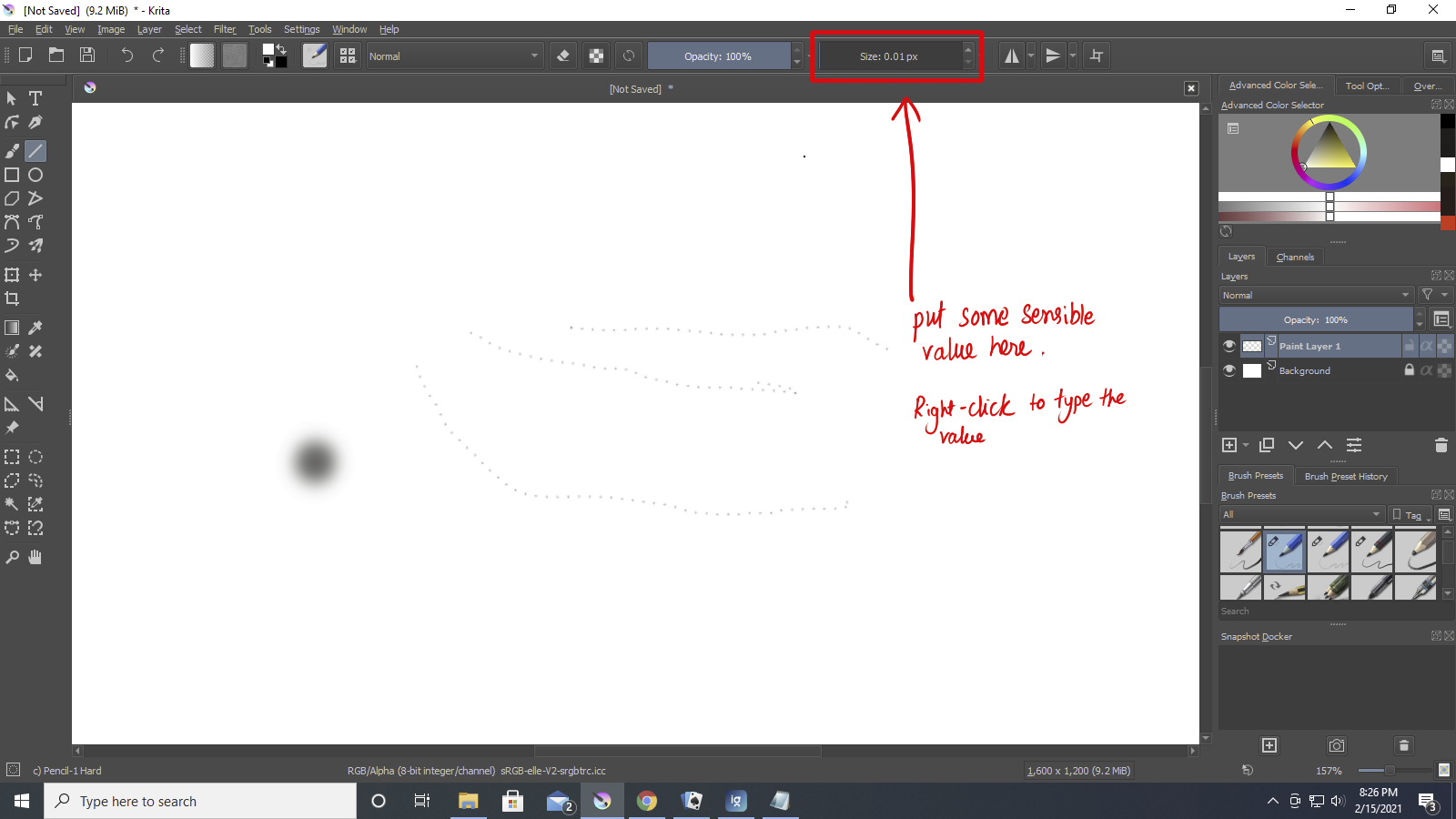
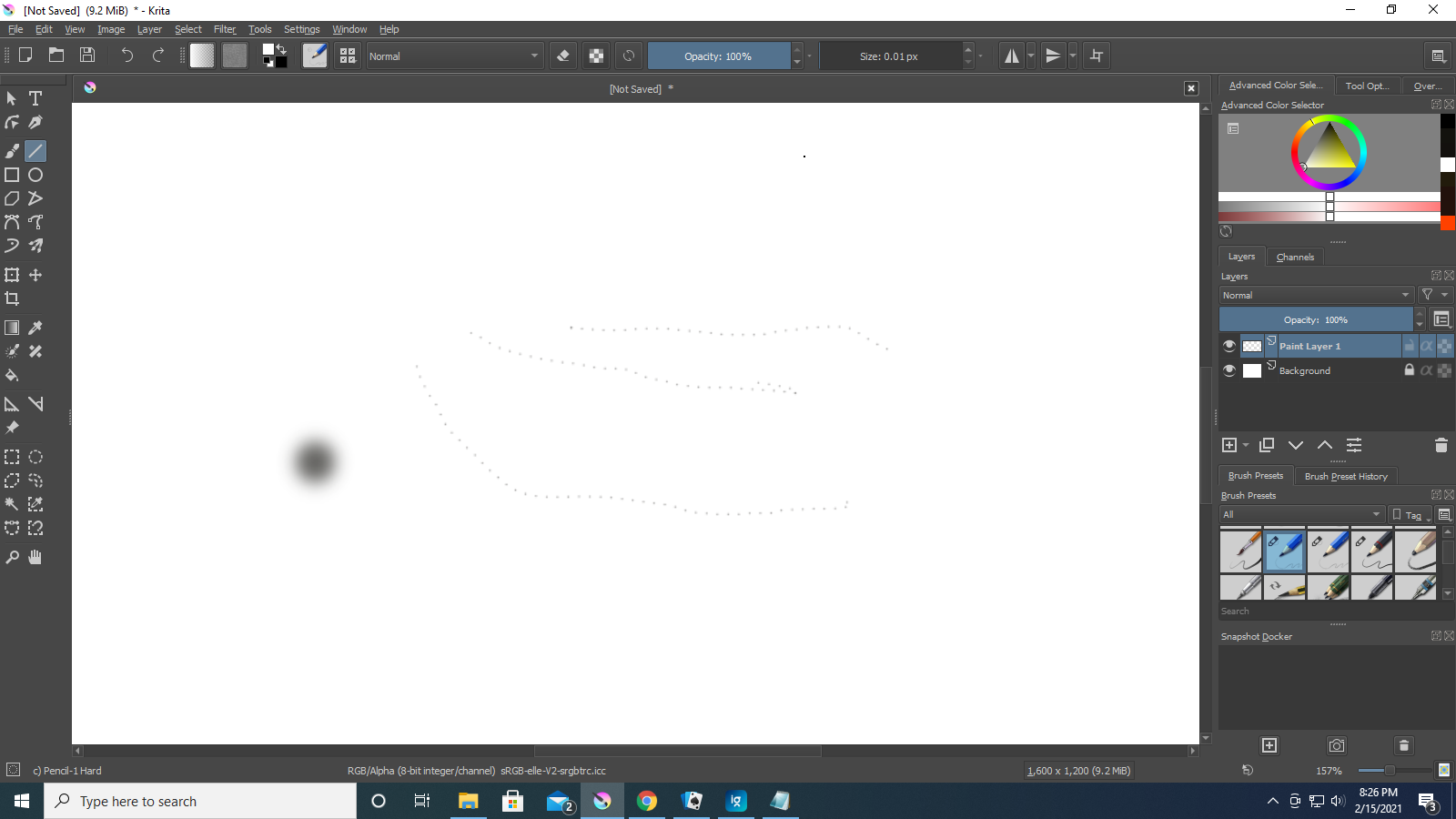
OK, here is screen shot of Krita. As you can see, I did get a dotted line this time, but it’s so faint you can hardly see it. Toward the left side is a larger black-gray dot. It just appeared there. I have no clue what it is or what I did to create it.

However, I now have a inkling of the problem. You were right (I think) that I was drawing with a white brush on a white surface. But I can’t change it. I click on “Advanced Color Selector” and change color to black or red or something. But when I go back to the canvas, it changes to white. It won’t stay whatever color I set it to. The six little bars underneath the Color Selector change to black when I move the little indicator with the mouse. Soon as I click on the canvas again, they change or white or light red.

Sometimes when I press Ctrl and move mouse, I get the disappearing line I mentioned in my previous post. Sometimes I get nothing. No disappearing line - No line or figure of any kind. On those occasions when I do get the disappearing line, a black box also appears. It’s about the same size as the circle on the canvas that I apparently somehow created. It moves with the cursor. Tried to take a screen shot of it, but it disappears when I release mouse button. (Just like the line.)

If you see the size slider in your screenshot, The size of your brush is 0.01 px I am surprised it is even visible. As I said in my earlier comment your brush size (diameter) is too small.

Oh man! I thought I almost had it figured out. I made the brush size bigger. (Press shift while moving mouse, right.) But now Color Selector has disappeared. In the space where it’s supposed to be, it says, “Snap to Assistants.” How do I get Color Selector back??

You pressed the wrong tab press the tool option tab. Or if you have closed the tool options docker enable it by going to Settings menu > Dockers > Tool Options.

I suggest you to read the manual and get acquainted with the Krita UI a bit before starting to draw. This link might help you in getting started.

OK, I think I’m getting it. To make a solid line, set spacing to Automatic. For a dotted line, uncheck Automatic.

What’s the difference between drawing by moving the mouse and drawing by moving the mouse while pressing Ctrl?? When I press Ctrl, the color wheel goes to white. Is it supposed to do that?? I mean, the six bars under the wheel turn to white or light red.

I have downloaded part of the manual. For the moment, I believe I am able to get started with what I want to do.

If you press the Ctrl key while drawing, the cursor changes to a Colour Picker/Selector cursor. This suggests that some kind of colour picker/selector has been activated.

The manual is very well written and illustrated and it has an online Search tool:
https://docs.krita.org/en/reference_manual/tools/color_selector.html

I think your initial questions have been answered. I will close this for now. You can make new topics for new queries.