Sometimes the quality of radial blur fits better for the expression of speed blur.
As a manga artist I finally discovered some interesting technique on CSP and a radial blur is the only thing that kept me from achieving correctly what I wanted in the tutorial.
Salutations.
Tutorial page here : How to use the blur filter for monochrome comics Basics and applications “How to use CLIP STUDIO PAINT for manga #8” by ユキノコ(Yukinoco) - CLIP STUDIO TIPS
Since it’s not available yet in the filter submenu under the blur section, I’d like to request for the addition of the “radial blur” to help me create blur effects on objects before filtering them again to screentones for my manga. I think that’s pretty much it.
Feel free to discuss it here if needed.
Thank you by anticipation for your time.
I had this wish bug for this - 352381 – A request for zoom and radial blur option in blur filter.
you can subscribe to it too
As a workaround I think gmic too has radial blur
Damn! So 7 years will have passed without any change! Damn, so long.
I made that bug report, but I do not think the time taken to be crazy. It is long but it is normal in free software world. I know how Free and open source works and I know nobody owes me anything or I know I am not someone special that my bugs should be prioritised over countless others. I also know Krita is not a company with huge workforce. I am also patient about my bugs. So lets keep the discussion about the issue at hand and not comment on other things.
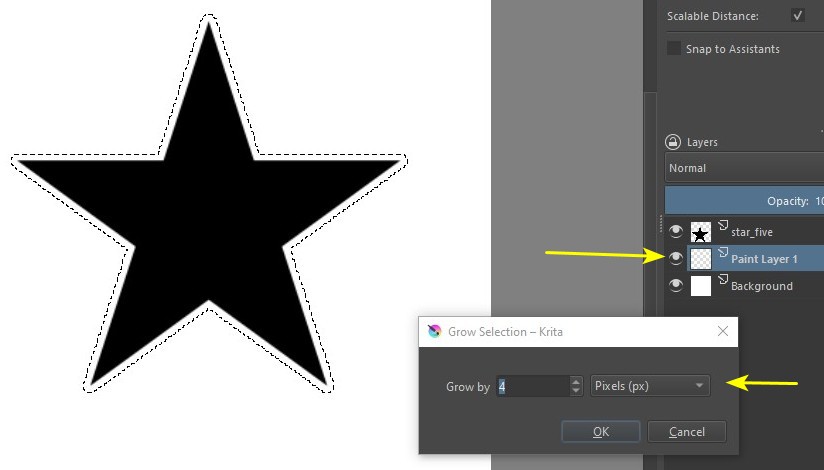
Hmmm… maybe there are other solutions. I just tried one of them. In a new file, I imported the vector of a star. I took out the outline and painted the inside of the star black. Then I converted it to paint layer. I clicked on the star holding the Ctrl key to activate the selection and created a new layer, below. Next, I went to Select > Grow Selection:
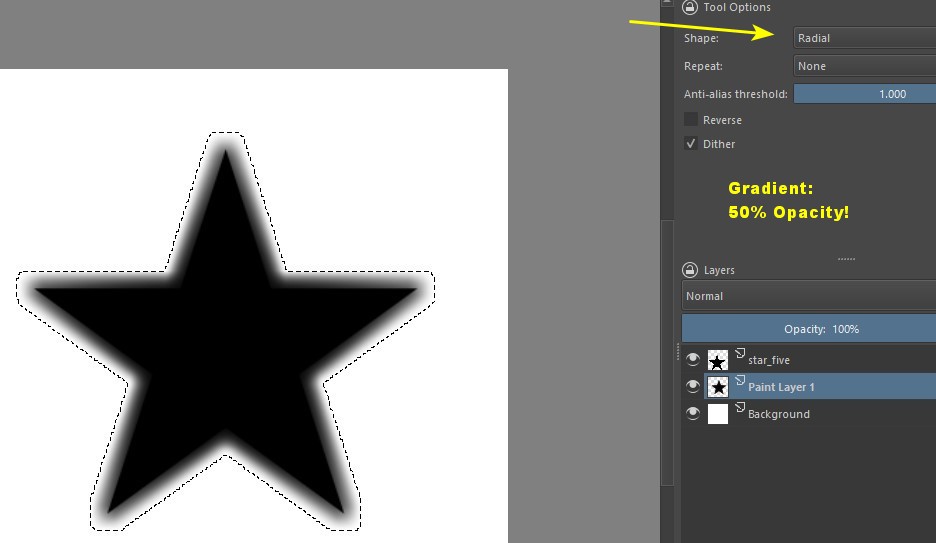
Still with the selection activated, I went to Select > Feather Selection. I tried to double the value:
Then I used the gradient tool, in Radial mode. Gradient Black to Transparent and with 50% opacity. I applied it from the center of the star outwards five or six times (and on the bottom layer!):
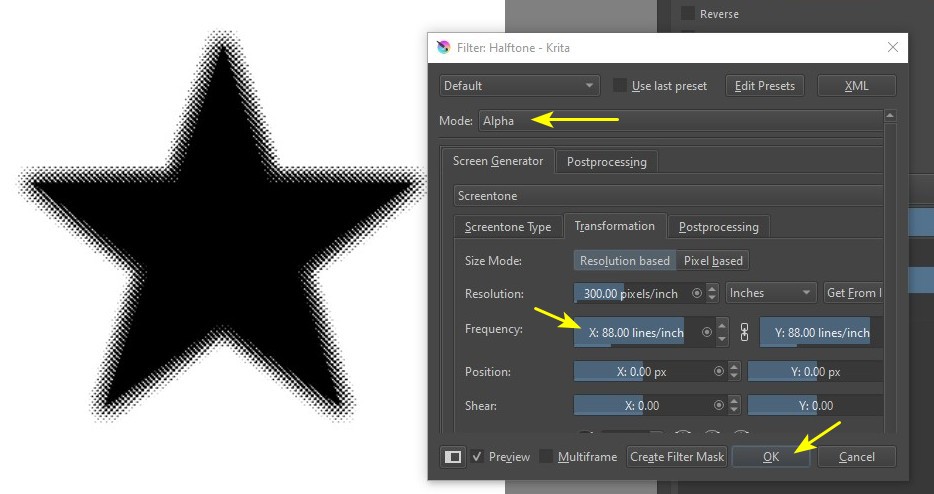
Filter > Artistic > Halftone. It’s the first time I use this filter, my main settings are indicated by the yellow arrows:
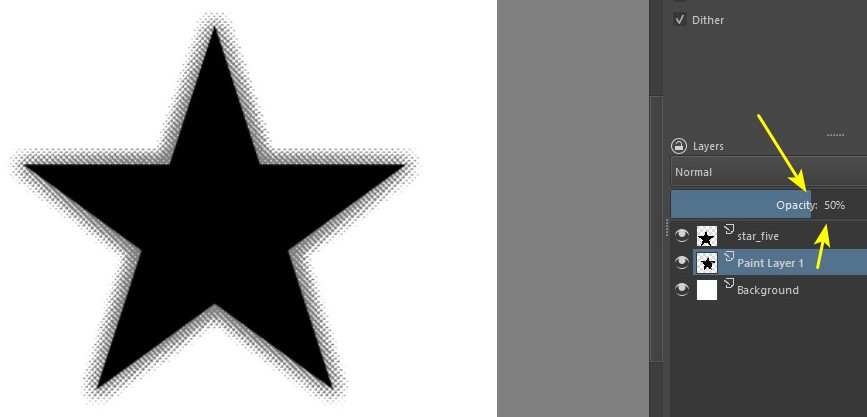
Finally, I lowered the opacity of the layer to 50%…