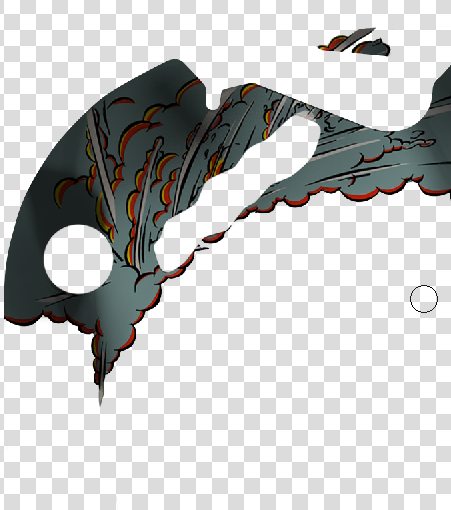
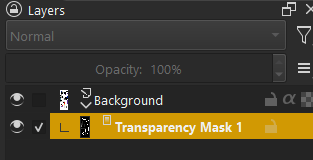
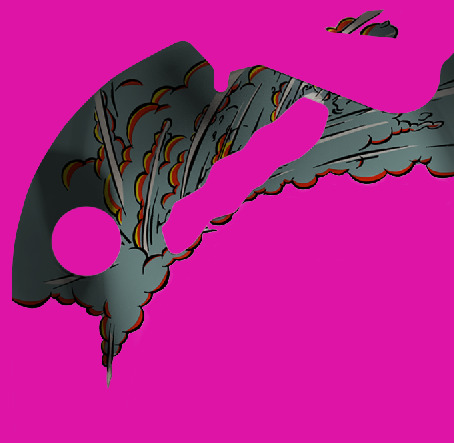
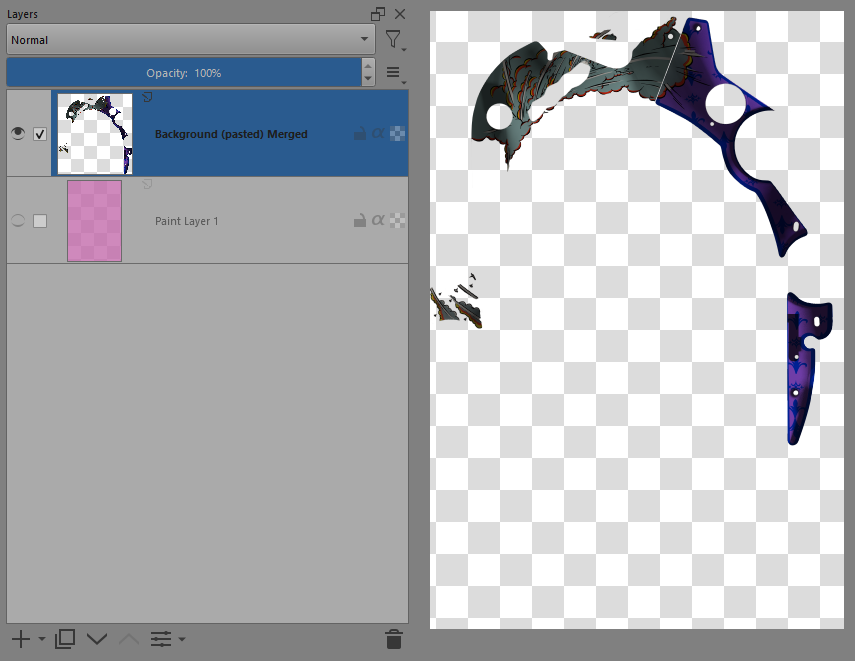
If you do File → Export as a .tga image, that should give you a .tga file with correct content (if you turn off the purple background layer).
In krita, on the image layer in the Layers docker, you can do right-click → Flatten Layer which will incorporate the effects of the Transparency Mask into it.
Yes I tried that actually (flatten and export as TGA), but the alpha mask doesn’t get updated with the mask of the transparency. Is still doesn’t reflect the actual transparency mask.
Do you mean that, the other software is reading the color values of the fully transparent pixels but you want them to be zero/black? Krita doesn’t zero those out for optimization reasons. You can do it manually by painting those areas black and erasing them again. In Krita 5.3-prealpha, there is a “Reset Transparent” filter to do that: Implement Other->Reset Transparent filter (!1860) · Merge requests · Graphics / Krita · GitLab
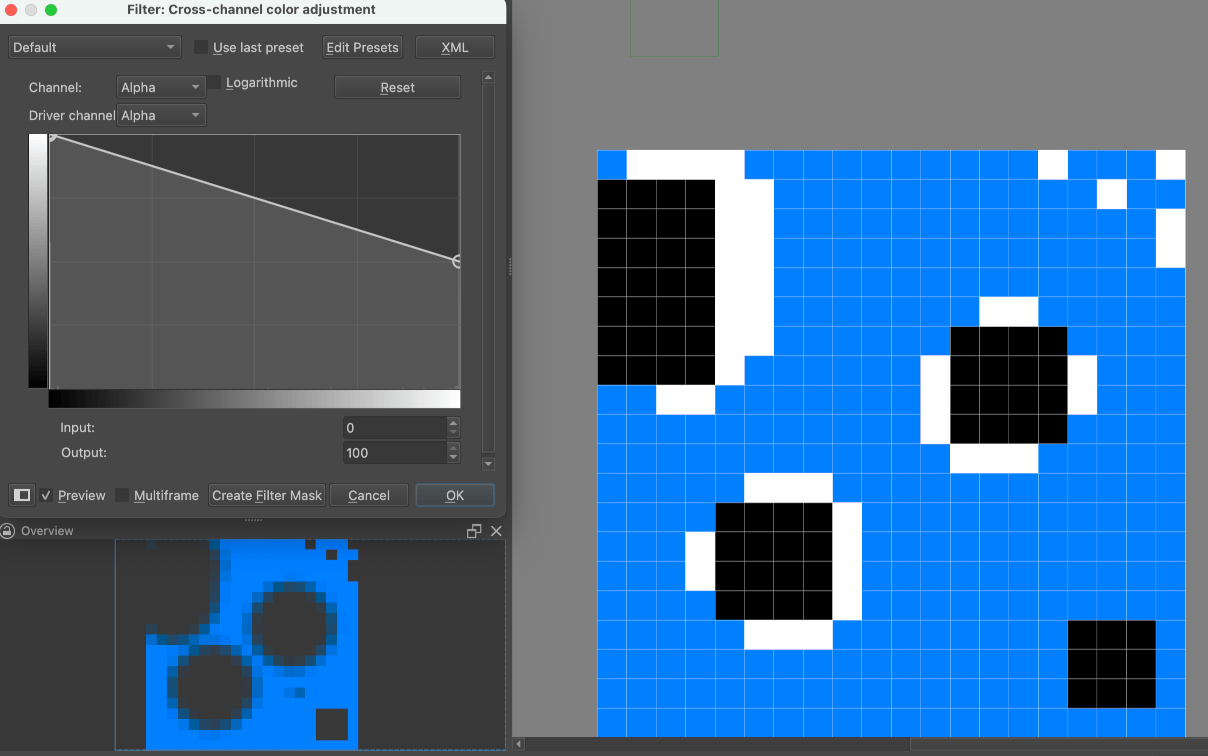
With version 5.2.2 installed on Windows, I find that pixels which used to be red and then had a Transparency Mask applied alpha=0 followed by Flatten layer do have a colour of zero (black).
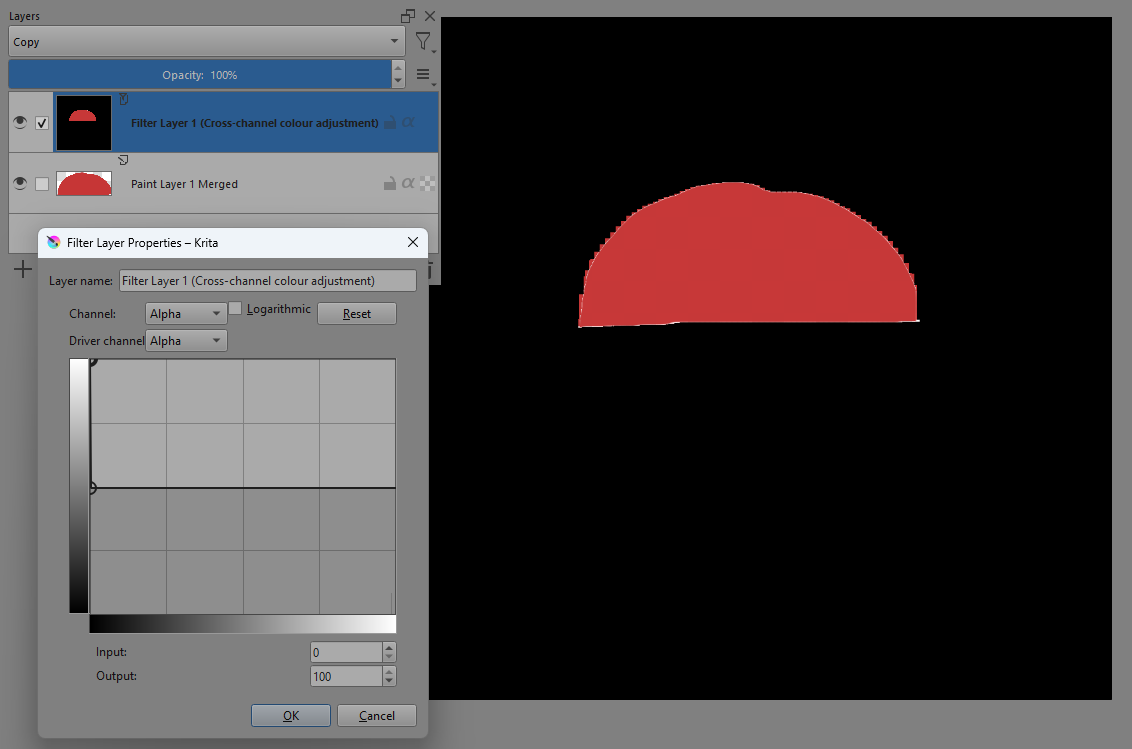
I get that impression by using a Cross Channel Adjustment Curve Filter Layer with alpha = 0 mapped to alpha =1:
If you then separate out the alpha channel do you see that the alpha channel as not cleared out? I’m on Krita 5.2.1. I wonder if there are changes in 5.2.2.
Yes this is the issue. The other software (game engine) is Alpha channel sensitive. I had thought just by doing some artistic erasing and feathering and cleaning up around the graphical image, that it would actually affect the alpha channel as well. Isn’t that was erase is supposed to do? It doesn’t look like it though.
I haven’t tried that yet and I’ll have to wait until tomorrow to do that and maybe other things. I may have misunderstood something with the Filter Layer technique of examination.
Oh, you’re right, merging a transparency mask does behave differently than the eraser. But it seems that some of the pixels end up white, maybe the ones at the edge of a brushstroke? It’s hard to tell, but even in your image there might be some white on the edge?
There is some white on the edges, probably related to antialiasing on the original brushstrokes of the red circle and the painted transparency mask that I used.
I have no explanation for that.
The numerical values in an Exported .png or .tga file would be the ones to look at for the problems reported by @markri with the game engine software.
How and why they get there is something I can only guess at.
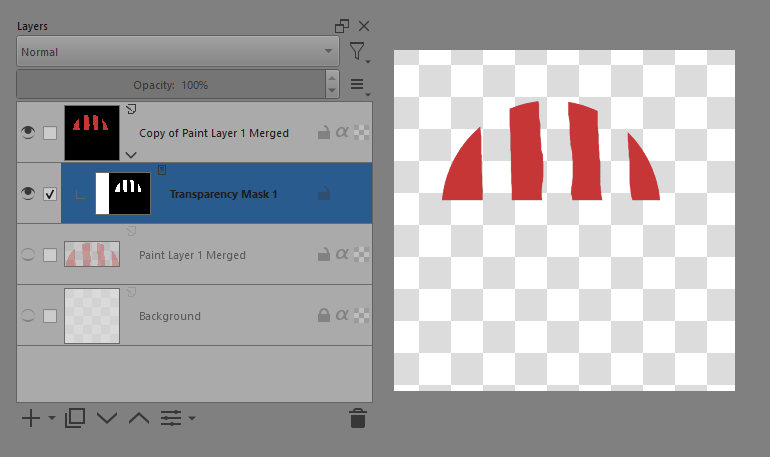
I did the same as before and additionally erased three broad vertical lines using the Freehand Brush set to Erase brush blending mode before I Flattened the layer with the red circle on it.
The I made a copy of the resulting layer and separated the alpha into a mask:
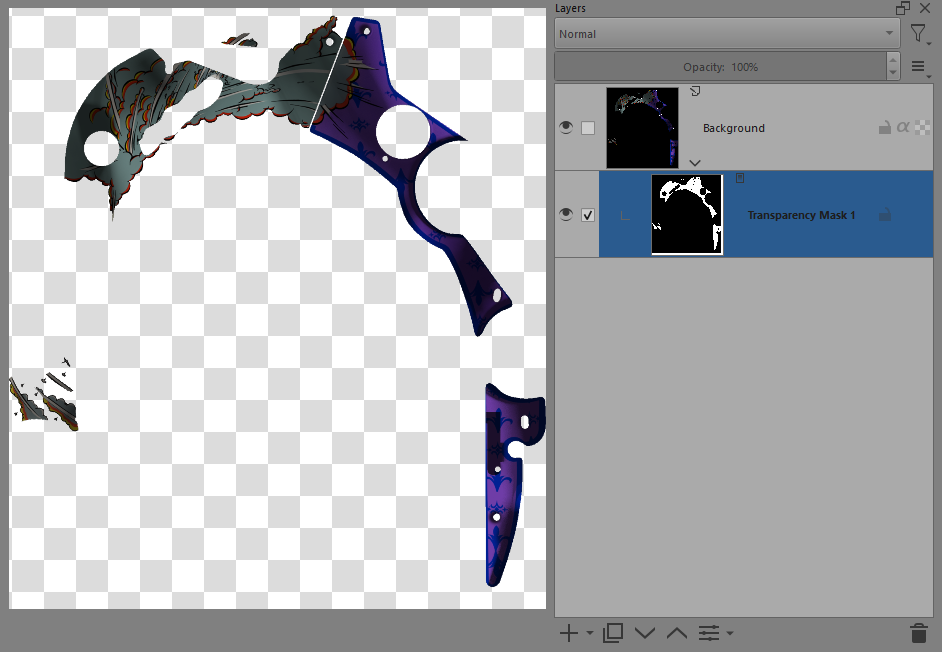
Dang it. I posted the wrong one. This one I used the magic selection tool in the transparent mask to clear out the alpha mask. Basically having to clean up (very roughly) two different parts. Let me post the original.
It would have been better to provide the original .tga file because it may be that opening the .tga file using your version of krita has different effects to opening it with my version of krita.
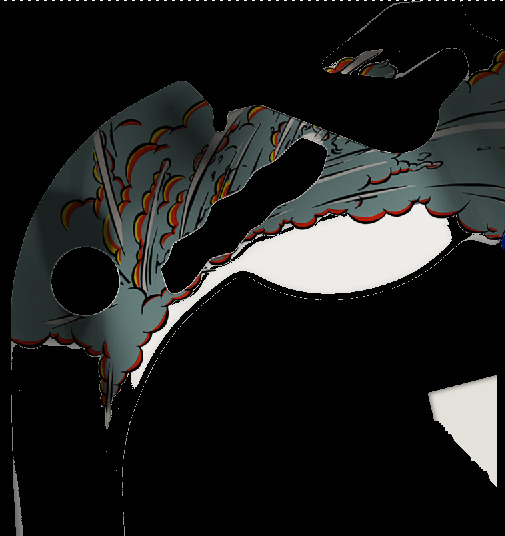
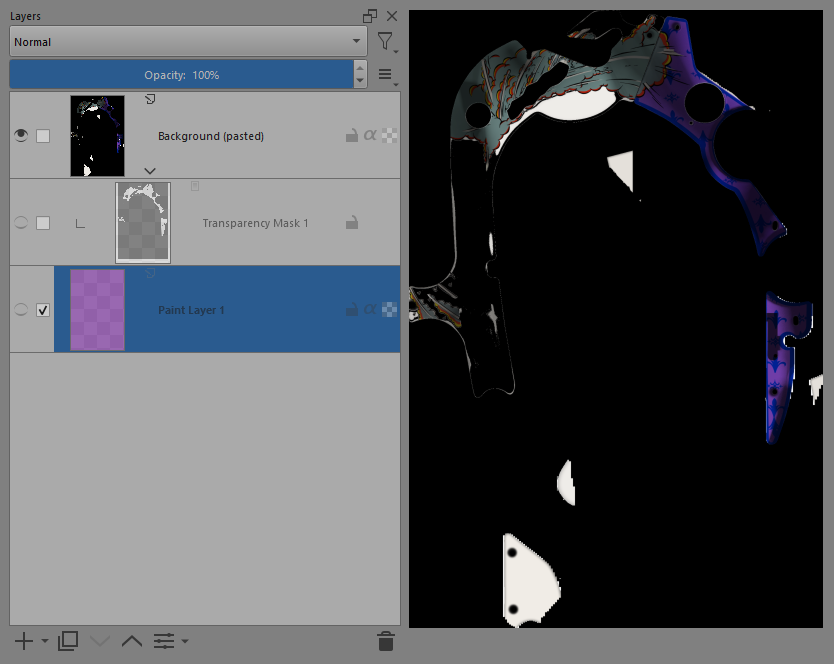
For the .kra file linked above, the alpha channel content looks ok but the RGB channels seem to have stray content in them:
Yeah, I think that matches what I ended up doing (for first pass)-- using the transparency mask to mask out the areas not needed from the alpha channel. I’m interested in why you call it the RGB channel vs. the Alpha channel?
My question though, when all the channels are combined (ARGB and transparency mask), and then using eraser or magic select and pressing DEL key – there should be a way to tell Krita to clear both the Alpha channel and the transparency mask, otherwise I have to clean up both channels separately.
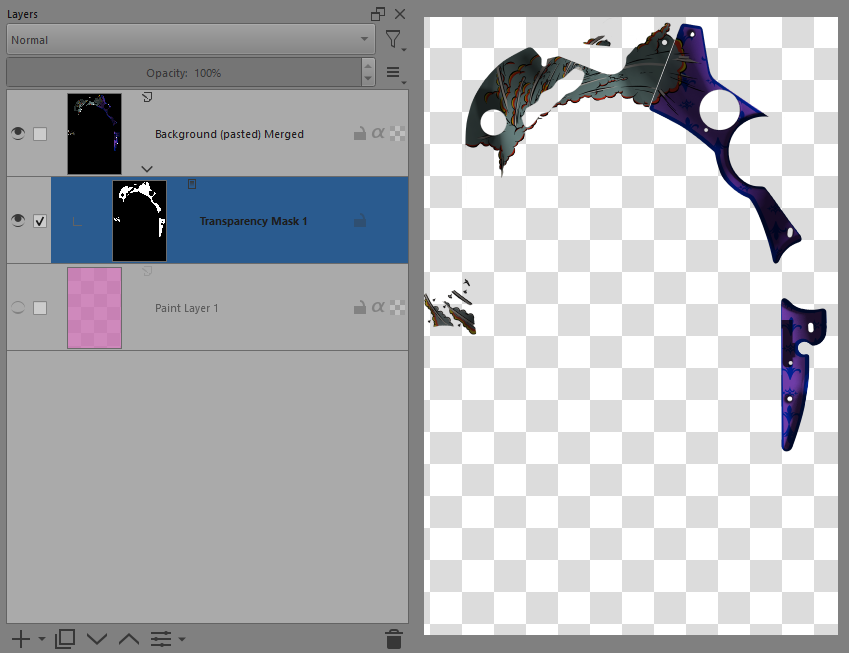
Splitting the layer converts the alpha channel into a transparent mask and forces the alpha channel of the original layer to be 1. So the image you see is the combined effects of the R, G and B channels with a transparent mask attached to it. i.e an RGB image with a transparency mask attached.
As well as having large stray RGB content (that is made invisible by the alpha channel content there being black), the alpha channel itself is not pure black in the apparently black areas. There is some very dark grey content associated with the edges of the stray RGB content.
If you Split the original image then use a Threshold filter on the transparency mask, that will convert all ‘nearly black’ to black and thus get rid of the stray content after Flattening the layer.
There are still some stray white pixels in the RGB content around the edges, probably associated with ant-aliasing when the image was originally created.
If you press Del then for a paint layer or a selection on it, all content is set to zero, that includes RGB and A channels of the layer.
When you’ve Split an image layer, the remaining RGB content and the transparency mask are two different layers so you can’t expect what is a painting operation to apply to them both.
Whoever made that original .tga image did not check for ‘dirt and dust’ and clean them up. It’s now up to you to do that