I am new in Krita. Somebody told me about it. I was looking for an other drawing software to replace one I found little intuitive.
I changed the keyboard shortcuts for tthe most basic tools so it matches what I am used to with other softwares. Maybe this has to do with my problem but I am not sure.
I try to transform layers. I use free transform. After I am done with the transform, I press ENter, then I try to move it witht he move tool, so I press V, and the transform resizes to what it was before the transform. If I want to validate fully the transform, I need to do an other unrelated action, like painting a stroke, and then I can move the transform without it resizing back to before.
Anyone has an idea why this happens, and how to fully validate a transform?
Is it that maybe letter V shortcut is set to do something after a free transform?
If you press Enter to finalise a transform and do not select another tool, then the Transform Tool will still be selected.
If you then press the ‘T’ key the Move Tool will normally then be selected and will be activated by clicking on the canvas…
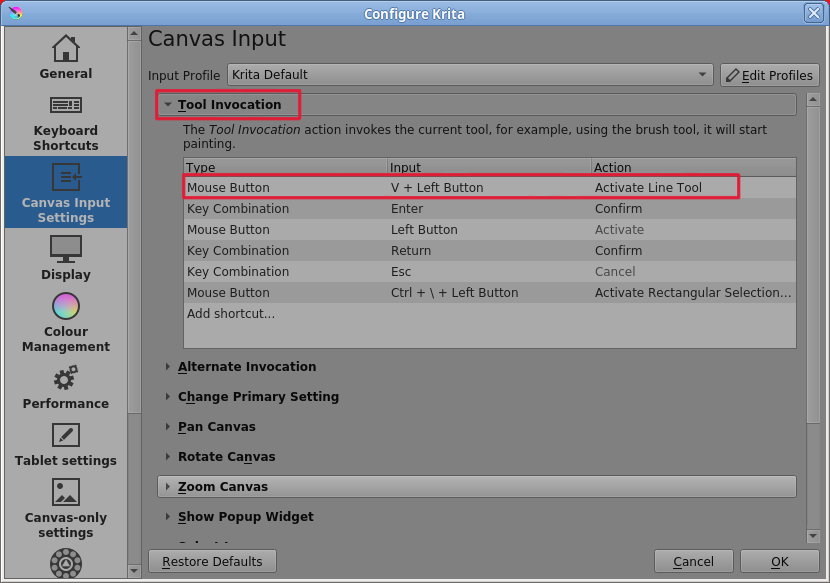
However, if you’ve changed the keyboard shortcut for the Move Tool to the ‘V’ key then this will clash with the use of the ‘V’ key for temporary activation of the Line Tool, which is set in the Canvas Input settings, and pressing the ‘V’ key will again activate the transform tool.
I don’t see it ‘resize’, the canvas image is not affected but the Transform Tool is reactivated in the condition where it was last used, with any rotation of the content bounding box included.
Please explain in detail what changes you’ve made to the keyboard shortcut settings, especially for the use of the ‘V’ key.
If you want to use the ‘V’ key for the Move Tool in this way then you’ll need to delete the use of the ‘V’ key in the Canvas Input Settings.
You do that with a right-click on it then press Delete Shortcut which will appear:
Thank you for your detailed answer Ahabgreybeard.
Removing the shortcuts for tool invocation works good now.
I put the keyboard shortcuts to match Adobe Photoshop. It is too difficult for me to readapt to new shortcuts so I make them match with what I am used to.
Is there a way to reverse search the keyboard shortcuts? So that if something similar happens, I can look all that is atributed to a single key letter.
I’m glad it’s working for you now in a way that’s useful.
The ‘Keyboard Shortcuts’ are very separate from the ‘Canvas Input Settings’ and the UI for each cannot check if there are clashes with the other one.
All you can do is check them yourself to see if there are clashes when you consider changing either of them.
The Canvas Input Settings mostly use Ctrl/Shift/Alt and mouse keys/movements but there are some that use keyboard keys such as V, R, 1, 2, … a few others.