Free+ [v 1.0] Adobe Fresco Pencil (Krita Version)

Ko-fi link + instructions link (Free+)

Version 1 of my free (at minimum) Krita version/recreation of Adobe Fresco’s default Pencil brush
Free because:

  1. Imo, it doesn’t feel right to require payment (for any of the versions) when Krita is free
  2. I still have significant kinks* to work out imo🤷‍♀️
  3. I don’t feel like recreating the brush myself into other file formats.:joy:

*Significant kinks:

  • (In a single stroke rather than separate) Drawing a tilted, perpendicular stroke leads to some texture seeping over
  • No velocity taper (couldn’t get it exactly like Fresco’s)

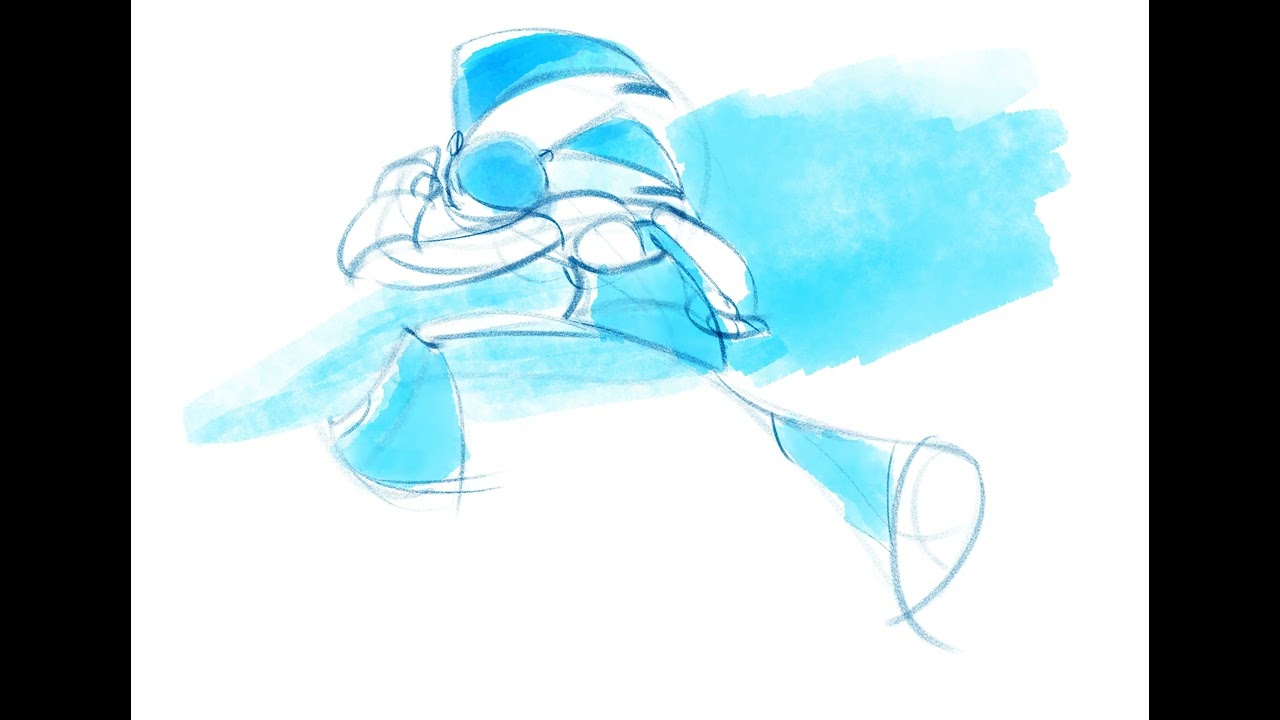
Demo: Krita recording of a demo sketch

105 Likes

Update: brush is now completely free

10 Likes

idk how to download this brush (im not good at english srry) :frowning:

1 Like

It’s okay, you’re fine.:slightly_smiling_face: Actually, now that I’ve re-read my download instructions, I’ve realized how clunky & unclear those instructions were.:disappointed_relieved:

For clarity, I’ll re-phrase the download instructions and add screenshots (for at least Windows computers).:slightly_smiling_face::+1:

1 Like

I thought the link would be in the google document That’s all sjskdk thanks :>

1 Like

Oh, that’s still fine.:slightly_smiling_face: Actually, coincidentally, I indirectly specify that in my new download instructions anyways (clicking the “View Content” button, clicking “Download,” etc.:+1:).

kofi is not available in my location… :frowning:

You can’t “open” a bundle, you have to import it. Use Manage Resources and use the import button at the bottom of the window.

:slight_smile: Hello @Cannibal_h3art, and welcome to the forum!

A bundle is installed in Krita via the menu ‘‘Settings’’ >> ‘‘Manage Resource Libraries…’’ and in the opening dialog you have to click the button + Import in the next dialog browse to the downloaded bundle, select it and confirm the selection. Now Krita imports that bundle, and you can use its content, so the brushes in case of this bundle.


By the way: Not bundled resources are installed into Krita via ‘‘Settings’’ >> ‘‘Manage Resources…’’ where you have to click on the button Import Resources and then browse to and select the resource in question, click on okay, or however a selection is confirmed with your file manager, and the resource is installed. In seldom cases, you may need to restart Krita afterward, but usually you can use the resource right away.

Michelist