Cool, gonna dl straight away!! Cheers! 
1 Like
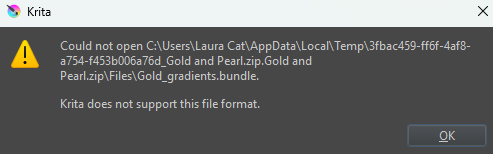
thank you for replying! I have restarted the app but in the manage resource tab it still shows i have the bundles but the preview of them is all red and they wont appear in my library. I get this message when trying to open the bundle in krita.
1 Like
So, let us go through the things step by step:
Your Krita is not the most recent version, but it isn’t very outdated either. I would, but you must not necessarily update it.
If you had told us the OS you use, we could have given you a step by step description on how to update your Krita, but usually you simply install the new version after you closed the current installation. On Windows and Linux, it is usually the cross mark button  in the upper right corner of the title bar and on Apple PCs they use a red circle button
  in the title bar of the applications.
The most recent version of Krita is always found on Krita’s homepage:
If you are using Linux, I can only beg you to use the AppImage, it is the most reliable version of the three options the Krita homepage offers for Linux users.
Add: AH! Your screenshot now reveals you are using Windows, fine, so you can simply go and download Krita from the link provided and install it over your current installation - but now it comes: If you are NOT using the Krita version from Steam or the one you can download via the Epic or the Microsoft Stores.
Unfortunately, you did not answer my questions, but you should if you want us to even be able of helping you. Online support is like a quiz, we ask questions and depending on the quality of your answers we can help you or not or only a little bit. I guess you understand?!
Did you restart Krita two times? → Okay, answered in between I was writing this.
You can NOT use the gradients out of the manage resources dialog window! That is only for importing, activating or deactivating bundles, or to start building a new bundle.
The fact it shows only two red squares has no meaning at all, it is simply the icon these two bundles got. That relates in most cases to the used bundle creator from certain developer versions of Krita. But it has no influence on the usability or quality of the resources that show such icons, they are only not so stylish like some other bundles.
The next thing, as I already stated somewhere above, in the other posting, you already have installed the bundles successfully.
Additionally, you do not and can not open resources like bundles gradients and most other resources for Krita via File → Open! THAT IS ONLY MEANT FOR PICTURES OR ANIMATIONS, NOT FOR RESOURCES.
Resources are imported either via →
Settings > Manage Resource Libraries... > + Import if they are bundles,
and if it is anything else, like single brush tip, a pattern, or a brush preset, you use the other dialog →
Settings > Manage Resources... > Import Resources
I asked you if you did you check with the “Fill Gradients” Toolbar drop-down menu for the two tags “Gold” and “Pearl” in the posting above with the other two screenshots, because that is where you can access, view through and select already existing and imported gradients. Additionally, you can create your own gradients via that dialog, but that is another story for the time when you have familiarized yourself with Krita and its user interface!
See this screenshot below:
In the toolbar you have to click on that icon, which, by the way, will always show up in the colors of the currently selected gradient, so it must not necessarily look white/gray like mine!
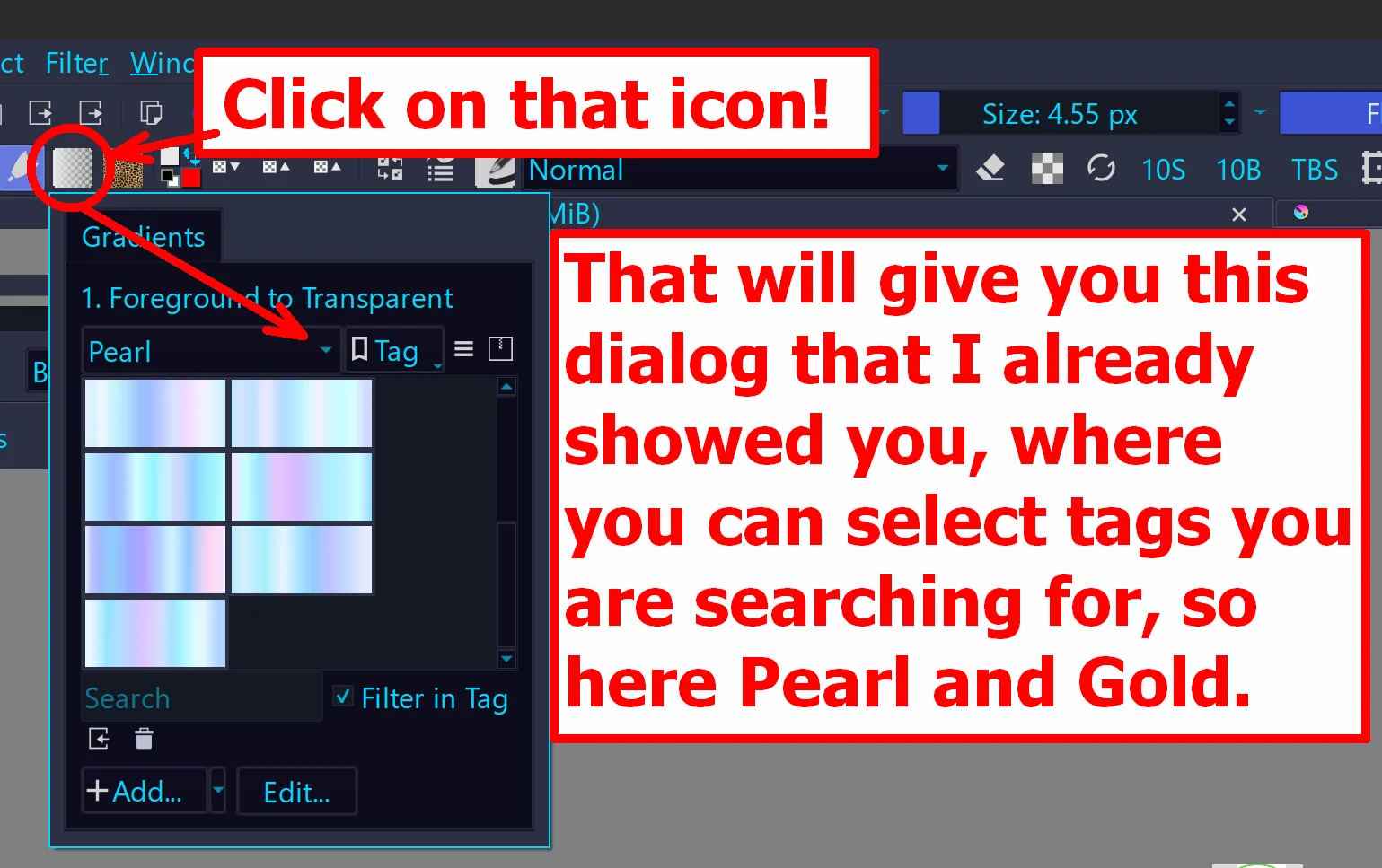
To use gradients, you must have selected Krita’s Draw a Gradient (G) Tool from Krita’s so-called Toolbox, that is the many icon’s dialog on the left side where you can select the Freehand Brush Tool (B), the selection tools, the Fill a contiguous region of colour with a colour, or fill a selection. (F) Tool or simply called the “paint bucket”, the “fill tool”.
You can fine tune the way Krita applies the chosen gradient to your canvas using Krita’s most important docker, that is the Tool Options Docker which you will find in a fresh installed Krita on a tab below the tab of the Advanced Color Selector Docker in the upper right corner of Krita.
So, and that should give you enough to play with for the next time. If you have any further questions, feel free to ask. It may be good to ask them then in a new topic created by yourself in one of our support area categories, that are the categories in the green “color coded” area of the forum’s homepage https://krita-artists.org/.
Michelist
1 Like
wow, this works now! Thank you for the thoughtful reply, as you can tell I am reletivley newer to Krita so I am so sorry if i misunderstood you or didnt understand what you asked. This helped me a lot and taught me a bit about gradients too! I am now going to use the gradient tools and thanks again for clearing this up!
3 Likes
Thank you, you’re welcome, I’m glad if it helped you.
Michelist
1 Like