Please let me know if there is a problem. This is my first time making brushes and publishing them
Also I plan on making more but for now I just want to check my work
Thank you so much! I’m so happy it worked, especially since I didn’t delvetoo deeply into the settings. I only watched half the tutorial videos to understand how they work, and for the rest, I experimented with different settings until I got the closest result possible. So, there are still a lot of things I don’t know how to do.
i seem to have problem with this bundle. it didnt show up. regardless i already locate it where it should. says exist in the krita but i try to find it. already updated the krita. delete the bundle and reupload it again. still no show on the list
A lot of the time the brushes in a bundle are not tagged and end up in the untagged category. I usually find them there then right click - assign to tag and create the tag for them.
@nzartsy The People_Brushes.bundle file is Imported using Settings → Manage Resource Libraries → Import.
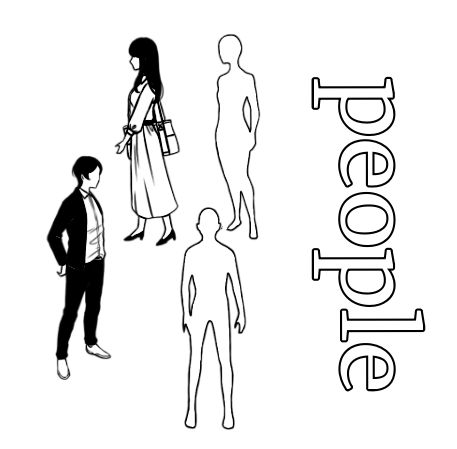
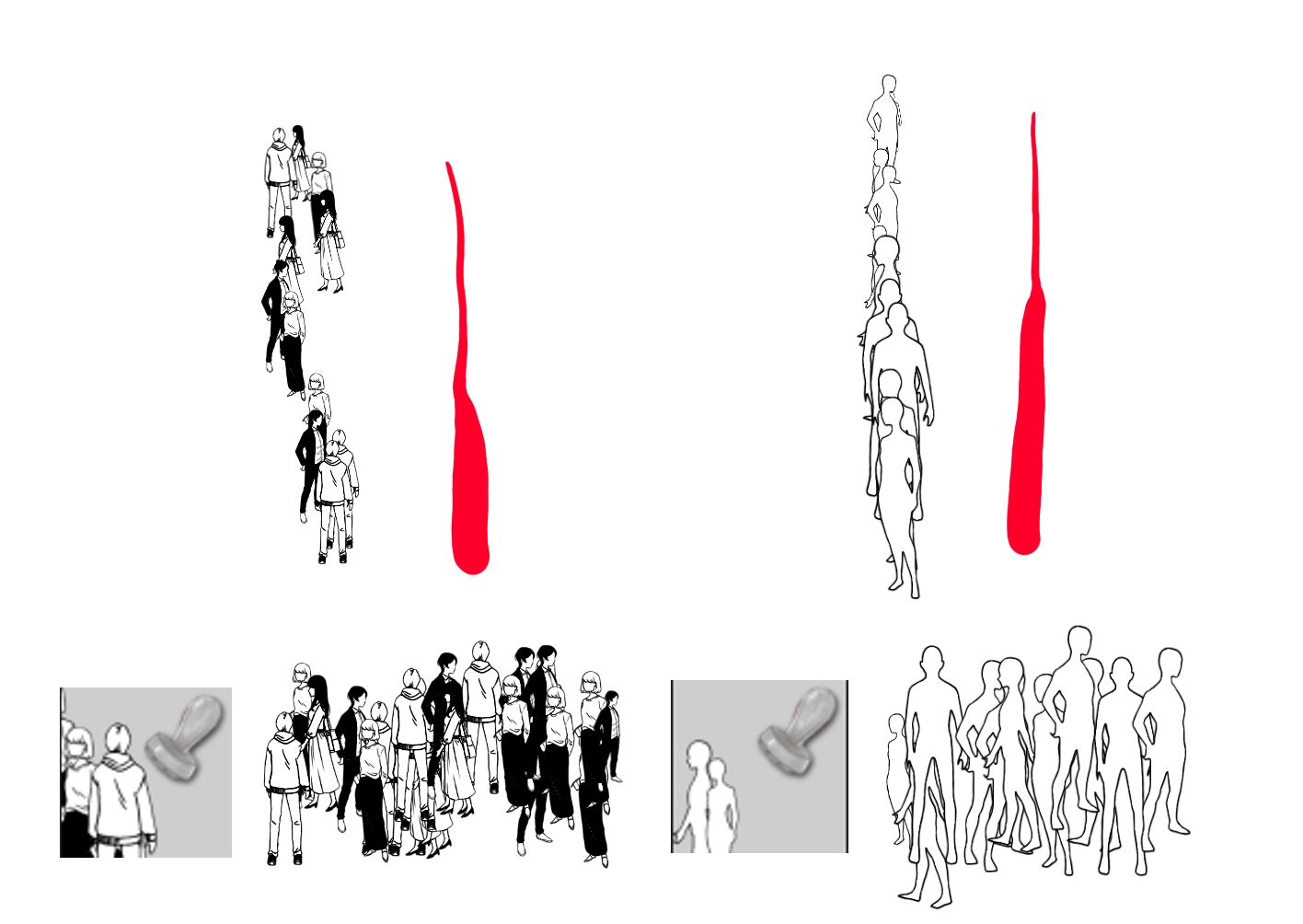
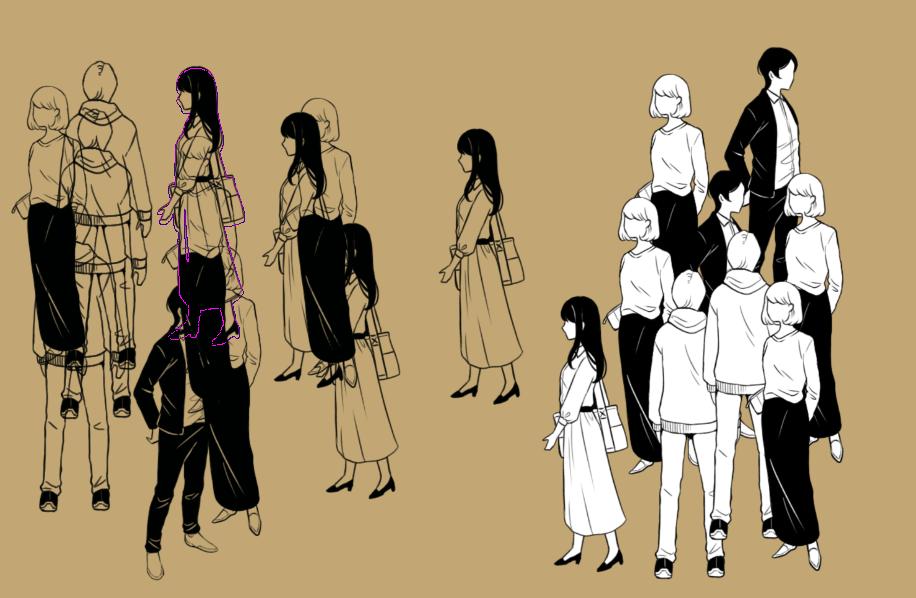
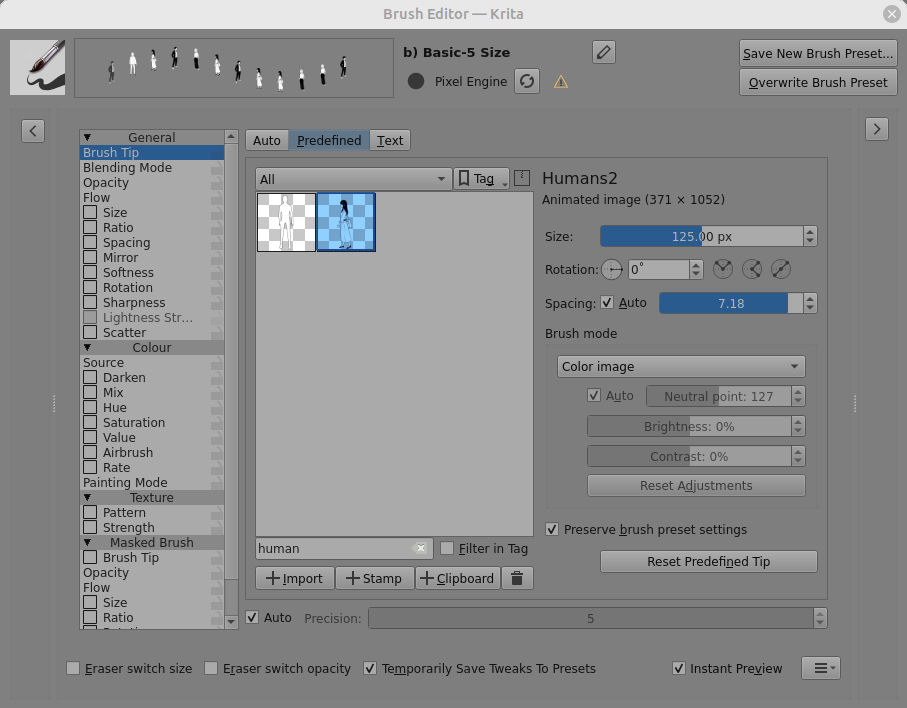
It contain just two brushtips, called Humans.gih and Humans2.gih.
These are animated brushtips and you use them by ‘fitting’ them as a brushtip in the Brush Editor.
In the Brush Editor, here are suitable settings to use:
I tested by temporarily editing the Basic-5 Size brush preset and would use the ‘Save New Brush Preset’ button if I wanted to make a new brush preset to keep that particular effect with the Human.gih or Human2.gih brushtip images.
You can also check any bundles content via Settings > Manage Resources..., there you have to select the bundle to check in the second drop-down menu, for a fresh imported bundle you usually have to scroll to the very bottom, and after you selected the bundle you can check its content using the resource types-chooser which is the first drop down menu. That will show you for each selected resource type the content your bundle has in it or not.
While checking the resource types you can directly tag untagged ones with the tags you find appropiate.