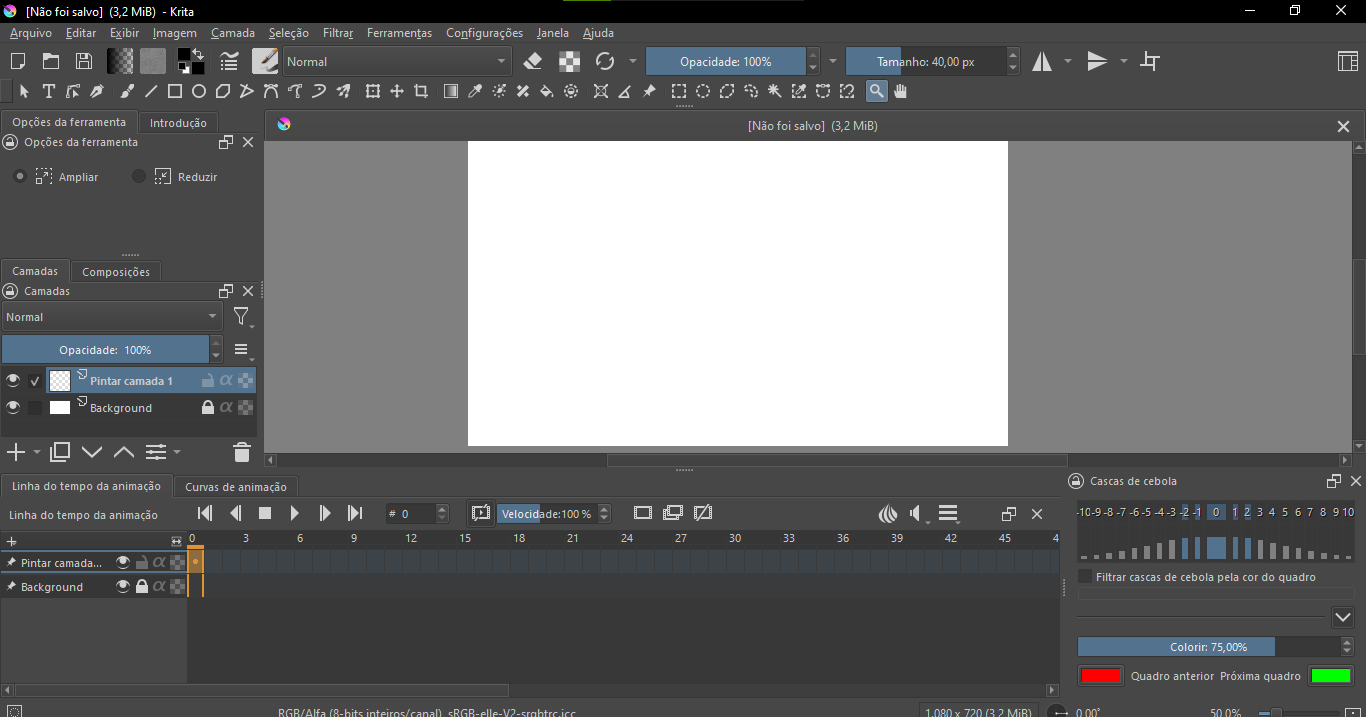
i dont know what to do anymore, i’ve restarted krita, i’ve adjusted the HiDPI, i really dont know how to fix this
 Hello @catwithapencil, and welcome to the forum!
You have to enable “Enable HiDPI support” and “Enable fractional scale factor” as you already did, then you can create a batch file to start Krita with, this is a text file with the file name extension *.bat, it has to get these two lines of text:
set QT_SCALE_FACTOR=1.2
start /d "C:\Program Files\Krita (x64)\bin" krita.exe
(The path to Krita is based on the assumption that you are using a standard installation of Krita. If your Krita comes from Steam or the Epic or Microsoft store, you will need to adjust this.)
Name it, for instance start Krita.bat and save it on your desktop, from there you can start Krita via a double click on that batch file. If you like, you can assign Krita’s icon to the batch file, do a right mouse click on the batch and select Properties in the opening dialog select Change Icon (that may have a slightly different name, I have no English Windows) and in the next dialog enter c:\Program Files\Krita (x64)\shellex\krita.ico, see screenshot:
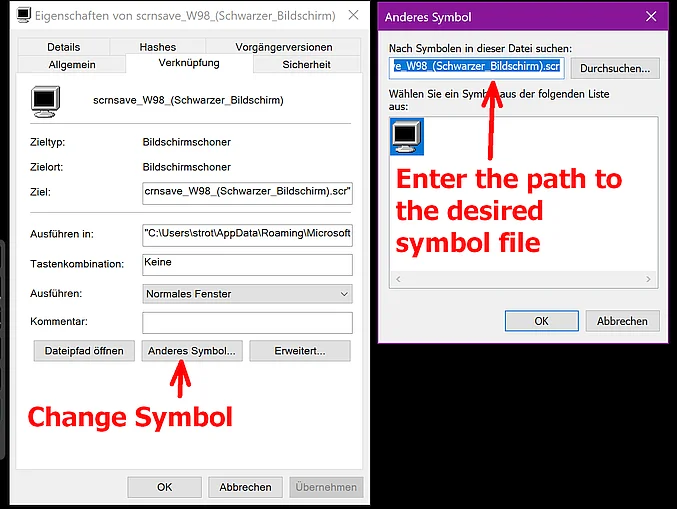
In this file, you need to change the factor, which is set to 1.2 in this example. Without further information, I can only assume that you have set a high scaling for the display of Windows on your monitor, perhaps 200%. You can use this batch file to set a measure to mitigate this. For example, I have set a factor of 0.85 for my 32-inch 4k display (3840 by 2160 pixels), which is optimal for my needs. You will need to adjust this value until you are satisfied with the scaling.
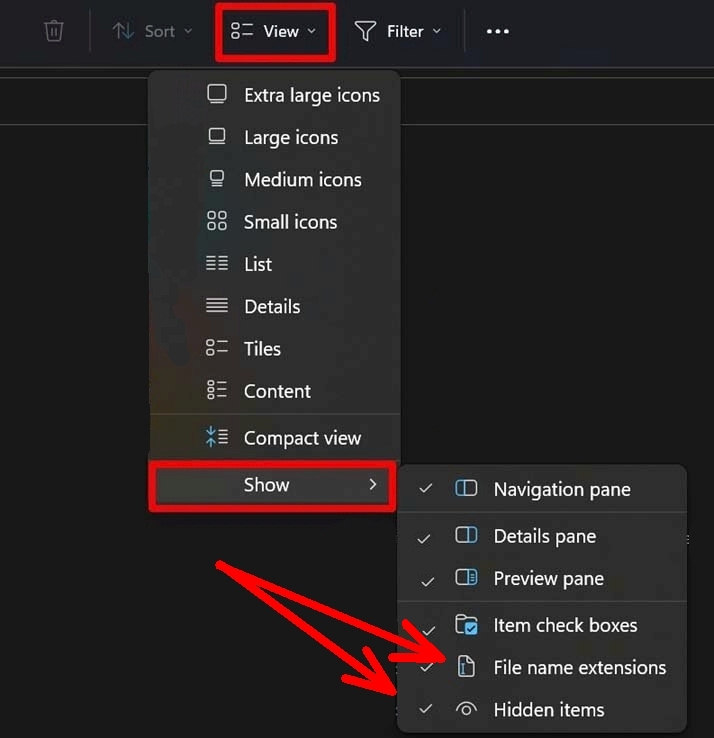
However, you must first enable the display of hidden files in Windows Explorer and also show hidden file extensions, otherwise Windows will not allow you to create this batch file correctly, see screenshot.
In Windows Explorer, select at least the last two checkboxes, you can select the others as you see fit. I find their settings helpful, but that is your decision:
I hope this will help you, but now I have to sleep for a few hours, if you need further assistance you have to hope for other helpers stepping in or wait till I’m back.
Michelist
How small is your screen resolution? Do you have Windows UI scaling enabled? You can grab the edges of the dockers (at the canvas view border) and drag them smaller.
my screen is 1366 x 768, and yes windows ui is enabled. the dockers go to a certain limit, so theres no way in making them smaller than that
The UI size seems normal on a 1366x768 screen, unfortunately. (Have one on hand, which is quite crowded with default UI…), unless display scale factor can set to lower than 100%
There are some setting in GPU driver which can upcast the resolution higher than physical screen, but text will become blurry. (“AMD: Virtual Super Resolution” or NVIDIA: “DSR”)
Or find a way to quickly toggle animation docker?
What device do you have with such a small screen resolution? Didn’t see such small numbers in over 10 years, except maybe on the Steam Deck or other handheld. It’s not a PC, isn’t it?
It seems you did not try the QT_SCALE_FACTOR so far, because that is able to scale your Krita. If you have issues creating the batch file, then please tell us where you are stuck, what did not work the way you expect?
Michelist
I don’t think it can scale it down though. The 1366 x 768 resolution is similar to that of a Steam Deck or Nintendo Switch. Krita has some hard coded limits of how small some of the dockers and panels can go, especially the animation timeline. HiDPI settings only cover actual high resolution screens, and that’s the opposite.
Only way I see this working is increasing the screen resolution (assuming the monitor is simply not configured correctly) or hiding all the dockers that aren’t necessary to make room for more canvas space.
That can be. … and would be sad for this case. For High-DPI displays, you can set working values above/below 1.0.
Michelist
no no its a laptop
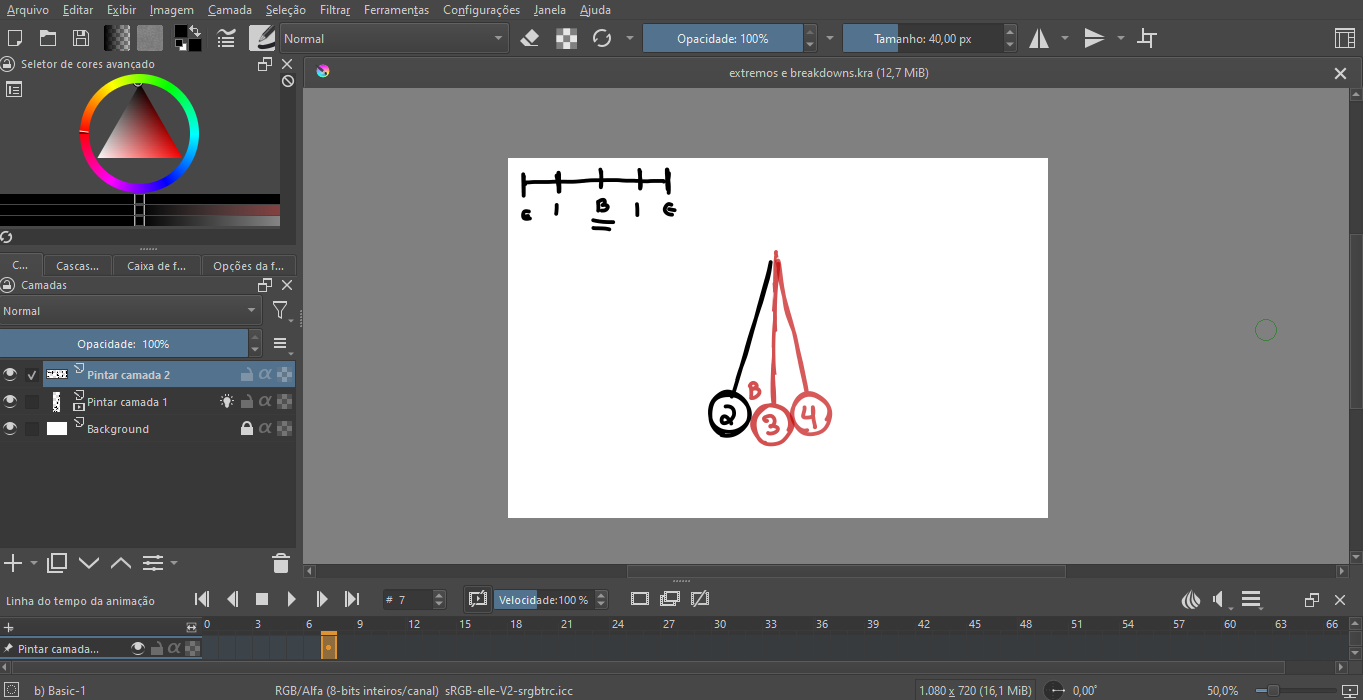
I’m glad that you’ve been helped and that you can now use Krita with fewer restrictions.
Thank you also for the feedback and the screenshot. We now know and can see that a user interface, namely your Krita interface, can be scaled in both directions using QT_SCALE_FACTOR, something I had hoped and suspected, as it works on Hi-DPI displays, even though @Takiro’s understandable argument really made me doubt it.
Well, the main thing is that it helps you. I hope you enjoy using Krita in the future!
Michelist
I think even my old EeePC notebook I had 15 years ago had a higher resolution screen. You should double check what your laptop’s maximum screen resolution really is and if it’s set correctly.