If you are not able to reset Krita by the tip of @raghukamath, then you can save the configuration files and the log files, in the folder
“c:\Users\YOUR_WINDOWS_USERNAME\AppData\Local\”
and you can find the resource folder at
"c:\Users\YOUR_WINDOWS_USERNAME\AppData\Roaming\Krita".
In both cases you have to replace the part “YOUR_WINDOWS_USERNAME” with your Windows user name, i.e. the name you use to log in to Windows, then for instance it could look like “c:\Users\Hazel\AppData\Roaming\krita\”.
If you can’t find this folder path, then you usually can’t find the folder “AppData”, so you have to enable the view of hidden files and folders in Windows first. How to do this is explained in the screenshots at the end of this article.
Only when you can see this or have activated it now you can continue with the next section.
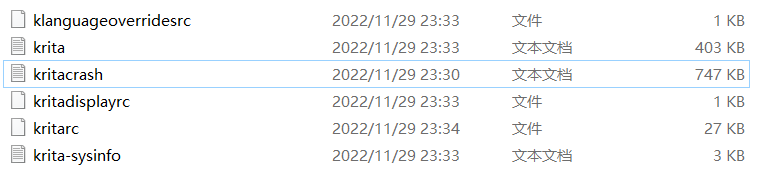
I would like to ask you to first look for the following files at the end of the following folder (not in a subfolder of it) “c:\Users\YOUR_WINDOWS_USERNAME\AppData\Local\” and save them in a different location:
“kritarc”,
“kritadisplayrc”,
“kritashortcutsrc”,
“krita.log”,
“kritacrash.log”,
“krita-sysinfo.log”
But only if these files exist there (because not every of these files must exist (if you want you can save every file with krita in the name there, they are usually small and need little space)).
Following @AhabGreybeard’s hint, I now ask you to first go to the resource folder krita and rename it to krita-problem and then start Krita. This way we can find out if the resources are the cause.
(That would be this folder: "c:\Users\YOUR_WINDOWS_USERNAME\AppData\Roaming\krita").
If Krita then starts again we need to take a closer look at your folder renamed to krita-problem.
If Krita doesn’t start again, please go to the folder from which you previously backed up the files, like the “kritarc”. You have backed them up, right? If not, then make a backup of the above mentioned files!
After this backup rename the file “kritarc” to “kritarc.old”.
Now please start Krita again. Does Krita start now? Please tell us what happens.
##################
Now, about the folder “AppData” (only in case you can not see this folder, if you can see it, you do not need the next things):
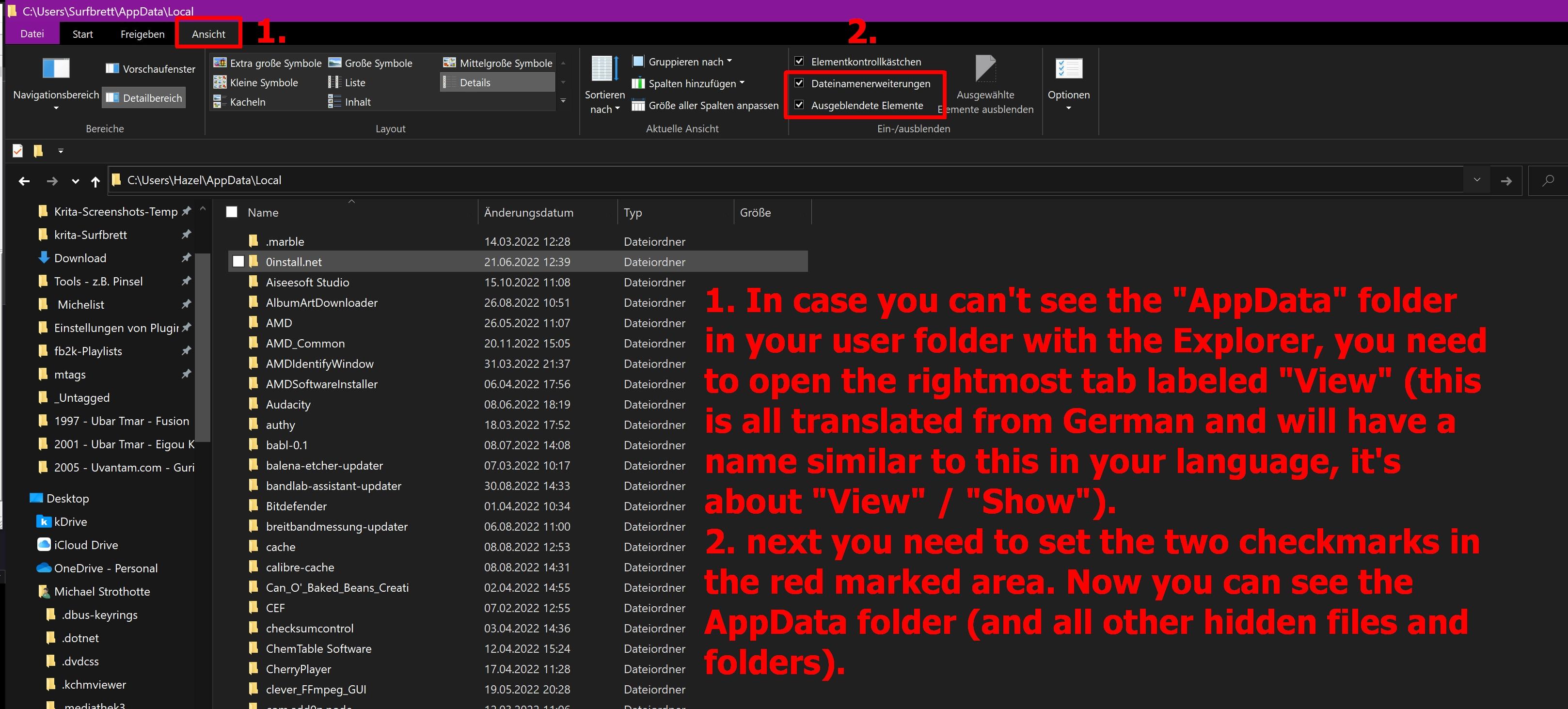
If you select your Windows-User folder in the folder bar of Windows Explorer (Point 1) and you can’t find the folder “AppData” among the existing folders on the right (Point 3), then you have to activate the view of hidden files and folders.
So, in case you can’t see the folder “AppData” in your Windows user folder with the Windows Explorer, then you have to open the rightmost tab in the top-bar on Windows Explorer, labeled “View” (Point 1)
(this is all translated from German and will have a label similar to this label in your language, it’s about to “View” or “Show” something).
Next, (at Point 2) you need to set the two checkmarks in the red highlighted area.
Now you can see the AppData folder (and all other hidden files and folders in the Windows Explorer) and you can proceed ↑.
###################
In case you don’t understand something and don’t know what to do next, don’t hesitate to ask us for support. Please tell us what you have done so far and what happened or did not happen.
Michelist


 But I was in my work place now, and the problem is on my computer in my home, I will check it again two hours later when I finish my work.