As per the title, I recently got a Wacom Cintiq Companion 2 (Windows 10 OS). It’s a lovely tablet, but I’m having some issues configuring Krita for my preferences. I’d like the Pen when turned upside down to automatically function as an eraser. When I try to zoom in and out with finger and thumb together, it sort of goes crazy between zooming and rotating the canvas all over the place. How can I configure the canvas so that it will only attempt to zoom, rather than rotate when I do so? also when holding the pen, if any part of my hand touches the screen, it’ll draw these horrible scribbles , which I then have to undo. Removing this aspect too would be helpful!
Any help in this regard would be much appreciated!
Type of device* : Tablet
Brand and version of the device: Wacom Cintiq Companion 2
System** : Windows 10
* graphics tablet/display tablet/2-in-1 laptop/Android tablet
** Windows/Linux/Mac/Android, + version (you’ll find it in Help -> Show system information for bug reports)
Description of the issue (you can include screenshots):
Krita doesn’t have an eraser tool, it uses brush presets that are designed to function as erasers. These can be found in the brush presets docker and have ‘eraser’ in their names.
It also has the ability to make any painting brush preset perform erasing action by toggling the ‘Set eraser mode’ icon on the toolbar (shortcut ‘E’).
When you turn your pen upside down, assuming the pen has that facility, krita recognises it as an alternative and independent brush.
The alternative brush can be used to select any brush preset and that will be remembered throughout the session. So, you can turn your pen around, use it to select an eraser from the brush presets docker, then use it as an eraser from then on.
B:
I have no experience in this area.
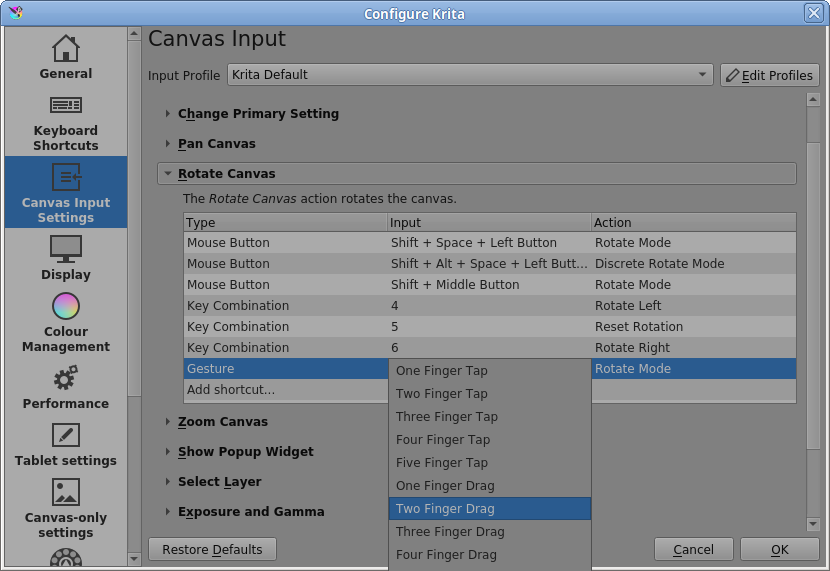
I know that version 5.1.0 will have Gesture control settings/adjustment in the canvas input settings and you can try the 5.1.0-beta2 now. I’d suggest that you use the portable .zip package at first if you want to try it: https://download.kde.org/unstable/krita/5.1.0-beta2/krita-x64-5.1.0-beta2.zip
You could try Settings → Configure Krita → General → Tools tab. there an option called ‘Enable Touch Painting’ that you could disable.
I don’t know how that would affect finger touch sensitivity for control purposes.
In 5.0.6 there’s still have “Enable touch screen rotation gesture” in the same tab as “Enable touch painting”, but in 5.1.0 it will move to Canvas input settnig like AhabGreybeard mentioned.