I’m trying to create a layer group with two file layers and then flip one of the layers horizontally.
Creating a transform mask and using the transform tool (C+t) to flip horizontally works, but then when I move the whole layer group, the file layer with the mask moves in the opposite direction, Is there a way to prevent this?.
Hello @mirkoh and welcome to the forum 
Can you upload a full screen screenshot with the Layers Docker fully visible.
That would help people to better understand what you are doing.
At first reading, that sounds like what I’d expect from a ‘horizontal flip’ transform mask.
It depends on the exact arrangement that you have and on the content when you made the mask.
Hello @AhabGreybeard, thanks for the help with this.
Here is the screen, and the steps
- Import a file layer.
- Then clone it (C-c then C-v)
- Then create the transformation mask, (Add Transform Mask)
- Then use the transform tool (C-t) and do Flip selection horizontally.
- Group both layers (including the transformation mask) (C-g)
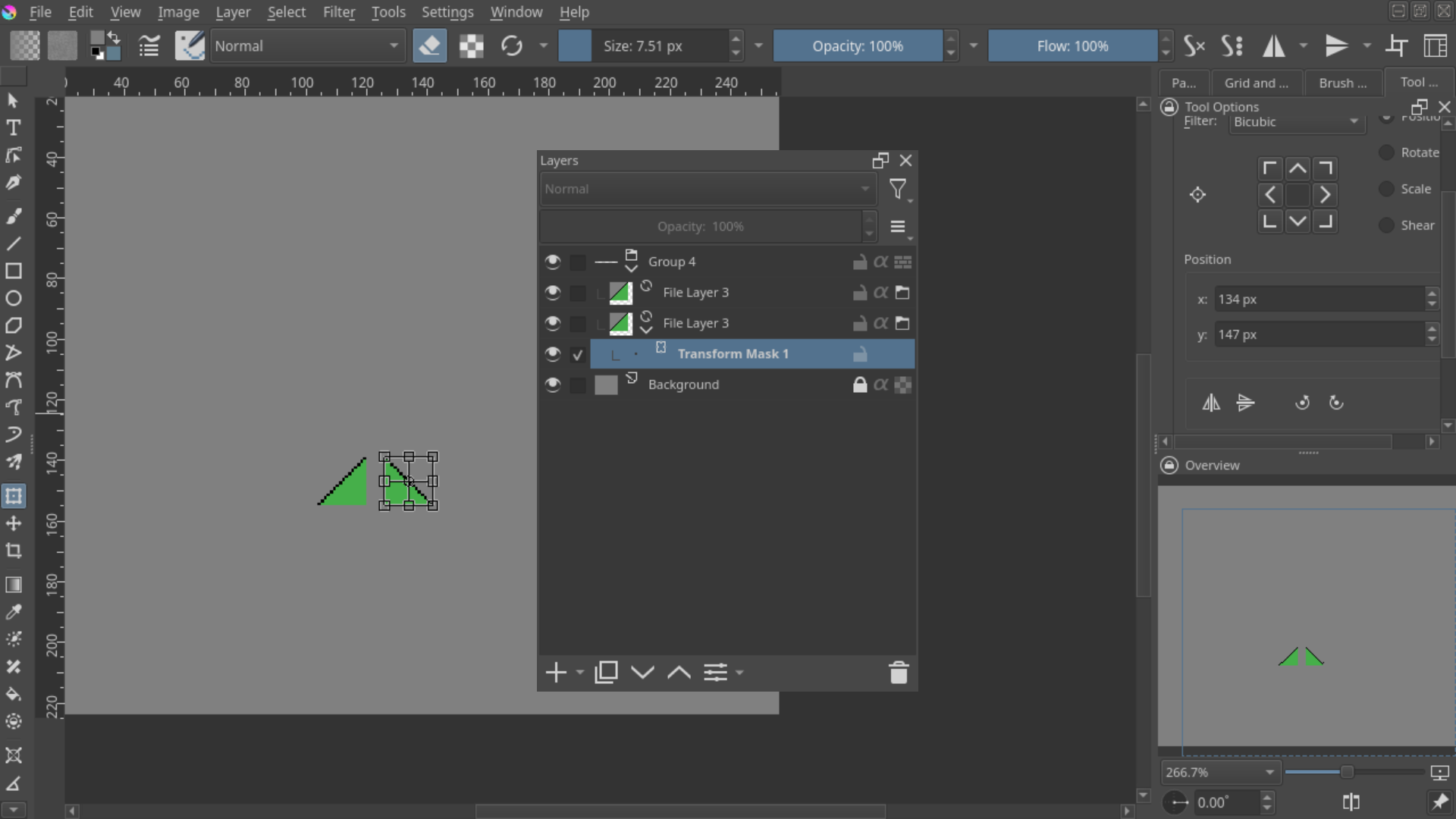
After this if I select the group and move it both triangles get separated.
That’s not a ‘clone’, it’s a copy action.
‘Clone’ is what you do to a layer when you select it then right-click → Add → Add Clone layer.
A clone is a ‘live copy’ and will be updated with any changes that are made to its original source layer. There are things you can’t do to a clone and some things that you can’t clone. They are also expensive in CPU power.
The way to get those two triangles to stay together is to select the one with the transform mask on it then do right-click → Flatten Layer.
That will incorporate the effect of the transform mask on the file layer image and then created a paint layer as the result.
So, the resulting image will not update if the source file changes.
The reason they drift apart is that the transform mask was created with a specific location for the ‘pivot point’ which would have been the centre of the bounding box of the content when the transform mask was made.
That pivot point is then at a fixed location and the horizontal flip of future content is made around that pivot point.
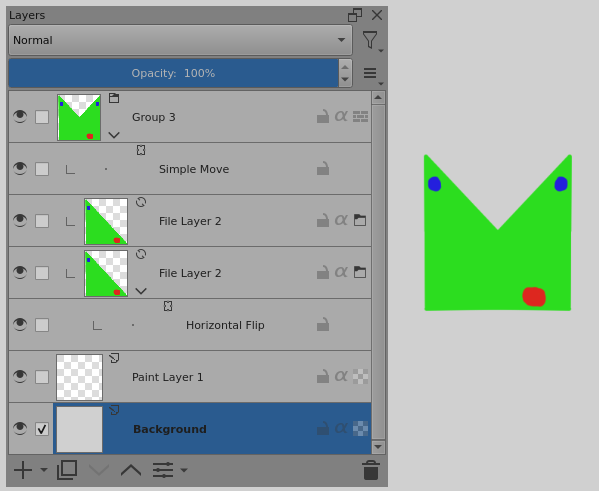
The only way I can think of to move them both and keep them together while having them both stay as file layers would be to put a transform mask on the group layer and use that to perform the move operation.
That transform mask would operate on the composited content of the group:
1 Like
Thank you @AhabGreybeard!, your solution of adding the mask to the group works beautifully.
That’s not a ‘clone’, it’s a copy action.
Also thanks for your detailed answer about the clone operation and comments on the flatten operation, I’m not familiar with Krita’s terminology yet (that is why I included the shortcuts) so your answer was very instructive.
1 Like
This topic was automatically closed 4 days after the last reply. New replies are no longer allowed.